Can the teleprompter float over other apps on iPhone?
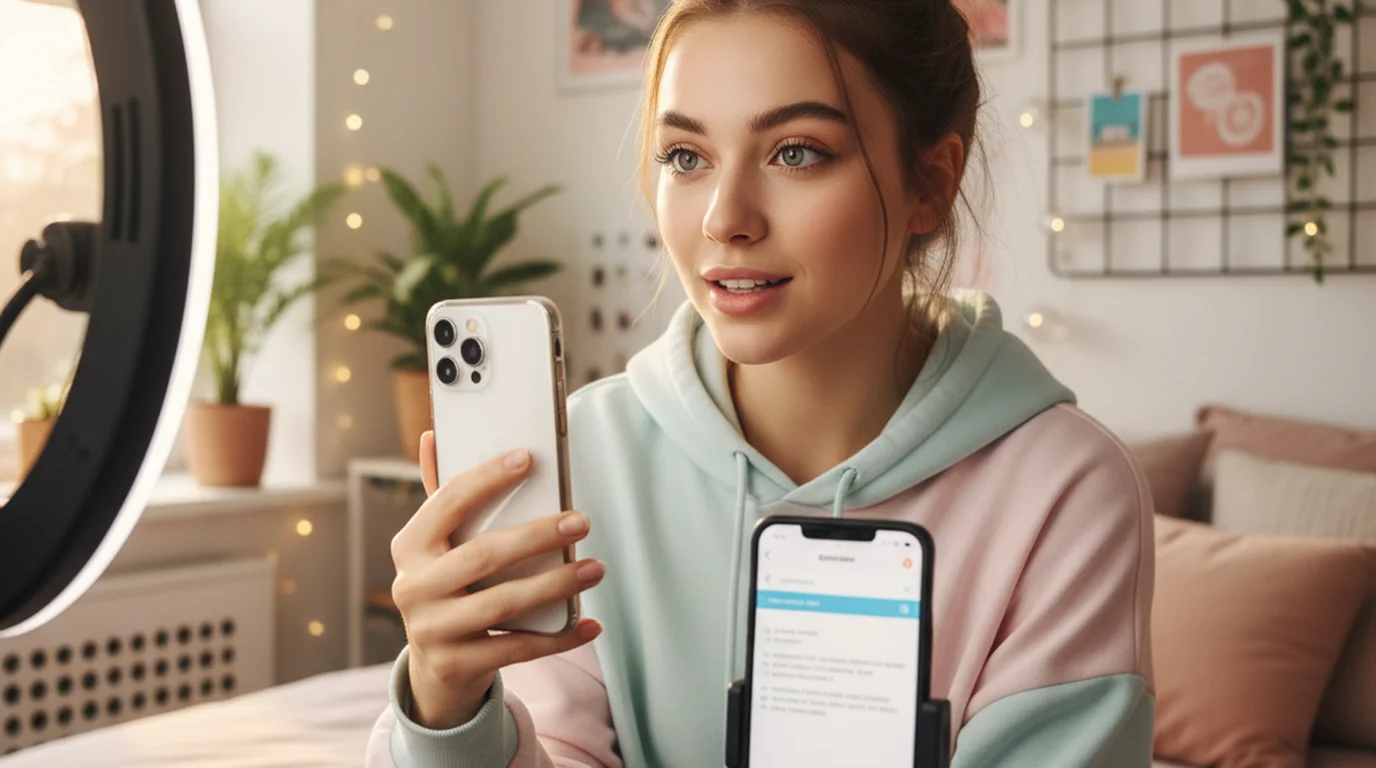
Yes. Teleprompter Scrolling Scripts for iPhone and iPad has a floating window that works like Picture in Picture: your script keeps scrolling in a small window on top of TikTok, Instagram, Zoom, the Camera app, Keynote, or any other app. The window carries play and pause plus two skip buttons that jump to the previous and next section of your script. It arrived in version 3.12, and the app is free to download.
What the floating window does
The floating window takes the script out of the iPhone app and into a small picture-in-picture window, the same kind of window a video uses when you leave a video app. Switch to another app and the window stays on top, scrolling at the speed you set. Drag it next to the front camera so your eyes stay close to the lens, pinch to resize it, and use the window's return button to go back to the full app.
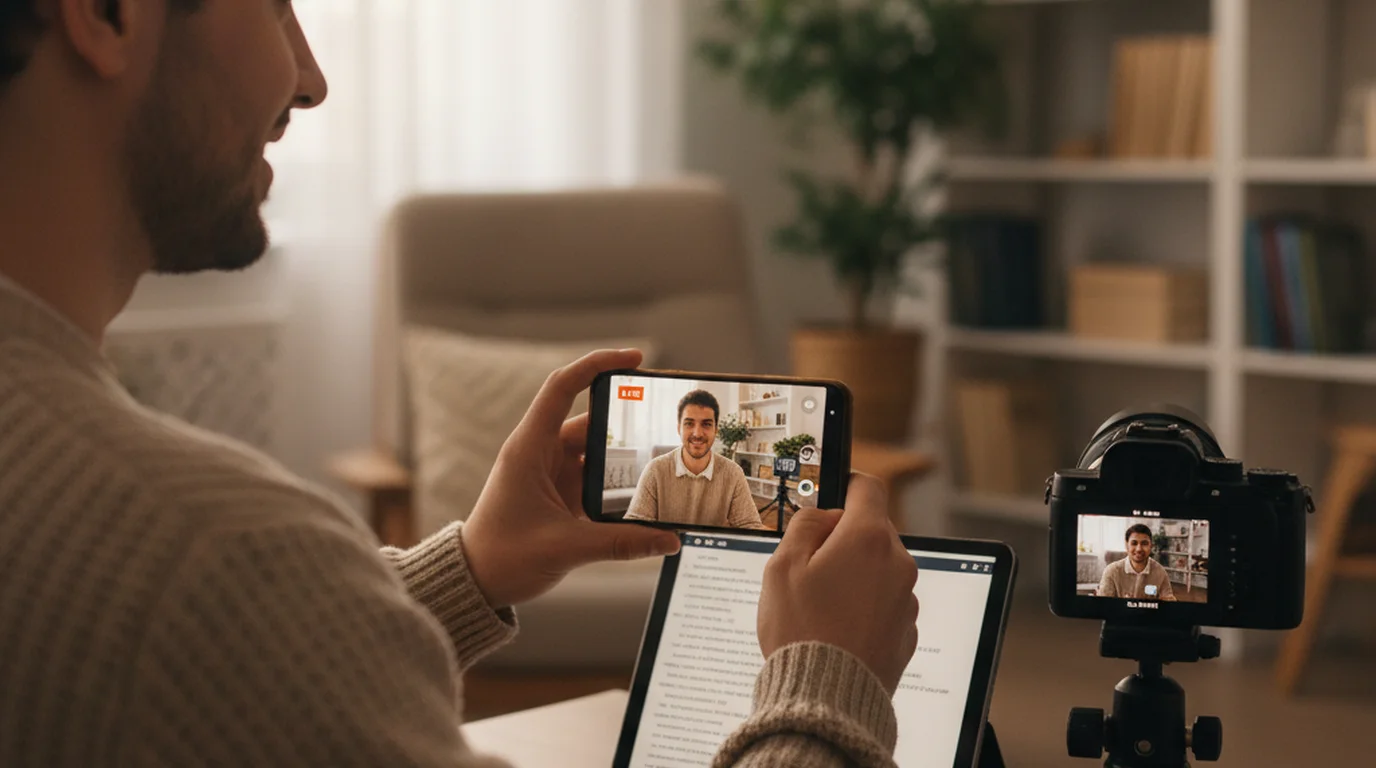
On iPhone and iPad the floating window shows your script while the app underneath does the recording. TikTok, Instagram, the Camera app, or Zoom captures the video, and you read from the window above it. To record inside Teleprompter Scrolling Scripts as you read, use Camera mode for video or Voice mode for audio.
How to open it
- Open a script in Teleprompter Scrolling Scripts. Type it, paste it, or import a Word, PowerPoint or PDF file.
- On the project page, tap the floating window icon.
- Set the playback speed, text size, line spacing, text and background colors, and text position. The preview shows exactly what the window will show.
- Tap Open floating window.
- Switch to TikTok, Instagram, Zoom, or the app you are recording in.
- Press play in the window and start speaking.
The window keeps its own settings, separate from Prompter mode, and you can change them while it is open. To close it, go back to the app and tap Close floating window.
Controls inside the window
- Play and pause start and hold the scroll.
- Previous section jumps back to the start of the section before, for a retake of a line.
- Next section jumps ahead to the following section, handy at the transitions of a talk or between Reels.
TikTok, Instagram, Zoom and the Camera app
TikTok
Open the floating window, switch to TikTok, and open the TikTok camera. Park the window at the top of the screen near the front camera, press play in the window, then start the TikTok recording. For hooks and pacing, see the TikTok teleprompter guide.
Instagram Reels, Stories and Live
The window floats over the Instagram camera for Reels and Stories, and over a Live broadcast. Keep it to two or three lines so it covers little of the frame you see. The Instagram Live guide covers a full setup on iPhone and iPad.
Zoom on iPhone or iPad
Join the call in the Zoom app, then bring up the floating window and drag it near the camera. Participants see your camera feed, and the script stays on your screen. The Zoom teleprompter guide compares this with the Mac setup.
The Camera app and Keynote
Over the built-in Camera app, the window turns any video mode into a scripted take. Over Keynote, it works as speaker notes that scroll while you present.
iPhone and iPad compared with Mac
Teleprompter Scrolling Scripts has a floating window on iPhone, iPad, and Mac. All three float over other apps and carry play, pause, and previous and next section buttons.
- iPhone and iPad: a picture-in-picture window over any app. It shows your script, and the app underneath records.
- Mac: a window that stays on top of every app, including full-screen apps and other desktops, without taking the focus. It records as well: opened from Camera mode it shows a camera preview and starts and stops a video recording, and opened from Voice mode it records audio. Since version 3.12.3 it also has its own text alignment and mirror settings.
For calls and desk recording on a computer, see can the teleprompter stay on top of Zoom on Mac?
The floating window keeps your script on top of TikTok, Instagram and Zoom on iPhone and iPad. Free to download on the App Store.
Use Free Online Teleprompter Get the Free App