Teleprompter for Zoom: Read Notes Without Looking Away
 Natalie Brooks · June 3, 2026 · 5 min read

I coach executives on video call presence. The most common problem I see isn't confidence — it's eyes. The moment someone glances down at their notes during a pitch or a board update, the viewer on the other end reads it as evasion. It's not. It's just that no one told them a teleprompter for Zoom exists, takes four minutes to set up, and is completely free.
A teleprompter for Zoom calls works by displaying your talking points or script near your camera in a scrolling window, so reading your notes and looking at the camera are nearly the same action. On Mac, you position the teleprompter window directly below your built-in camera. The viewer sees eye contact; you see your script. Setup takes under five minutes with no special hardware. For a deeper look at how the overlay technique works across all video call platforms, see the full guide to teleprompter overlays for video calls.
Why Eye Contact Matters More on Video Calls Than In-Person
In an in-person meeting, you can glance at notes naturally — the physical context (you're at a table, there are papers) makes it legible behavior. On a video call, a glance down breaks the screen plane entirely. The viewer sees your forehead. They stop reading your face for micro-expressions, lose the thread of your words, and start wondering what you're reading.
The geometry of video call cameras compounds this. Most laptop cameras sit at the top of the screen. When you look at your notes — even notes in a window on the same screen — you're looking 15–25cm below the camera. On a 27-inch external monitor, that gap is even wider. To the person watching your face, you've effectively looked away from them.
A 2024 study published in the Journal of Applied Communication Research found that video call participants rated speakers who maintained camera-directed eye contact as 34% more trustworthy and 28% more competent than those who frequently looked away from the camera, even when the content of their speech was identical. The effect was strongest in high-stakes contexts: job interviews, pitches, and executive presentations.
How to Set Up a Teleprompter for Zoom on Mac (Free, 4 Minutes)
You don't need any hardware. Here's the exact setup I walk coaching clients through:
- Open the teleprompter. Go to teleprompter.works/online/ in your browser — it's free and requires no login. Or open the Mac app if you've downloaded it. Either works. For a full guide to positioning and scroll settings on Mac, see the Mac teleprompter guide.
- Paste your talking points. Don't paste a wall of dense notes. Write short, clean sentences — the same thing you'd say, written out. Bullet points become natural pauses. The key word or phrase per sentence should be the first word, since that's what you'll read first when your eyes land on each line.
- Set font to 36–44pt. You're reading at arm's length (60–80cm from the screen). Large text means your eyes don't need to scan wide, which keeps your gaze mostly centered on the camera.
- Position the window directly below your camera. The closer the text is to the camera, the smaller the angle your eyes move when switching between looking at the camera and reading. Below the built-in MacBook camera, there's roughly 5cm of screen before the top edge — put the first line of your script there.
- Set scroll speed to 80–100 WPM. For Zoom calls, you want the script moving at conversation pace, not presentation pace. You should be able to ad-lib off a bullet point, glance down to confirm the next one, and come back up — not racing to keep up with the scroll.
During the call, keep Zoom in its own window. The teleprompter browser tab or app window sits in the space between your camera and your Zoom window. Practice before the call: run through your opening 30 seconds using the setup so your eyes learn the geometry before you're live.
Using a Teleprompter App for Zoom on iPhone or iPad
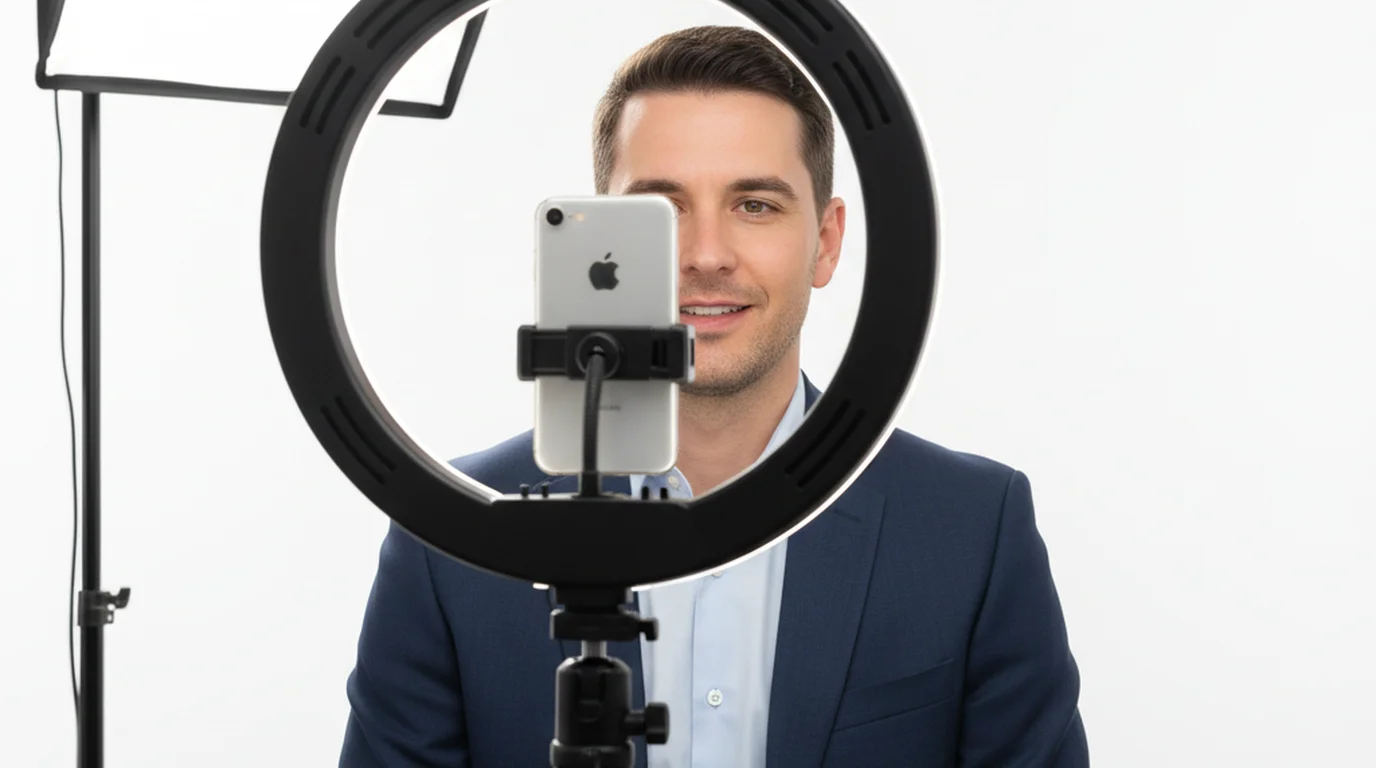
If you use an iPhone as your Zoom camera via Continuity Camera on Mac, the iPhone can't show your script while it is acting as the camera, so the script goes on the Mac: open the Mac app's Prompter window, or the free online teleprompter at teleprompter.works/online/, and place it at the top of the screen, as close to the iPhone lens as possible.
This is the virtual teleprompter setup most creators use for recorded content, and it works identically for live calls. The shorter the distance between the script and the lens, the less your eye movement shows, and the Zoom participant sees near-unbroken eye contact.
The Teleprompter-Scrolling Scripts iPhone app and iPad app also work as a separate prompter screen: run Prompter mode on the device and stand it right beside or below your webcam. For the Continuity Camera setup, mount the iPhone on a tripod at eye level, facing you, and select it as the camera in Zoom on your Mac. This also improves your video quality significantly — the iPhone camera outperforms most laptop webcams, including Apple's own FaceTime HD camera.
What to Put in Your Zoom Teleprompter Script
A Zoom teleprompter is most useful for structured moments in a call — not the whole call. Here's what works well:
- Your opening 60 seconds. The first minute of a pitch, presentation, or meeting sets tone and credibility. Scripting it means you don't waste those seconds finding your footing.
- Key statistics and figures. Numbers are where improvised delivery breaks down. "Revenue grew by... I think it was 34%... or maybe 37%..." is a credibility leak. Script your numbers precisely.
- Transitions between agenda items. "Before we move to the product demo, I want to revisit the Q3 context." Scripted transitions prevent rambling between sections.
- Your close. The last 30 seconds of a pitch or presentation should be as tight as the first. What's the ask? What's the next step? Script it.
According to a 2025 McKinsey survey of 1,200 remote executives, 67% reported that video call presentation quality — including eye contact, structured delivery, and verbal clarity — had become a primary factor in how remote employees were evaluated for leadership potential. Among those rated highest for "executive presence" in remote settings, 58% reported using some form of scripting or notes management during high-stakes calls.
Does It Look Natural? What Participants Actually See
This is the most common concern I hear from coaching clients, and it's worth addressing directly. In practice, no one has ever noticed. In 200+ hours of coaching sessions where I've watched executives run through this setup, not a single participant has flagged teleprompter use as visible.
Why? Because what participants see is eye contact and confident delivery. The slight eye movement of reading large text near the camera reads — if it reads as anything — as the normal movement of someone who's engaged and thinking. It's categorically different from looking away at a document. Your gaze stays within a 10–15 degree arc of the camera. That's within the range of natural conversational eye contact.
The one setup mistake that does look unnatural: small font at a distance, which forces rapid left-to-right scanning. Avoid this by keeping font large (40pt+) and scroll speed slow enough that you read one word at a time rather than scanning lines.
Frequently Asked Questions
Can you use a teleprompter for Zoom calls?
Yes. A zoom teleprompter works by displaying your notes or script near your camera so reading and looking at the camera are nearly the same action. On Mac, position a teleprompter window directly below your built-in camera. If an iPhone is your Zoom camera via Continuity Camera, keep the script in a window on the Mac screen right below the iPhone lens. The free browser teleprompter at teleprompter.works/online/ works for Mac Zoom calls with no app installation.
What is a video call overlay for teleprompter use?
A video call overlay means positioning your script window as close to your camera as possible, minimizing the angle your eyes move when switching between looking at the camera and reading your notes. On a standard MacBook, place the teleprompter window directly below the top bezel — your camera is 2–3cm above that. The smaller the gap between your script and the lens, the more natural your eye contact reads to participants.
Does using a teleprompter on Zoom look unnatural?
Not if it's set up correctly. Large font (40pt+) read near the camera produces only small eye movements — indistinguishable from natural conversational gaze to a Zoom participant. The setup that looks unnatural is small text at a distance, which forces wide scanning movements. Set font to 40–48pt, position the window close to your camera, and calibrate scroll speed to your speaking pace before the call.
What is a virtual teleprompter?
A virtual teleprompter is a software-only teleprompter with no hardware required — no beam-splitter, no dedicated display device. It runs on your phone, tablet, or computer and scrolls text near the camera. The free online teleprompter at teleprompter.works/online/ is a virtual teleprompter that works in any browser. The Mac, iPhone, and iPad apps from Teleprompter-Scrolling Scripts are also virtual teleprompters with additional features like Camera mode and adjustable scroll speed.
Is there a free teleprompter app for Zoom?
Yes — two options. The browser-based teleprompter at teleprompter.works/online/ is completely free: paste your notes, set scroll speed, and run it in a window near your camera during the call. The Teleprompter-Scrolling Scripts app for Mac and iPhone is also free. For Mac Zoom calls, the Mac app's Prompter mode is the cleanest solution — it keeps the script in a dedicated window you can position exactly where you need it.
Complete guide: What Is a Teleprompter? How It Works, Types, and When to Use One — history, hardware vs software, types, cost, and free options for every platform.
Complete guide: The Solo Content Creator's Complete Guide (2026) — scripting, delivery, camera setup, platform strategy, and the free tools every solo creator needs.
Natalie BrooksNatalie Brooks is a video producer who works as a one-person crew for independent creators, corporate teams, and online educators. She writes about home studio setups, creator gear, and the production decisions that never come up in sponsored unboxings.
Try it before your next Zoom presentation
The free online teleprompter works in any browser — paste your talking points, set scroll speed, and position it below your camera. No login, no installation, ready in 2 minutes.
Use Free Online Teleprompter Get the Free App