Video editor's desk with a camera, SD cards and an editing timeline on the monitor

Free tool · No upload · No sign-up

MOV to MP4 Converter Convert MOV to MP4 free online, on any device

Choose a MOV video and download it as an MP4 that plays everywhere. The MOV to MP4 converter is free, adds no watermark and runs in your browser, so the video is never uploaded.

  • No quality loss
  • No watermark

How to convert MOV to MP4

Choose the MOV, press convert, check the preview and save the MP4.

Convert MOV to MP4 in three steps

  1. Press Choose a video and select the MOV file, or drop it on the box. The page reads its length and codecs.
  2. Press Convert to MP4. iPhone and most camera clips are rewrapped, which is quick even for long files.
  3. Play the MP4 in the page, then press Download MP4.

The converter itself is a one-time 30 MB download that your browser keeps for later visits. If the MOV holds ProRes or another editing codec, the page says it is re-encoding to H.264 and the progress bar takes longer; keep the tab open until it finishes.

IMG_4821.MOV
 ├─ video · HEVC · 3840×2160  ──copy──▶  video · HEVC (hvc1)
 ├─ audio · AAC · 48 kHz       ──copy──▶  audio · AAC
 └─ metadata tracks            left out
                                       │
                                       ▼
                              IMG_4821.mp4
The picture and sound move into the MP4 container untouched. Only the wrapper changes.

When the conversion is lossless, and when it re-encodes

The converter looks inside the MOV before it starts. H.264 and HEVC, the two codecs iPhones and most cameras record, are copied straight into the MP4. Every frame stays exactly as recorded, and the file comes out almost the same size.

ProRes, Motion JPEG and older codecs are encoded to H.264 at CRF 23, a quality setting that looks clean on phones, laptops and TVs. Audio follows the same logic: AAC is copied, while PCM audio from cameras and screen recorders becomes AAC at 192 kbps.

Inside the MOVIn the MP4
H.264 videoCopied, identical quality
HEVC (H.265) videoCopied, tagged hvc1 for Apple players
ProRes, MJPEG, other videoEncoded to H.264, CRF 23
AAC or MP3 audioCopied
PCM or other audioEncoded to AAC, 192 kbps
Subtitle and data tracksLeft out
The first video track and all audio tracks are carried over.

iPhone MOV to MP4 for Windows, Android and uploads

iPhones save video as MOV. Some Windows apps, Android phones, learning platforms and job or school upload forms accept only MP4, even though the video inside is the same. Rewrapping to MP4 fixes that in one step while keeping the original resolution, frame rate and sound.

On an iPhone, open this page in Safari, tap Choose a video and pick the clip from Photos. The MP4 saves to Downloads in the Files app, ready to attach or share.

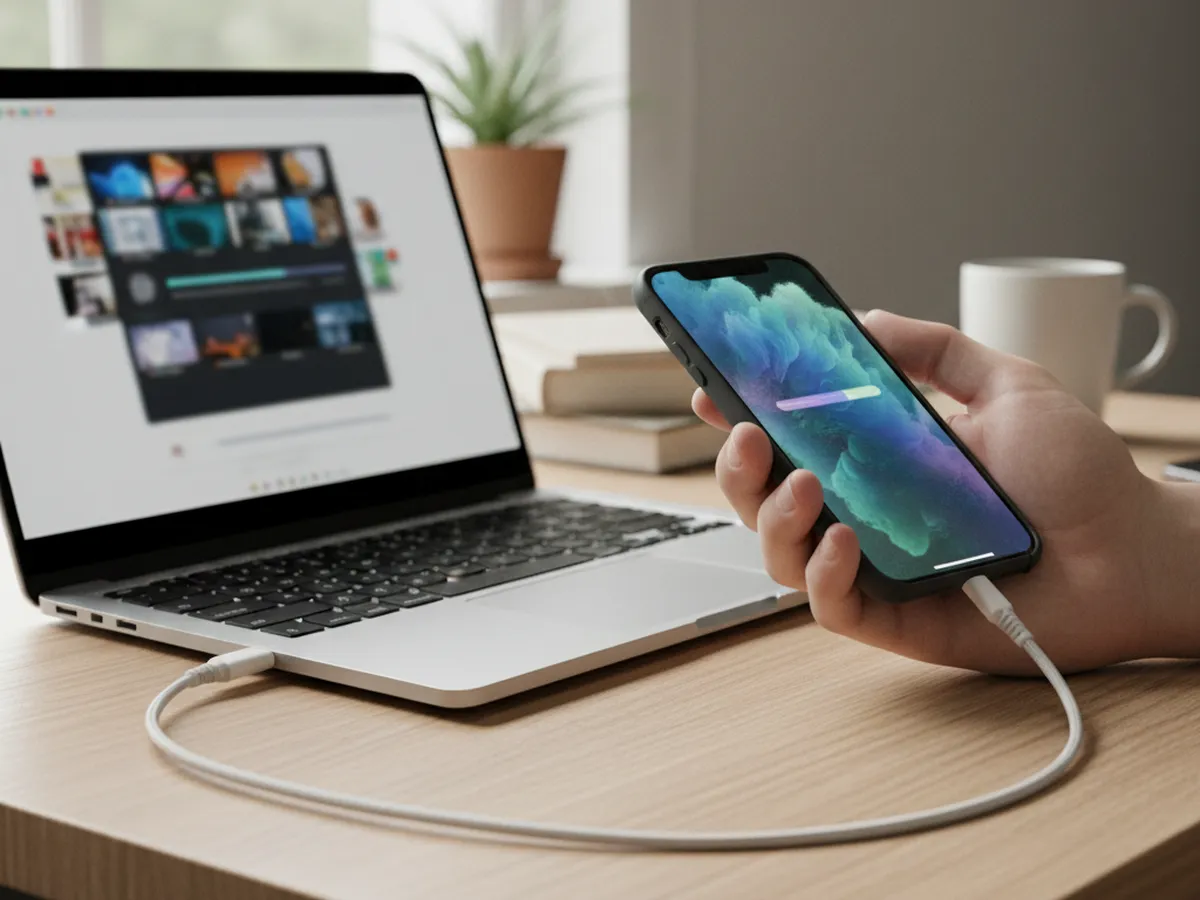
Hand holding an iPhone connected to a laptop by a cable

What is the difference between MOV and MP4?

MOV is Apple's QuickTime container and MP4 is the international standard container that grew out of it. Both usually hold the same H.264 or HEVC video and AAC audio, so converting MOV to MP4 mostly means moving those streams into a new wrapper. MP4 is the format nearly every phone, browser, editor and website accepts.

Because the two formats are so closely related, a good MOV to MP4 converter changes as little as possible. Re-encoding a video that is already H.264 or HEVC would cost time and add a second round of compression for no benefit. This tool copies those streams as they are and only encodes what an MP4 player would struggle with, such as ProRes from a camera or a Mac screen recording saved in an editing format.

How the MOV to MP4 converter works

The page runs FFmpeg, compiled to WebAssembly, inside your browser tab. It first reads the MOV's track list. For H.264 or HEVC video it copies the compressed frames into an MP4 container and marks HEVC with the hvc1 tag that QuickTime, Safari and iOS expect. It also moves the index to the start of the file, so the MP4 begins playing in a browser before it has fully loaded.

When the video needs encoding, FFmpeg uses the x264 encoder with the veryfast preset and CRF 23, which balances quality and speed on a laptop or phone. A rewrap finishes quickly because no frames are decoded; a re-encode takes longer and shows a progress bar.

Your video stays on your device

Most online MOV to MP4 converters upload the whole video to a server, process it there and send the MP4 back. For a 4K iPhone clip that can mean hundreds of megabytes each way, plus a queue and a size cap on free plans. Here the converter is loaded once and the work happens on your own computer or phone, so a family video, a client recording or an unreleased edit never leaves it.

Why convert instead of renaming the file

Changing the extension from .mov to .mp4 sometimes works, because the two layouts are similar. It also leaves Apple-specific structures in place, and upload checkers, Android galleries and some editors then reject the file or play it without sound. A proper rewrap writes a clean MP4 with the same streams, so the result opens everywhere and the change takes about as long as copying the file.

MOV to MP4 on iPhone, Windows and Mac

On iPhone and iPad, Safari runs this converter directly; pick the video from Photos, convert, and find the MP4 in the Files app. On Windows, any current browser works, and the MP4 then plays in the built-in Media Player and imports into Clipchamp, Premiere Pro or DaVinci Resolve. HEVC MP4s play on Windows once the HEVC Video Extensions from the Microsoft Store are installed.

For the widest compatibility in future recordings, set the iPhone to Settings > Camera > Formats > Most Compatible, which records H.264. VLC on Windows and Mac also converts through Media > Convert / Save, with more steps and a full re-encode.

Common reasons to turn MOV into MP4

  • Sharing with Android and Windows users. An MP4 opens in their default player without extra apps.
  • Upload forms. Course platforms, application portals and some social schedulers list MP4 as the accepted format.
  • Editing on a PC. Many Windows editors import MP4 from an iPhone more reliably than MOV.
  • Embedding on a website. An MP4 with the index at the start streams smoothly in a web page.

If the clip is a talking-head recording, the silence remover trims the pauses before you share it, and MOV to MP3 saves just the sound when that is all you need.

Teleprompter Scrolling Scripts on iPhone, iPad and Mac, with the script scrolling over the camera

Next step

Make the next take easier to record

Most MOV files start as a phone recording of someone talking to camera. The free online teleprompter scrolls your script over the webcam preview so you can read and keep eye contact. On iPhone, iPad and Mac, Teleprompter Scrolling Scripts places the script beside the lens in Camera mode, so the take is right the first time.

Frequently Asked Questions

How do I convert a MOV file to MP4?

Open this page, press Choose a video, select the MOV and press Convert to MP4. When the preview appears, press Download MP4. The conversion happens in your browser, and iPhone videos in H.264 or HEVC are rewrapped without re-encoding, so the MP4 looks exactly like the original.

What is the best free MOV to MP4 converter?

The best choice keeps quality and privacy intact. This converter is free, runs in the browser without uploading the file, and copies H.264 and HEVC video instead of re-encoding it. For batch jobs on a desktop, VLC and HandBrake are solid free apps that install on Windows and Mac.

What is the difference between MOV and MP4?

MOV is Apple's QuickTime container; MP4 is the standard container based on it. Both commonly hold H.264 or HEVC video with AAC audio. MP4 has wider support across Windows, Android, browsers and upload forms, which is why people convert MOV to MP4 before sharing.

Can I just rename MOV to MP4?

Renaming sometimes plays, since the formats are related, but the file keeps its QuickTime structure and some players, galleries and upload checkers reject it. Converting rewrites the container properly. With this tool that takes about as long as copying the file, because H.264 and HEVC video is moved over unchanged.

Does converting MOV to MP4 lose quality?

For H.264 and HEVC video, the quality is identical, because the frames are copied without re-encoding. ProRes and other codecs are encoded to H.264 at CRF 23, which looks clean for viewing and sharing. AAC audio is copied unchanged. PCM audio from cameras becomes AAC at 192 kbps.

Can I convert iPhone MOV to MP4 on my iPhone?

Yes. Open this page in Safari, tap Choose a video and pick the clip from Photos. Tap Convert to MP4, then Download MP4; the file lands in Downloads in the Files app. Shorter clips convert most comfortably on a phone. Longer 4K videos go faster on a computer.

Will the MP4 play on Windows?

H.264 MP4s play in the built-in Windows Media Player straight away. iPhone videos recorded in HEVC stay HEVC after a lossless rewrap, and Windows plays those once the HEVC Video Extensions are installed from the Microsoft Store. Setting the iPhone camera to Most Compatible records H.264 from the start.

Is there a file size limit?

The site sets no limit and there is no plan to upgrade. The work happens in your browser's memory, so files up to about 2 GB work best on a computer; larger files may run out of memory, and phones handle shorter clips most comfortably.