Free Webcam Test Test your camera online

Check that your camera works and see what it really delivers: resolution, frame rate and lighting, measured live. Your video stays on your device.

Woman at her laptop smiling into the webcam, as a camera test shows her

Choose Allow when your browser asks to use the camera.

How to test your webcam online

This webcam test online runs in any current browser. Press Test my camera, choose Allow, and the results panel fills in within a few seconds. Press Record 5-second test to see exactly how you come across.

Camera test results: resolution, frame rate and lighting

Every value is read from the live picture your camera sends to the browser, so it matches what a video call receives.

  • Resolution is the picture size right now. 720p HD is plenty for calls; 1080p Full HD suits recordings. Chrome and Edge also show the highest size the camera supports.
  • Frame rate is measured over two seconds. Around 30 fps looks smooth, and a drop usually means the room is too dark.
  • Aspect ratio is the shape of the picture: 16:9 for widescreen, 4:3 on many older webcams.
  • Lighting follows the average brightness live. Aim for Good, with your face lit from the front.

Working

Resolution
1920 × 1080 1080p Full HD
Frame rate
30 fps
Aspect ratio
16:9
Lighting
Good
A healthy result for calls and recordings.

Laptop camera test on Mac and Windows

The built-in camera above your screen works the same as a USB webcam here. Open this page in Chrome, Edge, Safari or Firefox and press Test my camera; the live picture appears as soon as you allow access.

  1. Slide open any privacy shutter over the lens, and press the camera key if your keyboard has one.
  2. Mac: switch on your browser in System Settings > Privacy & Security > Camera.
  3. Windows: turn on Camera access and Let desktop apps access your camera in Settings > Privacy & security > Camera.
  4. Quit Zoom, Teams or FaceTime first, so the browser gets the camera.
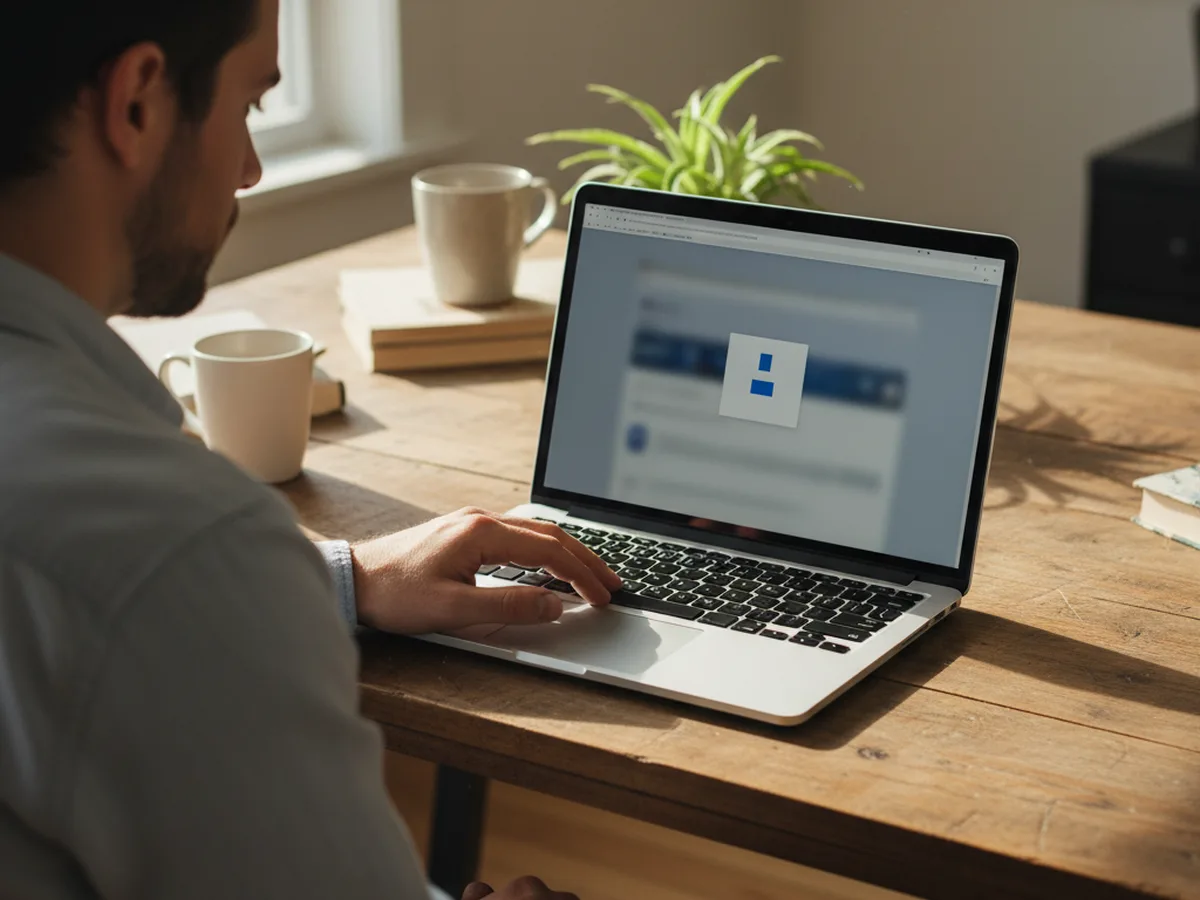
Man at his laptop answering the browser's camera permission prompt

Look better on camera: light in front, lens at eye level

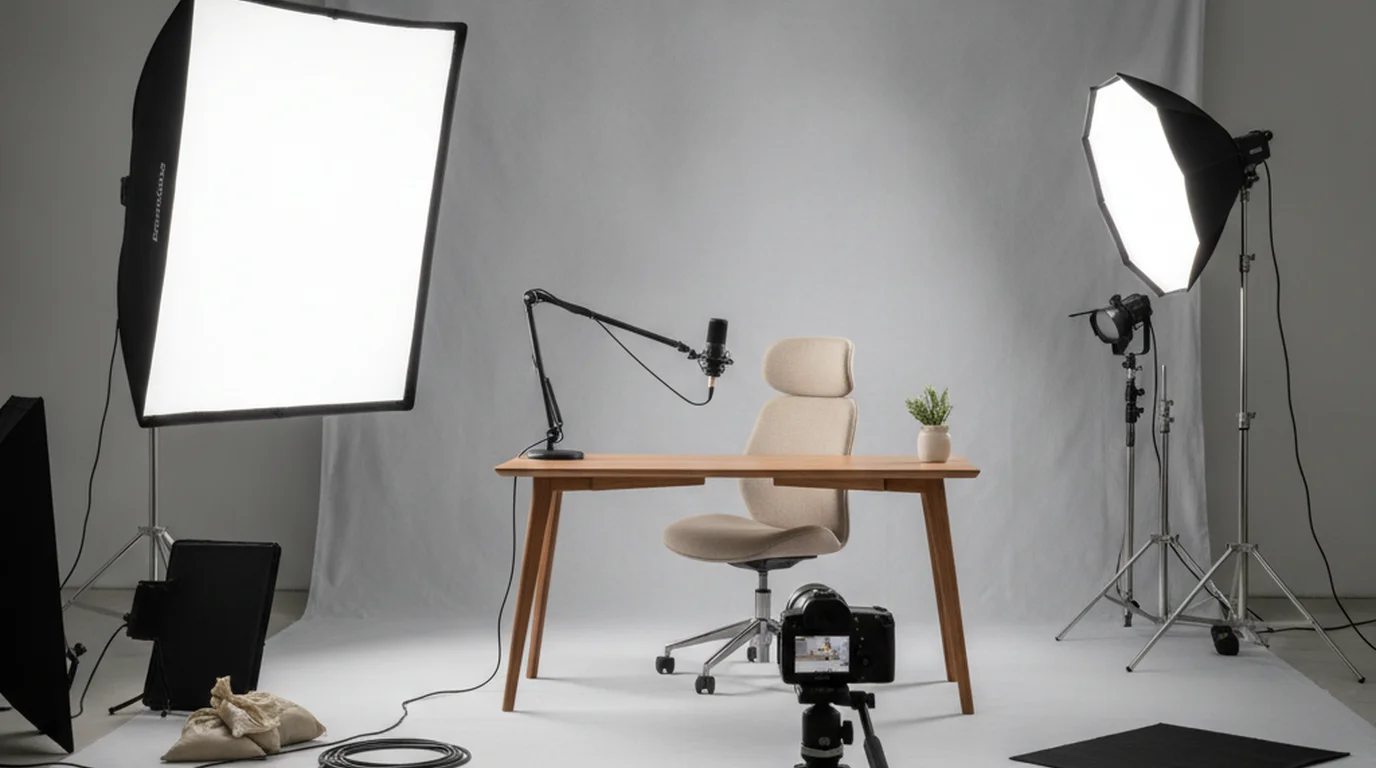
  • Light from the front. Face a window or a lamp and keep bright windows behind the camera. The softbox lighting guide shows a simple setup.
  • Raise the camera to eye level. Stack the laptop on books so the lens sits level with your eyes.
  • Wipe the lens. A soft cloth clears the haze from fingerprints.
  • Pick the sharper camera. A recent phone camera usually beats a built-in laptop webcam; compare them in webcam vs iPhone camera.

Reading notes on a call? Here is how to use a teleprompter on Zoom and keep your eyes near the lens.

Woman on a video call with her laptop raised on books and window light on her face

Check your hair and lighting before a call with the online mirror. Testing sound too? Run the mic test.

Why is my camera not working?

Most cases come down to a blocked permission, a camera the computer cannot see, or another app holding the camera. Allow the camera in the browser first, then in your computer's privacy settings, then reload this page.

Chrome

  1. Click the icon at the left of the address bar and set Camera to Allow.
  2. Or open Settings > Privacy and security > Site settings > Camera, pick the right camera from the menu at the top, and move this site to Allowed to use your camera.
  3. If Chrome offers Open settings, turn the camera on for Chrome in your computer's settings, then quit and reopen Chrome.

Microsoft Edge

  1. Click the icon at the left of the address bar, open Permissions for this site, and set Camera to Allow.
  2. Or go to Settings > Privacy, search, and services > Site permissions > All permissions > Camera (older versions: Cookies and site permissions), and allow this site. Typing edge://settings/content/camera in the address bar opens the same page.

Safari on Mac

  1. Choose Safari > Settings, then click Websites.
  2. Select Camera in the sidebar and set teleprompter.works to Allow.

Firefox

  1. Click the permissions icon at the left of the address bar and clear the Blocked camera entry, then reload and choose Allow.
  2. Or open Settings > Privacy & Security, scroll to Permissions, click Settings… next to Camera, and change or remove this site.

iPhone and iPad

  1. In Safari, tap the page menu in the address bar, choose Website Settings, and set Camera to Allow.
  2. For every site: Settings > Apps > Safari > Camera (on iOS 17 and earlier, Settings > Safari > Camera).
  3. Using Chrome on iPhone? Turn on Camera under Settings > Apps > Chrome.

Android

  1. In Chrome, tap the icon at the left of the address bar, then Permissions, and allow Camera.
  2. Or open Chrome's ⋮ menu > Settings > Site settings > Camera and allow this site.

macOS privacy settings

  1. Open the Apple menu > System Settings > Privacy & Security > Camera.
  2. Switch on your browser. Quit and reopen the browser if macOS asks you to.

Windows privacy settings

  1. Windows 11: Start > Settings > Privacy & security > Camera. Turn on Camera access and Let desktop apps access your camera.
  2. Windows 10: Start > Settings > Privacy > Camera. Turn on Camera access for this device (under Change) and Allow desktop apps to access your camera.
  3. A greyed-out switch means a work or school administrator manages it; ask them to turn it on.

Camera in use by another app

Many webcams serve one app at a time, especially on Windows. Quit Zoom, Microsoft Teams, FaceTime, OBS, Photo Booth or any browser tab with a call open, then press Try again. Restarting the browser frees a camera that an old tab still holds.

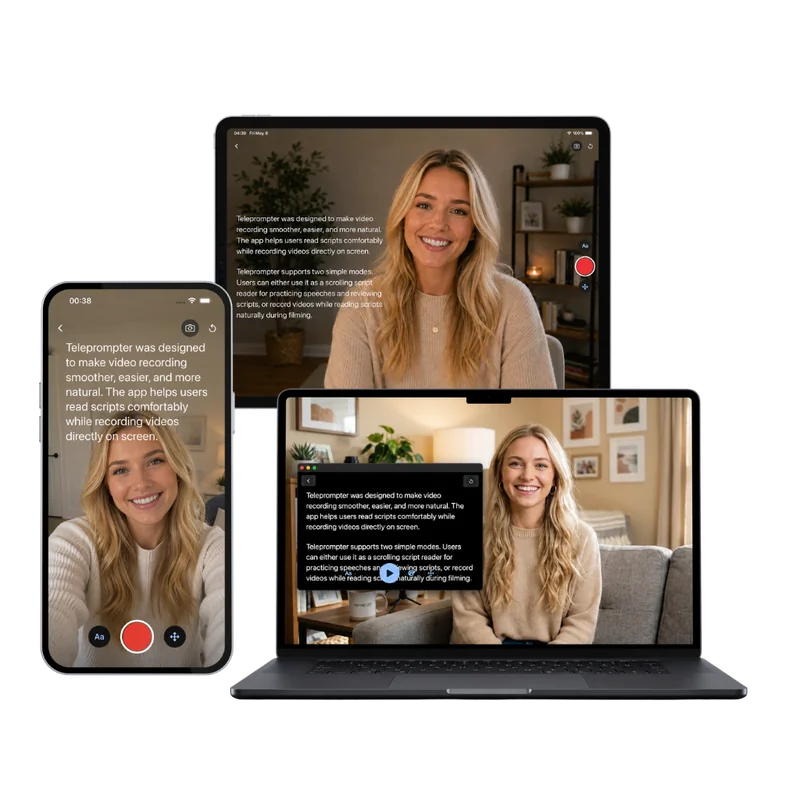
Teleprompter-Scrolling Scripts on iPhone, iPad and Mac, with the script scrolling over the camera

Next step

Camera looks good? Now practise reading to the lens

The free online teleprompter scrolls your script over your webcam preview and records you in the browser. On iPhone, iPad and Mac, Teleprompter-Scrolling Scripts does the same in Camera mode: your script scrolls next to the lens while you record, so you keep eye contact and finish in one take. Free to download.

Frequently Asked Questions

How do I test my webcam?

Open this page, press Test my camera, and choose Allow when the browser asks. A working camera shows a live picture within a second or two, and the results list its name, resolution, frame rate and lighting. Press Record 5-second test to capture a short clip and play it back.

How do I check my camera before a video call?

Run this webcam test a few minutes before the call. A live picture and the status Working mean the browser can use the camera; then check that Lighting reads Good and record a 5-second clip to see how you look. Close the test before joining, so Zoom, Teams or Meet can use the camera.

Why is my camera not working in the browser?

The three usual causes are a blocked permission, a camera the computer cannot see, and a camera another app is holding. Allow the camera for the site from the icon at the left of the address bar, turn on camera access for the browser in macOS or Windows privacy settings, and close Zoom, Teams, FaceTime or any other app using the camera. Then reload the page.

How do I know if another app is using my camera?

The test shows Close the other app using your camera when the browser reports the camera as busy. On a Mac the green light next to the camera stays on while any app uses it. Quit video call apps, recording software and other browser tabs with a call open, then press Try again.

What resolution is my webcam?

Start the test and read the Resolution row. It shows the width and height of the picture the camera is actually sending, such as 1280 × 720 (720p HD) or 1920 × 1080 (1080p Full HD). In Chrome and Edge a second line shows the highest resolution the camera supports.

What is a good frame rate for a webcam?

30 frames per second looks smooth on video calls and recordings, and 24 to 30 is the usual range for webcams. Many webcams lower their frame rate in dim light to let in more light per frame, so a low reading often improves once you add light in front of you.

How do I test my laptop camera?

Open this page in Chrome, Edge, Safari or Firefox on the laptop and press Test my camera. If the picture stays black, open any privacy shutter over the lens, press the camera key if the keyboard has one, and check that camera access is on for the browser in System Settings on a Mac or in Privacy and security on Windows.

Does the webcam test save or upload my video?

The test runs entirely in your browser, so your video stays on your device. The 5-second clip and the snapshot are saved to your computer only when you press Download or Snapshot.