Teleprompter app for iPhone
This is a quick-answer overview. For the complete guide, see Teleprompter App for iOS — Complete Guide.
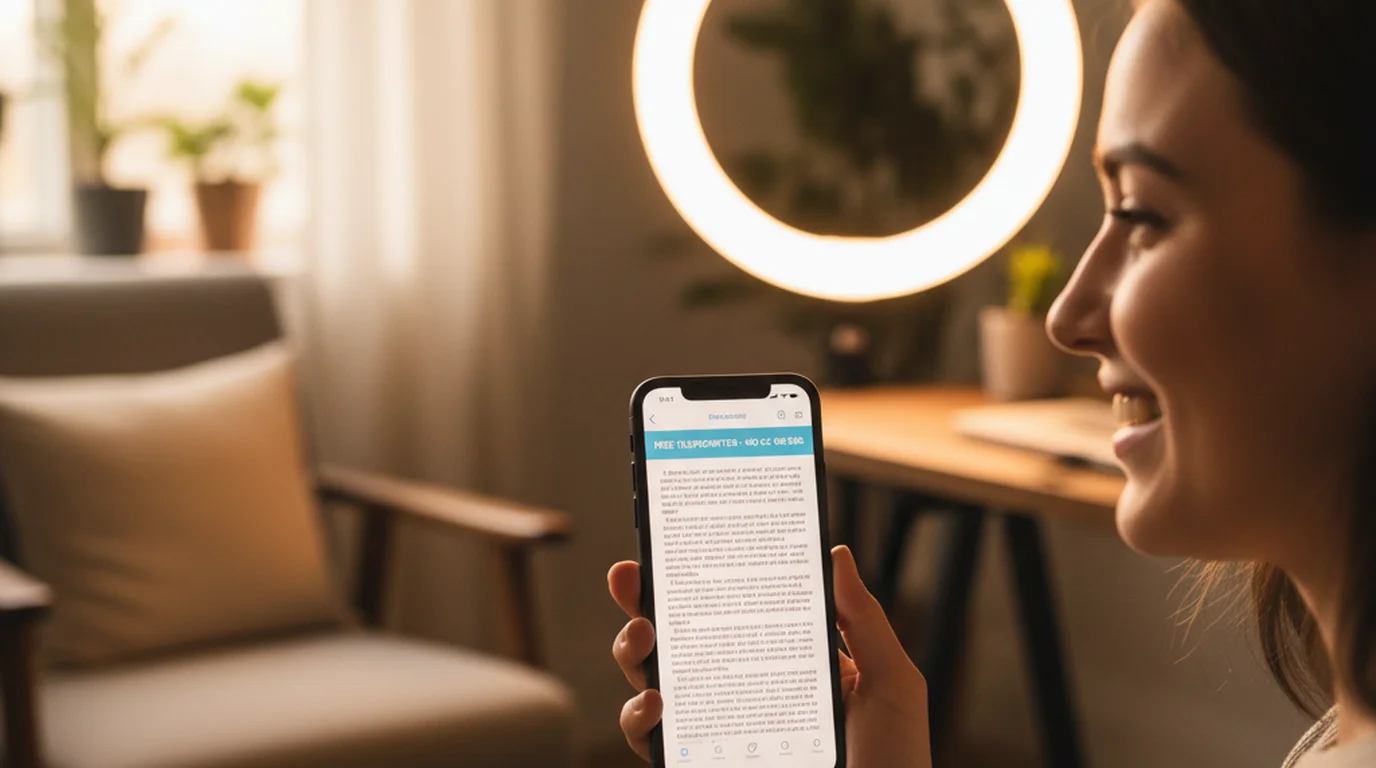
Yes, there is a free teleprompter app for iPhone. Teleprompter-Scrolling Scripts lets you paste or type a script, scroll it hands-free in Prompter mode, and record video with the script overlaid on the camera in Camera mode — all without an account or internet connection.
Why the iPhone is a natural teleprompter device
The iPhone is almost always with you, already pointed at your face, and capable of recording broadcast-quality video. That combination makes it a practical teleprompter platform without any additional hardware. Creators who shoot TikToks in their car, founders recording investor updates in a hotel room, and educators taping quick explainers at their desk all share one constraint: the iPhone has to serve as both the camera and the script display at the same time.
Teleprompter-Scrolling Scripts is built for that constraint. It runs fully on-device, stores scripts locally, and gives you a reading layer that sits on top of the camera feed without slowing down the phone or requiring a browser tab. The iPhone app page covers the full feature set if you want a deeper look before downloading.
Prompter mode on iPhone: rehearsal and hands-free reading
Prompter mode shows your script as scrolling text with no camera feed active. It is the right choice when you want to rehearse a talk, read through talking points before a live session, or use the iPhone as a dedicated script display while a separate camera records.
On iPhone, the Prompter mode reading area works best when the text is kept to two or three lines at a time. A narrow column down the center of the screen reduces eye movement and keeps the delivery sounding natural. You can pause the scroll at any point, drag the script backward to re-read a line, or tap to jump ahead — all without stopping the session and reopening the app.
Prompter mode does not open the camera or microphone. It is entirely passive from a system-permission standpoint, which also means it does not compete with other apps for camera access.
Camera mode on iPhone: recording while reading (portrait and landscape)
Camera mode opens the iPhone camera and overlays your script on the live camera view. You record the video and read the teleprompter at the same time, inside a single app, without switching windows. The recorded file is saved to your camera roll just like a normal video.
Portrait orientation is the default for social video. Landscape works for YouTube and longer-form content. In either orientation, you can resize the text area, reposition it on screen, change the font size, and adjust the scroll speed before pressing record. Front and back camera are both supported, so you can record talking-head clips looking into the lens or product demos facing the back camera.
Camera mode also supports pausing the scroll mid-recording and manually advancing the script when your delivery is slower or faster than the scroll speed. This is useful for long takes where the pacing varies.
Vertical video setup for TikTok, Reels, and Shorts
Vertical video is the dominant format on TikTok, Instagram Reels, and YouTube Shorts, and iPhone is the primary device creators use to record it. Setting up the teleprompter for vertical video on iPhone takes two adjustments: orientation and text area placement.
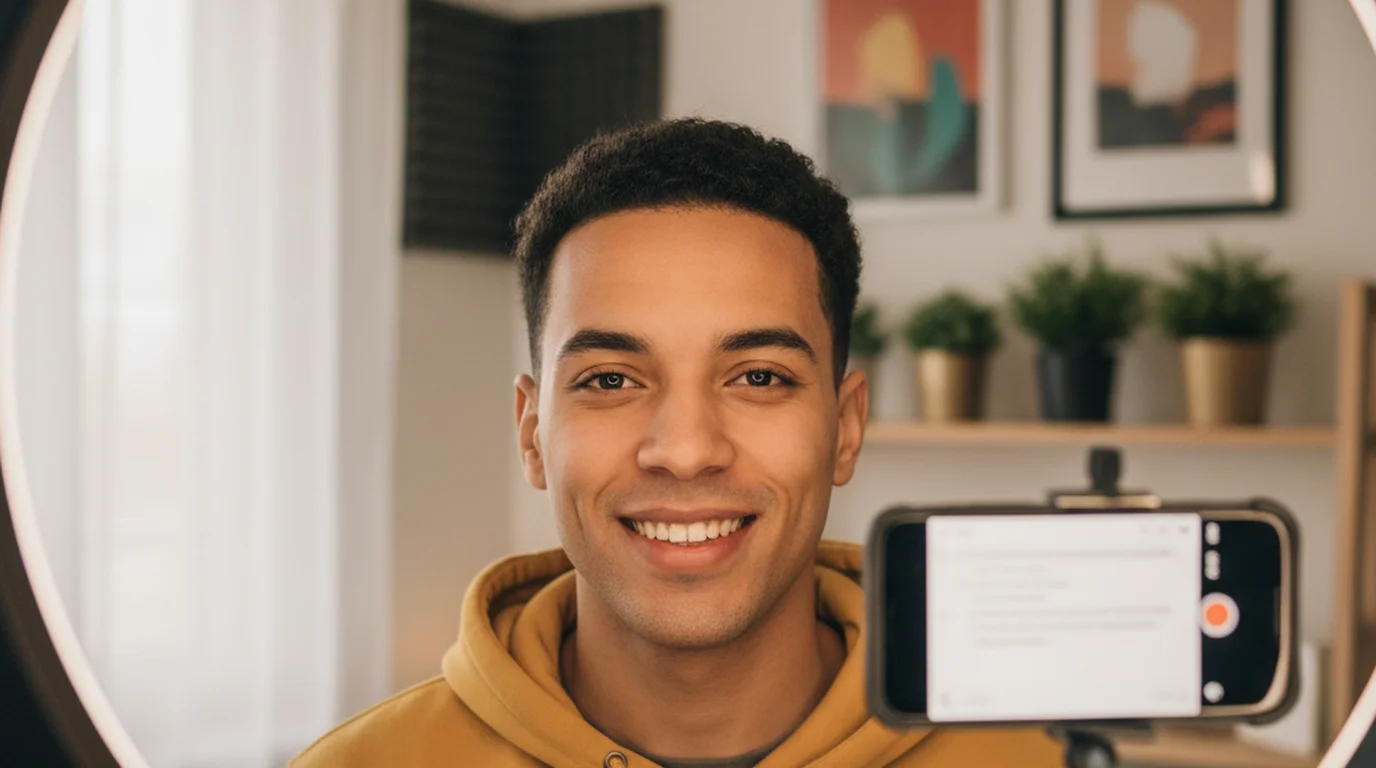
Keep the iPhone in portrait mode. Open Camera mode, resize the text overlay to two or three lines, and drag it toward the top of the frame — close to the front camera lens. This positions the text near your natural eye line when you look at the screen, so viewers see you making near-direct eye contact rather than looking down or to the side.
Script length matters for vertical video. Short, punchy scripts of 100 to 200 words keep the energy high and reduce the risk of visible reading. Write the way you speak: short sentences, active verbs, no filler phrases that read naturally on the page but sound stiff out loud. Test the first 15 seconds before recording the full clip.
Eye-line tips for iPhone (small screen, text area placement)
The iPhone's small screen is the main eye-line challenge. On a larger monitor or iPad, you have room to place text close to the camera without it competing with other UI elements. On iPhone, you have to be deliberate about where the text sits.
The front camera on most iPhones is at the top center of the screen. Position the text area so the top edge of the reading column is within an inch of the camera cutout. This means the viewer sees your eyes tracking slightly down from the lens — which reads as attentive eye contact rather than obvious reading. If the text is in the middle or bottom of the screen, the eye drop is visible and the delivery looks scripted.
Reducing line width also helps. A text area that spans the full screen width forces your eyes to sweep left to right, which is visually obvious. A narrower column — 60 to 70 percent of screen width — keeps eye movement small and delivery natural. These same principles apply whether you are using the front or back camera.
Voice commands on iPhone (next, previous, pause)
Teleprompter-Scrolling Scripts supports voice commands on iPhone. You can say "next" to advance the script, "previous" to go back, and "pause" to stop the scroll — all without touching the screen. This is useful when the iPhone is mounted on a tripod and you cannot reach it during a take, or when you want to advance past a section you have memorized without breaking the camera frame.
Voice commands work in Prompter mode, the mode that records nothing and therefore leaves the microphone free to listen for them. They are activated through the app settings and use the iPhone's on-device speech recognition, so they function without an internet connection. For creators recording solo content with no one behind the camera, voice commands remove the last reason to touch the phone mid-take.
iPhone vs. iPad: when to switch devices
The iPhone is the right choice for short-form vertical video, quick product clips, social content, and any recording where portability matters. Its compact size means you can set up anywhere in under a minute.
Switch to iPad when your script is long, when you are seated at a desk or on a stage, or when you need a larger reading area to stay comfortable through a 10-minute course video or webinar. The iPad's larger screen gives more room to place text near the camera without making the text tiny, and it is easier to read extended content without losing your place.
For Zoom calls, virtual presentations, and any setup where the camera is already built into a desk computer, Mac is the natural platform. The same app runs across iPhone, iPad, and Mac, so your scripts transfer and your workflow stays consistent across devices. See the online teleprompter page if you prefer a browser-based option without an app install.
Teleprompter-Scrolling Scripts is a free teleprompter app for iPhone, iPad, and Mac. Paste a script, choose Prompter mode or Camera mode, and record — no account or internet connection required.
Use Free Online Teleprompter Get the Free AppFor the full iPhone recording guide — Camera mode setup, scroll speed, voice commands, and short-form video tips — see Teleprompter App for iPhone: Complete Recording Guide.