Camera mode, Prompter mode, and Voice mode: what's the difference?
Teleprompter-Scrolling Scripts has three modes. Camera mode opens the built-in camera, overlays the scrolling script on the live camera view, and records video inside the app. Prompter mode shows your script full-screen without any camera — useful when a separate camera or webcam is doing the recording and your device is just the display. Voice mode records audio only, with no camera and no video file, for podcasts, voiceovers, and singing along to lyrics. The quickest way to pick one is to ask what file you want to exist when the take ends: a video, nothing, or an audio file.
Camera mode: record and read on the same device
Camera mode is designed for creators who want a single-device recording workflow. When you switch to Camera mode in Teleprompter-Scrolling Scripts, the app opens the built-in camera on your iPhone, iPad, or Mac and places your scrolling script directly over the live camera preview. You see both the camera view and your script text on the same screen simultaneously.
The script scrolls at the speed you set, and you read while the camera records. The saved video contains only what the camera captured — no text overlay, no watermark. The teleprompter text is composited onto the preview for your eyes only during recording and is not burned into the output file.
This setup is ideal for YouTube videos, TikToks, Instagram Reels, UGC content, talking-head recordings, and any workflow where your iPhone, iPad, or Mac is the recording device. Camera mode handles recording, script display, and scroll control in one interface so you never have to switch between apps mid-take.
Prompter mode: script display for external camera setups
Prompter mode turns your device into a dedicated script display without activating the camera or recording anything. The script fills the screen, scrolls at your chosen speed, and the app does nothing else — no camera feed, no video file. This is the right mode when a different device handles recording.
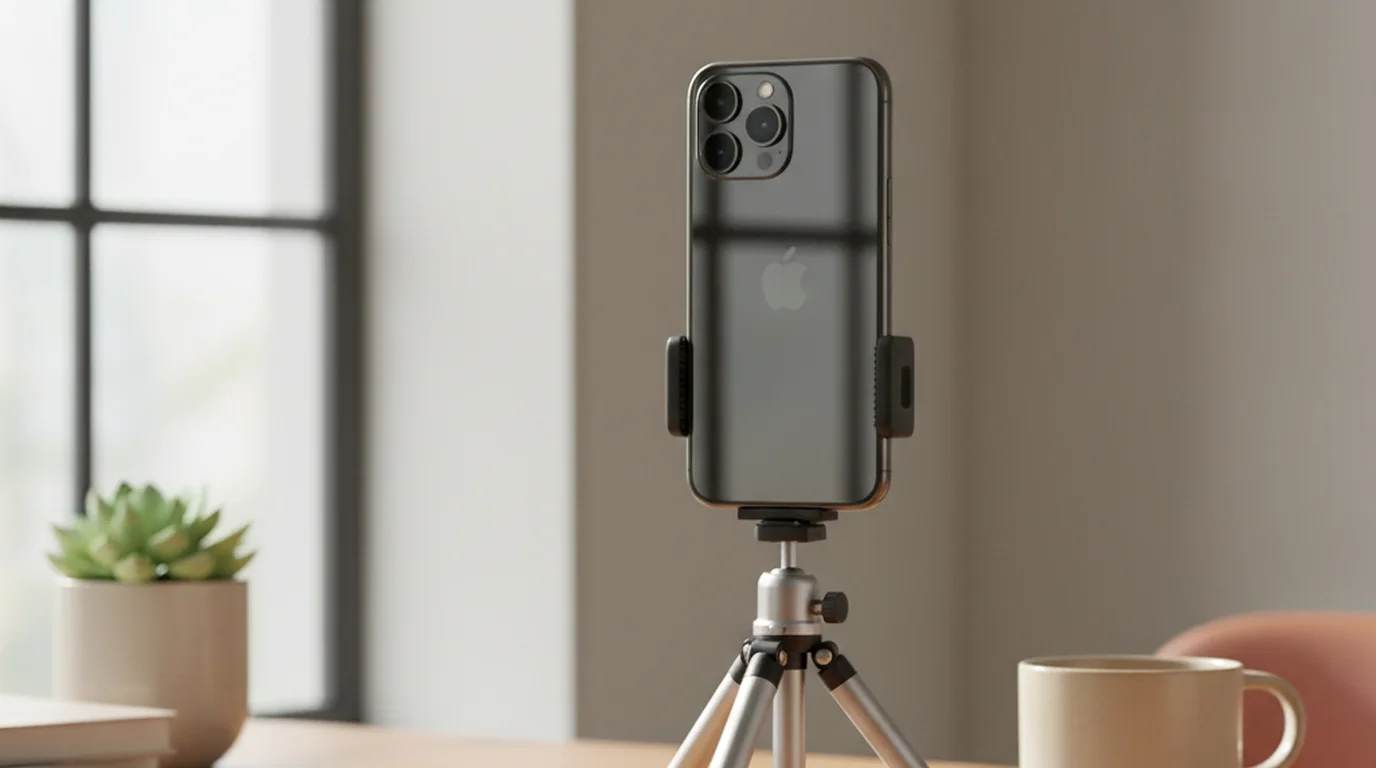
Common Prompter mode setups include: Zoom calls and webinars where your webcam captures the recording and your phone shows the script nearby; teleprompter for Zoom presentations where you need to reference talking points accurately; Loom recordings where your Mac records through its built-in camera while a phone or tablet beside you shows the script; and DSLR or mirrorless camera setups where the camera is on a tripod and an iPad propped between you and the lens serves as the teleprompter display.
Prompter mode is also the only mode with voice control. Because it records nothing, the microphone stays free for speech recognition — in Camera mode and Voice mode that input is already committed to the recording. Prompter mode works on iPhone, iPad, and Mac. On Mac, you can also use the free browser teleprompter at teleprompter.works/online in a Prompter-style configuration — paste your script, position the window near the webcam, and scroll during recording.
Voice mode: audio only, no camera
Voice mode records sound without opening the camera. The script scrolls exactly as it does in the other two modes, but what gets saved is an audio file rather than a video. It arrived in version 3.3, released in August 2026.
The use cases are the ones where a camera was always dead weight. Podcast episodes recorded solo, where the script is a running order rather than a word-for-word read. Voiceover and narration passes for a video that gets edited later. Singers recording vocals while reading their own lyrics, which is the case that previously forced people into a two-app workflow: lyrics on one device, a recorder on another.
That two-device workaround is what Voice mode removes. Before it existed, an audio-only take meant running Prompter mode for the words and a separate recorder app for the sound, which cost you a second device and a sync step. Now the scroll and the recording start from the same screen.
Scroll speed, text size, and text colour carry over from the other two modes, so nothing needs reconfiguring when you switch. See the podcast teleprompter guide for how to structure a script that reads as speech rather than as prose.
Which mode should you choose?
Two questions settle it. First: do you want a file at the end, and if so, video or audio? Second: if it is video, which device is holding the camera?
- Your iPhone, iPad, or Mac is the camera — use Camera mode. It handles recording and script display in one workflow with no switching between apps.
- A separate webcam, DSLR, or external camera is recording you — use Prompter mode. Your phone or tablet becomes the teleprompter display while the other device handles video capture.
- Zoom, Loom, or video call software is recording — use Prompter mode on a nearby device, or open the browser teleprompter on a second screen.
- You want audio and no video at all — use Voice mode. Podcast episodes, voiceover takes, and vocal recordings over your own lyrics all fall here, and it saves you from recording video you would only delete.
For a full breakdown of both options and their use cases, see the complete guide to choosing teleprompter modes.
How to switch between modes
Open Teleprompter-Scrolling Scripts on iPhone, iPad, or Mac. On the script editing or playback screen, look for the mode selector — it moves between Camera, Prompter, and Voice. Tap or click to switch. The interface updates immediately: Camera mode shows a live camera preview with the script overlaid; Prompter mode shows the script full-screen with no camera feed; Voice mode shows the script with audio recording controls and no preview.
You can switch modes at any point without losing your script. Settings like scroll speed, font size, and text area position carry over between modes, so you do not need to reconfigure each time you switch.
Teleprompter-Scrolling Scripts includes Camera mode for direct video recording, Prompter mode for external camera setups, and Voice mode for audio-only takes. Free on iPhone, iPad, and Mac.
Use Free Online Teleprompter Get the Free App