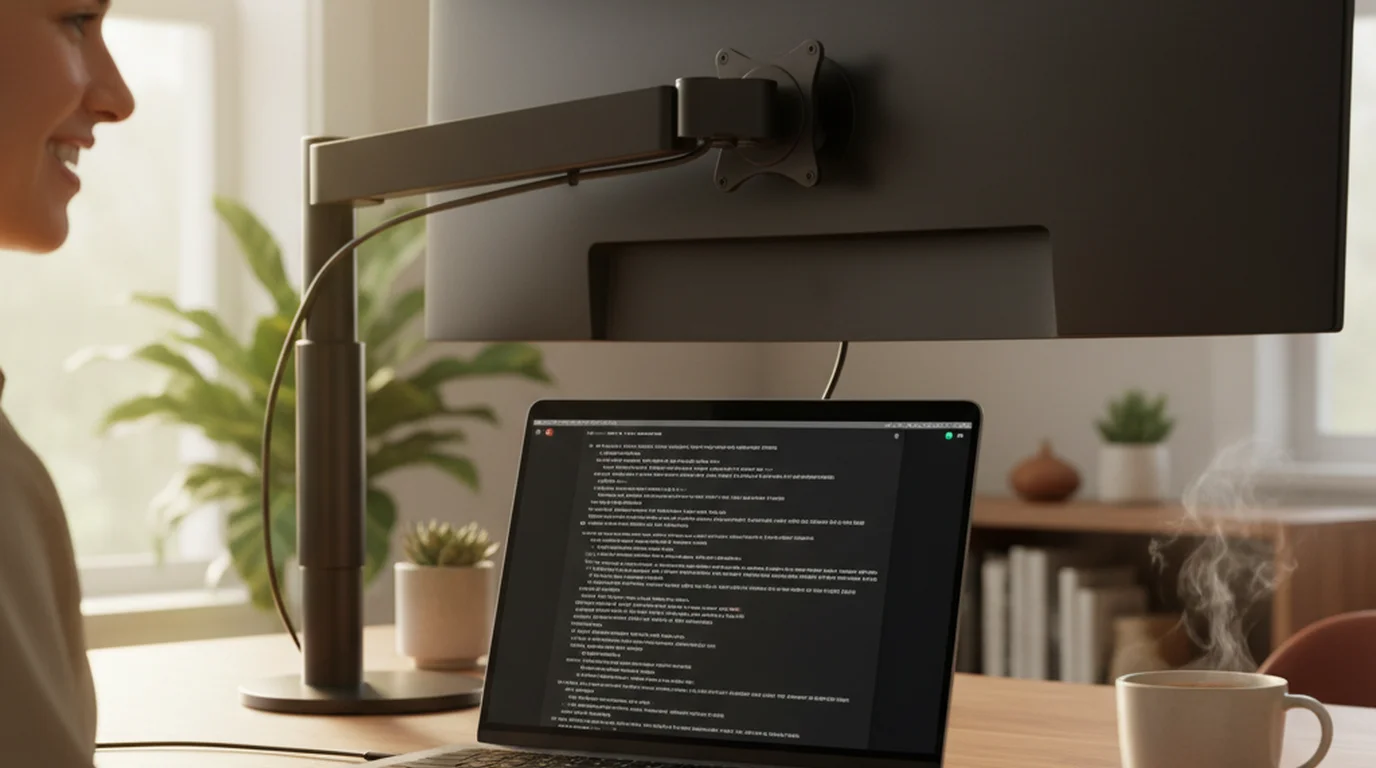
Can the teleprompter stay on top of Zoom on Mac?
Yes. In Teleprompter-Scrolling Scripts for Mac, the floating window is a small, resizable window that stays on top of every app, including Zoom in full-screen mode. Zoom keeps the focus, so your clicks go to the call while the script scrolls, and the window carries its own play, pause and section controls. It works the same way over Microsoft Teams, Google Meet and OBS. The app is free to download.
What the floating window does
Open a script in the Mac app and switch on the floating window. The script moves into a compact window that floats above everything else on screen: Zoom, a full-screen presentation, a browser, or OBS. Drag it anywhere and pull a corner to resize it. It follows you across desktops, so it stays in view when you swipe between full-screen apps.
The window leaves the focus with the app you are using. Click mute, open the chat or start a screen share in Zoom, and the script keeps scrolling in the floating window above the call.
Controls inside the window
- Play and pause start and hold the scroll.
- Previous and next section jump between the sections of your script, handy at the transitions of a talk.
- Back to the app brings up the full Teleprompter-Scrolling Scripts window for edits and settings.
Opened from Camera mode, the floating window also shows the camera preview and starts and stops a recording, so you can record a take while other apps stay on screen. Opened from Voice mode, it records audio.
Set it up for a Zoom call
- Open your script in Teleprompter-Scrolling Scripts on Mac. Type it, paste it, or import a Word, PowerPoint or PDF file.
- Set the text size and scroll speed you want for the call.
- Open the floating window and drag it right under the webcam at the top of the screen.
- Resize it to two or three lines so your eyes stay close to the lens.
- Join the Zoom call, in a window or full screen.
- Press play and speak. Use previous and next section at the transitions.
When you share your screen, share a single window such as your slides, and the script stays on your screen only. For more on eye contact during calls, see the Zoom teleprompter guide.
Teams, Google Meet, OBS and other apps
The floating window sits above every app, so the same setup works for Microsoft Teams, Google Meet in a browser, OBS for streaming, and screen recording tools. Place it under the camera, size it small, and keep the call or recording app in front of you.
With an iPhone or iPad beside the computer
On iPhone and iPad, Prompter mode turns the device into a dedicated script display. Prop it right beside the webcam, run the call on your computer, and read from the device. The closer it sits to the lens, the more natural your eye contact looks.
The Mac floating window keeps your script on top of Zoom, Teams and Meet. Free to download on the App Store.
Use Free Online Teleprompter Get the Free App