How to Use a Teleprompter for Instagram Live
 Wendy Zhang · May 20, 2026 · 8 min read
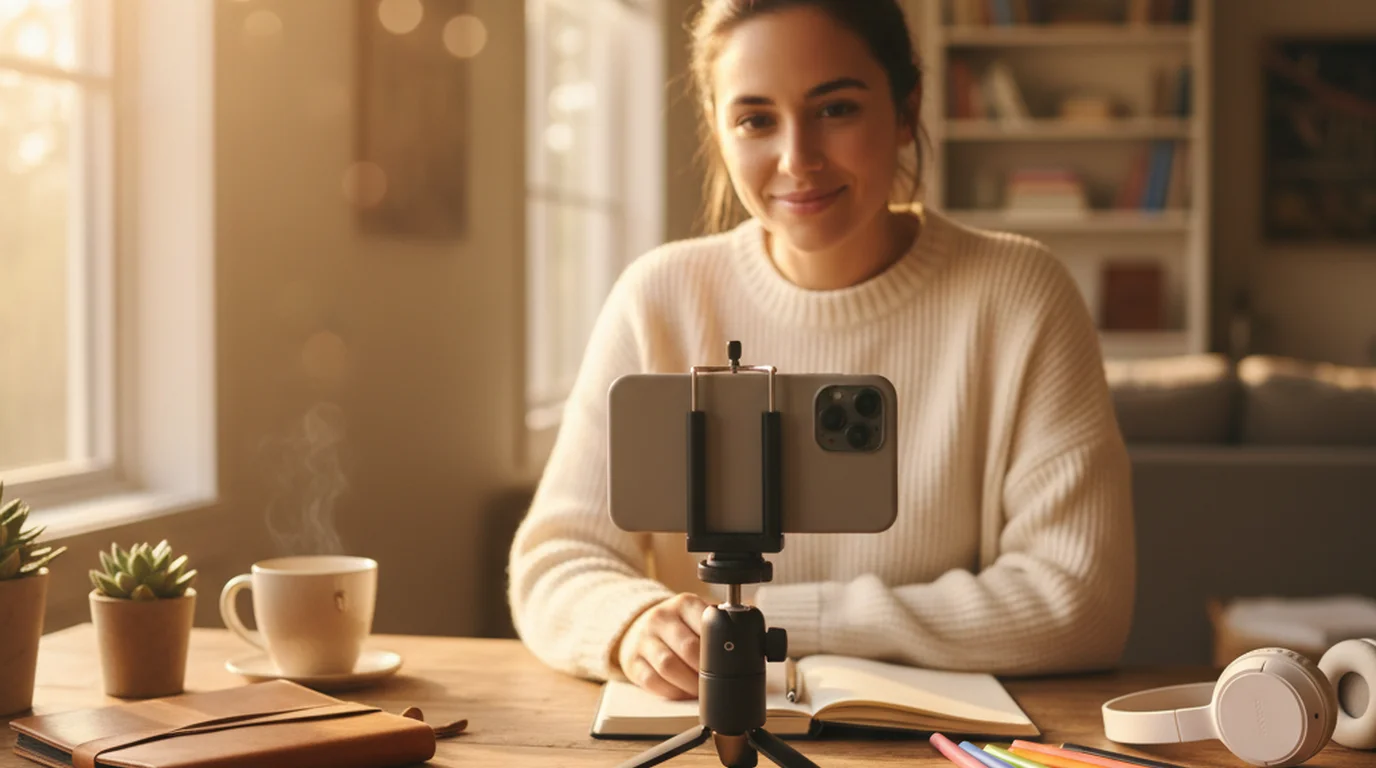
A teleprompter for Instagram Live gives you the structure of a scripted delivery without the stiffness of reading from a paper or memorizing every line. Whether you are announcing a product launch, hosting a Q&A, or delivering a tutorial segment, having your key points scroll in front of you keeps your content tight and your energy on camera. The challenge is that Instagram Live takes over your phone screen — which means you need a smarter setup than just opening a teleprompter app on the same device.
Teleprompter-Scrolling Scripts is a free native app for iPhone and iPad that supports both Prompter mode (text-only scroll) and Camera mode (video recording with script overlay). For Instagram Live specifically, Prompter mode on a second device is the most reliable approach — and this guide walks through exactly how to set it up.
Why use a teleprompter for Instagram Live?
Instagram Live is unedited and unforgiving. Once you go live, there are no cuts, no retakes, and no post-production polish available. Viewers who tune in mid-session have no context, and any extended pause or off-track tangent is visible to everyone watching in real time. That pressure is exactly why a teleprompter for Instagram Live is worth the setup time.
The three most practical reasons to script your Instagram Lives are staying on message, reducing filler words, and covering your key points in order. Staying on message matters most for brand accounts, product launches, and thought leadership content where the core argument needs to land clearly. Reducing filler words — "um," "like," "you know" — is harder to control under live pressure than most creators expect; a script gives you a fallback when your brain needs a beat. Covering key points in order prevents the common experience of finishing a live and realizing you forgot to mention the most important thing.
The goal is not to sound scripted — it is to have the safety net of a script so you can sound more natural, not less. Viewers on Instagram Live respond to energy and authenticity. A well-placed script behind the scenes enables that energy rather than replacing it.
Using a teleprompter for Instagram Live does not mean reading word-for-word. It means having a structured outline scrolling in view so your delivery stays confident and complete — without relying entirely on memory under the pressure of a live audience.
The challenge: Instagram Live takes the full screen
The core technical constraint when using a teleprompter app for Instagram Live is that Instagram itself occupies the entire display of whatever device you are broadcasting from. When you start a live on your iPhone, Instagram takes the full screen for the camera view, controls, and comment feed. There is no split-screen or picture-in-picture option that lets a teleprompter app run alongside Instagram Live on the same device.
This means any single-device solution — opening a teleprompter app and switching back and forth — will interrupt your live session. Switching away from Instagram Live even briefly can end the broadcast or cause noticeable dead air that your viewers will see.
The practical answer is a two-device setup or a deliberate pre-read approach. Both are described in the next two sections. The two-device setup is more reliable and closer to a professional teleprompter experience. The one-device method works for shorter, more casual lives where a full outline is not essential.
Setup option 1: Two-device setup for Instagram Live teleprompter
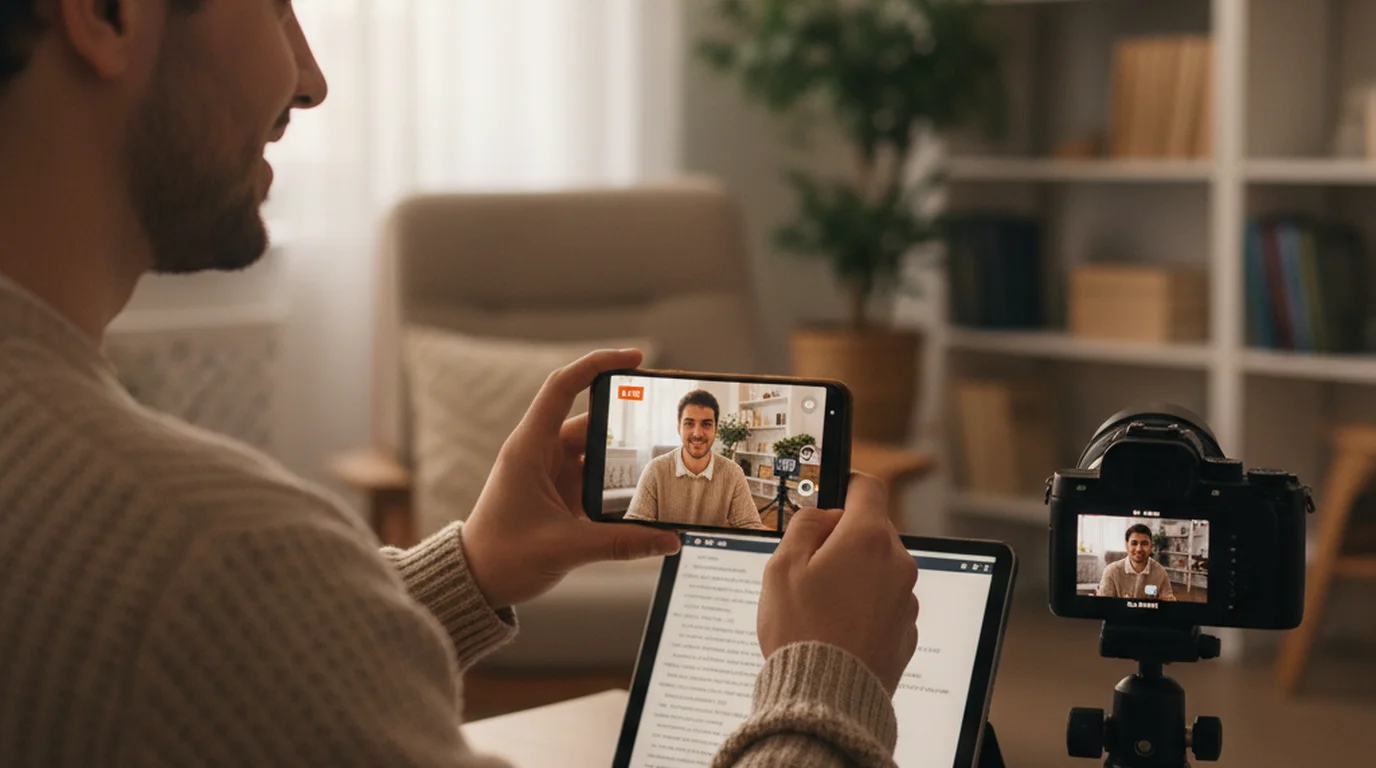
The two-device teleprompter setup for Instagram Live is the most reliable approach for creators who go live regularly. The concept is straightforward: one device runs Instagram Live, the other device runs Teleprompter-Scrolling Scripts in Prompter mode. You position the teleprompter device close enough to the live camera that reading the script does not pull your eye line dramatically off-center.
The most common combination is iPhone for Instagram Live and iPad as the teleprompter. The iPad screen is large enough to display several lines of text at a comfortable reading size, and it can be propped on a stand or tablet holder directly above or beside the iPhone you are using for the live broadcast. Open Teleprompter-Scrolling Scripts in Prompter mode on the iPad, load your script, and set the scroll speed before you go live. Once the live starts on the iPhone, tap play on the iPad and the text begins scrolling.
If you do not have an iPad, a second iPhone works as well. Position it at the same angle relative to the primary camera. The text size will be smaller but still readable with two to three lines visible at a time. Adjust the font size in Teleprompter-Scrolling Scripts to the largest setting that lets you read comfortably at the distance you are working with.
The key positioning detail is eye line. If the teleprompter screen is at the same height as the camera on your live device and within about 20–30 centimetres horizontally, the deviation in your gaze will be subtle enough that most viewers will not notice. If the teleprompter is significantly below or to the side, the effect becomes more obvious. A small phone or tablet stand with height adjustment makes this easy to dial in.
Setup option 2: One device using Prompter mode before switching to Instagram
If you only have one device available, the most practical approach is to use Teleprompter-Scrolling Scripts in Prompter mode as a rehearsal and read-along tool before the live begins, not during it. This is not a traditional teleprompter setup, but it serves a similar function when a second device is not available.
The process: open Teleprompter-Scrolling Scripts on your iPhone — or open the online teleprompter in a browser tab for a no-install option — load your script, and read through it once or twice at the scroll speed you plan to use during the live. The goal is not full memorization — it is familiarity. By the time you switch over to Instagram and go live, your key points, transitions, and closing call-to-action are in short-term memory and feel natural rather than rehearsed.
For short Instagram Lives of five to ten minutes, this method works well. For longer live sessions covering multiple topics, a second device for active script display is a better investment. The read-along method also works well when you are using a key-point outline rather than a full word-for-word script — a short bullet list is easier to internalize in a single read-through than a fully written segment.
Prompter mode vs. Camera mode for teleprompter app Instagram Live use
Teleprompter-Scrolling Scripts has two core modes, and understanding the difference helps you choose the right one for Instagram Live.
Prompter mode displays only the scrolling text — there is no camera view, no video recording, and no camera access required. It is a clean, minimal reading interface. This is the mode you use for the two-device setup described above: it runs on the second device and displays nothing but your script. The absence of a camera preview also means the screen brightness stays high and the text is easy to read even in a lit room.
Camera mode overlays the scrolling script on the live camera feed and records video directly in the app. This mode is designed for recording videos where the teleprompter and the camera are the same device — TikTok content, YouTube Shorts, course recordings, and similar formats. For pre-recorded Instagram content, the teleprompter guide for Instagram Reels covers Camera mode setup for short-form vertical video in detail. Camera mode is not the right choice for Instagram Live because Instagram does not use the Teleprompter-Scrolling Scripts camera feed. The two apps cannot share the camera simultaneously on most iPhones without one being backgrounded.
For Instagram Live teleprompter use, the answer is always Prompter mode on a second device. Camera mode is your tool when you are recording a video directly inside Teleprompter-Scrolling Scripts for another platform or purpose. For desk-based content where you go live via Mac, the teleprompter for Mac in Prompter mode runs alongside any streaming app without touching the camera feed.
How to write a script for Instagram Live
The format of your script matters as much as the teleprompter setup. Instagram Live is a conversational medium — viewers tune in expecting the energy of a live conversation, not a polished broadcast. A word-for-word script read verbatim often sounds flat and rehearsed in ways that are more obvious on live video than in pre-recorded content.
The approach that works best for most creators is a structured outline: a few sentences of introduction, three to five key points with one or two supporting sentences each, and a closing call-to-action. This is enough structure to keep the live on track and cover everything important, without locking you into language that sounds scripted.
Write the way you speak. If your natural delivery uses short sentences and plain vocabulary, write that way. Teleprompter scripts that use longer, more formal sentence structures tend to create delivery that sounds formal and stiff — the opposite of what Instagram Live rewards. Read the script aloud while you write it. If a sentence feels awkward to say, rewrite it until it sounds like something you would actually say in conversation.
For the teleprompter display, break your script into short paragraphs of two to three sentences each. Each paragraph represents one scrollable chunk. This makes it easy to keep pace with the scroll and to recover quickly if you deviate from the script and need to find your place again.
Text size and scroll speed tips for Instagram Live delivery
The right text size and scroll speed for a teleprompter app Instagram Live setup depend on the distance between you and the teleprompter device, and on your natural speaking pace. Getting these calibrated before going live is worth the three to four minutes it takes — mis-calibrated scroll speed is the most common reason a teleprompter creates more pressure than it relieves.
For text size, a practical starting point is the largest size that lets you see two to three lines simultaneously on the device you are using as the teleprompter. Two to three lines gives you enough look-ahead to keep delivery smooth while keeping the text large enough to read without strain. If the device is an iPad at arm's length, medium-large text works well. If it is a second iPhone positioned closer to the camera, larger text compensates for the smaller screen.
For scroll speed, most natural conversational speech lands between 120 and 150 words per minute. Instagram Live delivery tends toward the lower end of that range — around 120 to 130 words per minute — because live formats benefit from slightly slower, more deliberate pacing that gives viewers time to absorb points and lets you react to comments without losing your place. Run a test recording in Teleprompter-Scrolling Scripts before going live and adjust until the scroll pace matches your natural speaking rhythm without requiring you to rush or wait.
One practical tip: set the scroll speed slightly slower than you think you need. In a live situation with a real audience, most people speak slightly faster than they do in rehearsal. A scroll speed calibrated to your rehearsal pace will often match your live pace well once the adrenaline of being on camera adjusts your natural tempo.
Frequently Asked Questions
Can I use a teleprompter during Instagram Live?
Yes, but not inside the Instagram app itself. The most reliable setup is a two-device approach: use one device (phone or tablet) for your Instagram Live and a second device as your teleprompter running Teleprompter-Scrolling Scripts in Prompter mode. Position the teleprompter screen near the camera of your live device so you can read it naturally.
What is the best teleprompter setup for Instagram Live on iPhone?
The most practical setup is to run Instagram Live on your iPhone and use an iPad or a second phone as your teleprompter. Open Teleprompter-Scrolling Scripts in Prompter mode on the iPad, place it just above or beside the iPhone camera, and read the scrolling script during your live session. The iPad displays only text, so it does not interfere with the Instagram app.
Can I use Prompter mode during Instagram Live?
Yes. Prompter mode in Teleprompter-Scrolling Scripts displays only the scrolling text with no camera overlay. If you run it on a second device beside your main Instagram Live phone, you can read your script without any interference. Alternatively, use an external monitor or second phone positioned near your iPhone camera for a one-person solo setup.
Do I need to script everything for Instagram Live, or just key points?
For most Instagram Lives, a key-point outline works better than a word-for-word script. A full script can sound stiff during a live format where viewers expect spontaneity. Use the teleprompter for structure — intro, main points, CTA — but let yourself speak freely around those anchors. This keeps the energy natural while preventing you from forgetting key messages.
Wendy ZhangWendy Zhang is the indie developer behind Teleprompter-Scrolling Scripts, which she built after cycling through teleprompter apps that were too heavy, too expensive, or dependent on a network connection to open. She writes about the mechanics of recording yourself — scroll pacing, script formatting, and the app decisions that decide whether a take survives.
Try a free teleprompter for Instagram Live
Teleprompter-Scrolling Scripts is free on iPhone and iPad. Prompter mode runs on a second device while you go live on Instagram — no subscription, no internet required.
Use Free Online Teleprompter Get the Free App