
Free · In your browser · No sign-up
Free Online Tools For video, audio, subtitles and scripts, right in your browser
Thirty-one free tools for the jobs around recording: timing a script, testing the camera and mic, converting video and audio, cutting pauses, saving stills and fixing subtitles. None needs an account, and the video tools keep your files on your own device.
Converters
Edit video
Subtitles
Script & speech
Camera & mic
What these tools are
Each tool on this page does one job well. The audio tools turn a video into MP3, WAV or M4A. The converters change MOV, MKV and WebM into MP4 that plays everywhere. The editing tools remove pauses, mute a clip, mirror the picture or save frames as images. The subtitle tools convert, clean up and retime SRT and VTT files. They share one layout: choose a file, adjust a setting or two, check the result in the page and download it.
Between them they read the files creators handle most: MP4, MOV, MKV and WebM video, MP3, WAV and M4A audio, and SRT, VTT and plain-text subtitles. Outputs are the formats that every editor, phone and platform accepts, such as H.264 MP4, MP3, JPG, PNG and SRT. Subtitle tracks hidden inside a movie file come out as SRT with the MKV subtitle extractor.
How they run on your device
The audio, conversion and editing tools use FFmpeg, the open-source engine behind most video software, compiled to WebAssembly so it runs inside the browser tab. Your file is read straight from your disk by that copy of FFmpeg, and the finished file is handed back to your browser as a download. The frame extractor uses the browser's own video player and a canvas, and the subtitle tools are plain text processing in the page, so both start instantly.
That design keeps private recordings private. Client calls, unreleased videos and family clips stay on your computer or phone from start to finish, with no account, no queue and no server copy to delete later. The trade-off is that the speed comes from your own device: a recent laptop handles long 4K files comfortably, and a phone is best for shorter clips.
Which tool for which job
A typical talking-head workflow uses several of them in a row:
- Prepare and record. Check how long the script runs with the speech time calculator, test the camera and mic, then read from the online teleprompter so you look at the lens and stumble less.
- Convert. The MOV to MP4 and WebM to MP4 converters turn any recording into an MP4 that uploads and edits anywhere.
- Cut the pauses. The silence remover finds the dead air on a waveform and exports a tight jump-cut version, ready for CapCut, Premiere Pro or an AI editing assistant.
- Subtitles. Turn a transcript into timed captions with the TXT to SRT converter, then shift or fix lines in the SRT editor.
- Publish and repurpose. Save a thumbnail still with the frame extractor and release the audio as a podcast episode with the MP4 to MP3 converter.
For transcripts, the SRT to TXT converter strips the timecodes from a caption file and leaves clean text for show notes, blog posts or a filler-word pass.
Next step
Start with a better recording
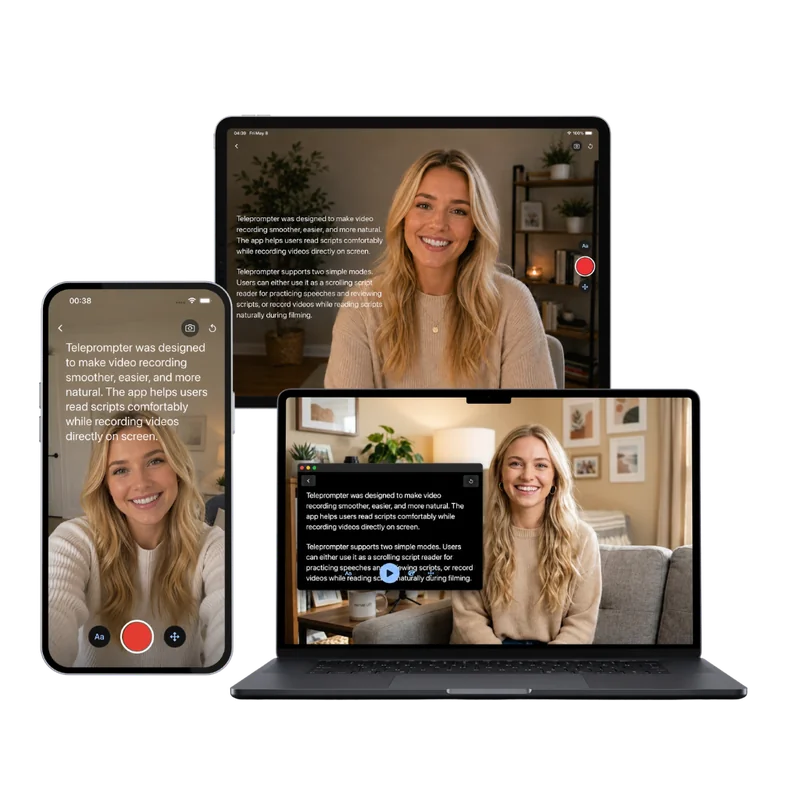
Every tool here works faster on a clean take. The free online teleprompter scrolls your script over the webcam preview, and Teleprompter Scrolling Scripts does the same on iPhone, iPad and Mac, with the words placed right by the camera so you keep eye contact through the whole video.
Frequently Asked Questions
Are these tools free?
Yes. Every tool on this page is free to use, with no sign-up, watermark or daily limit, and every feature is available to everyone. They come from the makers of Teleprompter Scrolling Scripts, a teleprompter app for iPhone, iPad and Mac, and sit alongside the free online teleprompter.
Are my files uploaded to a server?
Your files stay on your device. The tools run inside the browser tab, using FFmpeg compiled to WebAssembly for audio and video, the browser's own player for frames and plain text processing for subtitles. The result is created on your computer or phone and saved straight to your downloads.
Which browsers do the tools work in?
They work in current versions of Chrome, Edge, Firefox and Safari on Windows, Mac, Linux, ChromeOS, Android, iPhone and iPad. JavaScript and WebAssembly need to be turned on, which they are by default in all of these browsers.
Is there a file size limit?
The site sets no limit. Because processing happens on your device, the practical ceiling is its memory and processor: desktop computers handle files of a gigabyte or more, and phones handle shorter clips best. Converting or cutting a long 4K video takes longer than a short 1080p one.
Can I use the tools on my phone?
Yes. Open any tool in Safari on iPhone or iPad or in Chrome on Android, tap the choose button and pick a file from Photos, Files or your gallery. Results save to Downloads, which on iPhone sits in the Files app. Short clips work best on a phone.
Why does the first conversion take longer?
The audio and video tools download FFmpeg the first time you use one, about 30 MB. Your browser keeps it in its cache, so later conversions on any of these tools start straight away. The subtitle tools and the frame extractor skip that step and start instantly.