Free Mic Test Online mic test for any microphone

Check that your microphone works and hear how it sounds before a call, podcast, or voice-over. Watch the live level, measure room noise, and record a 10-second sample.

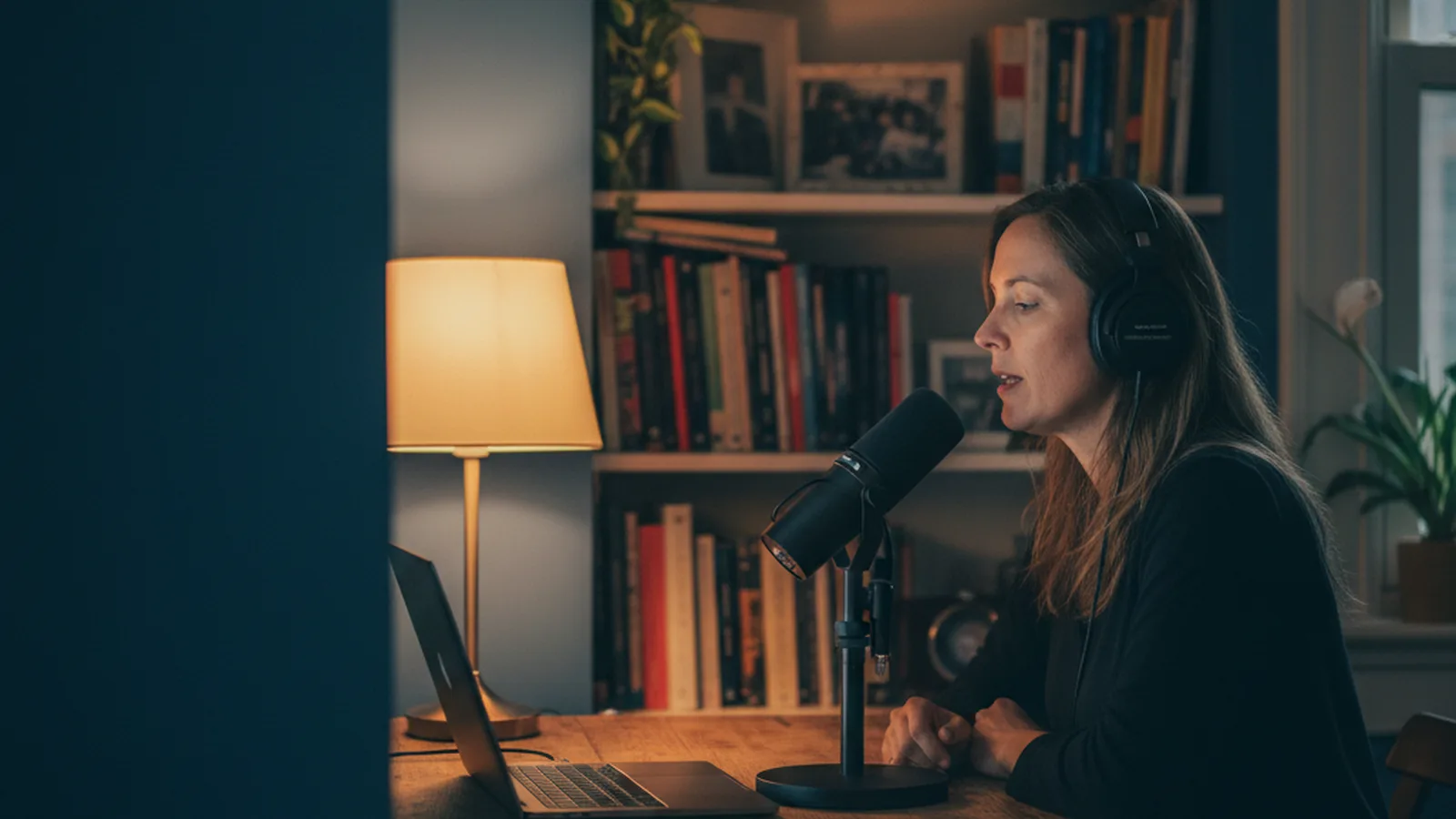
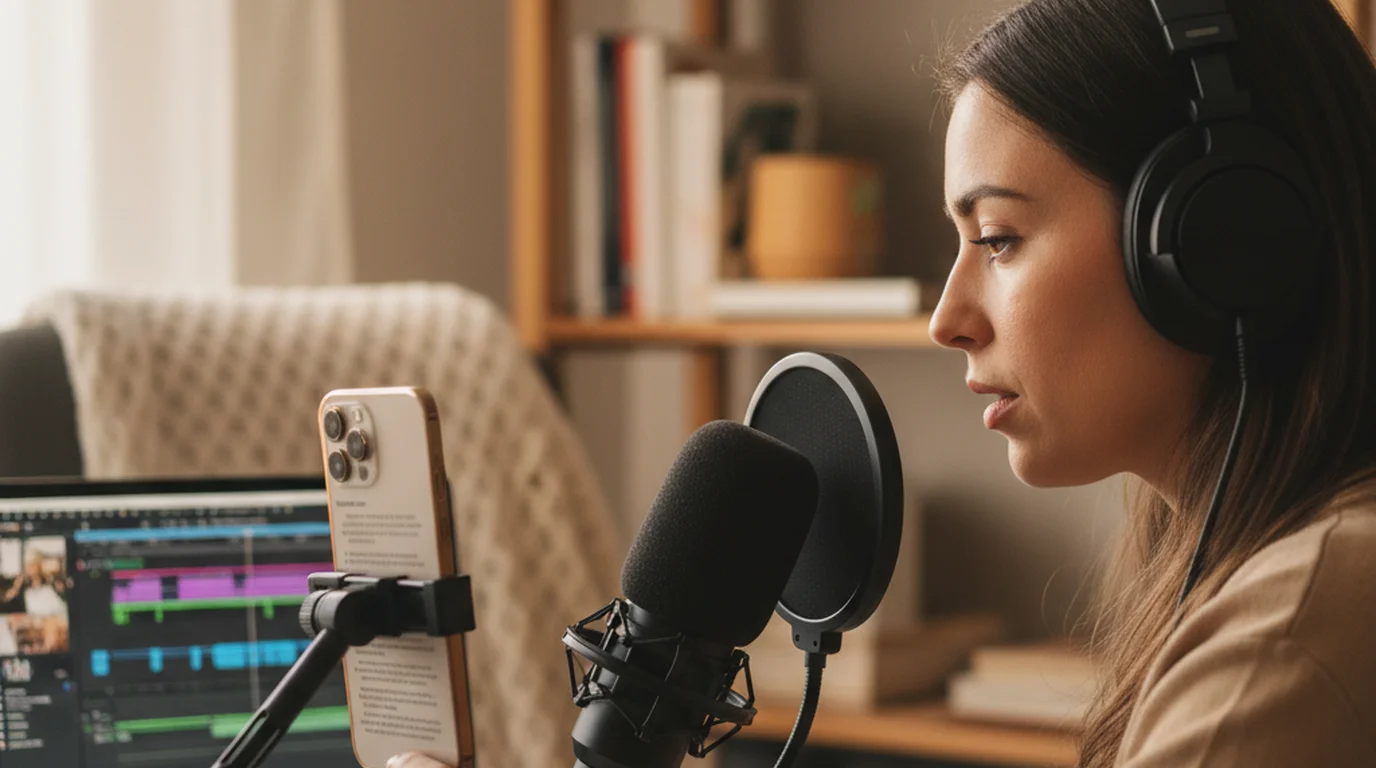
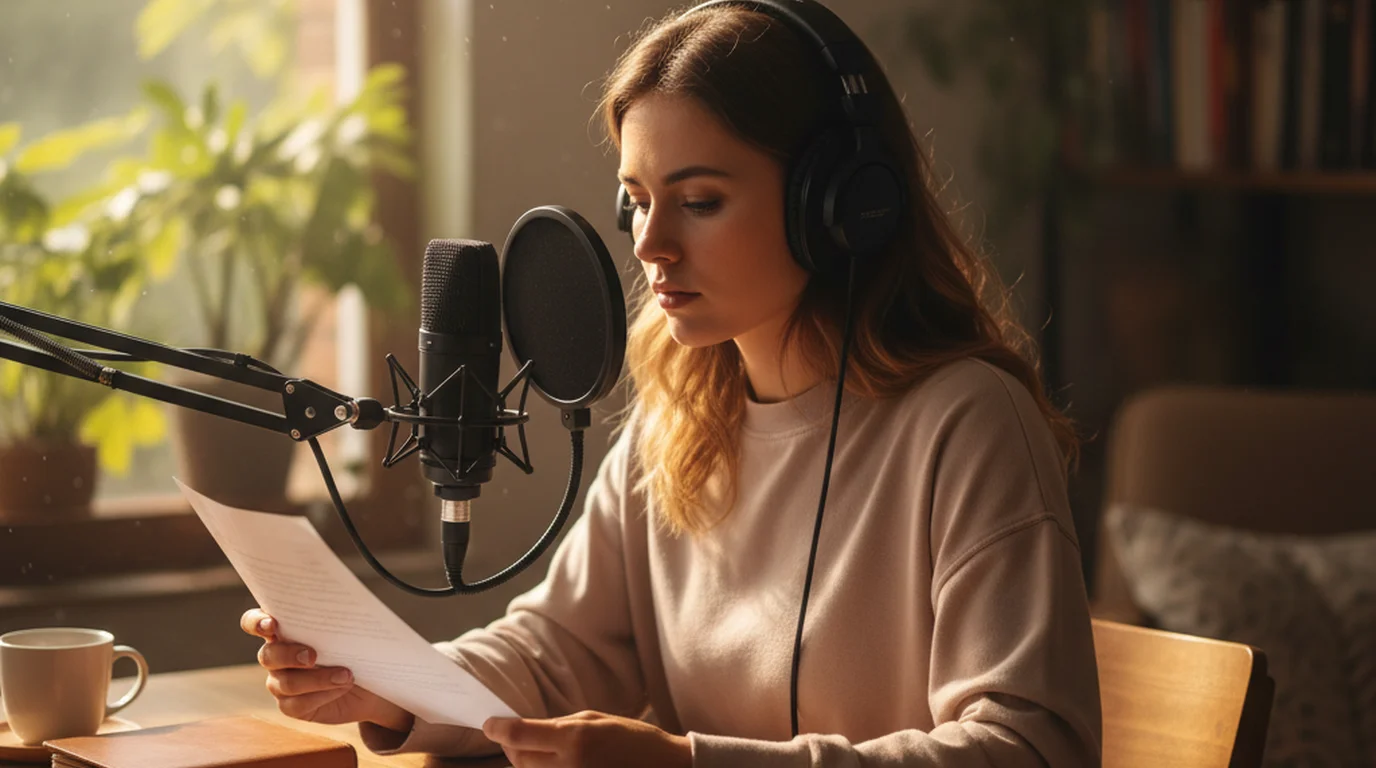
Woman with headphones speaking into a USB microphone at her desk during a mic test

Your browser asks for microphone access first. Choose Allow.

The test runs in your browser. Your audio stays on your device.

How to test my mic online

This microphone test takes under a minute. A good result keeps the meter in the green zone, clear of the red Clipping warning, with a quiet room behind your voice.

  1. Start the test. Press Test my microphone and choose Allow. The panel shows the microphone in use.
  2. Pick the right mic. Choose your headset, USB mic, or webcam mic from the Microphone menu.
  3. Check your level. Talk the way you will on the call. The message above the meter rates it too quiet, good, or too loud.
  4. Measure the room. Stay silent and press Measure background noise for the noise floor.
  5. Listen back. Press Record 10 seconds, read a sentence or two, and play it back.

Mic test results: too quiet, good, or too loud

All levels are in dBFS: 0 dBFS is the loudest level digital audio can hold, and everything quieter is a negative number. For spoken voice, aim for an average level between -35 and -12 dBFS.

Input level is the average (RMS) loudness the mic hears right now. The guidance averages it over the last 2 seconds of speech and skips the pauses between words. Peak is the loudest single sample, and the white marker on the meter holds it for 1.5 seconds.

Speech peaks sit roughly 10 to 20 dB above the average, so an average louder than -12 dBFS pushes them into 0 dBFS, where the sound flattens and crackles. That is clipping, and the red warning fires the moment a sample reaches full scale. A voice averaging below -35 dBFS needs a big boost later, and the room noise rises with it.

Example: a good speaking level

  • Too quietSpeech below -35 dBFSMove closer or raise the input volume
  • GoodSpeech from -35 to -12 dBFSKeep this distance and volume
  • Too loudAbove -12 dBFS, or clipping at 0 dBFSMove back or lower the input volume
The level meter in three zones, with the white peak marker holding the loudest moment.

Reduce background noise before you record

Stay silent and press Measure background noise. The reading takes the middle value of 3 seconds, so a single click or cough barely moves it.

  • Below -60 dBFS: a quiet room.
  • -60 to -45 dBFS: a hum, fan, or traffic behind quiet passages.
  • Above -45 dBFS: clearly audible behind your voice. Switch off fans, close the window, and move the mic closer to your mouth.

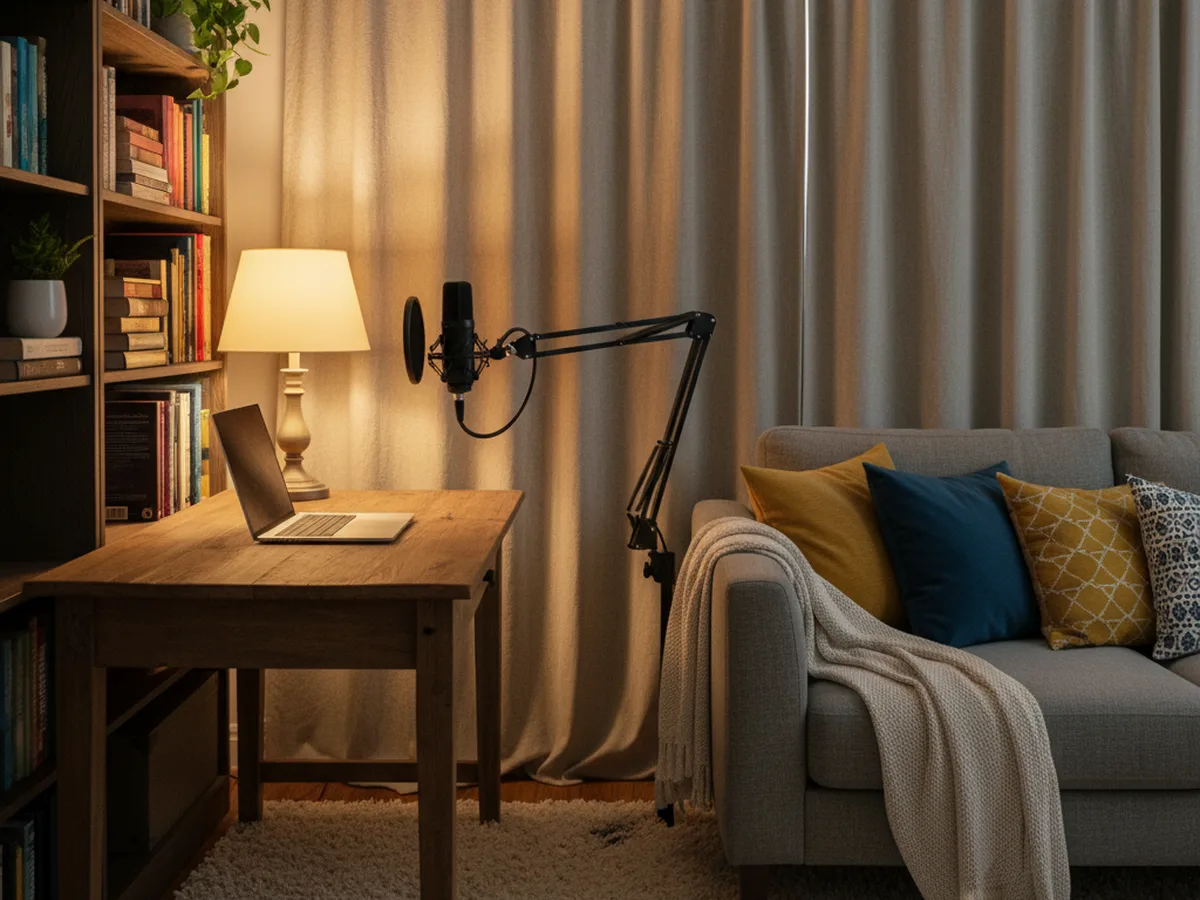
Soft furnishings help too: curtains, a rug, a sofa, and a full bookshelf soak up echo. Echo cancellation, noise suppression, and auto gain control are the browser's call processing and stay on by default, which is what Zoom and Meet hear. Turn them off in the panel to hear the raw microphone, the way a podcast or voice-over recording captures it.

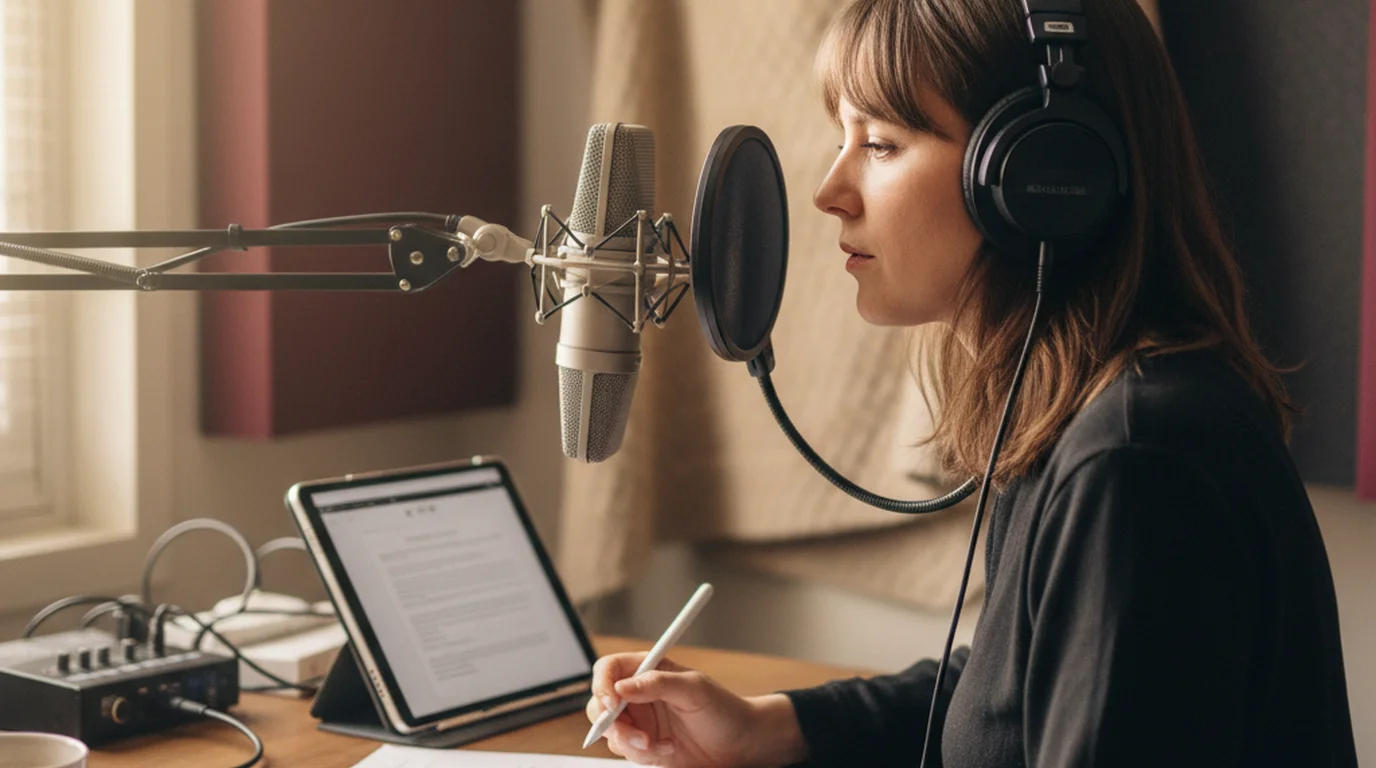
Quiet home recording corner with a microphone on a desk arm, heavy curtains, a rug, and a sofa with cushions

Headset mic test: AirPods and Bluetooth headsets

Connect the headset before you press Test my microphone, then choose it in the Microphone menu. The In use line confirms which device the browser opened. On a Mac you can also select the AirPods under System Settings > Sound > Input, and on Windows a Bluetooth headset often appears with Headset or Hands-Free in its name.

While a Bluetooth headset's mic is active, the headset switches to a call profile that carries sound both ways, so your voice takes on a narrower, phone-call sound. That is normal Bluetooth behavior, and the 10-second recording lets you hear it. AirPods are a comfortable choice for calls, and a wired USB mic gives a fuller sound for a podcast or voice-over.

On iPhone, the AirPods settings let you choose which earbud's mic to use, under Microphone.

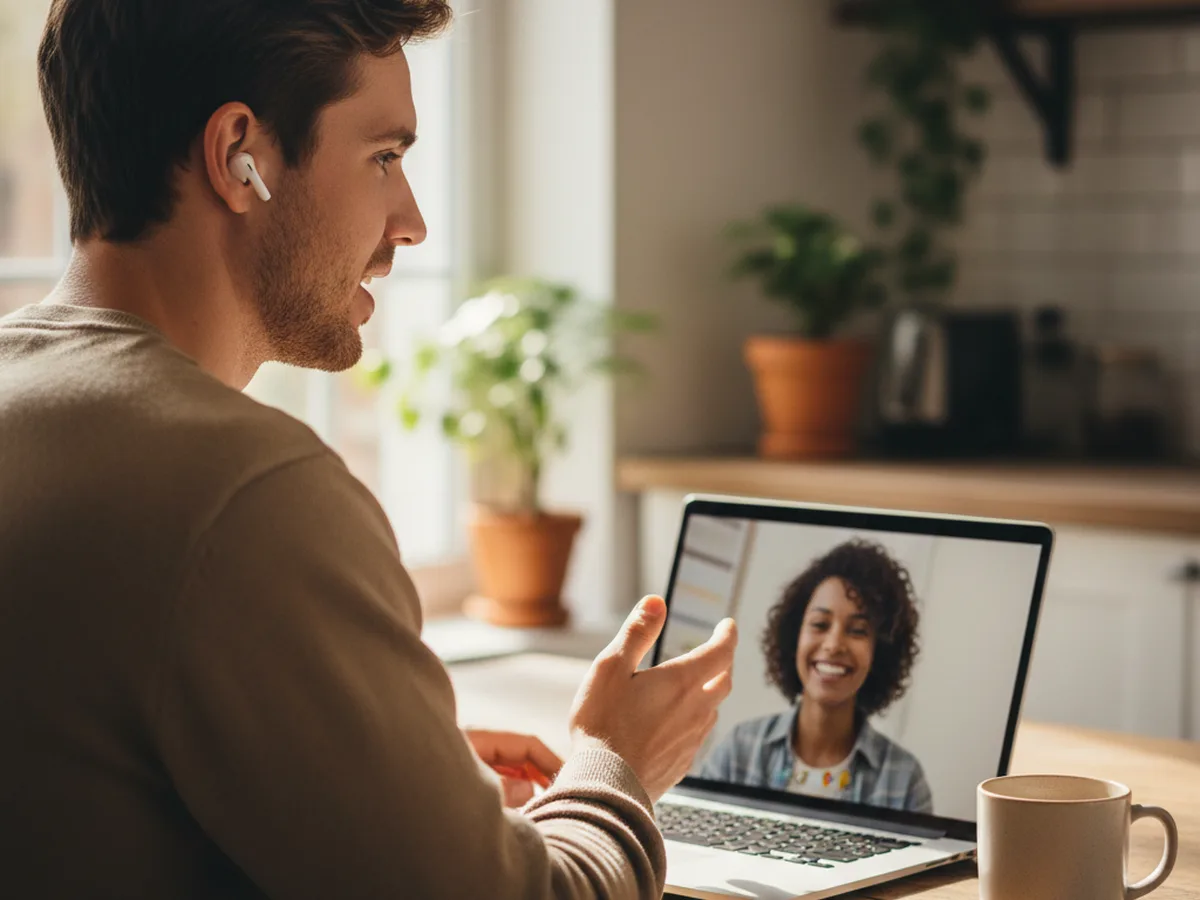
Man wearing wireless earbuds talking on a laptop video call at a kitchen table

Checking your camera too? The webcam test shows your camera picture before a video call. Warming up for a session? Try these voice over script examples.

Mic not working? Fixes for Mac, Windows, and every browser

Work through the system settings first, then the browser.

Mac

Allow the browser: Apple menu > System Settings > Privacy & Security > Microphone, then turn on Chrome, Safari, Edge, or Firefox. Quit and reopen the browser if it asks.

Choose the input: System Settings > Sound > Input, then select your microphone and drag the input volume slider: lower for a loud voice, higher for a soft one.

Windows 11

Allow the browser: Start > Settings > Privacy & security > Microphone. Turn on Microphone access, Let apps access your microphone, and Let desktop apps access your microphone. On Windows 10 the path is Settings > Privacy > Microphone.

Choose the input: Settings > System > Sound. Under Input, pick your mic, then open it to set the Input volume.

The mic is busy

Some microphones serve one app at a time, especially on Windows. Leave the call in Zoom, Teams, Discord, or Meet, close other tabs that record audio, and press Try again.

Chrome

Click the site icon at the left of the address bar and set Microphone to Allow, then reload. For all sites: Settings > Privacy and security > Site settings > Microphone, where you also pick the default mic.

Safari

Safari > Settings > Websites > Microphone. Set teleprompter.works to Allow or Ask, then reload the page.

Edge

Click the lock icon at the left of the address bar and set Microphone to Allow, then reload. For all sites, open Settings, go to the site permissions section, and choose Microphone.

Firefox

Click the permissions icon at the left of the address bar and clear the Blocked microphone entry, so Firefox asks again on the next load. Saved decisions live in Settings > Privacy & Security > Permissions > Microphone.

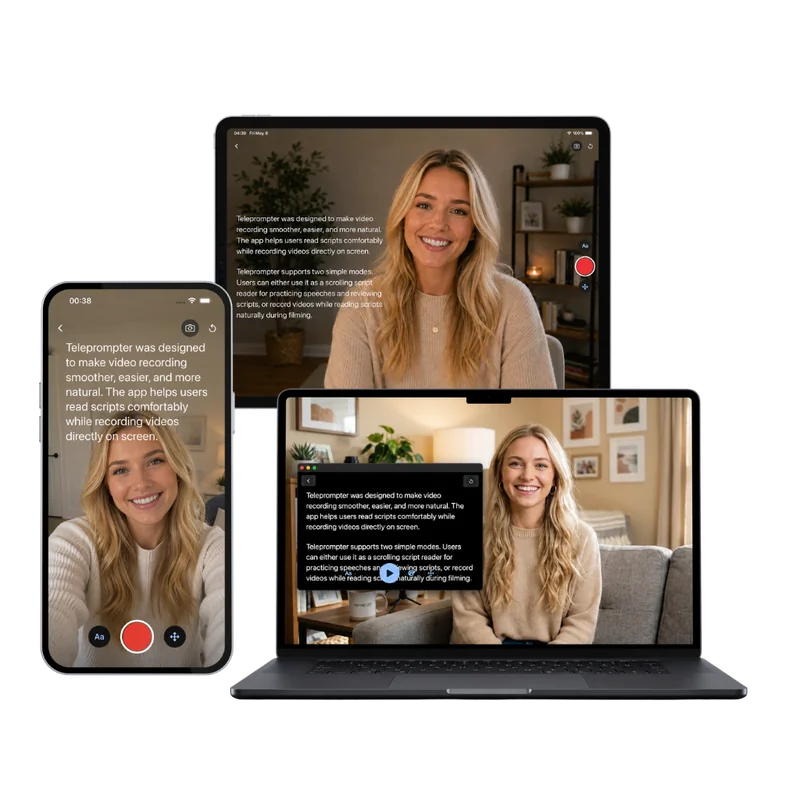
Teleprompter-Scrolling Scripts on iPhone, iPad and Mac, with the script scrolling over the camera

Next step

Sound ready? Now record with your script

The free online teleprompter scrolls your script in the browser, so you read a podcast intro or a voice-over at a steady pace. On iPhone, iPad and Mac, Teleprompter-Scrolling Scripts adds Voice mode: it records audio while your script scrolls, ready for podcast episodes and voice-over takes. Free to download.

Frequently Asked Questions

How do I test my mic online?

Press Test my microphone and allow access when the browser asks. Speak at your normal volume and watch the level meter: the bar moves with your voice and the message above it rates the level as too quiet, good, or too loud. Then record 10 seconds and play it back to hear exactly how you sound.

Why is my microphone not working in the browser?

Three causes cover most cases. The browser or the site is blocked from the microphone, so allow it from the icon in the address bar. The operating system is blocking the browser, so turn the browser on under Privacy & Security > Microphone on a Mac or Privacy & security > Microphone on Windows. Or another app such as Zoom, Teams, or Discord is holding the mic, so close it and press Try again.

What is a good microphone level?

For spoken voice, aim for the green zone on the meter: an average speech level between -35 and -12 dBFS, with peaks staying below 0 dBFS. If the red Clipping warning appears, move back from the mic or lower the input volume. If the level reads too quiet, move closer or raise the input volume in your sound settings.

How do I test my headset or AirPods mic?

Connect the headset first, then choose it in the Microphone menu of the test. The label under the menu shows the device in use. Speak, check the meter, and record a short sample. A Bluetooth headset switches to a call-quality mode while its mic is in use, so the playback sounds narrower than music, and that is normal.

Should noise suppression and echo cancellation be on or off?

Leave them on for calls, where the browser cleans up fan noise and stops the other side hearing themselves. Turn them off to hear what the raw microphone picks up, or when you record a podcast or voice-over with a good mic and want to clean the audio yourself later. Turn auto gain control off to set a steady level by hand.

What sample rate and channels should my microphone use?

The sample rate and channel count come straight from the browser's report for the microphone track. 48,000 Hz and 44,100 Hz are both full quality for voice, and one channel (mono) is exactly right for speech, which is what most mics, headsets, and laptop mics record. Some browsers keep these values private and show Not reported.

How do I check my mic's background noise?

Stay silent and press Measure background noise. The test listens for 3 seconds and reports the noise floor in dBFS. Below -60 dBFS is a quiet room, -60 to -45 dBFS has audible hum or fan noise, and above -45 dBFS is noisy enough to hear behind your voice.

Is this mic test private?

Yes. The test runs entirely in your browser. Your audio stays on your device, and the 10-second recording is saved only if you press Download.