How to Record a Song on iPhone: Voice Memos, GarageBand, and Lyrics on Screen
 Maya Chen · October 6, 2026 · 8 min read
You have a melody stuck in your head, a cover you want to post, or a demo to send to a bandmate, and the only gear within reach is your phone. Knowing how to record a song on iPhone comes down to two decisions: which app records you, and what you hear while you sing. Get those two right and a phone take can sound clean enough to share, pitch, or build a full track around.
To record a song on iPhone, open Voice Memos, set Audio Quality to Lossless in Settings, hold the phone 15–30 cm (6–12 in) from your mouth, and tap the red record button. To sing over a backing track, use GarageBand's Audio Recorder with headphones. If you need the lyrics in front of you, record in a teleprompter app's Voice mode.
The quick way: record a song in Voice Memos
Voice Memos is already on every iPhone, and for a voice-and-guitar idea or an a cappella take it is the fastest route from "I should record this" to a saved file. Apple describes it as a portable recorder for "musical ideas" among other things, with trim and replace tools built in (Apple's Voice Memos guide).
- Find a quiet, soft room. A bedroom with a bed, curtains, and a rug beats a kitchen or bathroom every time.
- Open Voice Memos (it lives in the Utilities folder, or type "Voice Memos" into search).
- Set the phone down or hold it steady with the bottom edge, where the main microphone sits, pointing toward your mouth.
- Tap the red record button, wait one beat, and start singing.
- Tap stop, then play it back once on headphones. If the loud notes crackle, move the phone back a few centimetres and do another take.
- Trim and rename the take so you can find it later, then share it from the recording's More menu.
The limit shows up the moment you want music under your voice. Voice Memos records whatever reaches the microphone, so on most iPhones a backing track has to come from somewhere else, which is what the next two sections solve.
Set Voice Memos to Lossless before you sing
Voice Memos has two quality settings: Compressed and Lossless. Compressed keeps files small, which is fine for spoken notes. A song take is different: the high notes, breaths, and room tone are exactly what lossy compression thins out first, and you can't add that detail back later in an editor.
Go to Settings > Apps > Voice Memos > Audio Quality and choose Lossless. On older versions of iOS the path is Settings > Voice Memos > Audio Quality. The setting applies to new recordings only, so change it before the take you care about.
Lossless audio keeps every sample the microphone captured, while compressed formats such as AAC discard detail that is judged hard to hear. For a vocal take that may later be mixed, pitched, or layered, recording lossless costs only storage space, whereas a compressed original permanently limits what an editor can recover.
How to record a song over a backing track
Singing to a beat or an instrumental needs two things a plain voice memo doesn't give you: a way to play the track while recording, and a way to keep that track out of your vocal microphone. GarageBand handles both, and on newer iPhones Voice Memos can now do a simpler version.
Option 1: GarageBand (any iPhone)
- Import the backing track. GarageBand accepts AIFF, WAV, AAC, and MP3. Save the file to the Files app, open Tracks view, tap the Loop Browser button, and move the file into GarageBand's Files tab (Apple's import guide). Drag it onto the first track.
- Add an Audio Recorder track. This is the instrument GarageBand uses for voice and acoustic sound through the iPhone microphone or an external one.
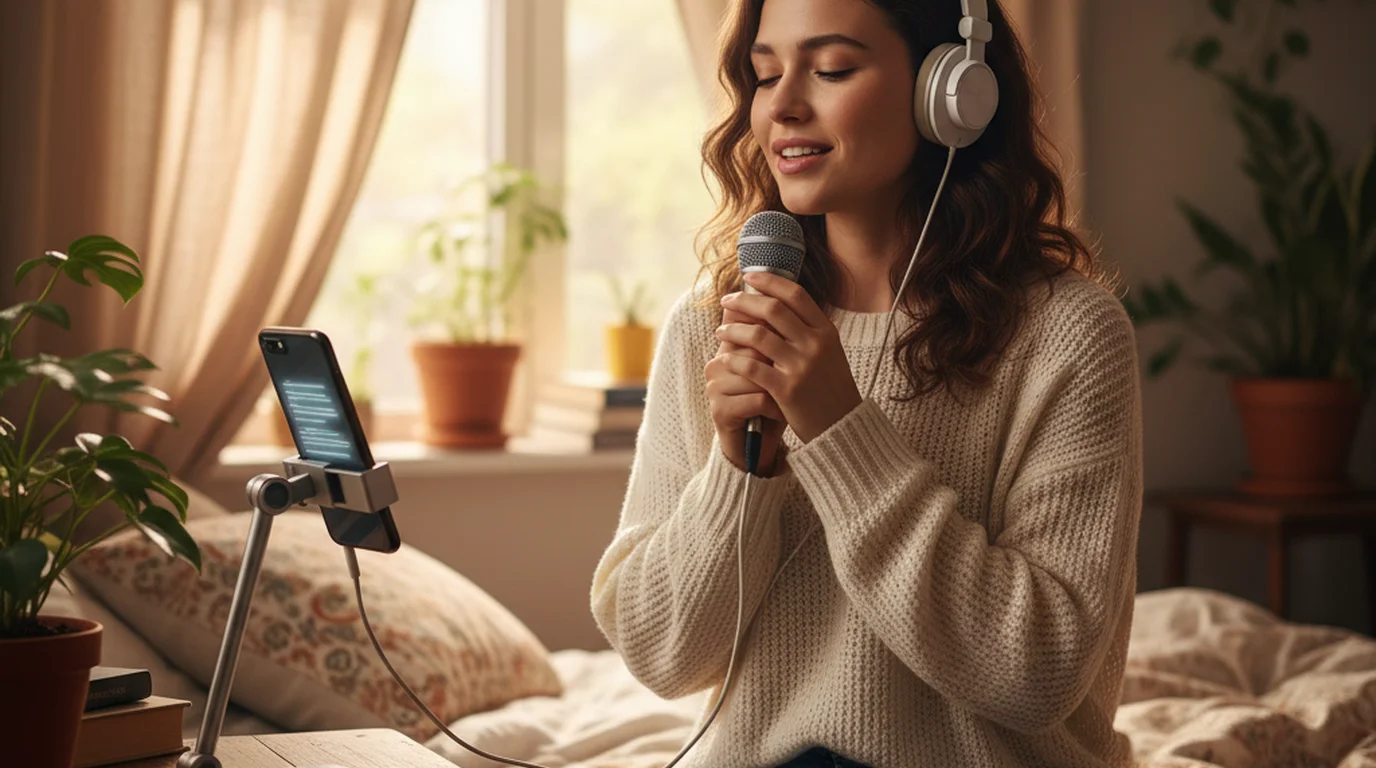
- Put on wired headphones. The track plays in your ears instead of the room, so the vocal stays clean. Bluetooth earbuds add a delay that makes it hard to stay on the beat.
- Check the input level. Sing the loudest line of the song. If the In level slider turns red, drag it down or step back from the phone.
- Tap Record in the control bar and sing. Record a few takes on separate passes and keep the best one.
Option 2: Voice Memos layered recording (newer iPhones)
On supported models, Voice Memos can add a second layer on top of an existing recording, and Apple built it to work without headphones: the iPhone separates your voice from the instrumental playing out of the speaker (Apple Newsroom). Apple lists iPhone 16 Pro, iPhone 16 Pro Max, iPhone 17, iPhone 17 Pro, iPhone 17 Pro Max, and iPhone Air as supported. Record or open the instrumental memo, tap the waveform icon, tap the plus button, then tap record and sing the vocal layer. The Layer Mix slider balances the two afterwards.
Apple's Voice Memos layered recording, introduced for the iPhone 16 Pro lineup, records a vocal on top of an instrumental memo without headphones. The phone uses on-device processing to keep the instrumental out of the vocal layer, and the two layers can later be separated or opened in Logic Pro as a two-track project.
How to record a song when you need the lyrics on screen
Voice Memos and GarageBand both assume you know the words. When you don't, the usual workaround is lyrics on a second screen or a sheet of paper, and both pull your face away from the phone, which changes how the microphone hears you halfway through a line.
A teleprompter app keeps the lyrics on the same screen you're recording on. In Teleprompter-Scrolling Scripts for iPhone, a free teleprompter app, Voice mode records audio only while the lyrics scroll:
- Paste the lyrics into a new project. Put each line on its own line and leave a blank line between verses and choruses so the sections are easy to spot.
- Open Voice mode and set the text size large enough to read from 30 cm away.
- Choose how the lyrics move. Let them scroll automatically at a set reading speed, or use the up and down buttons to jump three lines at a time, which suits songs with long instrumental breaks or a tempo that changes.
- Play the backing track from a second device into your headphones, start recording, and sing.
The file is saved as an AAC (.m4a) audio recording you can share or drop into an editor. When you want the performance on video as well, Camera mode puts the same scrolling lyrics over the front-camera preview, so the take looks like you're singing to the lens rather than reading. For live performance setups, the lyric prompter guide for singers covers stage and rehearsal use in more detail.
Microphone and room tips that make the biggest difference
Which app you pick matters less than where the phone is. Most bad phone recordings fail for one of three reasons: too close, too reflective, or too loud.
- Distance: 15–30 cm (6–12 in) from your mouth for normal singing. Closer adds boom and distortion on loud notes; further picks up more of the room.
- Angle: aim the microphone slightly off to the side of your mouth so hard consonants like "p" and "b" don't pop.
- Room: soft furnishings absorb echo. A closet full of clothes is the classic home vocal booth for a reason.
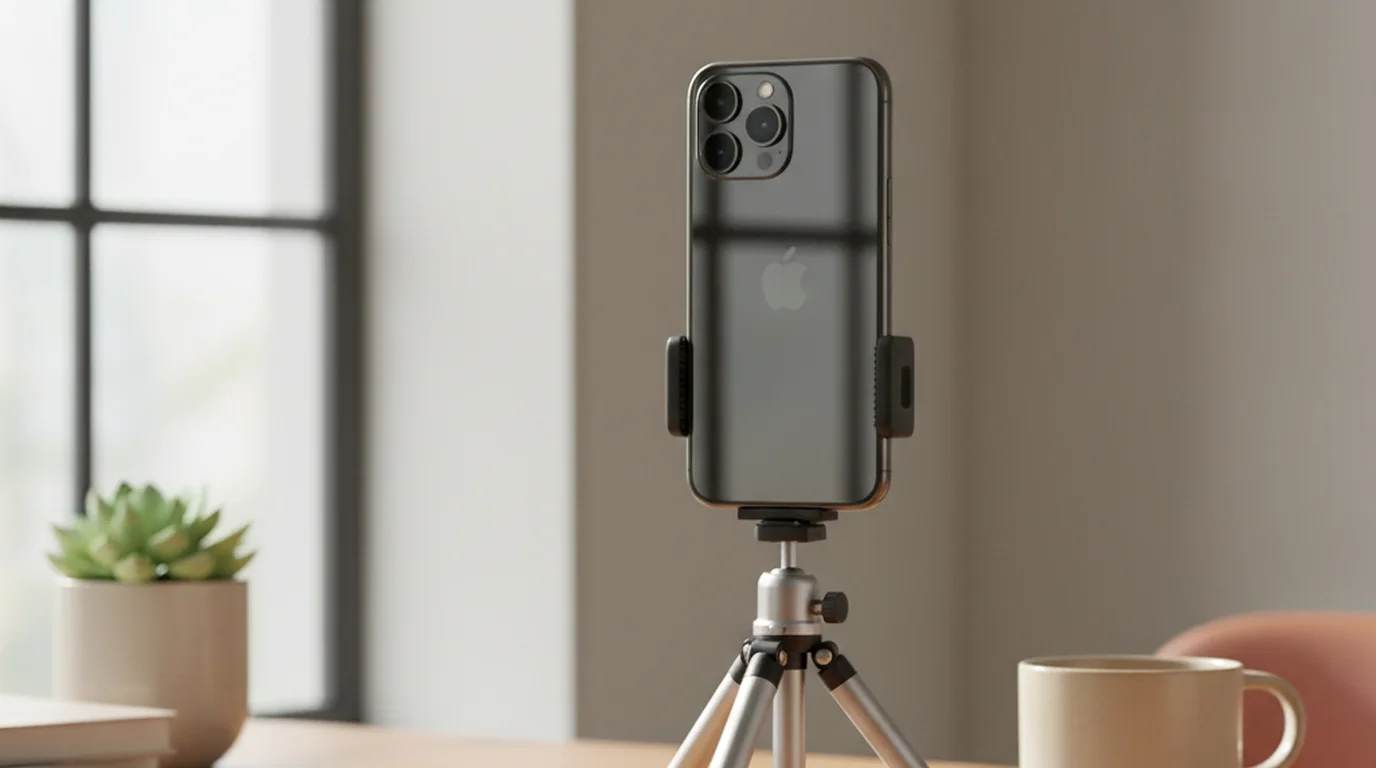
- Stability: a stand or small tripod stops handling noise. The phone tripod guide lists options that also work for singing videos.
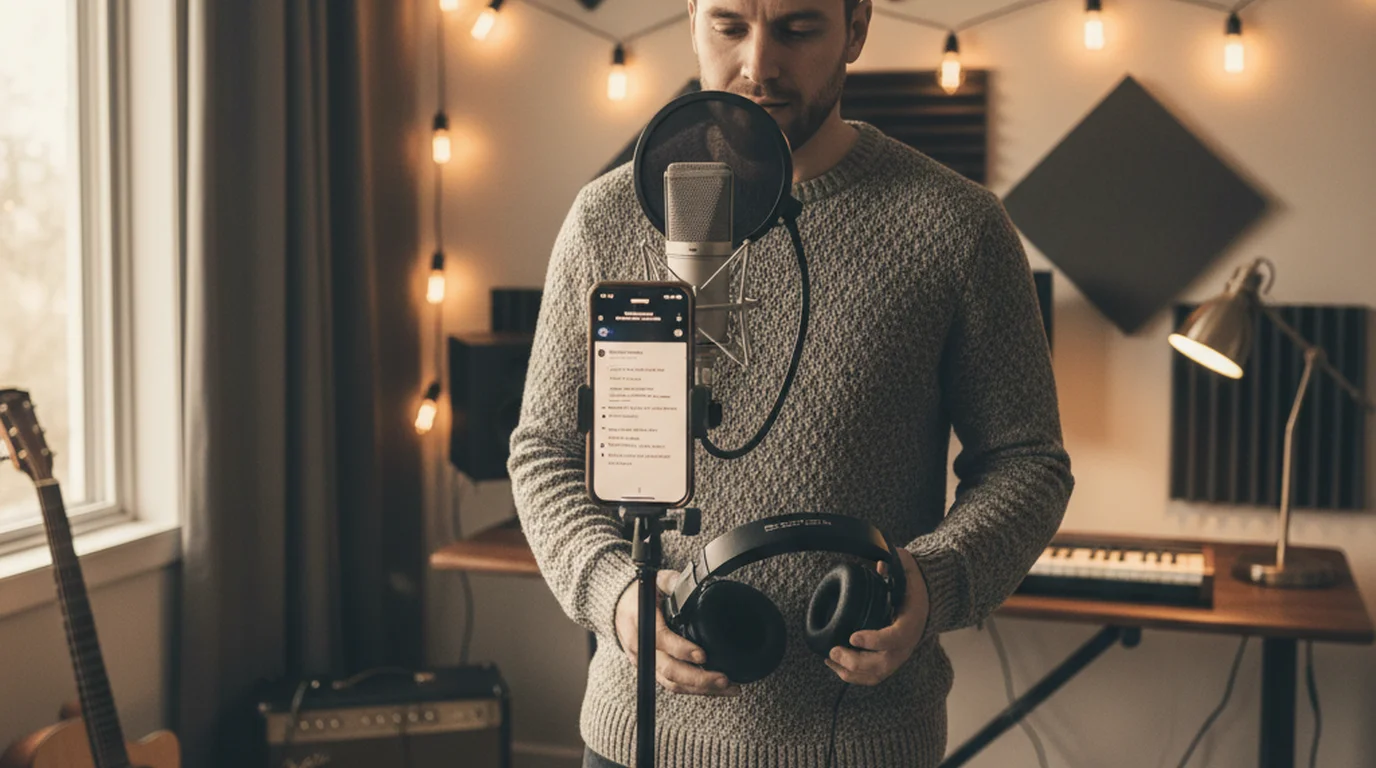
- External microphone: a USB-C or Lightning microphone, or a lavalier, is the single biggest upgrade. Voice Memos and GarageBand both record from an external mic once it's connected.
- Airplane mode: turn it on so a call or notification sound doesn't interrupt the best take you've done all day.
Which method should you use?
| What you're recording | Best method | Why |
|---|---|---|
| A quick idea or a cappella take | Voice Memos | Opens instantly, set it to Lossless and go |
| Vocals over a beat or instrumental | GarageBand | Backing track in your headphones, vocal on its own track |
| Vocals over your own instrumental memo | Voice Memos layered recording | No headphones needed on supported iPhones |
| A song you haven't memorized yet | Teleprompter app, Voice mode | Lyrics scroll on the screen you sing into |
| A singing video for TikTok or Reels | Teleprompter app, Camera mode | Lyrics stay next to the lens while the camera records |
Many songs end up using two of these: lyrics on a teleprompter for the vocal, then GarageBand to line it up with the instrumental and export.
Frequently Asked Questions
Can I record a song playing on my phone?
Yes, but that is a different job from recording yourself singing. Screen Recording in Control Center captures the audio of most apps playing on the iPhone. Many streaming apps block their audio from screen recordings, and recordings of copyrighted songs are for personal use only.
Where is the recorder button on my iPhone?
The built-in recorder is the Voice Memos app. It sits in the Utilities folder on the Home Screen, or you can swipe down and type Voice Memos into search. The large red circle at the bottom of the app starts and stops a recording.
How do I record part of a song on my iPhone?
For your own recording, record the full take and trim it afterwards: in Voice Memos open the recording, tap the waveform icon, tap the trim button, and drag the handles to the part you want to keep. In GarageBand you can record just one section by setting the playhead where the part starts.
Is Voice Memos good enough to record a song?
For demos, song ideas, and a cappella covers, yes, as long as Audio Quality is set to Lossless and the phone is 15–30 cm from your mouth in a quiet, soft room. For vocals over a beat, GarageBand is the better tool because the backing track and the vocal stay on separate tracks.
How do I sing over a backing track on iPhone?
Import the track into GarageBand, add an Audio Recorder track, and wear wired headphones so the music doesn't leak into the microphone. On iPhone 16 Pro, iPhone 17, iPhone Air, and other supported models, Voice Memos can also record a vocal layer over an instrumental memo without headphones.
How can I see the lyrics while recording a song on iPhone?
Use a teleprompter app on the same iPhone. In Teleprompter-Scrolling Scripts, Voice mode records audio only while the lyrics scroll automatically or move three lines at a time with the up and down buttons. Camera mode does the same over the front-camera preview for singing videos.
Maya ChenMaya Chen is a content creator who films on iPhone and coaches solo creators on mobile-first video production for TikTok, Reels, and Shorts. Her work focuses on the part most people skip: how to actually sound natural once the camera is rolling.
Keep the lyrics in front of you while you record
Teleprompter-Scrolling Scripts scrolls your lyrics on the same iPhone you're singing into. Record audio only in Voice mode, or film the performance in Camera mode.
Use Free Online Teleprompter Get the Free App