How to Use the Best Free Teleprompter App: 3 Versatile Modes on Teleprompter-Scrolling Scripts
 Lauren Mercer · July 18, 2026 · 11 min read
Teleprompter-Scrolling Scripts is a free teleprompter app for iPhone, iPad, and Mac. Paste a script, pick a mode, and read — the workflow is as straightforward as opening your phone's camera. It stands out because three built-in modes cover the setups creators actually run into: recording video on the device, reading while something else captures you, and saving audio only. Scripts stay on your device, scrolling works without an internet connection, and nothing depends on a browser tab staying open mid-take.
A teleprompter should be ready when you need it — on a plane, in a studio with no signal, or five minutes before a live call. Teleprompter-Scrolling Scripts is local-first: free to download, no account, and no network required once installed. One app handles filming, live prompting, and voice recording, so you are not switching tools for each job. The sections below walk through all three modes — when each fits, how to set it up, and the settings that keep delivery sounding natural.
Camera Mode: Record Video on Your iPhone, iPad, or Mac
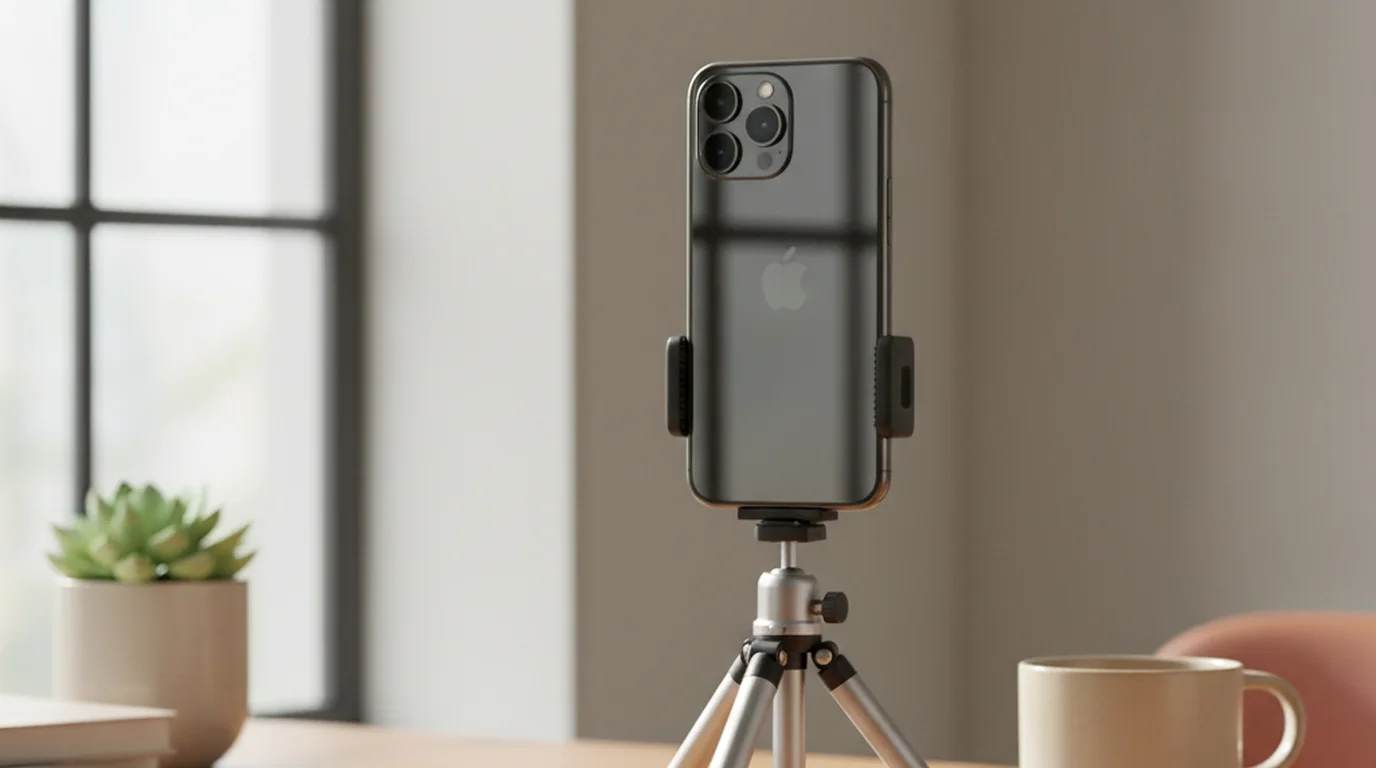
Camera mode overlays the script on the live camera preview. You read from the screen; the saved video contains only your delivery — no visible teleprompter text. Use it whenever the device running the app is the camera — phone on a tripod, iPad at desk height, or a Mac with its built-in or external webcam.
When to use Camera mode
- YouTube, Reels, and TikTok. Tap record in the app; the script scrolls over the live feed while you read. Most talking-head creators use this setup — a phone, a tripod, and Camera mode.
- UGC for brands. Scripted delivery with natural eye contact is what separates polished UGC from casual footage. Camera mode keeps takes fast when you are shooting multiple products in one session.
- Course videos and tutorials. When step order, terminology, and cited figures need to stay exact, Camera mode keeps the wording on track from the first take.
How to set up Camera mode
- Open Teleprompter-Scrolling Scripts, tap + to create a project, and paste your script.
- Tap Camera mode.
- Set font size — 36pt is a starting point on iPhone; go larger on iPad or Mac if you sit farther back.
- Drag the text area near the camera lens.
- Tap record. The script scrolls over the live feed while you read.
- Stop when done. The video saves without the overlay.
Camera mode works because of where the text sits. A script overlaid near the front lens puts your reading line and the camera in nearly the same place — the eye movement between them is too small for a viewer to register as looking away.
Prompter Mode: Live Speaking and DSLR Setups
Prompter mode works like a hardware teleprompter: full-screen scrolling text, app camera off, no file saved. Something else handles what the audience sees — the room, a video-call app, or a dedicated camera on the desk.
When to use Prompter mode
- Live speaking. Conference talks, keynotes, webinars, and Zoom presentations where you need the script in front of you but the app does not need to record. For a stage or podium, prop an iPad or iPhone in Prompter mode at eye level. For Zoom or a MacBook webcam, run Prompter mode on the Mac below the built-in camera, or prop a phone or tablet below the laptop lens. See using a teleprompter for Zoom calls for a full setup walkthrough.
- Video interviews on a laptop. Your interviewer sees you through their browser. Run Prompter mode on a phone or tablet propped below the MacBook camera, or run it on the Mac itself below the webcam, so you can read prepared answers while maintaining eye contact.
- Loom and Mac webcam recordings. Loom records from your Mac camera. Run Prompter mode on the Mac with the script window below the webcam, or open the free online teleprompter in a browser tab at the same position.
- DSLR or mirrorless camera setups. When a dedicated camera on a tripod is recording, prop your iPad in Prompter mode just below the lens. The tablet scrolls the script; the camera captures the shot — the same division a hardware rig uses.
Mirror and flip for a beam-splitter rig
Hardware teleprompters with angled glass require reversed text. Mirror mode flips the script horizontally; Flip handles an upside-down mount under the rig. The reversal affects only what you read — recorded video stays normal.
How to set up Prompter mode
- Tap + to create a project and paste your script.
- Tap Prompter mode.
- Set font size to 36–44pt at arm's length, or larger if the device sits farther from you.
- Place the screen near the lens that is capturing you — below a laptop webcam, just below a DSLR lens, or at the podium for a live talk.
- Start the scroll a beat before you speak.
Voice Mode: Record Audio Only
Voice mode scrolls your script and saves an audio file — no camera, no video. Added in version 3.3 on iPhone, iPad, and Mac, it covers any take where you need a recording inside the app but not a picture.
When to use Voice mode
- Podcast segments. Scripted intros, outros, sponsor reads, and solo talk segments — including at a Mac desk with no camera open.
- Voiceover and narration. A narration pass for video you will edit later, an e-learning module, or an audiobook sample.
- Vocals over your own lyrics. Read and record from the same screen without syncing a separate device.
Voice mode is a teleprompter plus recorder, not a full production suite. For a multi-guest podcast or a studio vocal chain, keep your microphone and DAW setup and use Prompter mode as the script display. For solo scripted audio on the go, Voice mode is enough. See what Voice mode does for detail.
How to set up Voice mode
- Tap + to create a project and paste your script.
- Tap Voice mode. The camera preview closes; only the script and audio controls remain.
- Set font size and scroll speed, then tap record.
- Stop when done. The app saves an audio file — no video attached.
How to Write a Script That Works in All Three Modes
The way you write for a teleprompter is different from writing an essay or a slide deck. Read aloud while writing. If a sentence sounds stiff when spoken, rewrite it.
- Short sentences. Every sentence should be one complete thought. Long compound sentences require more eye tracking and break your reading rhythm.
- Write numbers out in words or very short forms. "Three million dollars" is faster to read than "$3,000,000." Formatted numbers slow your scan.
- Mark your pauses. Add a dash — or a line break — where you'd naturally breathe or let a point land. Scripts without built-in pauses produce rushed delivery.
- Don't over-script. Script your opening, your data points, your transitions, and your close. Leave the middle sections — where you know the material deeply — for natural delivery. Over-scripting produces flat recordings.
Scroll Speed and Font Size: The Two Settings That Matter Most
Every other setting in a teleprompter app is secondary to these two. Getting them right is what separates delivery that sounds natural from delivery that sounds read.
Font size
The rule: increase font size until you stop scanning left to right to read a line. If your eyes move horizontally, the text is too small. At the correct font size, you can read each line within your central visual field without turning your eyes — this keeps your gaze centered on the camera. Most people land at 36–44pt for arm's-length reading (60–80cm). On an iPad used farther away, go higher.
Scroll speed
Start at 90–110 WPM. The right speed is one where you feel slightly ahead of the text — you could speak the next word before it appears. That pace reads as confident and deliberate on camera. Speed that chases the scroll reads as rushed.
Calibrate in Camera mode: record a 30-second test clip, watch it back, and watch your eyes specifically. In Prompter or Voice mode, do a timed read-aloud instead — adjust scroll speed until you feel slightly ahead of the text. Most people need two or three test runs to find their ideal setting.
Tips for Looking Natural While Using a Teleprompter App
- Don't start the scroll and your delivery at the same time. Start the scroll one second before you speak. Your opening sentence should already be visible when you begin — finding your place in the first second shows on camera.
- Blink normally. People who concentrate on reading sometimes under-blink. Make a conscious effort to blink at your normal rate. Under-blinking creates a fixed, unnatural gaze.
- Vary your pace deliberately. Use your pause markers to slow down for emphasis. A one-beat pause after an important point is one of the most effective delivery tools available — it's hard to do naturally in conversation but easy to plan into a script.
- Re-record sections, not whole videos. In Camera mode, you can pause the scroll without stopping the recording — hold a moment, breathe, then continue — or stop and start a fresh take for each section. Most professional content creators record in sections rather than trying to nail a full script on the first take.
Research published in the Journal of Computer-Mediated Communication (2022) found that teleprompter delivery was judged as equally natural to spontaneous speech by viewers when scroll speed matched the speaker's natural delivery pace. The perceptibility of teleprompter use was primarily driven by scroll speed mismatches — speakers rushing to keep up with text, or speaking faster than the scroll — rather than by the act of reading itself. Calibration, not practice, determined whether the technique was detectable.
Frequently Asked Questions
Can I use my phone as a teleprompter?
Yes. In Camera mode, your phone records video while the script overlays the live view — use this whenever your iPhone, iPad, or Mac is the camera. In Prompter mode, the device scrolls the script full-screen for live speaking or a DSLR setup, with no file saved. Voice mode records audio only.
Is it difficult to use a teleprompter app?
No. The main learning curve is choosing the right mode and calibrating font size and scroll speed. Most people get a natural-looking result within two or three test recordings. The most common mistake is setting scroll speed too fast — slow it down until you feel slightly ahead of the text, and your delivery will read as confident rather than rushed.
How does an iPhone teleprompter work?
In Camera mode, the script overlays the live camera preview — drag the text area near the lens and tap record. In Prompter mode, the script fills the screen while something else captures you: a Zoom call, a live talk, or a DSLR on a tripod. Voice mode scrolls the script and saves audio only.
Is there a good free teleprompter app?
Yes. Teleprompter-Scrolling Scripts is free on iPhone, iPad, and Mac with Prompter, Camera, and Voice modes, no watermark. There is also a free browser-based version at teleprompter.works/online/ for Prompter mode without a download. Both are local-first — your scripts stay on your device.
Which teleprompter mode should I use?
Camera mode when you want a video from your iPhone, iPad, or Mac — the script overlays the live camera view. Prompter mode for live speaking or when a DSLR or mirrorless camera is recording; the app saves no file. Voice mode when you want audio only, such as a podcast segment or voiceover pass.
What scroll speed should I use for a teleprompter app?
Start at 90–110 WPM for conversational recording. In Camera mode, record a 30-second test and watch your eyes in the playback. In Prompter or Voice mode, do a timed read-aloud instead. If you look like you're reading, slow the scroll. If you're rushing to keep up, increase speed. Font size affects this too — larger text at the same WPM feels slower because each word takes up more visual real estate.
Does the teleprompter app have a mirror mode?
Yes. Mirror mode reverses the script horizontally so it reads correctly through the glass of a beam-splitter teleprompter, and flip turns it the other way for a device mounted upside down. That is what lets a phone or iPad drive a hardware prompter rig rather than sit beside the lens. The reversal affects only what you read — anything you record comes out normal.
Can a teleprompter app record audio without video?
Yes, in Voice mode. It records sound through the device microphone while the script scrolls, and saves an audio file with no camera involved. It suits podcast segments, voiceover passes, and recording vocals while reading lyrics. For a published show with guests or a master vocal, keep a microphone and interface into a DAW and run Prompter mode as the script display.
Complete guide: What Is a Teleprompter? How It Works, Types, and When to Use One — history, hardware vs software, types, cost, and free options for every platform.
Complete guide: The Solo Content Creator's Complete Guide (2026) — scripting, delivery, camera setup, platform strategy, and the free tools every solo creator needs.
Lauren MercerLauren Mercer builds and sells online courses on scriptwriting, on-camera delivery, and video production workflows. She writes about the full path from script to screen — AI writing tools, recording setups, and the friction points that slow down solo educators.
Try all three modes free — no account needed
Download the app for iPhone, iPad, and Mac to access Prompter, Camera, and Voice modes. Or use the free online teleprompter for browser-based Prompter mode with no installation.
Use Free Online Teleprompter Get the Free App