Teleprompter App for Singers: Lyrics on iPhone and iPad
 Wendy Zhang · May 20, 2026 · 8 min read
Finding the best teleprompter app for singers means finding a display tool that keeps pace with the song, stays out of the way of the performance, and works reliably when you need it most. Singers who perform new material, cover artists learning unfamiliar lyrics, and vocal coaches who record lesson demonstrations all share the same core need: a readable, hands-free lyrics display that does not require a music stand covered in paper.
Teleprompter-Scrolling Scripts handles this with Prompter mode — a text-only scrolling display on iPhone or iPad that shows your lyrics at full screen with adjustable text size, scroll speed, and background. No camera recording runs in Prompter mode, which means the app does not interfere with an external recording setup. Load your lyrics, set the scroll speed to match your song's tempo, and the text advances hands-free while you perform.
Why singers use a teleprompter app for lyrics
Singers have always needed solutions for lyrics that aren't fully memorized. The traditional options — printed sheets, physical music stands, handwritten cheat notes on the body of the guitar — all involve looking away from the audience, rustling paper between songs, or squinting at small handwriting under stage lights. None of them advance automatically with the song's tempo.
A teleprompter app solves all of these problems. The lyrics are loaded digitally before the performance and stored in the app, so there is no paper to manage and nothing to forget at home. The text scrolls automatically at a set speed, advancing with the song without manual page turns. The display is on a bright screen that is readable in dim stage environments where paper notes are not. And the device — iPhone or iPad on a stand — is inconspicuous enough that audiences at a rehearsal or small performance venue accept it as part of the setup.
The music teleprompter app for iPad use case is especially practical for singers who perform in venues with music stands already available. An iPad on a standard music stand is a familiar visual to most audiences and requires no special equipment beyond the device itself. The large screen is readable from further back than an iPhone, which matters when the stand needs to be slightly off to the side.
Beyond performances, singers use teleprompter apps during vocal practice sessions to run through full songs without stopping to check lyric sheets, during recording sessions to capture takes without losing flow when a verse lyric slips, and during rehearsals with a band where stopping to check lyrics slows the whole group. In each context, the core benefit is the same: the lyrics stay visible and advance automatically, letting the singer focus on delivery rather than memory.
How Prompter mode works for singers
Prompter mode in Teleprompter-Scrolling Scripts is a text-only display — no camera, no recording, just the scrolling lyrics. It is the right mode for live performance and for studio sessions where a DAW and an audio interface are already capturing the take, because it activates nothing that could interfere with a recording chain running in parallel.
Since version 3.3, released in August 2026, there is a second option worth knowing about. Voice mode records audio while the lyrics scroll, using the device microphone and saving an audio file locally. It does not replace an interface and a condenser mic for a finished master, but it removes the two-device workaround for everything short of that: writing sessions, vocal comps, harmony references, and demo takes where the point is to capture the performance rather than to master it.
Open the app, select or create a script with your lyrics, and switch to Prompter mode. The screen goes full-screen with the lyrics text scrolling upward from the bottom. Font size is adjustable from small to very large — for stage use where the device is at a distance, maximum font size with line-by-line formatting is the standard setup. Background color is adjustable; a dark background with white or light-colored text is the most common preference for low-light environments like rehearsal rooms and stages.
The scroll speed control is the most important setting for singers. Unlike a speech or presentation where the speaker can read at their own pace to some extent, a song has a fixed tempo that the lyrics display must match. Set the scroll speed before the session by running through the song once and adjusting until the text advances at the same rate you sing. Once calibrated for a song, save the script with those settings. The next time you open that script, the speed is already set.
Prompter mode works on both iPhone and iPad. iPhone is better for smaller, more portable setups — propped on a piano lid, clipped to a microphone stand, or placed on a small stand at the corner of a recording booth. iPad is better for larger-screen situations where readability at a distance matters — music stand use, stage monitor position, or teaching scenarios where students also need to see the lyrics.
iPhone setup for singing with a lyrics display
iPhone is the most portable option for a lyrics display and the most adaptable to different recording and performance setups. The key variables to configure are the stand position relative to your face, the font size for your viewing distance, and the scroll speed for your tempo.
Stand placement: the iPhone should be at or slightly below eye level, close enough to read without straining but not so close that it dominates your field of view. For recording, placing the iPhone near the camera lens — if you are recording with a separate camera — minimizes the visual difference between looking at the lyrics and looking toward the lens. For live performance, the stand position is usually dictated by what the venue allows; a microphone stand clip at chin height is a common solution.
Font size: start with the largest font size that still displays two to three lines at once. For most songs, seeing the current line and the next line simultaneously gives you enough look-ahead to anticipate the phrasing without needing to race ahead mentally. A font that only shows one line at a time can feel rushed; a font that shows six or seven lines is usually too small to read comfortably at any singing distance.
Scroll speed calibration: for a song at 100 BPM, start with a moderate scroll speed and run a verse. If you finish the verse and the text is still displaying the second line, speed up. If the text has already moved to the chorus before you get there, slow down. Three or four calibration passes with a familiar song is usually enough to find the right speed. The goal is that the text is always slightly ahead of where you are singing — you should see the next line coming before you need it, not be racing to catch up.
For recording sessions where the iPhone is also running a recording app in parallel, use Prompter mode so the teleprompter app does not activate the camera. The recording app can use the camera and microphone independently while Prompter mode runs the lyrics display on the same screen in a separate window or via screen management.
iPad setup for singing with a teleprompter
The music teleprompter app for iPad setup offers advantages that iPhone cannot match for stage and rehearsal use. The larger screen — 10.9 inches on iPad Air, 11 or 13 inches on iPad Pro — is readable from a distance of one to three meters at maximum font size. That range covers most music stands, keyboard positions, and center-stage setups where the iPad needs to be slightly off to one side.
Place the iPad on a standard music stand at eye level. Set the font to the largest size that still shows two lines at once — on a 12.9-inch iPad Pro, this is usually a very large font that takes up roughly half the screen per line. The bright Liquid Retina display is readable even in venues with some ambient stage lighting, though direct stage spotlights aimed at the screen can wash it out — position the stand out of the direct light path if possible.
Landscape orientation on iPad shows more text per screen, which can be useful for reading through longer chorus or bridge sections without the scroll advancing too far ahead. Portrait orientation on iPad puts text in a narrower column that is more similar to reading a physical lyric sheet — some singers find this easier to track because the eye movement is smaller. Try both orientations during a practice session before committing to one for a performance.
Battery life is rarely an issue for performance use — an iPad at normal brightness with a lyrics app running will last through any typical set — but if you are doing an extended recording session of several hours, plug in via USB-C to be safe. The app runs fine while charging, and a plugged-in device removes battery anxiety from the mental load of a long session.
For teaching scenarios, iPad's large screen also allows a vocal coach to see the lyrics from a position off to the side while the student is singing — the text is large enough that both the singer and the coach can follow along without needing separate displays.
How to format lyrics for a teleprompter
Lyrics formatted for a teleprompter differ from lyrics formatted for a lyric sheet or a chord chart. The goal is a display that advances at a natural reading pace with clear visual structure, not a document that looks good in print.
Use short lines. Teleprompter text scrolls vertically, so each line takes up one horizontal band of the screen. Long lines that wrap mid-phrase create awkward visual breaks that don't correspond to the natural phrase boundary in the song. Break each lyric phrase onto its own line, even if it is shorter than a full sentence. "I never thought / I'd see you here" is better formatted as two lines than as one long line that wraps unpredictably depending on font size.
Label sections. Add section markers in brackets — [Verse 1], [Chorus], [Bridge], [Outro] — on their own lines before each section. These markers help you orient quickly if you lose your place and need to find where you are in the song. They also work as restart points if you stop and need to resume from the top of a section rather than searching through undifferentiated text.
Use blank lines between sections. A blank line between the last line of a verse and the [Chorus] marker gives you a visual pause point that corresponds to the natural breath or instrumental fill before the chorus. This spacing makes the structure of the song visible in the scroll, not just readable in the text.
Avoid dense blocks of text. If you have ad-libs, riffs, or repeated phrases that you tend to deliver differently each time, you do not need to write them all out in full. A placeholder — [ad lib] or [repeat x3] — saves screen space and reminds you that that moment is open rather than scripted. Dense text encourages reading rather than performing; the lyrics display should be a safety net, not a script to read word-for-word.
Use consistent punctuation. If you use commas and periods at phrase ends, use them consistently. If you prefer no punctuation — common in lyric sheets — keep it clean throughout. Inconsistent formatting creates hesitation moments as you try to interpret whether a comma is meaningful or just a formatting artifact.
Using a teleprompter for recording vocals
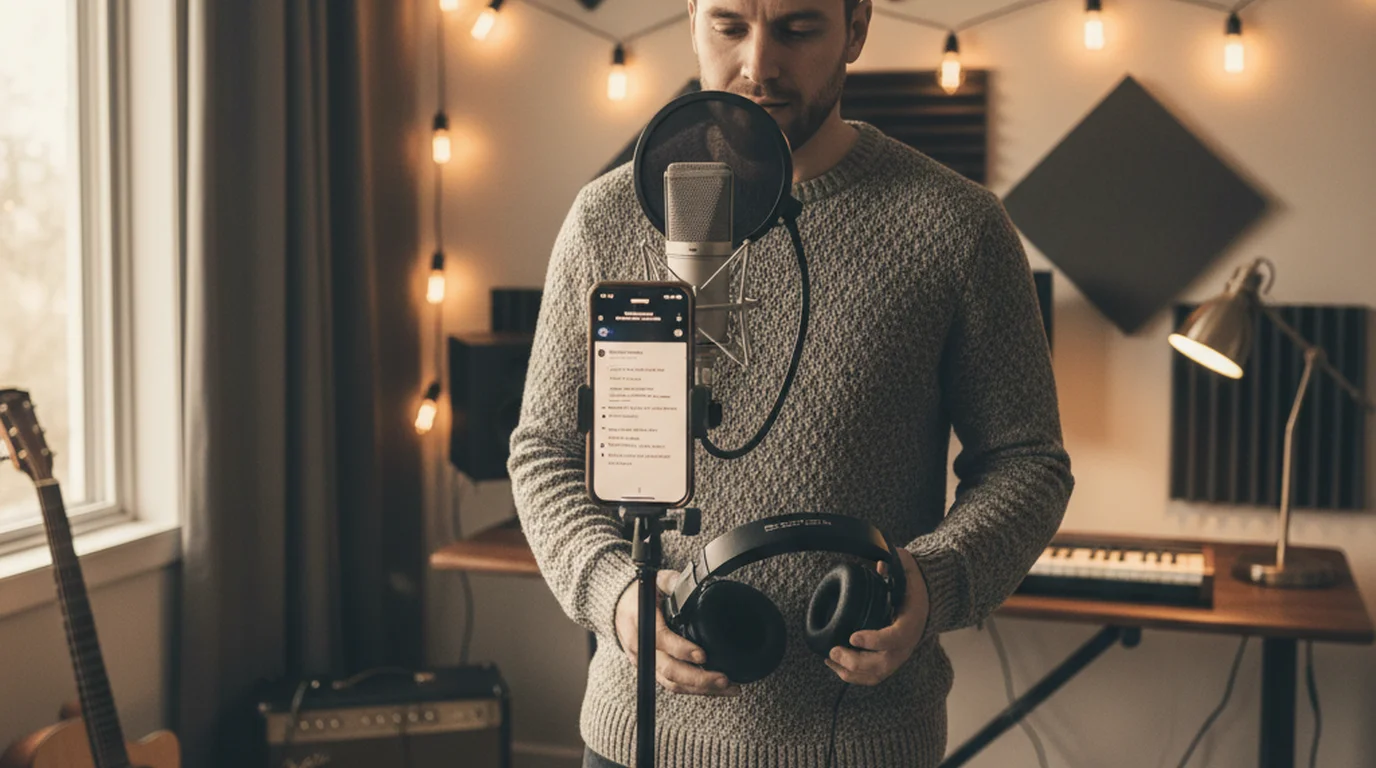
Recording vocals with a lyrics display running is one of the cleaner use cases for a teleprompter app for singers. The recording setup — microphone, interface, DAW, headphones — runs independently while the iPhone or iPad sits on a stand in the recording space showing the lyrics in Prompter mode.
Which mode you want depends on what is capturing the sound. With a dedicated microphone and interface feeding a DAW, use Prompter mode: it records nothing, so the lyrics app and the recording software run in parallel and neither interferes with the other. When the device itself is the recorder — a phone on a stand, a scratch vocal, a melody idea you want down before it evaporates — use Voice mode, which records the audio and scrolls the lyrics from the same screen.
That second case is the one that used to be awkward. Recording vocals while reading lyrics previously meant one device showing the words and a separate recorder app capturing the sound, plus a sync step afterwards. Voice mode collapses that into a single session, which matters most for the takes nobody sets up a studio for.
Position the lyrics display where it feels natural to glance without moving your head significantly from the microphone position. In a typical home recording setup with a condenser microphone on a boom stand, an iPhone or iPad at the same height as the microphone, slightly to the side, is readable with a small eye movement that does not affect the acoustic angle relative to the mic capsule.
For singers who record with their eyes closed or with strong physical movement, the teleprompter can serve as a reference between takes rather than during them — load the lyrics for a quick review before rolling, then perform from memory for the actual take, consulting the display only when a specific line needs verification. This hybrid approach works well for singers who have the song mostly memorized but need a reference for occasional bridge lyrics or second-verse variations that are easy to conflate.
Camera mode is the right choice if you want video along with the audio — a recording session intended for a YouTube cover or a social media post. In Camera mode, the app records video while displaying the script overlay, so your lyrics display and video recording happen in the same session without a separate setup. The recorded file is saved locally and is ready to edit.
Hands-free control with voice commands during performance
Voice commands in Teleprompter-Scrolling Scripts allow you to control the lyrics scroll without touching the screen during a performance or recording session. This is particularly valuable for singers because your hands are occupied — holding a microphone, playing an instrument, or simply maintaining a performance posture — and touching the screen to pause or advance the scroll is impractical mid-song.
The voice command set covers the core controls: starting the scroll, pausing, resuming, and jumping forward or back. For a live performance workflow, the most useful command is “next”, which jumps the lyrics forward three lines, with “previous” to go back. Combined with section markers in the lyrics ([Verse 2], [Chorus], [Bridge]), this lets you navigate the song structure hands-free if you need to skip ahead or restart a section.
For rehearsal use, voice commands are especially useful when you want to stop and restart without walking to the device. If you are practicing a bridge that is not working, stop the scroll with a voice command, adjust your approach, and restart from [Bridge] with another voice command — all without interrupting your physical position or breaking the session flow.
Voice command recognition works best in environments without excessive background music or noise. For rehearsal rooms and recording booths where the reference track is playing through headphones rather than speakers, recognition accuracy is high. For loud live performance environments with a band playing at volume, voice commands are less reliable — in those situations, a tap on the screen is a better control method.
The FAQ page has specifics on voice command setup and the full list of supported commands. Setting up voice commands takes a few minutes in the first session and is saved for all subsequent sessions.
Frequently Asked Questions
Can I use a teleprompter app to display lyrics while singing?
Yes. Teleprompter-Scrolling Scripts works as a lyrics display for singers. Use Prompter mode to scroll lyrics hands-free on iPhone or iPad during rehearsal, recording, or performance. Set the scroll speed to match your song tempo and adjust text size for comfortable reading at a distance.
What is the best teleprompter app for singers on iPhone?
Teleprompter-Scrolling Scripts is a free iOS app that displays lyrics in full-screen mode with adjustable scroll speed, text size, and text area position. Prompter mode is text-only (no camera), making it ideal for singing without the app interfering with an external recording setup.
How do I set scroll speed for a song on a teleprompter app?
For singing, match the scroll speed to the song's tempo and your verse length. Start by reading through the lyrics at the planned performance pace and adjust the speed until the text advances at the same rate you sing. For most pop songs at 100–120 BPM, a slower scroll with larger text works better than trying to match speed precisely.
Can I use a teleprompter app on iPad for a live music performance?
Yes. iPad is a popular choice for singers in live settings because the large screen is readable at a distance. Use Prompter mode in Teleprompter-Scrolling Scripts, set the font size to maximum or near-maximum, and place the iPad on a music stand at eye level. Voice commands (say “next” to jump ahead three lines) allow hands-free control during the performance.
Can the app record my vocals while showing the lyrics?
Yes, in Voice mode. It records audio through the device microphone while the lyrics scroll on the same screen, and saves the file locally. For a finished master you still want a condenser microphone and an interface into a DAW, with the app in Prompter mode alongside. Voice mode is for the takes in between — writing sessions, harmony references, vocal comps, and demos where setting up a studio chain is not worth it.
Wendy ZhangWendy Zhang is the indie developer behind Teleprompter-Scrolling Scripts, which she built after cycling through teleprompter apps that were too heavy, too expensive, or dependent on a network connection to open. She writes about the mechanics of recording yourself — scroll pacing, script formatting, and the app decisions that decide whether a take survives.
Display lyrics hands-free on iPhone or iPad
Teleprompter-Scrolling Scripts is free on the App Store — Prompter mode, adjustable scroll speed, full-screen lyrics display, and voice commands included. Works on iPhone and iPad, no subscription required.
Use Free Online Teleprompter Get the Free App