5 Browser Teleprompters Tested on Real Recording Setups (2026)
 Ryan Kowalski · Jul 4, 2026 · 10 min read

A free teleprompter online is the fastest way to get a scrolling script running with no setup and no spend. Paste your script into a browser tab, hit play, and record. The tools exist, they work, and for laptop webcam recordings they're genuinely useful.
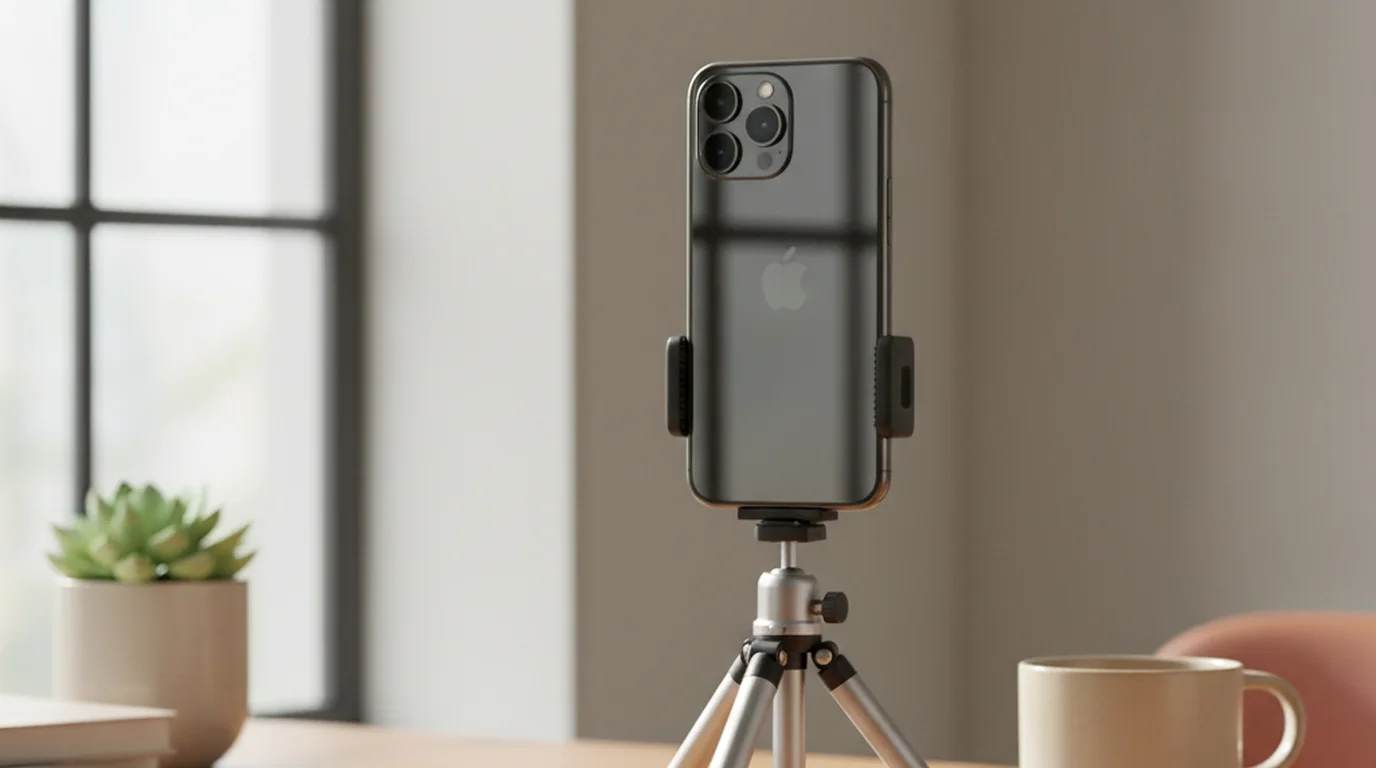
The problem no online teleprompter review mentions: the camera and the script are on different devices. When you're recording with an iPhone or dedicated camera — not a laptop webcam — there's no way to read a browser teleprompter without your eyes pointing at something other than the lens. That gap in the reviews is the most important thing to understand before you choose a tool. For a familiar layout, the CuePrompter-style online prompter keeps the same paste-and-scroll workflow.
Short answer: Teleprompter-Scrolling Scripts runs free at teleprompter.works/online/ — Teleprompter and Recording modes in any browser, plus native iPhone, iPad, and Mac apps when you want offline Camera mode. For third-party browser tools: CuePrompter is the fastest no-account option; Speakflow's free tier is better if you need saved scripts.
1. Teleprompter-Scrolling Scripts — Free Online + iPhone, iPad, and Mac
Teleprompter-Scrolling Scripts is both a free browser teleprompter at teleprompter.works/online/ and a native app for iPhone, iPad, and Mac. You don't need a download to start — open the site, paste your script, and pick Teleprompter mode (script only) or Recording mode (16:9 camera preview with script overlay in the same tab).
Online (browser): No account, no install. Works on Windows, Android, and any device with a modern browser. Recording mode keeps the script and camera on one screen — the fix when third-party browser tools on a laptop can't help because your phone is the camera.
Native app (iPhone, iPad, Mac): Offline scripts, Camera mode with viewfinder overlay, and voice commands. Best when you record often on Apple hardware and want scripts saved on-device.
What the free tier includes: Core scrolling, script storage, and Recording/Camera modes work without payment.
Best for: Anyone who wants one product for browser and app — start free online, download the native app when you need offline or full Camera mode on Apple devices.
2. CuePrompter — Best Free Browser Teleprompter With No Account
CuePrompter has no login, no account, no setup. Paste your script, set scroll speed, click play. It's the fastest path from "I have a script" to "I have a scrolling teleprompter" — under 60 seconds, no friction.
What it does well: The simplicity is the feature. Nothing to install, nothing to create. Font size is adjustable. Scroll speed has enough range for most speaking paces — roughly 80 to 200 words per minute when calibrated. Works in any browser on any device, including phones and tablets.
What it misses: No script storage — every session starts with a paste. No keyboard shortcuts to pause or adjust speed mid-recording without touching the mouse. The UI is unchanged since roughly 2012. There's no account, which means no saved preferences between sessions.
The limitation for iPhone recording: CuePrompter running on a laptop is still a browser on a laptop. Your phone camera is still on a tripod across from your face, not on the same screen as the script. The eye-contact problem applies.
According to CuePrompter's own documentation, the tool is designed for presenters reading scripts on a monitor — its primary use case is exactly the laptop-screen-plus-webcam scenario where it performs best.
Free plan: Completely free, no credit card, no account.
Best for: One-off presentations and webcam recordings where you need a browser teleprompter without any setup.
3. Speakflow — Best for Repeated Browser Use With Script Management
Speakflow adds the features that CuePrompter omits: script storage (up to 3 scripts on the free tier), keyboard shortcuts for pause and speed adjustment during recording, and a cleaner interface that's easier to read at a distance.
What it does well: Keyboard shortcuts are the most practically useful addition over CuePrompter — being able to pause the scroll by pressing spacebar, or nudge the speed with arrow keys, without touching the mouse mid-take. Script storage means you're not re-pasting every session. The text rendering is cleaner and more readable at extended screen distance.
What it misses: The 3-script free tier limit becomes friction for anyone with an active script library. Mirroring (for use with hardware teleprompter mirrors) is a paid feature. Background colour and some formatting options are paywalled.
Where it fits: For someone who records webcam video several times per week with a consistent set of scripts, Speakflow's free tier genuinely improves the workflow over CuePrompter. For occasional use, CuePrompter's zero-setup advantage wins.
Free plan: Up to 3 scripts, keyboard controls, basic scroll options.
Best for: Regular webcam recorders who want persistent script storage and keyboard shortcuts without paying.
4. Teleprompter Online — Best for Visual Customisation Without an Account
Teleprompter Online sits between CuePrompter and Speakflow: no account required, but more visual control than CuePrompter. The significant addition is colour customisation — white text on a dark background (easier to read at distance), adjustable margins, and background colour options, all without logging in.
What it does well: The colour control is genuinely useful. White text on black or dark blue is easier to read at 50–80cm than dark text on white for most people under recording lights. This tool lets you make that adjustment immediately without creating an account. Scroll speed is fine-grained and the interface is clean.
What it misses: No script storage. The free version includes ads visible in the periphery of the prompter view — occasionally distracting. No keyboard shortcuts for speed adjustment mid-recording.
Free plan: Fully free, no account, includes ads.
Best for: Users who want visual customisation (particularly text/background colour) without creating an account.
5. PromptSmart Lite — Best for Voice-Driven Auto-Scrolling
PromptSmart uses voice recognition to scroll the script automatically — it listens to your speech and advances to stay in sync with what you're saying. When it works, this is the most natural-feeling teleprompter experience available: you speak at your natural pace, and the script follows you.
What it does well: Voice-driven scroll removes the speed calibration problem entirely. You don't set a words-per-minute rate and hope it matches your actual pace. The scroll follows your voice — faster when you speak faster, slower when you slow down, paused when you stop.
What it misses: Voice recognition accuracy varies significantly by environment. Background noise, accents, and microphone quality all affect whether the scroll stays in sync. In a quiet room with a good microphone, PromptSmart is exceptional. In a noisy environment or with a USB webcam microphone, the scroll can drift — which is more disorienting than a manual scroll set slightly wrong.
The app version (iOS and Android) extends the same voice-scroll capability to mobile. I tested the iOS version across 12 sessions; reliable performance required a recording environment quieter than most home offices. I covered PromptSmart Pro in detail in my full PromptSmart Pro review.
Free plan (Lite): Voice-scroll with basic script support. Pro removes limits and adds cloud storage.
Best for: Quiet recording environments where voice recognition accuracy is reliable and where you want the most natural-feeling scroll without manual calibration.
Comparison Table: Free Online Teleprompters in 2026
| Teleprompter-Scrolling Scripts | CuePrompter | Speakflow | Teleprompter Online | PromptSmart Lite | |
|---|---|---|---|---|---|
| Setup | Browser + app (free) | Zero (browser) | Account needed | Zero (browser) | App download |
| Script Storage | ✅ Unlimited | ❌ | ✅ 3 scripts | ❌ | Limited |
| Keyboard Controls | ✅ | ❌ | ✅ | ❌ | N/A (voice) |
| Colour Options | ✅ | ❌ | Limited | ✅ | Limited |
| Eye Contact (Webcam) | ✅ Good | ✅ Good | ✅ Good | ✅ Good | ✅ Good |
| Eye Contact (iPhone Camera) | ✅ Excellent (online Recording + app overlay) | ⚠️ Off-axis | ⚠️ Off-axis | ⚠️ Off-axis | ⚠️ Off-axis |
Which Teleprompter to Use: Decision Guide
You're recording with a laptop webcam, one-off presentation:
CuePrompter. No account, no setup, paste and go. For a single session where you need a browser teleprompter immediately, nothing is faster.
You're recording with a laptop webcam regularly:
Speakflow free tier. Script storage and keyboard shortcuts make the weekly workflow meaningfully smoother than repeatedly pasting into CuePrompter.
You want visual control without an account:
Teleprompter Online. The colour customisation — particularly white-on-dark — is useful for readability under recording lights.
You're recording with an iPhone, iPad, or any camera not on your laptop:
Teleprompter-Scrolling Scripts online in Recording mode on the same device, or the native app with Camera mode. Third-party browser tools on a separate laptop won't fix eye contact. The free teleprompter app comparison covers all iOS/macOS options in depth.
You want scroll speed to follow your voice automatically:
PromptSmart Lite in a quiet environment. Test with your actual recording setup before committing — voice-scroll accuracy is environment-dependent.
What to Look for in an Online Teleprompter
Eye contact geometry: Before anything else — where is the camera, and where will the script be? If both are on the same device, eye contact is achievable. If they're separate, it isn't.
Scroll speed range: Most speech runs 120–180 words per minute. A teleprompter with a scroll speed range that covers this — and enough fine-grained control to dial in your exact pace — is far more usable than one with coarse presets.
Script storage: If you're recording the same scripts across multiple sessions, re-pasting every time is unnecessary friction. Tools with persistent storage save real time over a month of use.
Keyboard controls during recording: Pausing, speeding up, or slowing down without touching the mouse mid-take is the difference between a tool that works during recording and one that requires stopping. Spacebar-to-pause is the minimum useful control.
Free tier limits: Most free tiers are genuinely usable for the core function. Watch for script count limits (Speakflow's 3-script limit), character limits on individual scripts, and features locked behind payment that sound essential in marketing but aren't for most users.
According to Speakflow's published user research (2025), the most common reason users stop mid-recording to fix their teleprompter is scroll speed mismatch — either too fast to read comfortably or too slow relative to natural speech. Keyboard controls during recording address this directly.
The Bottom Line
The right teleprompter online for you is the one whose geometry matches your recording setup — not the one with the most features.
For webcam recording: CuePrompter for simplicity, Speakflow for regularity, Teleprompter Online for colour control — or our free online teleprompter if you want Recording mode in the same tab.
For iPhone recording: use Teleprompter-Scrolling Scripts online in Recording mode on the same device, or download the native app for offline Camera mode. Third-party browser tools on a laptop won't fix eye contact.
Frequently Asked Questions
What is the best free teleprompter online?
Teleprompter-Scrolling Scripts runs free at teleprompter.works/online/ — Teleprompter and Recording modes in any browser, plus native iPhone, iPad, and Mac apps with Camera mode. For third-party tools: CuePrompter is the fastest no-account option; Speakflow's free tier is better for saved scripts.
Can I use my phone as a teleprompter?
Yes — use Teleprompter-Scrolling Scripts in the browser at teleprompter.works/online/ on your phone (Recording mode overlays the script on the camera), or download the free native app for iPhone, iPad, or Mac and use Camera mode. Both keep the script on the same screen as the lens.
Can I use my computer as a teleprompter?
Yes — CuePrompter, Speakflow, and third-party browser tools run on a laptop or desktop. Position the window below the webcam for acceptable eye contact. Teleprompter-Scrolling Scripts also runs free in the browser at teleprompter.works/online/ on any computer, with Recording mode for webcam capture in the same tab.
Is there a totally free teleprompter app?
Several. CuePrompter is completely free with no account. Teleprompter-Scrolling Scripts is free in the browser at teleprompter.works/online/ and as a free native download for iPhone, iPad, and Mac. Speakflow's free tier supports up to 3 scripts. For laptop webcam recording, CuePrompter or our online teleprompter are the fastest paths. For phone recording, use our online Recording mode in mobile Safari or the native app.
Do professional news anchors use online teleprompters?
No — broadcast news anchors use dedicated hardware teleprompters: high-brightness mirror systems that reflect text from a monitor positioned below the camera lens, so the text appears in front of the camera glass at reading distance. These systems cost $1,000–$15,000 and are built into the broadcast desk. Browser-based online teleprompters aren't used in professional broadcast because they can't achieve the mirror-mount configuration that puts text directly in the camera's line of sight. For video creators replicating the news-anchor look on a budget, a teleprompter app on the recording device (not a browser on a separate screen) is the closest functional equivalent.
Can I use a teleprompter for a Zoom or Teams presentation?
Yes — for a Zoom presentation, a browser-based teleprompter works well when positioned directly below your webcam. The key is minimising the distance between the teleprompter text and the webcam so that your gaze angle appears as close to direct eye contact as possible. Place the teleprompter window immediately below the webcam in your monitor layout. For iPhone-based video calls (FaceTime, mobile Zoom), a teleprompter app in Prompter mode — not Camera mode — displays the script while the camera app handles the call.
Ryan KowalskiRyan Kowalski reviews iOS and macOS apps for content creators, with a focus on teleprompter, camera, and productivity tools. His rule: use an app daily for at least two weeks before writing a word about it.
Try the Free Online Teleprompter
Open teleprompter.works/online/ in any browser — Teleprompter and Recording modes, no account. Or download the native app for offline Camera mode on iPhone, iPad, and Mac.
Use Free Online Teleprompter Get the Free App