How to Edit Videos With Claude Code, Step by Step
 Wendy Zhang · November 19, 2026 · 9 min read
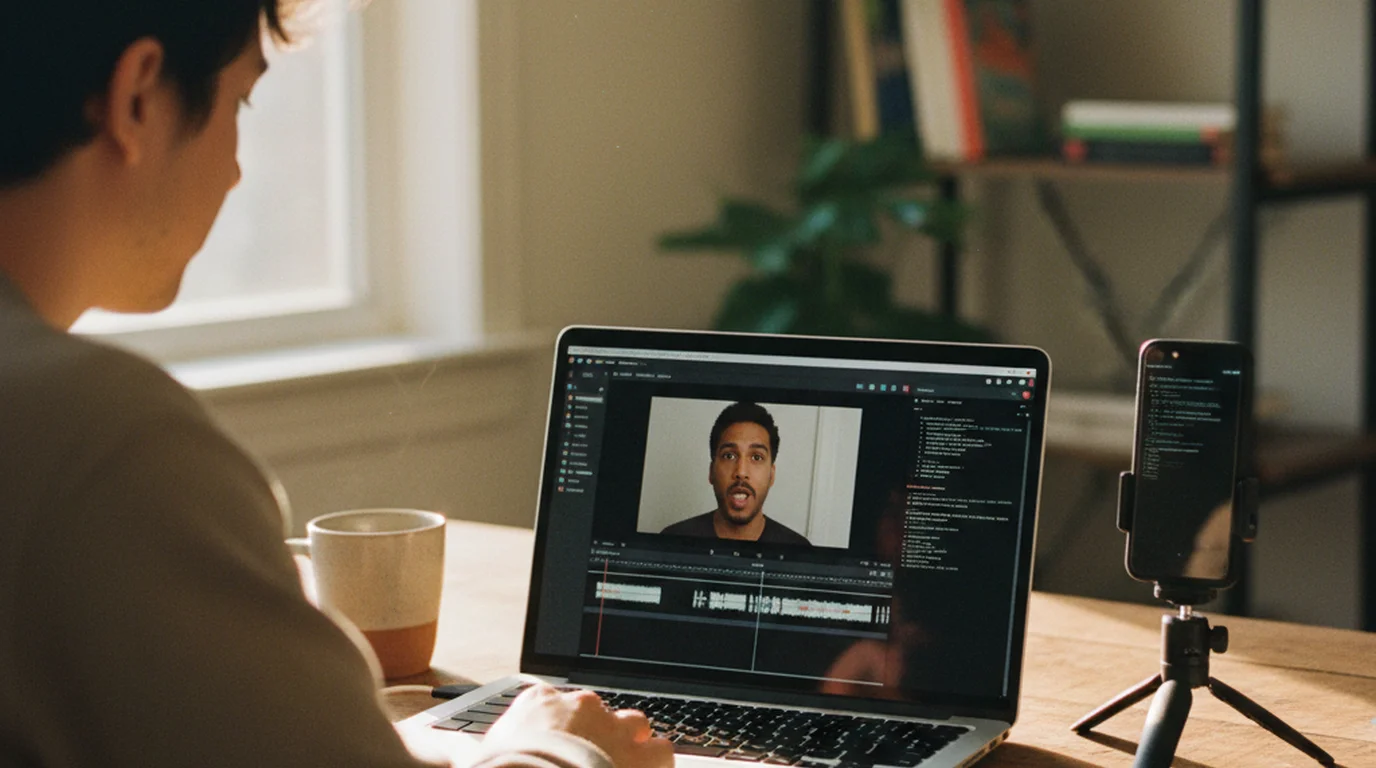
Cutting a talking-head video is mostly bookkeeping: find the line you fluffed, find the take where you got it right, trim the pause before it, repeat forty times. Claude Code video editing turns that bookkeeping into a prompt. You describe the cut, the agent writes the ffmpeg commands, and your computer does the trimming. The part that decides whether it works is the text you hand the agent, because Claude Code edits from timestamps and words, so the workflow below starts with the script you record against.
Claude Code can edit videos by writing and running ffmpeg commands on your own computer. It works from text about the footage, such as a subtitle file with timestamps, and turns plain-language instructions like "cut every retake" into exact cuts. The more precisely that subtitle file marks what to keep, the cleaner the edit.
Can Claude edit videos?
It depends on which Claude you mean. The Claude chat app is built for conversation, and Anthropic's list of supported uploads covers documents and images, so it isn't where a video edit happens. Claude Code is different: it's Anthropic's coding agent, it runs in your terminal, and it can run command-line programs on your machine, including ffmpeg, the open-source tool behind most video converters.
That makes Claude video editing a text problem. Claude Code reads files such as an .srt subtitle file or a script, works out which time ranges to keep, and writes an ffmpeg command that removes the rest. By default it asks before it runs a shell command, so you see every cut before it happens. It can also look at still images, which is how it checks a frame: ffmpeg exports a PNG from a timestamp, and Claude reads the picture.
Claude Code edits video indirectly. It reads text files such as subtitles and scripts, decides which time ranges to keep, and runs ffmpeg on the user's computer to make the cuts, asking for approval before each shell command in its default permission mode. Image files such as PNG frames can be read directly; video files are processed through ffmpeg.
What you need before you start
- Claude Code. On a Mac, install it with
curl -fsSL https://claude.ai/install.sh | bash, then runclaudein a folder to start. It needs a Pro, Max, Team, Enterprise, or Console account; Anthropic's Claude Code setup guide lists the current options. Codex works too, covered in its own section below. - ffmpeg. Install it with
brew install ffmpegon a Mac. Claude Code can install it for you if you ask, after you approve the command. - Your footage, plus its subtitles and script. One folder per video, with the clip, an .srt file, and the script as text. The next two steps produce all three.
There's no editing software in that list. The finished file can still go into CapCut, Premiere Pro, or DaVinci Resolve afterwards for music and B-roll, but the rough cut happens in the folder.
Step 1: Record against your script
An agent can only remove a bad take if something tells it which take is bad. A plain transcript can't: it shows what you said, not what you meant to say. A script can, because everything that doesn't match it is either a second attempt or something you made up on the spot.
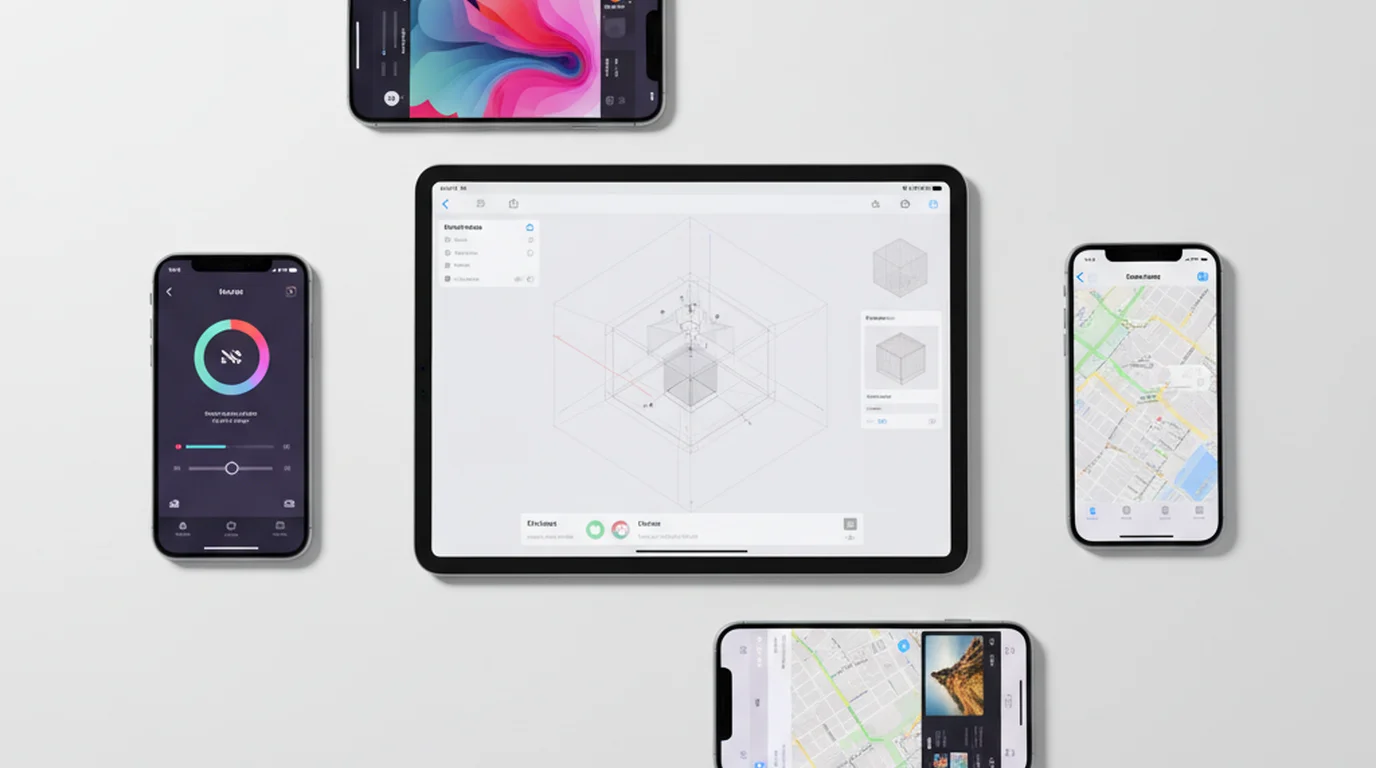
So record with the script in front of you. In Teleprompter Scrolling Scripts, Camera mode scrolls your script over the live camera preview on iPhone, iPad, or Mac, and you can move the text right under the lens so your eye line stays on camera. Read straight through, and when a line comes out wrong, pause and read it again. There's no need to stop and restart the take. Each recording keeps a copy of the exact script you read it from, so later edits to the script don't change what the take is compared against. The app is free to download, needs no account, and adds no watermark.
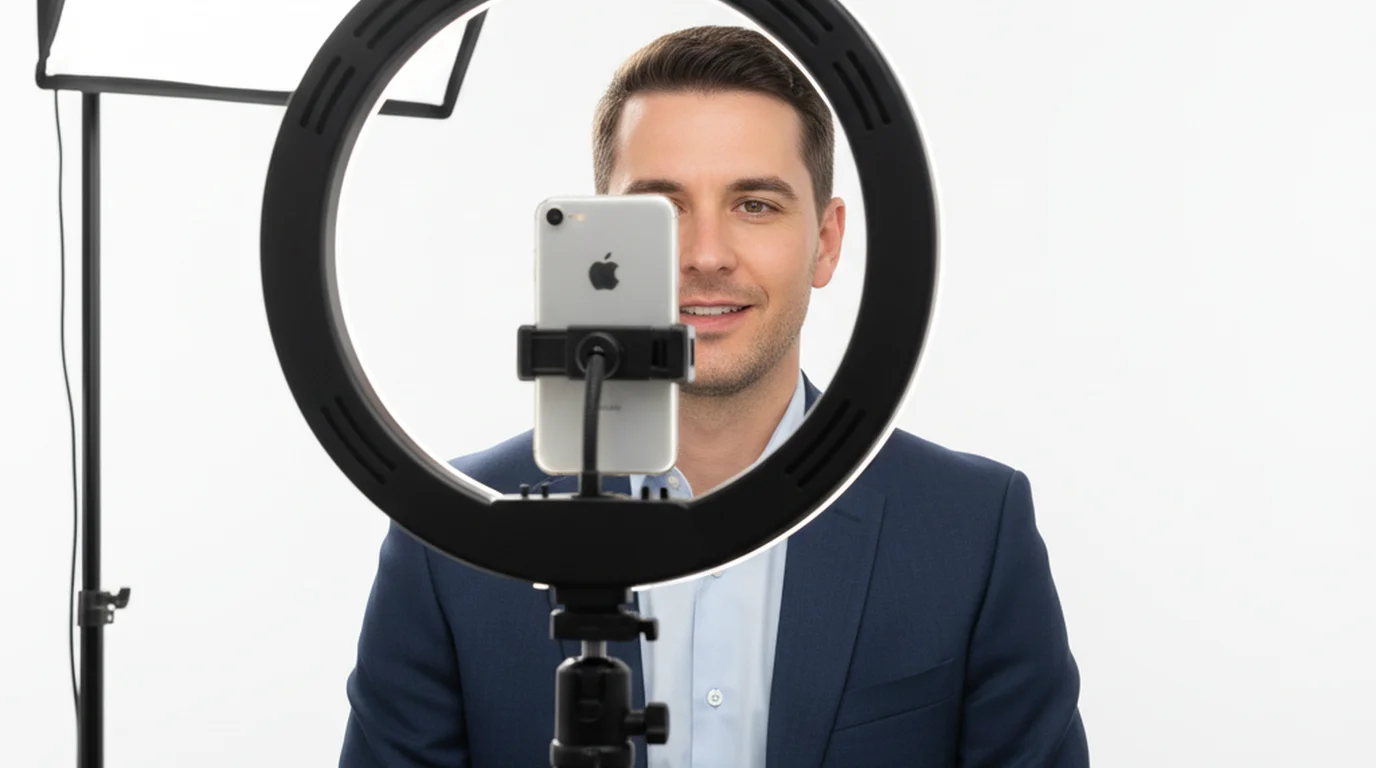
For framing, light, and audio on a phone, see the guide to filming a talking head video on iPhone.
Step 2: Export subtitles, script and audio
Open a recording's export menu and choose its subtitles (.srt), its script (.txt), or its audio (.m4a). To prepare a whole shoot at once, select several recordings and export them together. Subtitles are made in the background, with a progress card on the project, so you can keep working in the app while they're prepared.
These subtitles aren't a raw transcript. We built the export so the app compares what it heard with the script as a whole, the way a diff compares two versions of a file. Lines you read correctly appear with your script's own wording, spelling, and punctuation, split at sentences and, when a sentence runs long, at clauses. When you read a line more than once, the last reading is kept as the real line and the earlier attempts become their own cues marked [Retake]. Anything you said that isn't in the script is marked [Ad-lib]. Cue edges are moved onto the pauses in your voice, so a cut at a cue boundary lands in silence instead of mid-word.
14
00:00:41,020 --> 00:00:44,180
[Retake] The first thing most people get wrong

15
00:00:45,300 --> 00:00:48,960
The first thing most people get wrong is the opening line.
Those two labels are the whole trick. "Remove every cue that starts with [Retake] or [Ad-lib]" is an instruction an agent can follow to the millisecond. If you want to look over the file first, open it in the free SRT editor, where you can also untag an ad-lib you'd like to keep.
Script-aligned subtitles make AI editing precise. When a recording is matched against the script it was read from, every spoken stretch can be classified as a script line, a repeated attempt at a line, or speech that isn't in the script. Tagging the last two as [Retake] and [Ad-lib] gives an editing agent an exact list of time ranges to remove.
Step 3: Ask Claude Code to cut the retakes
Put the video, the .srt, and the .txt in one folder, open Terminal there, and type claude. Then describe the edit the way you'd brief a human editor:
This folder has intro.mov, intro.srt and intro.txt.
Cut every subtitle cue that starts with [Retake] or [Ad-lib]
out of intro.mov, keeping the audio in sync. Leave a 0.15 s
handle on each side of every cut. Save the result as
intro-cut.mp4 and list the time ranges you removed.
Claude Code reads the subtitle file, collects the tagged time ranges, and proposes an ffmpeg command before running it. For a handful of cuts it usually looks something like this, with one between() range per removed cue:
ffmpeg -i intro.mov \
  -vf "select='not(between(t,41.02,44.18)+between(t,77.40,80.05))',setpts=N/FRAME_RATE/TB" \
  -af "aselect='not(between(t,41.02,44.18)+between(t,77.40,80.05))',asetpts=N/SR/TB" \
  intro-cut.mp4
The select and aselect filters drop the frames and audio samples inside each range, and setpts and asetpts close the gaps so picture and sound stay together. The ffmpeg filter documentation describes each one. For long videos with dozens of cuts, ask it to cut the kept segments separately and join them instead, which is faster. Either way, approve the command and the new file appears in the folder.
Step 4: Tighten pauses and add captions
With the retakes gone, two jobs are left, and both are one more sentence to the agent.
Pauses. Ask Claude Code to shorten any gap between cues that runs longer than, say, 0.6 seconds. Because the cue edges already sit on your pauses, this tightens the pacing without clipping words. If you'd rather do this step in a browser, the free silence remover cuts pauses by loudness instead.
Captions. Every cut shifts the timing of everything after it, so ask for a new subtitle file to match: "Write intro-cut.srt with the removed cues dropped and every later cue shifted to match intro-cut.mp4." Upload that file next to the video on YouTube as closed captions, or ask for burned-in captions with ffmpeg's subtitles filter (-vf subtitles=intro-cut.srt) for TikTok and Reels. The open vs. closed caption guide covers which to use where.
Step 5: Review the cut before you publish
Watch the result at normal speed and listen at each cut point. Two problems show up most: a cut that lands a breath too early, and a jump in your head position between two takes. For the first, ask for a larger handle on that cut. For the second, ask Claude Code to export a frame from just before and just after the cut and compare them; if the jump is visible, cover it with B-roll in your editor or punch in slightly on the second half.
Once a prompt works, keep it. Save it as a skill or in a CLAUDE.md file in your project folder, and the next video takes one short instruction: "Do the usual cut on today's recording."
Doing the same edit with Codex
Codex, OpenAI's coding agent, runs the same workflow. Install the command-line version with curl -fsSL https://chatgpt.com/codex/install.sh | sh (OpenAI's Codex CLI documentation also lists npm and Homebrew options), sign in with your ChatGPT account, since Codex is included with ChatGPT plans at usage limits that vary by plan, and run codex in the folder with your files. Paste the same brief from Step 3. Like Claude Code, Codex asks for approval before running commands unless you change its approval settings, so you review each ffmpeg command the same way.
The inputs matter more than the agent. Both read the same .srt file, both write ffmpeg commands, and both get the cut right when the subtitles say exactly what to remove.
What to hand to an agent, and what to keep in your editor
Agents are strongest at edits you can describe in words and numbers: remove these ranges, shorten pauses over a threshold, add captions, export a 9:16 version, convert a batch of files. They're slower than your own eyes at judgment calls that depend on how a shot looks, such as which B-roll clip fits, where music should swell, or how to grade color.
A practical split is a rough cut by agent, then a finishing pass in CapCut, Premiere Pro, or DaVinci Resolve. Some creators go further, using Remotion with Claude Code for animated titles, or community-built MCP servers that connect an agent to DaVinci Resolve or Premiere Pro. Whichever tools you add, the rough cut stays the same: a script, subtitles that mark the retakes, and one prompt.
Frequently Asked Questions
Can you do video editing with Claude?
Yes, through Claude Code. Claude Code runs on your computer and can execute ffmpeg, so it can cut, trim, join, caption, and convert video files from plain-language instructions. It works from text such as subtitle files and scripts rather than watching the video, so precise subtitles with clear timestamps give the best results.
How to make Claude Code watch a video?
Claude Code doesn't play video files, but it can see what's in them two ways. Ask it to export frames with ffmpeg as PNG images, which it can read and describe, and give it a subtitle file for what was said. Together, the frames and the timestamps tell it what happens on screen and when.
Can ChatGPT edit videos?
The editing in this guide runs on your own computer through a coding agent. OpenAI's agent for that is Codex: install the CLI, sign in with a ChatGPT plan that includes it, and it can run the same ffmpeg commands as Claude Code from the same subtitle file and prompt.
Do I need to know ffmpeg to edit with Claude Code?
No. Describe the edit in plain language and Claude Code writes the command. Reading the command before you approve it is still worthwhile: check the input and output file names and the time ranges, so a typo never overwrites your original recording.
What do [Retake] and [Ad-lib] mean in the subtitle file?
Teleprompter Scrolling Scripts compares each recording with the script it was read from. [Retake] marks an earlier attempt at a line you read again, and [Ad-lib] marks speech that isn't in the script. Both labels sit at the start of the cue text, so an editor or an AI agent can find and remove those ranges.
Is Claude Code free?
Claude Code needs a paid Claude plan (Pro, Max, Team, or Enterprise) or a Console account billed by usage; the free Claude plan doesn't include it. ffmpeg is free and open source, and Teleprompter Scrolling Scripts is free to download and use, including subtitle, script, and audio export.
Will the subtitles work if I record in another language?
Yes. The app splits subtitles at sentence and clause punctuation in every script language, and compares Chinese, Japanese, and Korean character by character. Speech recognition runs on the device for most languages on recent iPhones and Macs, and uses Apple's speech service otherwise, which needs Speech Recognition turned on in Settings.
Start with a clean recording
Claude Code video editing is only as good as the notes it cuts from. Record against your script, export subtitles that already know which lines were retakes, and Claude Code or Codex can take the cleanup from there. Get the free app for Mac, iPhone, or iPad and try it on your next video.
Wendy ZhangWendy Zhang is the indie developer behind Teleprompter Scrolling Scripts, which she built after cycling through teleprompter apps that were too heavy, too expensive, or dependent on a network connection to open. She writes about the mechanics of recording yourself — scroll pacing, script formatting, and the app decisions that decide whether a take survives.
Record Against Your Script, Export Clean Subtitles
Teleprompter Scrolling Scripts scrolls your script over the camera on iPhone, iPad, and Mac, then exports subtitles that mark every retake and ad-lib, ready for Claude Code, Codex, or your editor. Free to download, no account.
Use Free Online Teleprompter Get the Free App