How do I position the text area in a teleprompter app?
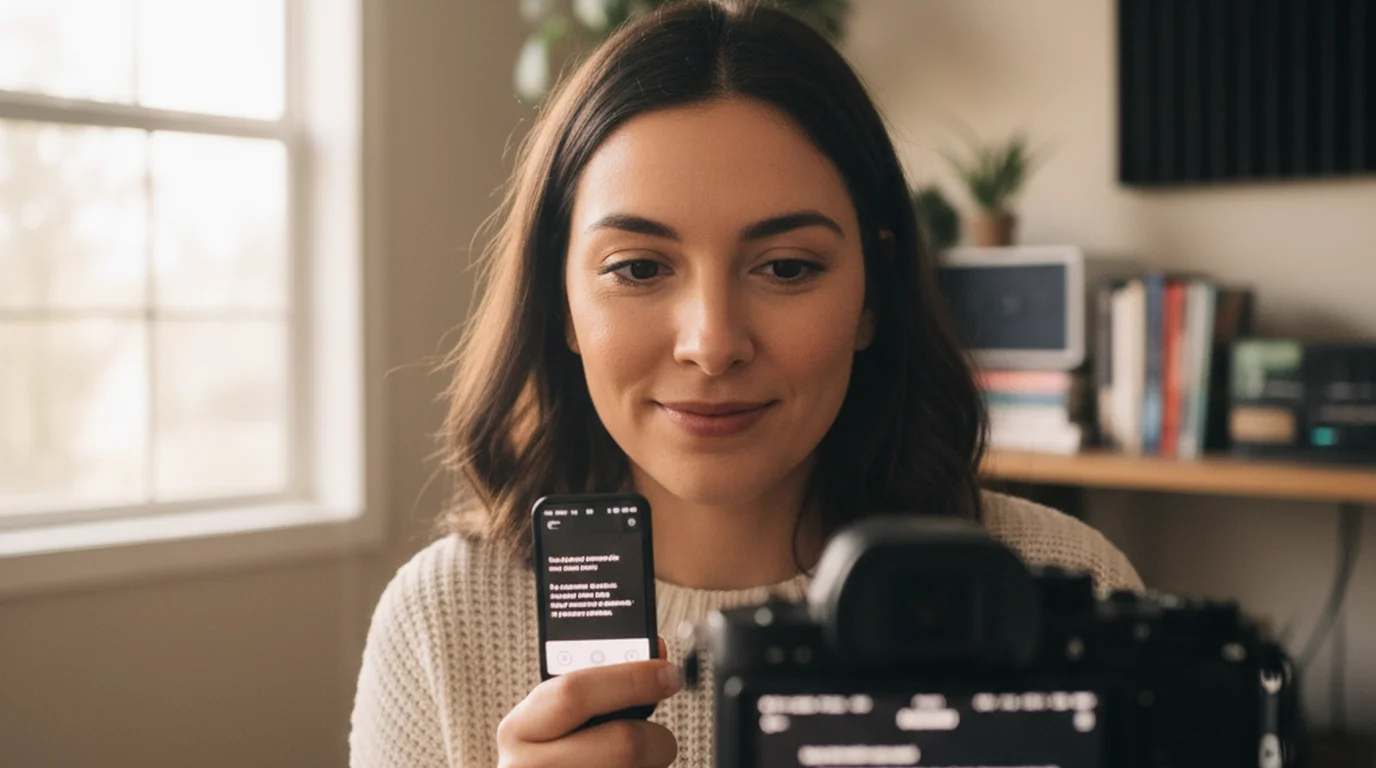
Place the text area as close to the camera lens as possible. The smaller the angle between where your eyes point to read the script and where the camera lens is, the more natural the eye contact looks in the recorded video. In Camera mode on iPhone or iPad, drag the text block near the front-facing camera at the top of the screen. On Mac, position the text directly below the built-in camera.
The principle: minimize the angle between text and lens
The goal of teleprompter positioning is not to make reading comfortable — it's to make reading and looking at the camera the same action. Every degree of angle between "where my eyes point to read" and "where the camera lens is" produces a proportionally visible gaze shift in the recorded video.
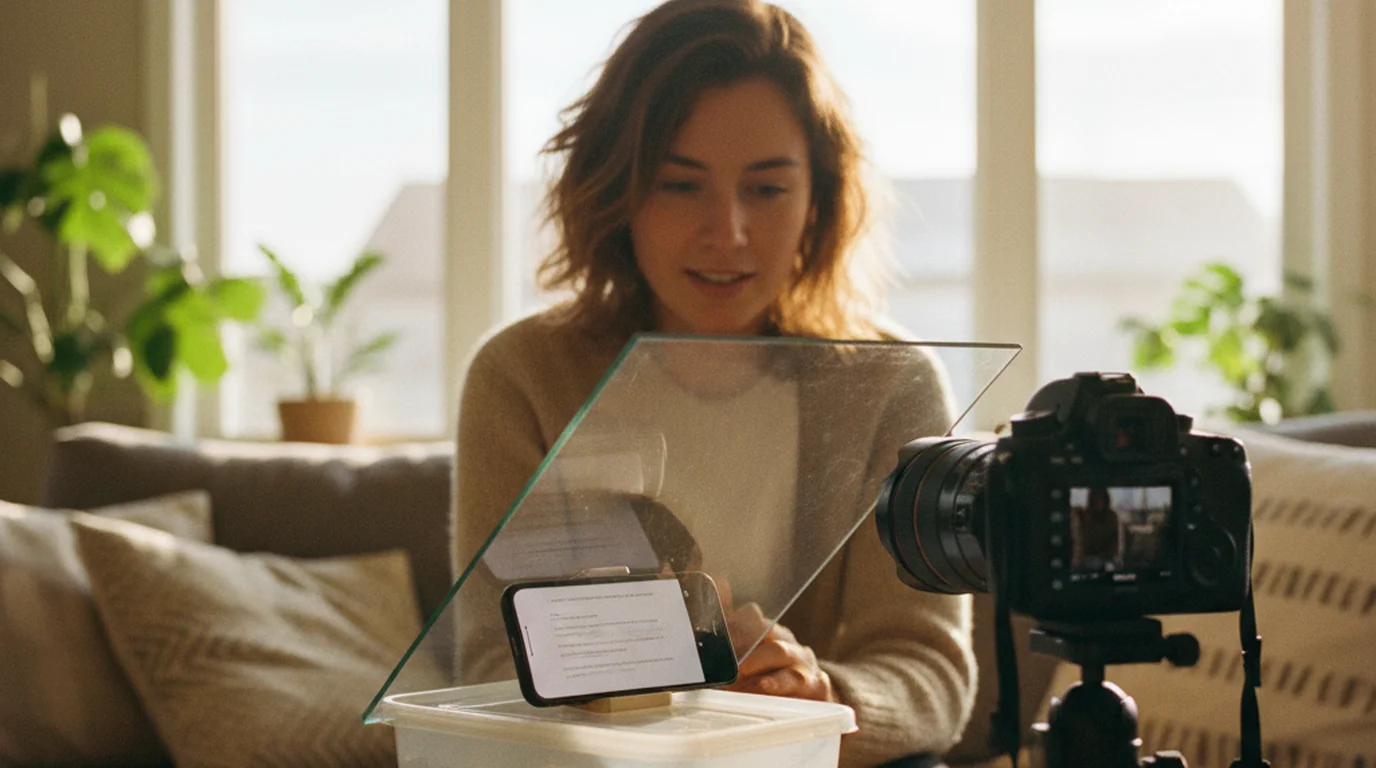
At a 0-degree angle — text and lens perfectly aligned — there is no visible gaze shift at all. In practice this is only achievable with hardware glass rigs that mount in front of the lens. With a software teleprompter, the goal is to get as close to 0 degrees as the screen layout allows, which means positioning the text as close to the lens as the interface permits.
A 5-10 degree offset (text very close to the lens) is essentially invisible to viewers. A 20-30 degree offset (text in the middle of the screen while the lens is at the top) is clearly visible as a downward or sideways gaze. The difference between these two scenarios is entirely about where you place the text area.
Position in Camera mode: iPhone and iPad
In Camera mode, the front-facing camera lens sits at the top edge of the screen. On iPhone, it's at the top center. On iPad in landscape, it's typically on the long edge.
Drag the text area as close to that lens position as the interface allows — in practice, to the top of the camera preview area, leaving only the thin strip of status bar above the text. The first visible line of script should appear as close to the camera indicator as possible.
Two additional settings amplify the positioning benefit:
- Narrow the text area width to 50–70% of screen width. Short lines mean less left-to-right eye movement, which keeps your gaze centered near the lens even when reading.
- Show only 2–3 lines at a time. A shallow text area concentrates your focal point in a small zone near the lens rather than spreading it across a large text block lower on the screen.
Position in Prompter mode: external camera or webcam setups
In Prompter mode, your device displays the script while a separate camera, webcam, or DSLR records you. The positioning goal is the same — minimize the angle between the text and the recording lens — but the approach differs because you're positioning a physical device rather than a UI element.
For Mac webcam recording: open the teleprompter in a browser window and drag it to sit directly below the built-in camera at the top of the display. On a MacBook, the camera is 2–3cm above the top edge of the screen — the text should start as close to that point as possible.
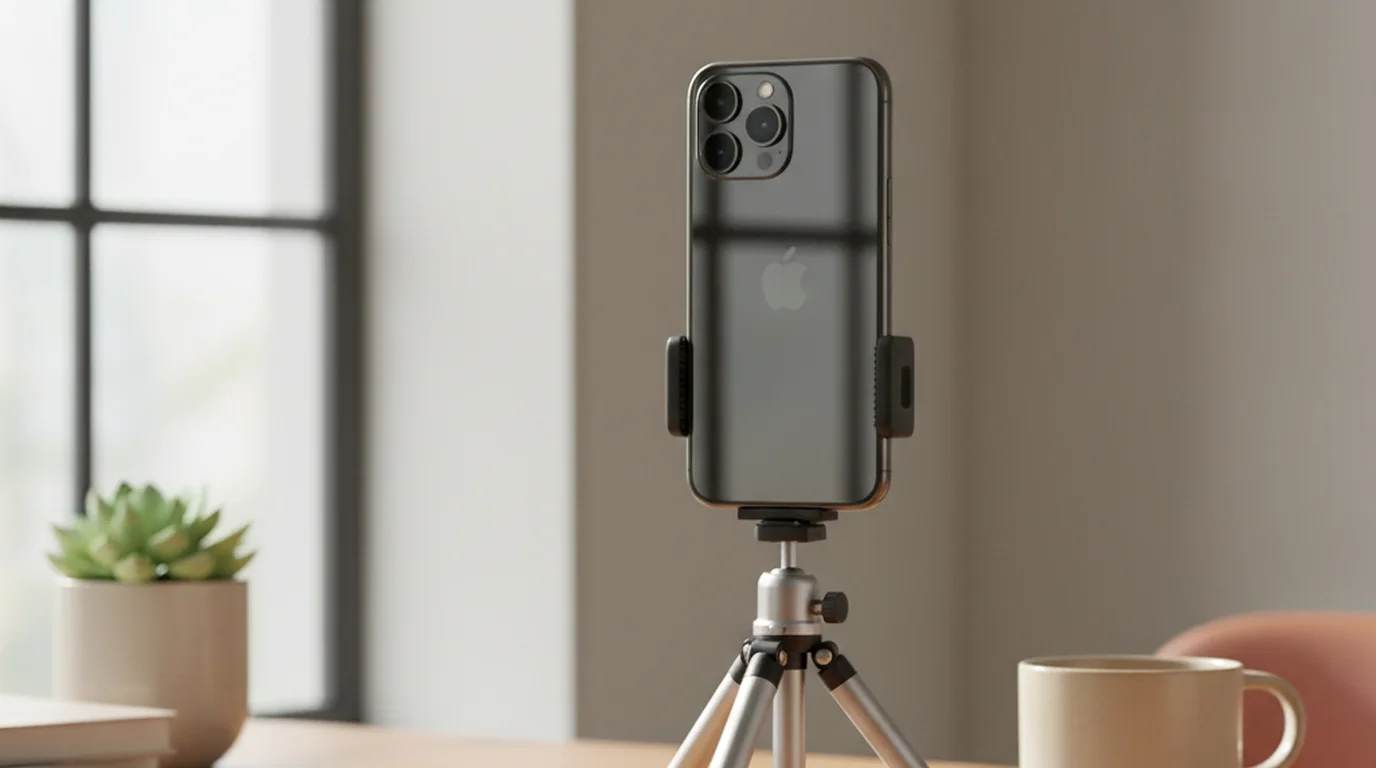
For iPhone or iPad used as a script display beside an external camera: position the device so the text is at the same height as the camera lens, as close horizontally as the setup allows. A phone stand or clamp between the camera and your eye line works well. The text should be at lens height — never below the camera, which forces your gaze downward.
For Zoom, Loom, and video calls, the same principle applies: browser teleprompter window directly below the laptop camera. See the full guide on using a teleprompter for Zoom calls for the step-by-step positioning for that specific setup.
Does repositioning the text area change scroll speed?
No. Text area position is independent of scroll speed. Moving the text block up, down, or to a custom position on screen has no effect on how fast the script advances. Scroll speed is determined by your WPM setting, font size, and line spacing — not by where the text sits on screen.
For how font size and line spacing interact with scroll speed, see how font size affects scroll speed. For font size recommendations by device and recording distance, see what font size to use.
Text area position, font size, line spacing, and scroll speed are all adjustable in Teleprompter-Scrolling Scripts. Free on iPhone, iPad, and Mac — no account required.
Use Free Online Teleprompter Get the Free App