Teleprompter overlay for video calls: Zoom, Teams and more
 Natalie Brooks · June 7, 2026 · 7 min read

Reading from notes during a video call is obvious. Your eyes drop to a second screen, you lose the camera line, and the other person watches you read instead of talk. A teleprompter overlay for video calls solves this by placing your script near the webcam — so you read and appear to look at the other person at the same time. It's a setup used by TV presenters, remote sales teams, and anyone who delivers important messages on camera regularly.
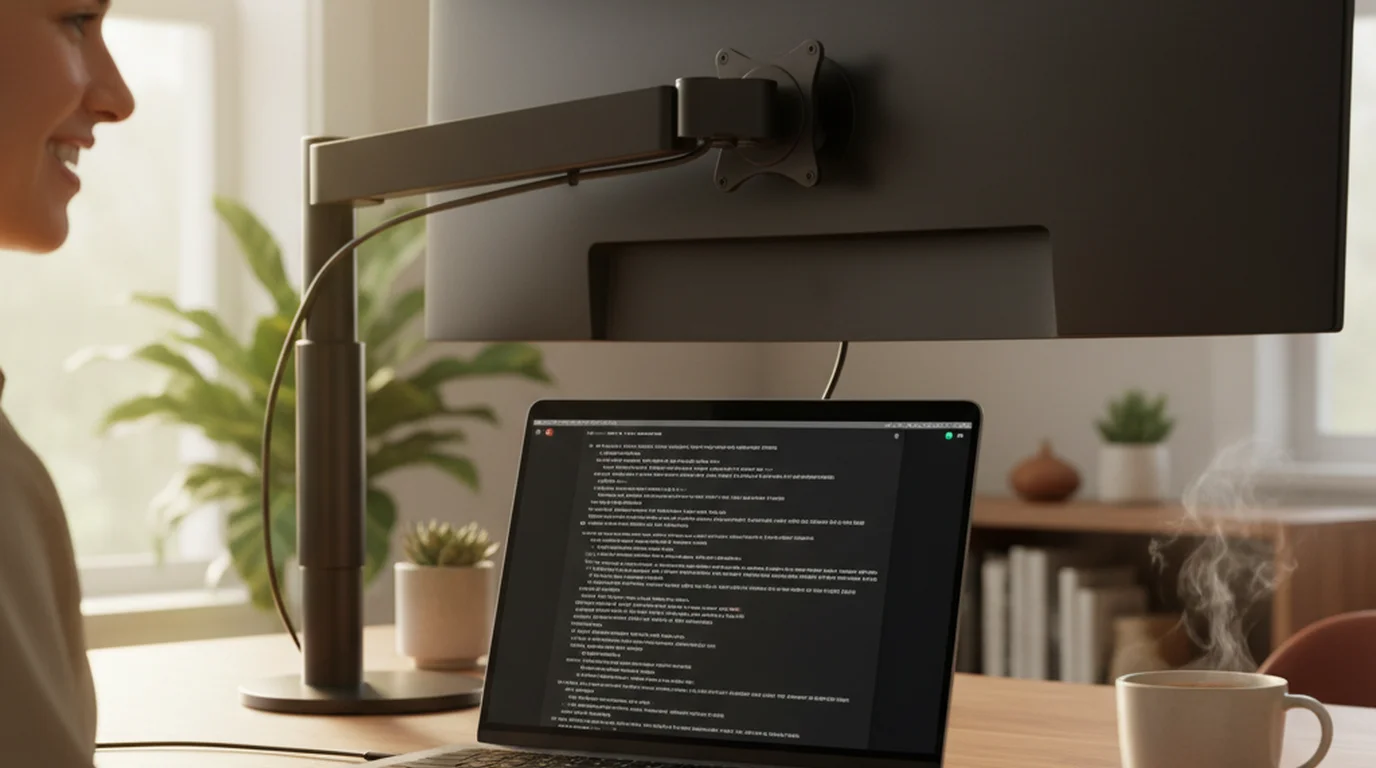
A teleprompter overlay for video calls works by placing scrolling script text near the top of your screen, close to the webcam, while your video call runs simultaneously. On Mac, Teleprompter-Scrolling Scripts runs as a window next to Zoom, Teams, or Meet. The camera records your face; the script stays on screen for your eyes only. No special hardware or virtual camera software is needed for this setup.
Why the camera line matters on video calls
Eye contact is processed differently in video than in person. On a call, "eye contact" means looking into the camera — not at the other person's face on your screen. Most people look at the face, which means their gaze is directed slightly downward or to the side rather than at the lens. The other participant sees this as slightly averted eyes, which reads as distraction or lack of confidence even when nothing is wrong.
Looking at the camera requires looking away from the screen. That's the core tension. A teleprompter overlay resolves it by moving content — your script, your talking points, your key data — to a position near the camera, so where your eyes naturally go to read is also where the lens is. For a full explanation of how teleprompters work across different setups, see the complete teleprompter guide.
This matters most for sales calls, investor meetings, executive presentations, recorded webinars, and any video content where your credibility or persuasiveness is part of the outcome. For casual team standups, it's less critical. But for any high-stakes video interaction, the difference between looking at the camera and looking at the screen is visible to every person on the call.
Research from MIT Media Lab found that perceived eye contact in video calls increases trust ratings by 15–20% compared to gaze directed at an on-screen face. For a 45-minute sales call, that sustained camera-line gaze is a meaningful communication variable — not a vanity detail.
How to set up a teleprompter overlay on Mac for Zoom or Teams
This setup works without virtual camera software, OBS, or hardware teleprompters. You need only the Teleprompter-Scrolling Scripts Mac app and your existing video call app.
Step 1. Open Teleprompter-Scrolling Scripts and load your script or talking points. Keep it conversational — bullet points work well for calls; full sentences work better for webinars where you're delivering a structured presentation.
Step 2. Size the app window to cover roughly the top third of your screen. Position it directly below the built-in webcam. If you're using an external webcam mounted above the monitor, position the window just below the camera height.
Step 3. Open your video call (Zoom, Teams, Google Meet). Zoom and most video call apps use the Mac camera directly — they'll capture your face without capturing the teleprompter window, since the app window is on screen, not in front of the lens.
Step 4. Set font size large enough to read at a glance without moving your head — 48–72pt works for most people at laptop distance. Set scroll speed to your speaking pace.
Step 5. During the call, glance at the script naturally. Because it's positioned near the camera, small eye movements to read look like normal on-camera eye contact rather than obviously checking notes.
Video call overlay vs dedicated teleprompter hardware
A video call overlay using software is a different tool from a dedicated teleprompter glass rig. Both put the script near the camera; how they do it differs.
Software overlay (what this article covers): the script is displayed on your laptop screen, positioned near the webcam. Cost: free. Setup time: under 5 minutes. Works with any built-in or external webcam. The camera gap (distance between the script text and the lens) is larger than with glass — typically 3–6 inches — so eye contact isn't perfectly lens-centered, but it's close enough for standard video call framing.
Beam-splitter glass rig (e.g., Elgato Prompter): a half-mirror mounts directly in front of the webcam and reflects a display showing the script. The talent reads the script reflected in the glass while the camera sees through the glass. Cost: $249+ (Elgato Prompter), or $300–$600 for third-party rigs. Setup time: 10–20 minutes. Provides true lens-centered eye contact because the script is optically placed at the exact camera axis.
For weekly video calls, the software setup is the practical choice. For studio-quality recorded presentations or regular high-stakes sales demos, a glass rig is worth the investment. We've used both; for 90% of video call use cases, the software approach is indistinguishable from the glass rig in the final recording.
The Elgato Prompter, launched in late 2024, brought beam-splitter teleprompter technology to the consumer desktop market at $249 — the first major consumer product in this category. Before it, the nearest alternative was a DIY rig using an acrylic half-mirror and a tablet, or professional rigs starting at $400.
Using a teleprompter with a webcam: positioning tips
The exact position of the script relative to the camera determines how natural the eye contact looks. These are the variables that matter:
Vertical distance. The closer the script is to the camera lens vertically, the better. On a MacBook, the camera is at the top edge of the screen. If your teleprompter window starts at the very top of the screen and you're reading the first line of text, the gap to the lens is roughly 1–2 inches. If the text is 5 inches below, viewers can see the gaze angle clearly.
Font size and line spacing. Larger text means your eyes can stay in a smaller area — you don't need to track left-to-right as much. Single-column, centered text with generous line spacing lets you hold your gaze near the camera while still reading. Justified or column-format text forces more horizontal eye movement.
Scroll speed vs reading chunks. Two approaches work: auto-scroll at a fixed pace, or manual advance (tap to move to the next bullet). Auto-scroll works better for scripted presentations where the pacing is fixed. Manual advance works better for calls where you're adapting to the conversation — you advance when you need a reference point, not on a timer.
Frequently Asked Questions
What is the teleprompter for virtual meetings?
A teleprompter for virtual meetings is software that places your script near the webcam so you can read it during a Zoom, Teams, or Google Meet call while appearing to maintain eye contact. On Mac, Teleprompter-Scrolling Scripts runs as a window positioned near the top of the screen close to the built-in camera. No virtual camera software is required — the video call app uses the camera directly while the script window is on your screen for your eyes only.
Can I use a teleprompter with a webcam?
Yes. On Mac, open Teleprompter-Scrolling Scripts and size the window to sit near the top of your screen, just below the webcam. Open Zoom or your video call app as normal — it uses the camera directly without capturing the teleprompter window. Set font size to 48–72pt so you can read without large eye movements. This setup works with built-in webcams and external USB cameras mounted above the monitor.
How to use a teleprompter on Zoom calls?
Open Teleprompter-Scrolling Scripts on Mac, position it near the webcam at the top of your screen, and start Zoom normally. Zoom captures the camera — not your screen — so your script is visible to you but not to other participants. During the call, scroll through your talking points or script at your own pace. Keeping the font large and the text near the lens makes the eye contact look natural rather than like you're reading from notes.
Does iPhone video have a teleprompter feature?
The iPhone Camera app doesn't include a teleprompter. Teleprompter-Scrolling Scripts adds Camera mode — a recording screen with auto-scrolling script text near the front camera. This works for recorded video content. For live FaceTime or Zoom on iPhone, the camera is shared exclusively with the call app and can't simultaneously display another app's text overlay on the same screen.
Natalie BrooksNatalie Brooks is a video producer who works as a one-person crew for independent creators, corporate teams, and online educators. She writes about home studio setups, creator gear, and the production decisions that never come up in sponsored unboxings.
Read notes naturally during your next video call
Teleprompter-Scrolling Scripts runs on Mac with a simple window setup near your webcam. No hardware or virtual camera software needed, and it's free to download.
Use Free Online Teleprompter Get the Free App