How do I test my camera and microphone before recording?
Open the free webcam test and mic test in your browser before you record. The webcam test shows the camera's name, its real resolution, the measured frame rate and your lighting, and records a 5-second clip. The mic test shows a live level meter, measures background noise and records a 10-second sample to play back. Both run in the browser and keep your video and audio on your device. Then record a 20-second test take with your real script in Teleprompter-Scrolling Scripts.
Step 1: Test the camera
Open the webcam test, allow camera access, and check four things: the camera name is the one you plan to use, the resolution matches what you expect, the frame rate holds steady, and your face is evenly lit. Record the 5-second clip and watch it back.
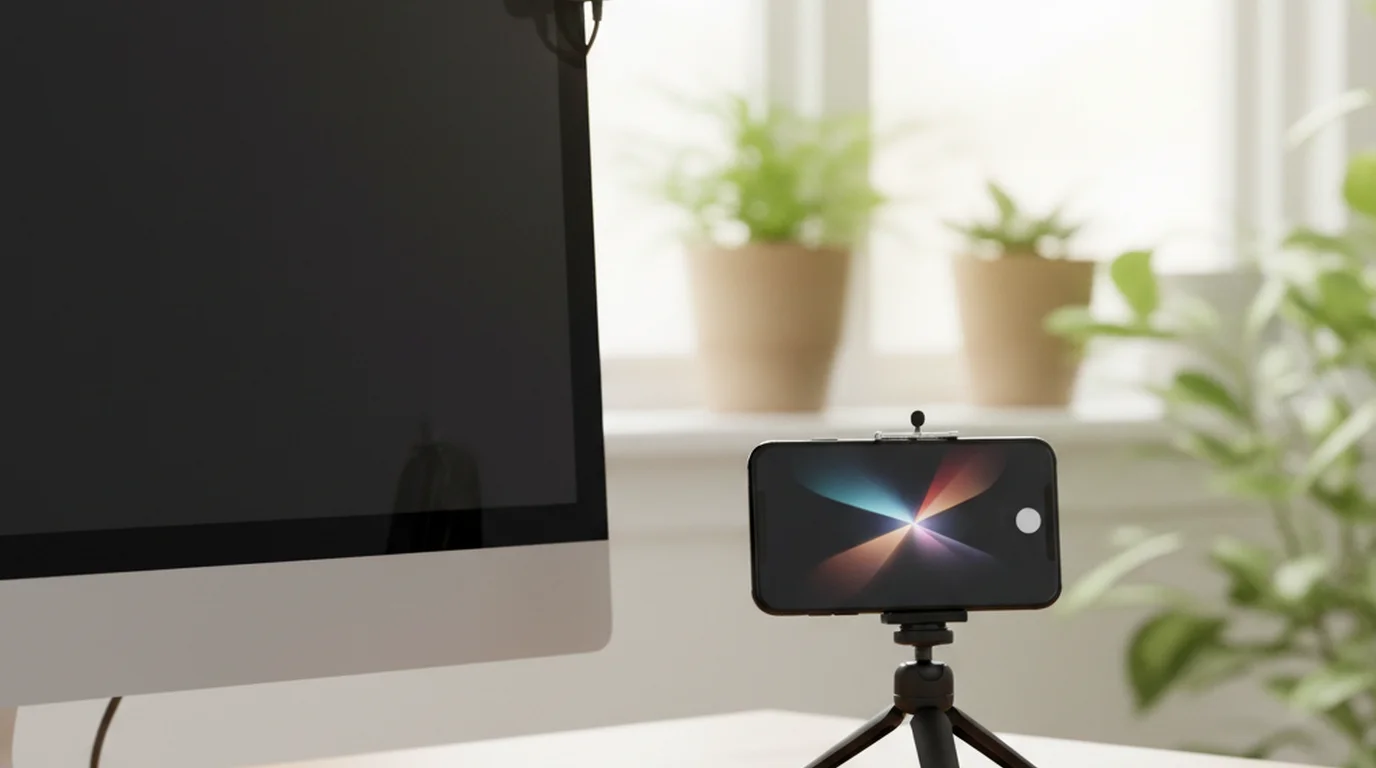
For brighter, cleaner video, face a window or a soft light, raise the camera to eye level, and wipe the lens. If you use an external webcam or an iPhone as the camera, test that one specifically.
Step 2: Test the microphone
Open the mic test, allow microphone access, and speak at your normal volume. Aim for a level that moves well into the meter on louder words and stays clear of the top. Check the background noise reading in silence, then record the 10-second sample and listen for hum, echo or distance.
Move the microphone closer, soften the room with curtains or a rug, and switch off fans or air conditioning for a cleaner sound.
Step 3: Record a test take with your script
Open your script in Teleprompter-Scrolling Scripts and record the first 20 seconds in Camera mode. Watch it back for three things: your eyes stay close to the lens, the scroll matches your speaking pace, and the audio sounds clear. Adjust one setting at a time, then record the full take.
On Mac, Camera mode lets you choose the built-in camera, a USB webcam, or your iPhone through Continuity Camera. For audio-only work such as a voiceover, do the same check in Voice mode.
Quick checklist before you press record
- Lens clean and at eye level.
- Main light in front of you, with the window or lamp behind the camera.
- Notifications silenced with a Focus mode.
- Enough battery and storage for the full take.
- Script loaded, text area placed near the lens, scroll speed set.
Before a video call
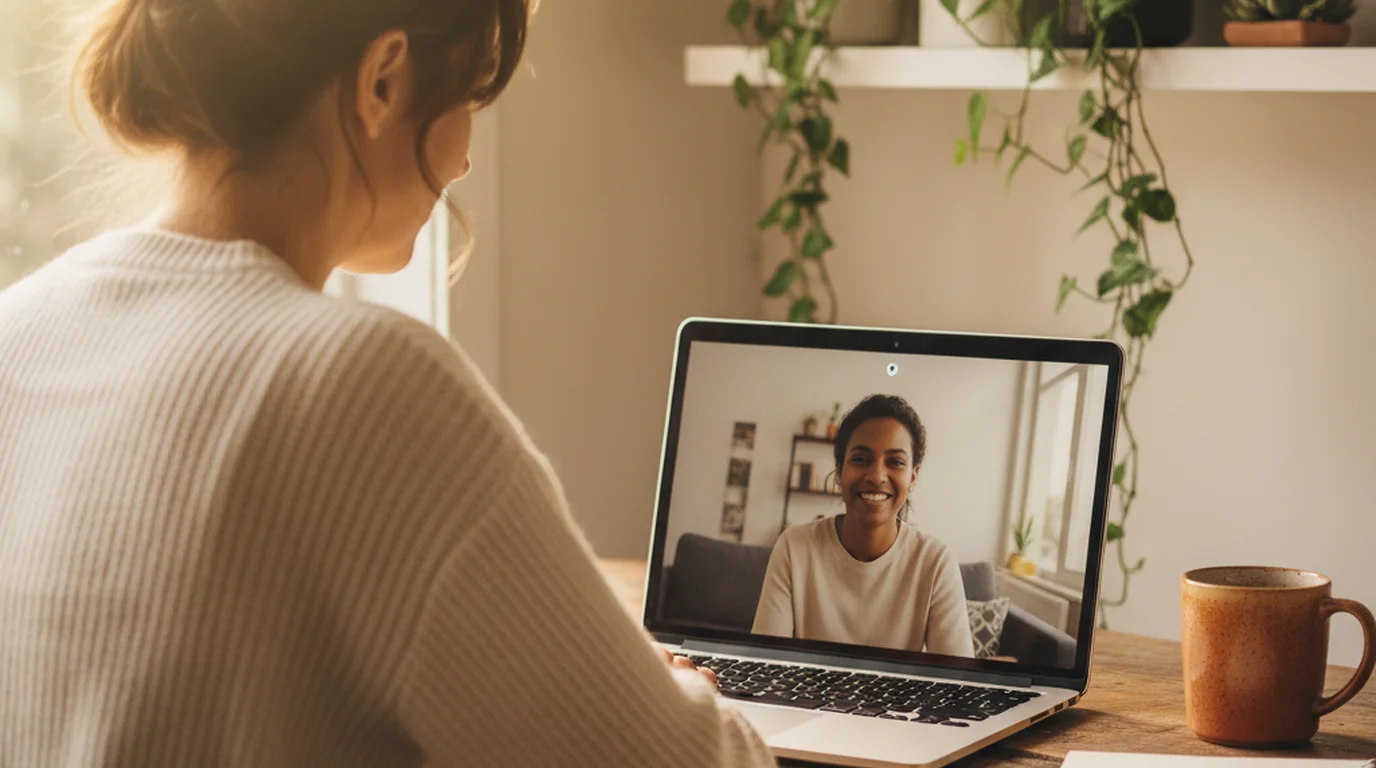
Run both browser tests, then open the call app and pick the same camera and microphone in its settings. On Mac, open the Teleprompter-Scrolling Scripts floating window and place it under the webcam so your notes stay on top of the call. See how the teleprompter stays on top of Zoom.
Tested and ready? Record your take with the script beside the lens. Free to download on the App Store.
Use Free Online Teleprompter Get the Free App