What Is a Good Background for a Video Interview?
 Natalie Brooks · August 30, 2026 · 8 min read

Your interview background is on screen before you speak, and it stays there for the entire call. Panels do not consciously grade it, but they do read it — a cluttered kitchen, a bed corner, or a doorway with someone walking through it all pull attention away from the answer you are giving. The good news is that a background that works is cheap and takes about ten minutes to set up. Most of the work is subtraction rather than decoration.
A good interview background is a plain, uncluttered wall in a neutral colour, three to six feet behind you, with soft light coming from in front of you rather than behind. One or two low-contrast objects — a plant, a closed shelf, an unreadable print — add depth without competing. If a viewer can describe anything behind you after the call, it took attention that belonged to your answers.
What a panel actually notices in your interview background
Four things determine whether a video interview background helps or hurts, and none of them is how nice the room is. Panels are not scoring your décor; they are being distracted or they are not.
Readable text. Anything a viewer can read, they will read. Book spines, posters, whiteboards, framed certificates, delivery boxes with logos — each one is a small invitation to stop listening. This is the single most common problem in otherwise well-set-up rooms, and it is why a styled bookshelf often performs worse than a blank wall.
Movement. An open doorway, a window onto a street, a ceiling fan, a pet's bed. Motion behind a talking head is the strongest attention magnet on screen, and video compression makes it worse — a moving background eats the bitrate your face needed.
Depth. Sitting with your back nearly against a wall produces a flat, ID-photo look and a hard shadow behind your head. Three to six feet of separation lets the background fall slightly out of focus and softens that shadow. Depth is the one thing that separates a background that looks composed from one that looks improvised.
Depth is what separates a composed interview background from an improvised one, and the reason is optical rather than aesthetic. A webcam uses a small sensor and a wide lens, which holds nearly everything in the frame in focus — so a wall two feet behind you renders as sharply as your face and competes with it directly. Moving forward to three to six feet lets that wall fall slightly soft and pushes your own hard shadow off it entirely.
Personal information you did not intend to share. Family photos, medication on a shelf, a wall calendar, mail on a table, a religious or political item. None of these should matter and all of them can, and you get no chance to explain any of it.
The best interview backgrounds, in order
Ranked by how reliably each one survives a real call, these are the interview background options worth considering.
1. A plain wall with real distance. Neutral colour, three to six feet behind you, no texture that reads as a pattern on camera. This is the option that never fails, works in any industry, and takes zero setup beyond moving a chair.
2. A tidy room corner. Two walls meeting behind you gives depth without any props. It reads as a real space rather than a photo booth, which is generally the impression you want. Keep everything within frame either blank or blurred.
3. A styled shelf, carefully. A shelf can work if the spines are unreadable at your camera's distance and there is nothing personal on it. If you need to squint at your own preview to check whether a title is legible, the panel will squint too. Turn the readable items around.
4. A virtual background or blur. This is the fallback, not the goal. It is fine, common, and slightly worse than every option above for reasons covered in the next section.
Zoom's own guidance on the Virtual Background feature states that a background without a green screen "provides the same effect as when using a green screen, only with less sharpness and definition around you." Zoom recommends cropping any custom image to the camera's aspect ratio before uploading — 1280×720 or 1920×1080 for a 16:9 camera — in 24-bit PNG or JPG format, up to 15MB. That loss of definition around the subject is exactly the edge artefacting that makes virtual backgrounds read as a substitute rather than a room.
When a virtual background helps your video interview and when it hurts
A virtual background solves one problem completely: a room you genuinely cannot make presentable. That is the case where a Zoom interview background out of a file beats the real one behind you. Shared housing, a hotel, a corner of a bedroom with no blank wall anywhere. In those situations it is clearly the right call and no interviewer will think twice about it.
It costs you in three ways, though, and all three get worse the more you gesture. Edges around hair, glasses frames, and headset arms flicker as the segmentation algorithm re-guesses your outline. Anything you hold up — a notebook, a hand raised to make a point — partially disappears. And a photorealistic scene behind you invites the viewer to work out whether it is real, which is attention spent on the wrong thing.
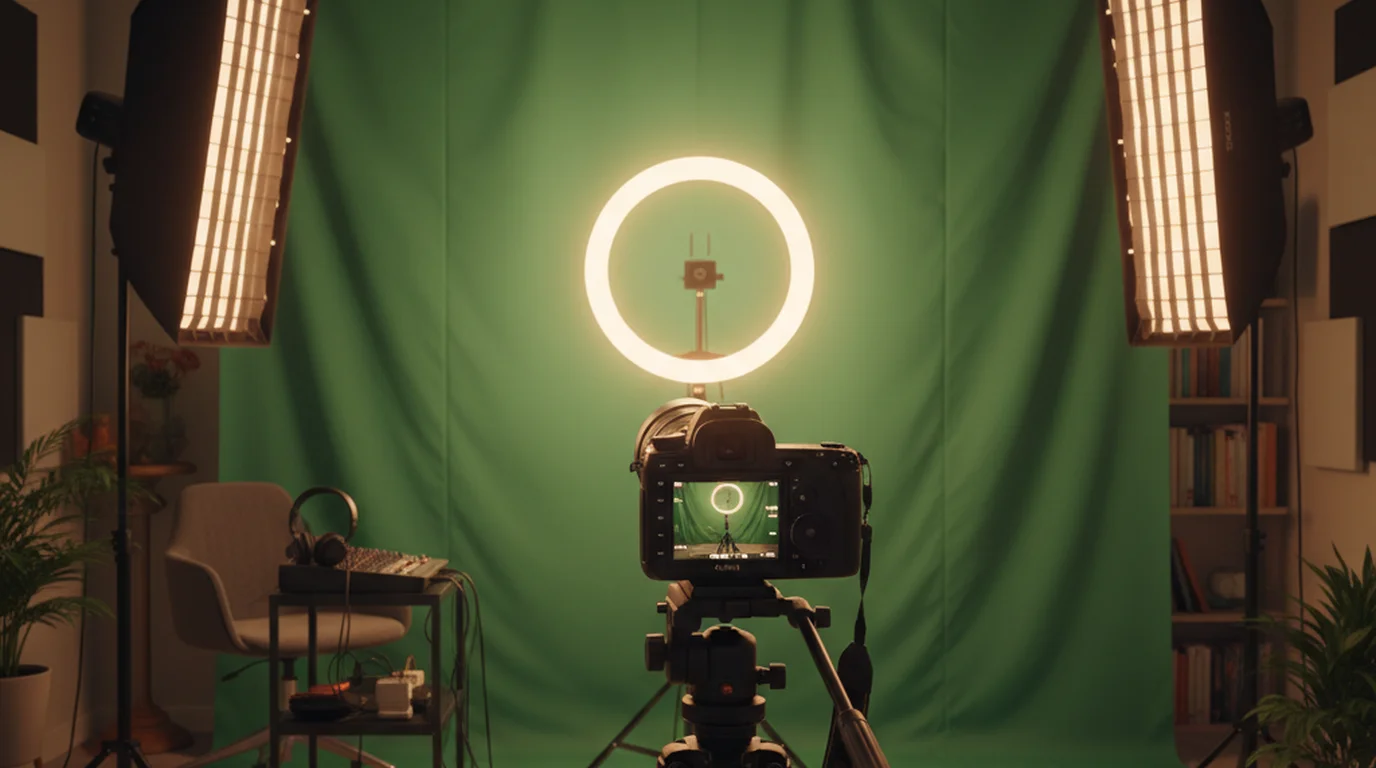
If you use one, pick a flat colour or a heavily defocused room rather than a sharp office or a landscape. Artefacts are far less visible against a plain field than against a detailed one. Blur is usually the better choice than an image outright: it keeps your real depth cues and only softens what is behind you. A physical green screen setup removes the artefacting almost entirely if you find yourself on camera often enough to justify one.
The ten-minute interview background setup
- Move the chair, not the furniture. Find the blankest wall in the home and sit three to six feet in front of it. Repositioning yourself is almost always faster than tidying the room you were already sitting in.
- Light from the front. Face a window, or put a lamp beside the camera. A window behind you turns you into a silhouette that no amount of background work will rescue.
- Camera at eye level. A laptop on the desk points up at you and puts the ceiling in frame. Books under the laptop fix this in seconds, and if the built-in camera is the weak link, our webcam vs iPhone camera comparison covers when swapping is worth it.
- Frame it. A small gap above your head, shoulders visible, eyes about a third of the way down the frame.
- Audit the preview. Join a test meeting and look at your own tile as a stranger would. Name every object you can identify. Remove or turn around anything you can name.
Lighting does more for an interview background than the background itself does. A plain wall under flat, even light looks intentional; the same wall lit from one harsh angle looks like a police interview. If interviews and recorded video are a regular part of your work, one soft light source in front of you is the highest-return purchase you can make — our guide to softbox lighting for video covers why diffusion matters more than brightness.
What to remove from your interview background before the call
Working as a one-person crew on remote shoots, the same items turn up in the frame again and again, and none of them belong there: laundry drying, an unmade bed, a full drying rack, dishes, a pet's litter tray, a whiteboard with anyone's name on it, a mirror reflecting the rest of the room, and a door that someone else in the house might open.
The mirror deserves special mention because people rarely think about it as part of the interview background at all. A mirror behind you shows the panel your screen, your notes, and whatever else is in front of you. It is the one background object that can leak something genuinely damaging.
The other easily missed one is your own second monitor, if it is angled such that its glow reflects in your glasses. That reflection is usually unreadable, but it is visibly a screen, and it makes it obvious you are reading something. Which brings up the question most candidates are actually worried about.
Reading notes without it being obvious
Almost everyone brings notes to a remote interview, and almost everyone gives themselves away with them. Notes on the desk drop your eyes and your chin. Notes in a window beside the camera drag your gaze sideways every few seconds. Sticky notes around the monitor bezel are visible in the frame and, on a wide-angle laptop camera, sometimes readable — the one case where notes become part of your video interview background whether you meant them to or not.
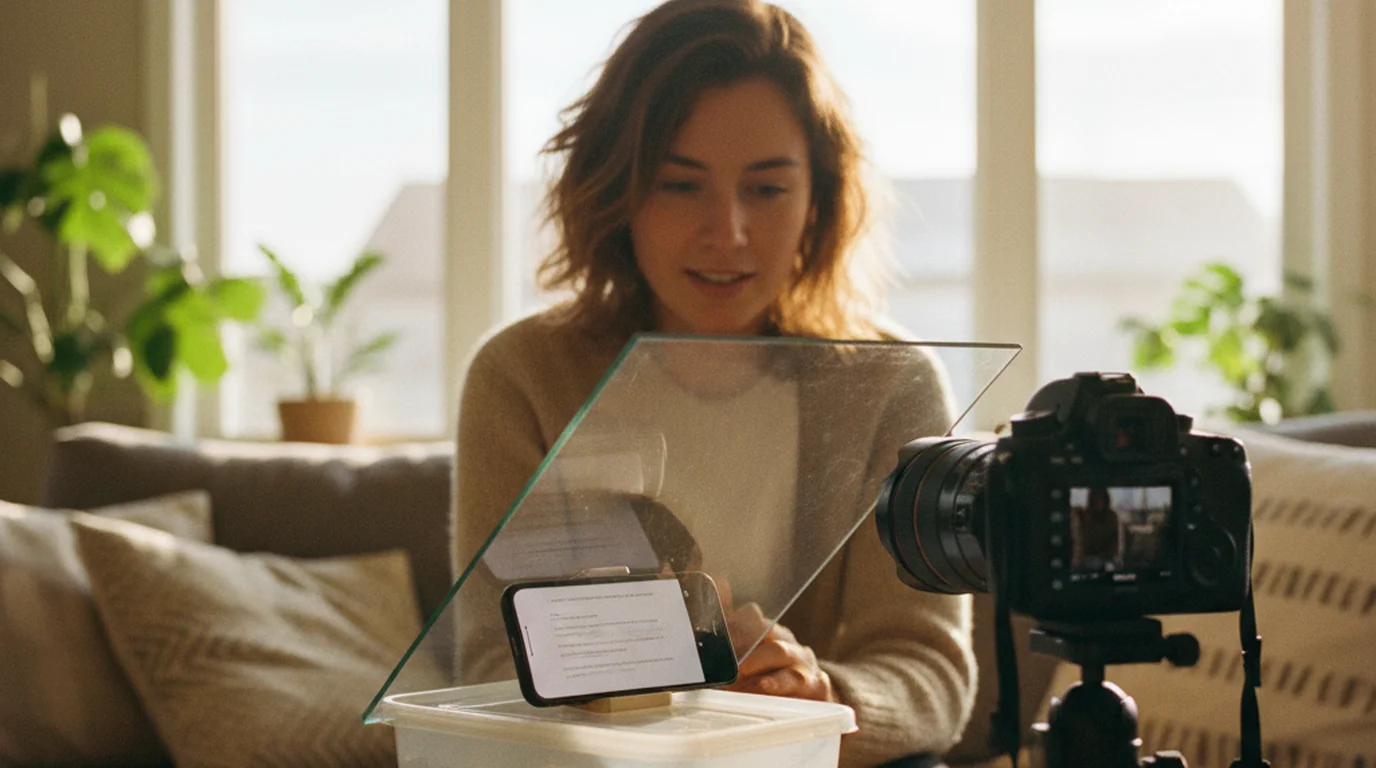
The mechanical fix is to put the text directly under the lens so the eye movement is too small to read as looking away. A free online teleprompter runs in a browser window positioned at the top of the screen, right below the webcam, and scrolls at a set pace so you are not hunting for your place. Keep it to bullet points rather than full sentences — a scripted answer sounds scripted, and the goal here is only to stop the sideways glance.
The same setup works for the parts of an interview that genuinely are scripted: your two-minute introduction, the questions you plan to ask at the end, and the salary sentence people most often fumble. Our guide to using a teleprompter on Zoom calls covers window positioning for each of the major meeting platforms.
The other kind of interview background
"Interview background" means two different things, and the second one comes up in the room rather than behind it: your professional background, usually requested as "tell me about your background" in the first two minutes.
Treat it as a short chronological arc that ends at this job — where you started, the two or three moves that built the relevant skill, and why this role is the next step. Keep it under 90 seconds, which at a normal speaking pace is roughly 200 words. The common failure is a full career history that reaches the present with the panel already disengaged, and the fix is to cut everything that does not explain why you are a fit for this specific role.
Write those 200 words out and time them. It is the one answer you can be certain you will be asked, and it is the one most people improvise.
Frequently Asked Questions
What is a good background for an interview?
A plain, uncluttered wall in a neutral colour, positioned three to six feet behind you, with soft light coming from in front rather than behind. One or two low-contrast objects — a plant, a closed bookshelf, a framed print without readable text — add depth without competing for attention. The test is simple: if a viewer can describe anything behind you after the call, the background took attention that belonged to your answers.
What is an appropriate background for a virtual interview?
Anything that reads as a tidy, ordinary room and gives no information you did not choose to share. Avoid unmade beds, kitchen sinks, laundry, open doorways with movement behind them, and anything with readable text — book spines, posters, whiteboards, and certificates all invite the panel to read instead of listen. A neutral wall or a shallow, tidy corner of a room is appropriate for almost every industry.
What is the best background to use for a video interview?
In order of reliability: a plain wall three to six feet behind you; a tidy room corner with real depth; a styled bookshelf with the spines turned or blurred; and only then a virtual background. Real backgrounds beat virtual ones because they never glitch, never clip your headset or hair, and never signal that you are hiding something. Add the depth first and the decoration second.
Is it okay to have a virtual background for an interview?
It is acceptable and common, but it is the fallback rather than the first choice. Virtual backgrounds without a green screen produce visible edge artefacts around hair, glasses, and headsets, and those artefacts get worse every time you gesture. If your real room genuinely cannot be made presentable, use a subtle blur or a plain, neutral virtual image rather than an office scene or a landscape, and test it with the exact lighting you will have on the day.
What is a good background for Zoom interviews?
The same principles apply on Zoom as anywhere else: a plain wall, real distance behind you, and front lighting. If you use Zoom's Virtual Background feature, Zoom recommends cropping the image to your camera's aspect ratio before uploading — 1280×720 or 1920×1080 both work for a 16:9 camera — in 24-bit PNG or JPG, up to 15MB. Test the background in a solo meeting before the interview, not five minutes before it starts.
Where do I get virtual backgrounds for Zoom?
Zoom ships a small built-in set, and the blur option is available without downloading anything. For a custom image, any 1280×720 or 1920×1080 PNG or JPG under 15MB will upload. For an interview specifically, a plain colour or a very softly defocused room reads better than a stock office or a landscape, because a photorealistic scene makes edge artefacts around your head far more noticeable than a flat one does.
How to set up a background for a virtual interview?
Sit three to six feet in front of a plain wall. Put your light source in front of you, not behind — a window you face, or a lamp beside the camera. Set the camera at eye level so the shot looks level rather than up your nose. Frame yourself with a small gap above your head and your shoulders in view. Then join a test call, look at your own tile, and remove anything you can identify behind you.
How do you present your background in an interview?
This question uses background in its other sense — your professional history rather than what is behind you on camera. Present it as a short chronological arc that ends at the role you are applying for: where you started, the two or three moves that built the relevant skill, and why this job is the next step. Keep it under 90 seconds, which at a normal speaking pace is roughly 200 words.
Natalie BrooksNatalie Brooks is a video producer who works as a one-person crew for independent creators, corporate teams, and online educators. She writes about home studio setups, creator gear, and the production decisions that never come up in sponsored unboxings.
Keep Your Notes Under the Lens, Not Beside It
The background only works if your eyes stay on the camera. Teleprompter-Scrolling Scripts puts your notes directly below the webcam and scrolls them at your pace, so the glance sideways never happens. Free in any browser, and on iPhone, iPad, and Mac.
Use Free Online Teleprompter Get the Free App