Can I record video while reading a script?
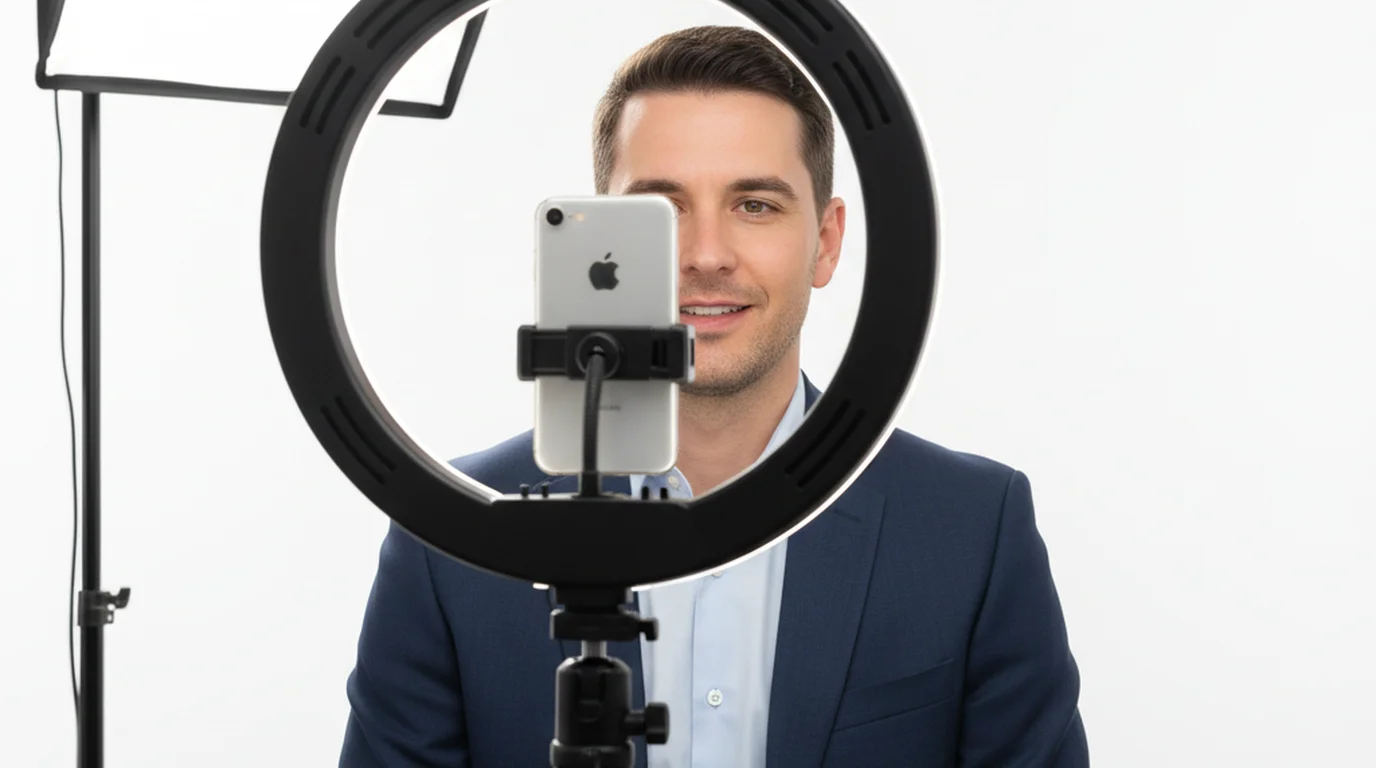
Yes, you can record video while reading a script. Camera mode in Teleprompter-Scrolling Scripts opens the built-in camera, shows the live camera view on screen, and overlays your scrolling script on top — so you read and record at the same time without switching between apps. The teleprompter text appears only on your screen and is not burned into the saved video.
How Camera mode makes script-reading and recording possible simultaneously
Most creators who want to record video while reading a script end up switching between a notes app and the camera app, glancing down or off-screen between sentences. That constant eye movement is exactly what makes a video look unnatural. Camera mode solves this by combining both functions in one view.
When you switch to Camera mode in Teleprompter-Scrolling Scripts, the app opens the built-in iOS or Mac camera and places your scrolling script directly over the live camera preview. You see both the camera view and your script text on the same screen at the same time. The script scrolls automatically at the speed you set. You read, the camera records, and the saved video contains only what the camera captured — no text, no overlays, no watermarks.
This is the core mechanic that makes a teleprompter app for video recording different from a plain notes app or a script document. The text is positioned where your eyes need to be, not on a separate device or a second screen you have to glance at separately.
Step-by-step: how to record video while reading a script on iPhone
Recording video while reading a script on iPhone takes about two minutes to set up from scratch.
- Open Teleprompter-Scrolling Scripts and tap to create a new script.
- Paste your prepared script text or type it directly. Short sentences and line breaks where you want to pause will help your delivery.
- Switch to Camera mode using the mode selector at the bottom of the screen.
- Drag the text area to position it near the top of the screen, close to the front-facing camera lens. For vertical video (Reels, Shorts, TikTok), a 2–3 line text area works well — it keeps the text visible without covering most of the frame.
- Set the scroll speed. Start slightly slower than your natural reading pace and adjust after a test run.
- Tap record, read the first 20 seconds, then stop and review. Check that your eyes are steady and your delivery pace matches the scroll.
- Adjust one setting at a time — usually speed or text area height — then record the full take.
On iPhone, portrait orientation is the most common setup for social content. Landscape works well for YouTube or any 16:9 format. Both orientations are supported in Camera mode. You can switch between the front and back camera depending on your shot.
Step-by-step: recording while reading on iPad
The iPad screen gives you more room to work with, which makes a few things easier — longer scripts, larger text, and more comfortable reading without needing to shrink the text area to a tiny strip.
- Open the app and create or paste your script. On iPad, longer scripts work fine because the larger display makes it easier to scan lines quickly.
- Switch to Camera mode.
- Position the text area near the top edge of the screen, close to the front-facing camera. On iPad, the camera is typically on the landscape edge when held horizontally — position the text area accordingly so your eye line stays close to the lens.
- Use a slightly larger text size than you would on iPhone. The extra screen space means you do not need to compress the text.
- Set scroll speed and run a 20-second test. On iPad, a slightly slower scroll often feels more natural because there is more text visible at once.
- Record the full take. iPad is well-suited for longer recordings — course lessons, webinar intros, explainer videos, and coaching content that would be tiring to hold on an iPhone.
For iPad recordings where you are seated at a desk or standing at a lectern, the larger form factor also makes it easier to prop the device at the right angle without a tripod.
Step-by-step: recording while reading on Mac
Camera mode on Mac uses the built-in FaceTime camera or any connected external webcam, making it a strong option for desk recordings, YouTube videos, webinars, and online courses.
- Open Teleprompter-Scrolling Scripts on Mac and create or paste your script.
- Switch to Camera mode. The app opens the camera feed in the main window.
- Position the text area near the top of the screen, directly below the camera. On a laptop, the camera is at the top center of the display — placing the text area just below it keeps your eye line very close to the lens, which reads as direct eye contact on camera.
- Adjust text size so you can read comfortably from your normal sitting distance without leaning toward the screen.
- Set scroll speed and run a short test. Record the first 15–20 seconds, watch it back, and confirm your eyes look steady and your pace feels natural.
- Record the full take. The saved video goes to your Mac's camera roll or can be accessed from the app.
Mac recording works especially well when you want a clean desk setup without a separate teleprompter hardware rig. The app handles everything — script, camera, recording — in one window.
Script format: write for speaking, not reading
The biggest factor in whether a video looks natural is not the scroll speed or the text area size — it is whether the script was written for speech. A script written the way you write an email or a report will sound stiff when you read it out loud, no matter how well the teleprompter is set up.
Before you record, read the script out loud once without the camera running. Notice the sentences that feel awkward to say. Shorten them. Replace formal phrasing with the way you would actually say it in conversation. Use contractions. Break long sentences into two. Add line breaks where you want to pause — the app will hold the scroll at that line until the next word appears.
For a 90-second video, a tightly written script is about 220–270 words. For a five-minute explainer, aim for 700–750 words. These ranges leave room for natural pauses, emphasis, and the slight slowing down that makes delivery feel relaxed rather than rushed.
If you generate scripts with ChatGPT, Gemini, or another AI tool, always paste them into the app and do a verbal read-through before recording. AI-generated scripts often have phrasing that looks fine on paper but feels written when spoken. A quick edit makes a large difference in the final video.
Eye line and text placement during Camera mode recording
Where you place the text area determines whether viewers can tell you are reading. The goal is to keep your eyes as close to the camera lens as possible while still being able to read the script comfortably. The smaller the angle between the lens and the text, the more natural the eye contact looks on screen.
On iPhone in portrait orientation, place the text area near the top of the screen, as close to the front-facing camera as it will go. Use a narrow text area — two or three lines — so your eyes do not travel down the screen as you read. The narrower the area, the less vertical eye movement the viewer notices.
On iPad in landscape orientation, the front camera is on the long edge when the device is held horizontally. Position the text area near that edge. If you are recording with the rear camera on a stand, position the text at whatever point on the screen aligns with the lens direction.
On Mac, the camera is at the top center of the display. Place the text area near the top of the window, directly below the camera indicator light. This is the closest you can get to true eye contact without dedicated teleprompter hardware that mounts in front of the lens.
Avoid placing the text at the bottom or sides of the screen. Any placement that forces your eyes away from the lens creates a visible gaze shift that signals to viewers that you are reading rather than speaking to them.
Common reasons recordings look unnatural — and how to fix them
Even with a teleprompter app for video recording set up correctly, some recordings still look stiff or unnatural. Most of the time, the cause is one of a small number of fixable problems.
The scroll speed is too fast. When the script scrolls faster than your comfortable speaking pace, you rush to keep up, your delivery sounds pressured, and your eye movements become more frequent. Fix: slow the scroll until you feel like the script is waiting for you, not the other way around.
The text area is too wide or too low. Wide text areas force your eyes to sweep left and right across each line, which is visible on camera. Text placed too low forces your gaze down and away from the lens. Fix: narrow the text area to 2–3 lines and position it as close to the camera as possible.
The script sounds like it was written, not spoken. This is the most common cause of stiff delivery and the one that teleprompter settings cannot fix. Fix: rewrite problem sentences to match how you actually talk. Read each sentence out loud before recording to test it.
No rehearsal before the full take. Starting with the full recording without a short test means you discover speed, text size, and pacing problems mid-take. Fix: always do a 20-second test run first, watch it back, and make one or two adjustments before the real recording.
Blinking too little. When people concentrate on reading, they blink less than normal. Viewers notice this as an unnatural, intense stare. Fix: remind yourself to blink at a normal rate, especially during long sections of script. The scroll pause function lets you stop and collect yourself if you feel tense.
Teleprompter-Scrolling Scripts lets you record video while reading a script on iPhone, iPad, and Mac. Camera mode overlays your scrolling script on the live camera view — the text never appears in the saved video. Free download on the App Store.
Use Free Online Teleprompter Get the Free App