OBS Teleprompter: How to Read Your Script While You Stream Live
 Maya Chen · July 30, 2026 · Updated October 6, 2026 · 8 min read
When I'm filming a scripted segment for one of my live streams, the thing I'm most paranoid about isn't the camera angle or the mic level — it's my eyes. The moment a viewer sees you glancing down at notes, the spell breaks. You go from "person talking to me" to "person reciting something." A teleprompter for live streaming solves that. It keeps your script right behind the lens, so what viewers see is a creator who knows exactly what they're saying without the flat, memorized-lines energy that kills engagement.
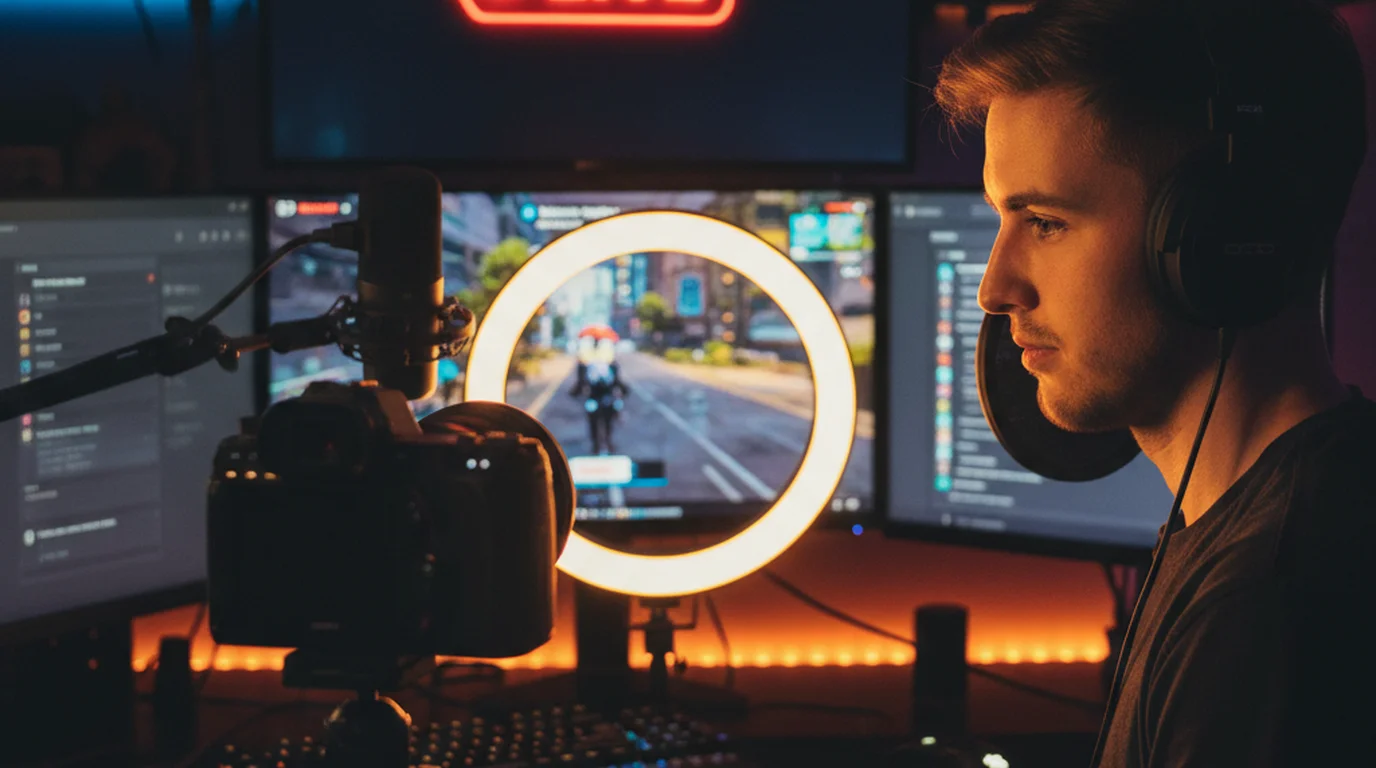
OBS Studio doesn’t include a teleprompter, so you add one yourself. The cleanest way is a custom browser dock: load a web teleprompter inside the OBS window, where you can read it but viewers can’t see it. The alternatives are a teleprompter window on a second screen outside your capture area, or a phone or tablet placed right under the webcam.
Is there a teleprompter in OBS Studio?
No. OBS Studio has scenes, sources and docks, but nothing that scrolls a script for you. Three setups fill the gap, and the right one depends on how many screens you have and where your webcam sits.
- A custom browser dock (one screen). In OBS, open the Docks menu (View > Docks in older versions) and choose Custom Browser Docks. Give the dock a name, paste the address of a web teleprompter such as the free online teleprompter, and click Apply. The teleprompter opens as a panel inside the OBS window. Docks are part of the OBS interface, not a scene, so nothing in them reaches your stream. Drag the dock to the top of your screen, just under the webcam, and keep it to two or three lines.
- A separate window on a second screen. Open the teleprompter in a browser or app window on a monitor that OBS isn’t capturing. This gives you the biggest text, but your eyes move further from the lens, so place that monitor directly below or behind the camera.
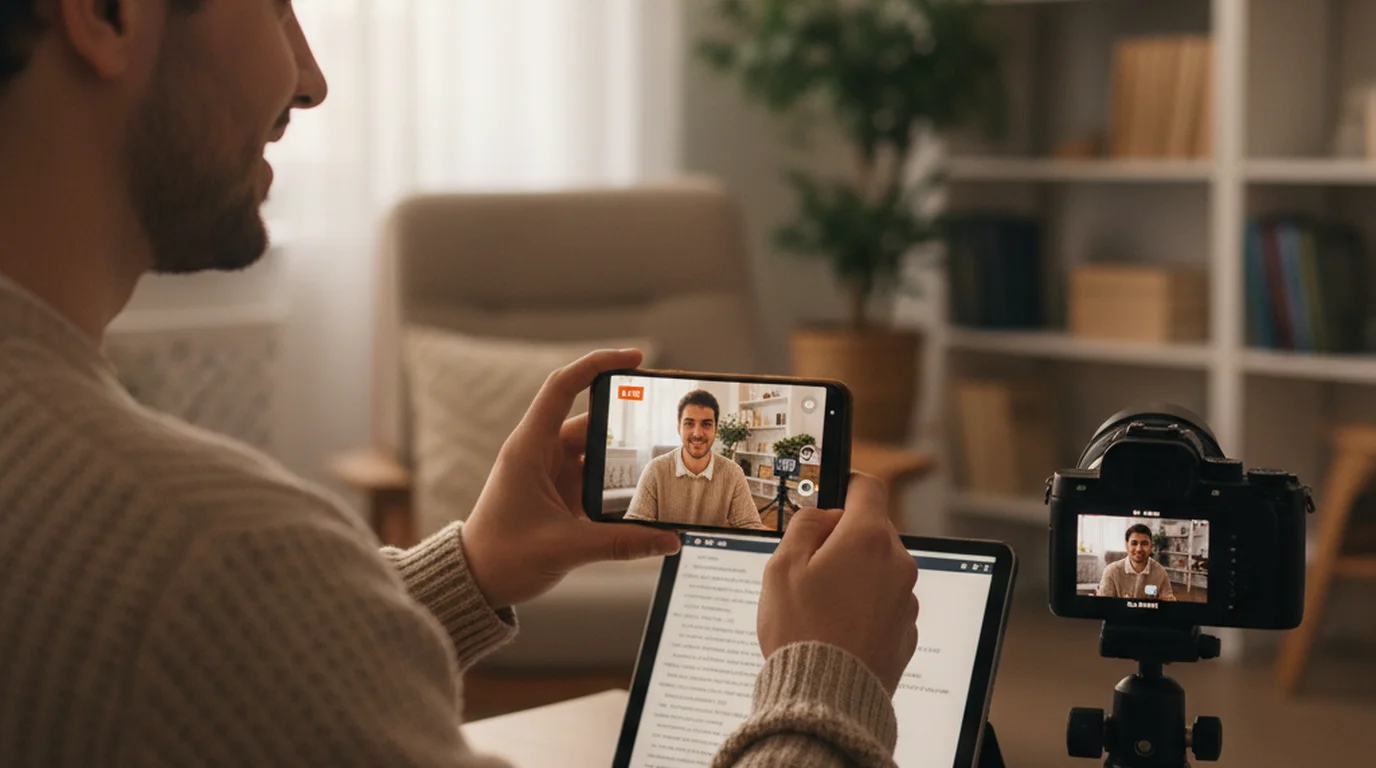
- A phone or tablet by the webcam. Run a teleprompter app in Prompter mode on a phone or iPad mounted right under the webcam. It never touches OBS at all, and you can scroll hands-free with voice commands such as “next” and “pause”.
Avoid adding the teleprompter as a Browser Source inside a scene. Anything in a scene is part of the program output, so your viewers would see the script too, unless you build a separate scene just for reading, which is more trouble than a dock. Dedicated OBS teleprompter plugins and browser extensions also exist; they work the same way as a dock, so pick one only if you want controls that a plain web page doesn’t offer.
Eye contact is one of the strongest trust signals in video communication. Research published in the Communication Research Reports found that speakers maintaining consistent eye contact with the camera are rated significantly higher on credibility and likability by remote viewers compared to those who frequently look away — a gap that widens in longer viewing sessions, which is exactly the format live streaming demands.
Why live streamers need a teleprompter (and when they don't)
Not every type of live content needs a teleprompter for live video. If you're doing casual gaming commentary or just chatting with your community, a script would make you sound stiff. But if you're running a structured show with intro segments, educational breakdowns, sponsored reads, or news-style updates, having a live stream script saves you from the most common live failure: blanking mid-sentence in front of hundreds of people.
When I started doing weekly live teaching sessions for my audience, I kept losing my thread during the teaching segments. My casual conversation was fine, but the moment I needed to walk through a step-by-step process on camera, I'd start over-explaining or miss key points. The first time I used a streaming script reader for those structured sections, I covered 40% more material in the same time slot — without the dead air and "where was I?" moments.
The clearest use cases for a teleprompter for live content: sponsored segments where exact wording matters, educational tutorials that need a logical sequence, opening and closing show segments you want to feel polished, and any live video where you're announcing something important and can't afford to fumble the details.
How to set up a teleprompter for live streaming
The setup depends on your equipment, but the core principle is the same across every configuration: get your script as close to your camera lens as possible without blocking it. The further your eyes travel to read, the more obvious it becomes to viewers that you're reading.
Single-monitor desktop setup
Open your streaming script reader in a browser window and position it directly below your webcam. Make the window tall and narrow so the text stays near the lens. Increase font size to at least 32pt — you shouldn't be leaning in to read. Set the background to dark (black or very dark grey) and text to white or light cream. Dark-on-bright setups cause eye squinting, which reads on camera as discomfort.
Dual-monitor setup
This is the cleanest configuration for desktop streaming. Put OBS or your broadcast software on monitor one and the teleprompter on monitor two. Position monitor two as close to your webcam as possible — ideally at the same height as the camera. When you look at the script, you're looking almost directly at the lens from the viewer's perspective. I've used this setup for Instagram Live teaching sessions and the feedback from my 130,000+ followers has consistently been that those segments feel the most "professional" even though they're the least rehearsed. Before going live, test your camera to confirm its real resolution and frame rate.
Phone or tablet as a secondary prompter display
If you're streaming from a laptop or a fixed camera, prop a phone directly beneath the lens and run the free online teleprompter in the phone's browser. This gets your script within 3–4 inches of the camera's line of sight. For iPhone users specifically, the Teleprompter-Scrolling Scripts app has a separate display mode you can use on a second device while recording on your primary one.
According to a 2024 Streamlabs creator survey, 67% of full-time streamers run structured show formats at least once per week — up from 41% in 2022. As live streaming has grown more competitive, scripted show segments have become a key differentiator for creators trying to attract brand partnerships and retain viewers past the first 10 minutes of a stream.
Scroll speed, font size, and how to not look like you're reading
The difference between a teleprompter that helps and one that makes you look robotic comes down to three variables: scroll speed, font size, and how you've written the script.
For scroll speed: most conversational live content lands between 130 and 150 words per minute. Before going live, do a 60-second test read with the scroll running. If you feel like you're rushing, drop the speed by 10–15%. If you keep getting ahead of the text, nudge it up. Most teleprompter apps let you adjust on the fly, which matters for live streaming since your energy and pace vary segment by segment.
For font size: go bigger than you think you need. On a standard 27-inch monitor at arm's length, 40pt text is readable without squinting. On a phone beneath your webcam, even larger — 48pt or higher. Squinting to read causes micro-expressions that register as tension on camera, even if viewers can't consciously identify what they're seeing.
For writing style: a teleprompter for live streaming works best when the script is written the way you actually talk. Short sentences. Contractions. The occasional "so" or "right?" that gives you a natural breath point. When I write scripts for my live show segments, I read them aloud twice before the stream — not to memorize them, but to catch any sentence that sounds written rather than spoken. If I stumble on something in rehearsal, I rewrite it before going live.
If you want to see what this looks like in practice before committing to a setup, the teleprompter for YouTube guide walks through the same principles for recorded content, which translates directly to live streaming with minor adjustments for the no-retake constraint.
Best teleprompter options for live streaming (software vs. hardware)
You don't need expensive hardware to use a teleprompter for live video. The most common configurations as of 2026:
- Browser-based prompter (free): Works on any device with a browser. No app required. Best for desktop streamers who can position a second monitor or tab near their webcam. Scroll speed is adjustable, no account needed to start.
- iOS teleprompter app: Ideal for mobile streamers on Instagram Live or YouTube Live using an iPhone. Camera mode overlays the script directly on the live camera feed. Supports variable scroll speed and customizable font size and background color.
- Dedicated teleprompter hardware (physical): A beam-splitter glass rig that reflects text onto a one-way mirror in front of your lens. Professional-grade eye contact. Cost ranges from $80 to $800+ for quality units. Overkill for most solo streamers, but useful for studio-style productions or if you're streaming at 4K with a mirrorless camera.
For most live streamers — especially those on Twitch, YouTube Live, or Instagram Live — a browser-based or app-based teleprompter for live streaming is the right starting point. Hardware makes sense once you've validated the format and your audience is big enough that production quality directly affects retention.
Start streaming on-script without losing your natural voice
A teleprompter for live streaming isn't about reading robotically — it's about having the safety net that lets you be more natural, not less. When you know the structure is handled, you can give energy to your delivery instead of burning focus on remembering what comes next. Start with the free online teleprompter for your next structured live segment and do one 60-second test run before you go live. Adjust the speed until the words land comfortably. That's the whole setup — no hardware, no complicated configuration.
Frequently Asked Questions
Is there a teleprompter in OBS Studio?
No. OBS Studio has no built-in teleprompter. The simplest fix is a custom browser dock: open the Docks menu, choose Custom Browser Docks, and paste the address of a web teleprompter. The script appears as a panel in the OBS window but never in your stream. A second screen or a phone under the webcam also works.
Do streamers use Teleprompters?
Yes, many streamers — especially those running structured shows, educational content, or sponsored segments — use teleprompters. They help maintain scripted delivery while keeping eyes on camera. Streamers running casual gaming commentary usually don't script tightly, but those doing product reviews, tutorials, or news-style streams benefit significantly from a teleprompter for live streaming.
What is the best online teleprompter?
For live streaming, the best online teleprompter is one that runs in-browser without requiring a second device — so you can position it close to your camera lens. Teleprompter-Scrolling Scripts offers a free browser-based prompter with adjustable scroll speed, font size, and a dark background optimized for on-screen reading. No account required to start.
What teleprompter do YouTubers use?
YouTubers doing recorded content often use physical teleprompter hardware with a beam-splitter glass in front of the lens. But for live video on YouTube, most creators use a browser tab or tablet positioned close to their webcam or phone camera. A software solution like a free online teleprompter or a dedicated app is the most common choice because it requires no hardware investment.
Is there an app that acts like a teleprompter?
Yes. Teleprompter-Scrolling Scripts is a free iOS app that scrolls your script at a set speed while you film. In Camera mode, the text overlays directly on the live camera view, so you read and record in the same frame. For desktop live streaming, the web app version works in any browser, letting you position the script window close to your webcam for natural eye contact.
Can you use a teleprompter for Twitch streaming?
Absolutely. For Twitch, the simplest setup is a browser tab with an online teleprompter open next to OBS. Position it on a second monitor or directly beneath your webcam. If you're using OBS, you can even add the prompter as a browser source so the scroll is visible only on your side. This works for scripted Twitch shows, sponsored reads, and structured talk segments.
How do I use a teleprompter with OBS?
In OBS, open a browser source and enter your teleprompter URL — or simply open your prompter in a separate window on a second monitor. The key is positioning: the script needs to be as close to your camera lens as possible so your eye movement isn't visible to viewers. On a single-monitor setup, put the OBS preview in one corner and the prompter full-screen behind it, then glance up at the camera every few sentences.
How do I keep eye contact while reading a teleprompter during a live stream?
Position your script window as close to your camera lens as possible — ideally directly beneath it or in a small window overlapping the camera feed. Increase font size so you don't need to squint, which causes noticeable eye movement. Set scroll speed slightly slower than your natural reading pace so you aren't rushing. Practice the first 30 seconds without looking at the script at all, so your stream opening feels live and present.
What scroll speed should I use for live streaming?
Most live streamers read at 130–150 words per minute when speaking conversationally on camera. Start your scroll speed at a setting that matches that pace and do a 60-second test run before going live. If you're rushing the words, slow it down by 10–15%. For structured segments like sponsored reads or announcements, a slightly slower pace — around 120 wpm — gives you room to add spontaneous comments without losing your place.
Maya ChenMaya Chen is a content creator who films on iPhone and coaches solo creators on mobile-first video production for TikTok, Reels, and Shorts. Her work focuses on the part most people skip: how to actually sound natural once the camera is rolling.
Read Your Live Stream Script Without Looking Away
Use Teleprompter-Scrolling Scripts to keep your live segments polished and on-pace. Free on browser, iPhone, iPad, and Mac — no account needed.
Use Free Online Teleprompter Get the Free App