What Is B-Roll? Shots and Examples for Talking-Head Videos
 Maya Chen · November 1, 2026 · 9 min read
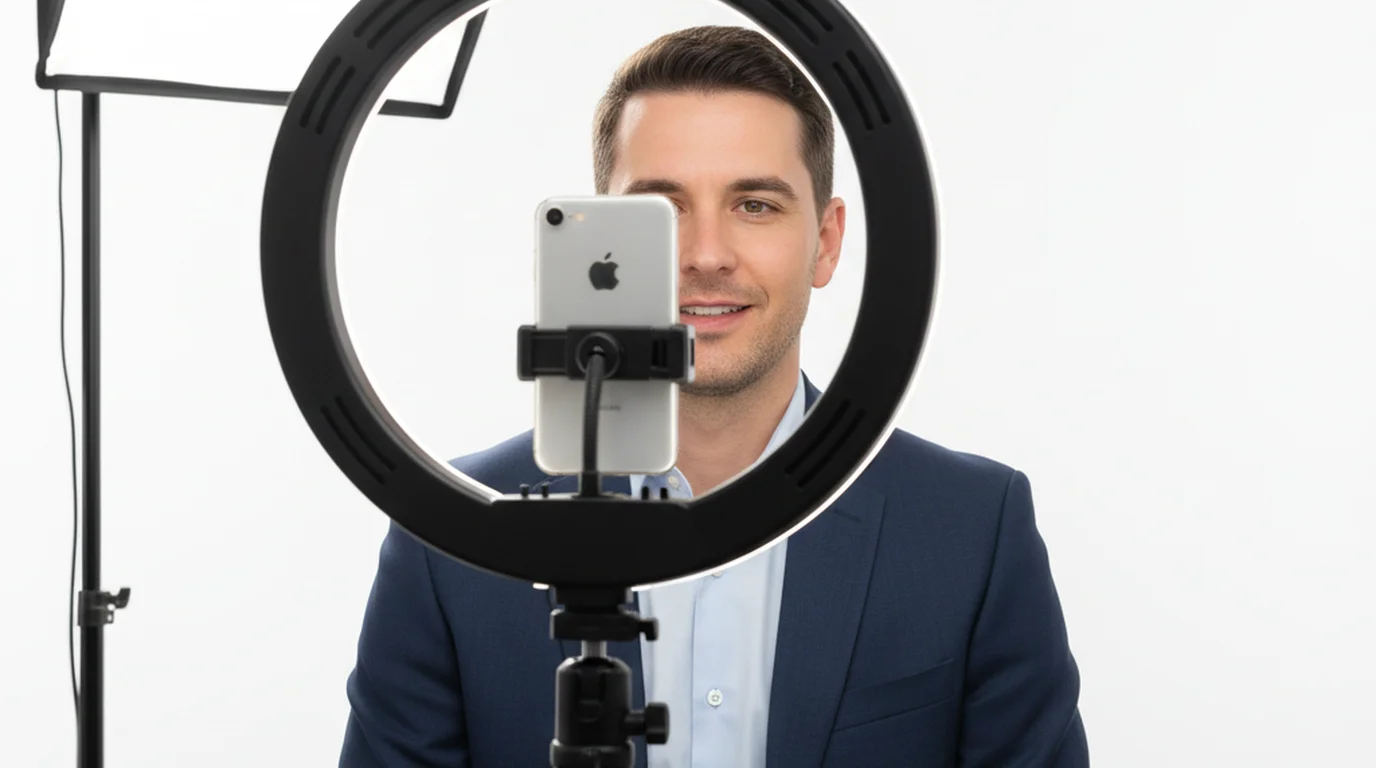
B-roll is the supporting footage you cut to while the main audio keeps playing: the close-up of your hands, the product on the desk, the screen you're describing. In a talking-head video, where the main footage is you speaking to the lens, B-roll is what turns "trust me" into "here, look." The best B-roll gets planned in the script, filmed on the same phone in the same light, and laid over the A-roll at the exact line it illustrates.
B-roll is secondary footage that plays over the primary footage (the A-roll) while the A-roll's audio continues underneath. In a talking-head video, the A-roll is the speaker on camera and the B-roll is anything that shows what they're describing: close-ups, demonstrations, screen recordings, locations, or stock clips. It adds visual evidence and variety, and it hides cuts between takes.
A-roll vs B-roll vs C-roll
The three terms describe the job a clip does in the edit, not the camera that shot it.
- A-roll is the primary footage that carries the story. In a talking-head video, it's you speaking to camera. In a documentary, it's the interview. If you muted everything else, the A-roll audio alone would still make sense.
- B-roll is the supporting footage cut in over the A-roll. The voice continues; the picture changes to show what the voice is talking about.
- C-roll is a looser term with no fixed industry meaning. Creators usually use it for footage that's neither the main talk nor a direct illustration: behind-the-scenes moments, bloopers, candid reactions, or a third camera angle.
The names come from film-era editing, when shots were split across two separate reels, an A roll and a B roll, so they could be printed together with dissolves and overlaps between them. The reels are gone, but the idea stayed: one layer carries the story, another layer sits on top of it.
In a talking-head video, A-roll is the speaker on camera and B-roll is footage laid over it while the speaker's audio keeps playing. Because the B-roll sits on a track above the A-roll, it changes the picture without changing the soundtrack, which is why it can illustrate a point and hide a cut between two takes at the same time.
B-roll shot types, with talking-head examples
Good B-roll answers a question the viewer would otherwise have to imagine. These are the shot types that do that most often for videos recorded to camera:
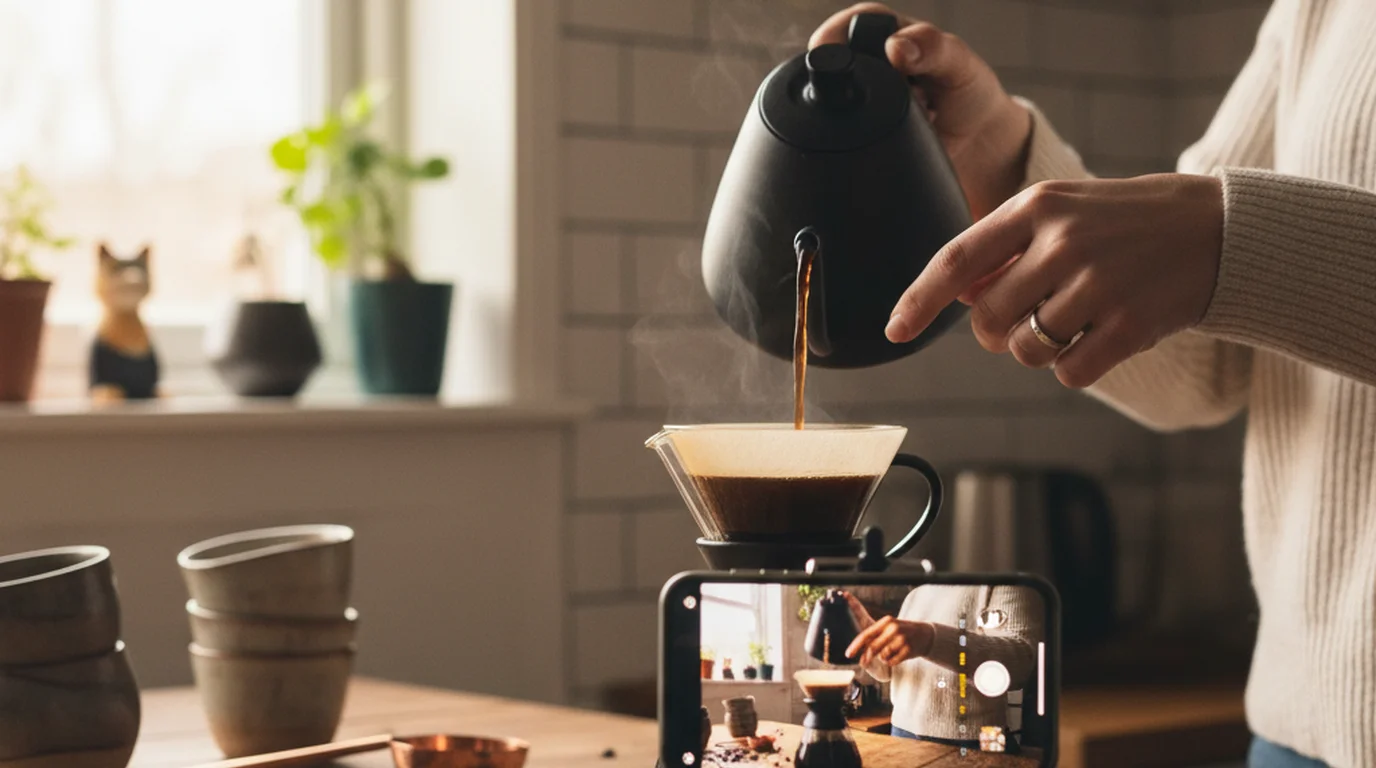
- Hands and detail close-ups. Typing the prompt you're describing, pouring the coffee, adjusting a mic, opening the box. Hands read as "real" in a way a wide shot doesn't, and they're easy to film alone.
- Product inserts. A slow push toward the item, a turn in the hand, the button you just mentioned. Reviews and unboxings live on these.
- Screen recordings. For software tutorials, the screen is the evidence. Record it on iPhone with the built-in Screen Recording control, or on a Mac with the screenshot toolbar.
- Process shots. A step happening in real time: dough being folded, a cable being plugged in, an edit being made. These replace a paragraph of explanation.
- Establishing shots. The street outside the studio, the shop front, the venue. A two-second wide shot tells viewers where the story is.
- Lifestyle and context shots. You walking to the desk, setting up the tripod, making notes. Useful as visual breathers in longer videos.
- Photos, documents, and graphics. A screenshot of the email, a chart, an old photo. Add a slow zoom so a still feels like footage.
- Stock clips. For ideas you can't film yourself: a city at night, a crowd, a plane taking off.
The order of that list is roughly the order of usefulness for a solo creator. Footage of your own hands, products, and screen matches your video's light and color, and it shows something specific to you. Stock footage fills gaps, but viewers recognize generic clips quickly.
How to shoot B-roll on an iPhone
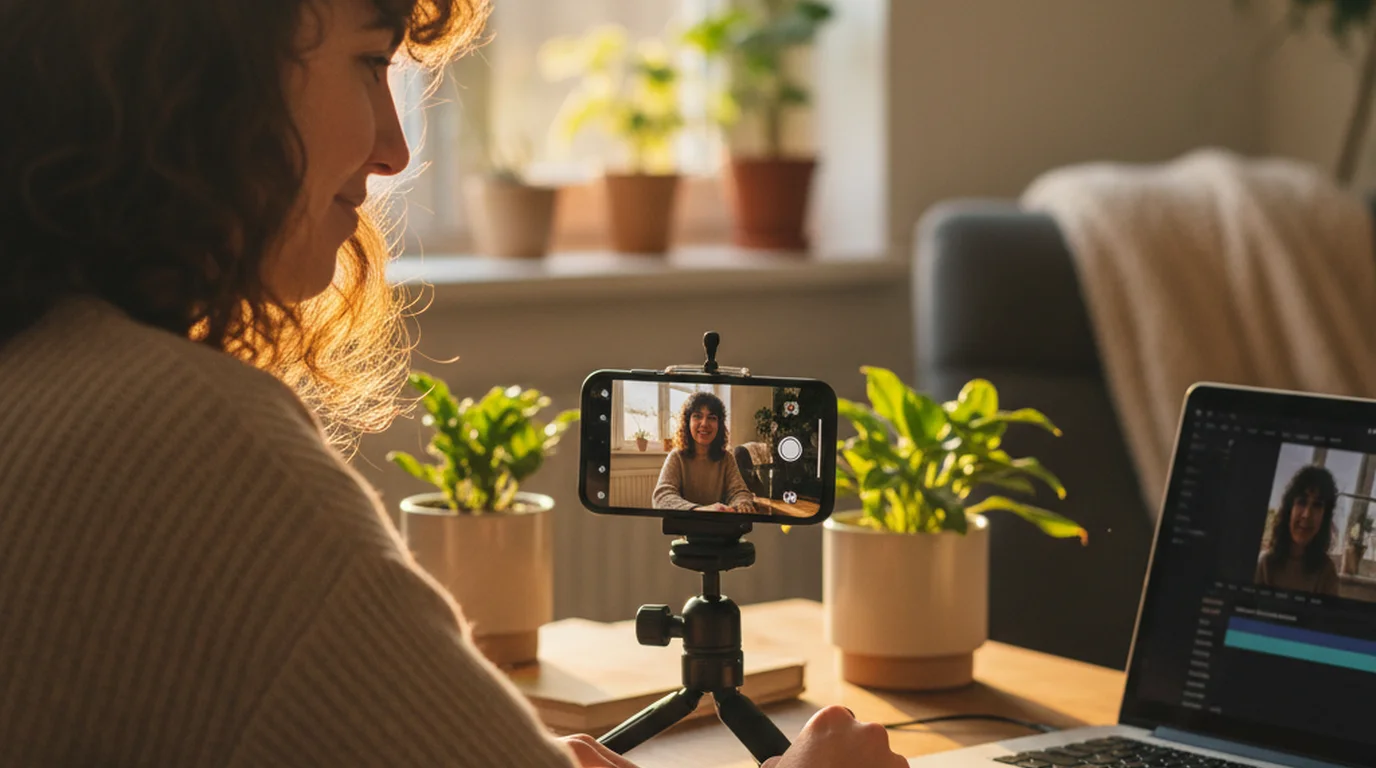
The same phone that records your A-roll can shoot all of your B-roll. A few habits make the clips cut together cleanly:
- Match your A-roll settings. Use the same resolution and frame rate for both, or the cuts can stutter. If you plan slow-motion B-roll, shoot those clips at a higher frame rate and slow them down in the edit. The guide to the best frame rate for YouTube explains when 30 fps is enough and when 60 fps pays off.
- Lock focus and exposure. In the Camera app, press and hold on your subject until AE/AF Lock appears. Otherwise the iPhone refocuses and re-meters when your hands move through the frame.
- Hold each shot for about 10 seconds. You'll only use two to four seconds, but the first and last moments usually wobble as you start and stop recording.
- Get three versions of every subject. One wide, one medium, one tight. Three framings of the same action give the edit options without a second shoot.
- Move slowly or not at all. A static shot on a small tripod beats a shaky handheld one. If you move the phone, move it slowly and in one direction.
- Use the same light as your A-roll. Shoot B-roll in the same session, by the same window, and the clips will match without color correction.
For the A-roll side of the setup, including framing, lighting, and audio, the guide to filming a talking head video on iPhone covers the full home-studio workflow.
Plan B-roll into your script with cutaway cues
Most B-roll problems start before the camera rolls. If you decide what to cut away to while editing, you end up hunting for footage that doesn't exist. If you decide while writing, you shoot exactly what the edit needs.
Write your script in two columns: what you say on the left, what the viewer sees on the right. Any sentence that describes a thing, a place, or a step gets a cutaway cue beside it, such as [B-ROLL: hands typing prompt] or [B-ROLL: close-up of the dial]. That right-hand column becomes your shot list. The video script writing guide on writing scripts that sound natural on camera covers structure and pacing; cutaway cues sit on top of that structure.
Two things happen once the cues are in place. First, you know which lines the viewer will hear but not see you deliver, so a small stumble under a cutaway doesn't need a retake. Second, you know where your edit points are, so you can stop and restart at those lines and hide the join behind a B-roll clip.
A cutaway cue is a note in the script that marks where B-roll will cover the speaker. Writing cues next to the lines they illustrate turns the script into a shot list, shows which lines will be heard but not seen, and marks the natural edit points where a jump cut between takes can be hidden under supporting footage.
Record the A-roll so it cuts cleanly to B-roll
B-roll only works if the A-roll under it is steady: consistent eye line, consistent pace, few stops. Reading from notes off to the side breaks the eye line, and every glance becomes a moment you're forced to cover with a cutaway whether you planned one or not.
Teleprompter-Scrolling Scripts, a teleprompter app for iPhone that's free to download, records in Camera mode while your script scrolls near the lens, so reading and looking at the viewer are the same action. Paste in only the spoken column of your two-column script and keep the cutaway cues in your shot list. Split the script into sections that match your beats, so each section ends at a natural edit point where a B-roll clip can cover the join. If you're recording narration to lay entirely over B-roll, Voice mode records audio while the script scrolls.
How to add B-roll in an editor
Every editor uses the same idea: the A-roll sits on the main track, and B-roll sits on a layer above it. The upper clip covers the picture; the A-roll audio keeps playing.
- Cut the A-roll first. Trim mistakes and dead air until the story plays well with no B-roll at all.
- Mute or lower the B-roll audio. Ambient sound from a B-roll clip will fight your voice. Keep a little only if it adds texture, like a pour or a click.
- Place each clip on its cue. Line the B-roll up with the word that names what it shows, or a beat before it.
- Cover your jump cuts. Wherever two A-roll takes meet, lay a B-roll clip across the join so the viewer never sees the face jump.
- Return to your face for the key lines. Hooks, opinions, and calls to action land better when the viewer can see you say them.
The tool names differ. In CapCut on a phone, tap Overlay, then Add overlay, and pinch the clip to fill the frame; on desktop, drag the clip onto a track above the main one. In Premiere Pro and most desktop editors, the B-roll goes on V2 above the A-roll on V1. In iMovie, add the clip as a cutaway.
Apple's iMovie for Mac guide notes that a cutaway clip covers an equal portion of the clip it is added to, so the movie's duration doesn't change. That behavior is the core of B-roll editing in any app: the overlay replaces the picture for a few seconds while the timeline, and the speaker's audio, run on unchanged.
Where to get free B-roll footage
Shoot what's specific to you, and use stock for the rest. Three libraries cover most gaps without a subscription:
- Pexels offers free photos and videos, and its license allows modification and commercial use without attribution. You can't resell clips unaltered or redistribute them on other stock sites.
- Pixabay lets you use and modify content for free without crediting the author. Its license bars selling or distributing clips on a standalone, unchanged basis, and using clips that show trademarks or logos to promote commercial goods or services.
- Mixkit, run by Envato, labels every item with its own license. Most of its stock video uses the Stock Video Free License, but some clips carry a Restricted License, so check the label on each clip before using it in a commercial project.
The Pexels license states that all photos and videos on the site can be downloaded and used for free, that attribution is not required, and that clips can be modified. Its main limits are on reselling unaltered copies, redistributing on other stock platforms, and showing identifiable people in a bad light.
Licenses change, so open the license page on each site before a commercial project and save a copy with your project files.
Frequently Asked Questions
How do I add a B-roll to a video?
Put your A-roll on the main track first and cut it down to the final story. Then place each B-roll clip on a track above it, at the moment the narration mentions what the clip shows. The upper clip covers the picture while the A-roll audio keeps playing. In CapCut on a phone this is Overlay, in iMovie it is a cutaway, and in Premiere Pro it is a clip on V2.
What does "c roll" mean?
C-roll has no single industry definition. Creators most often use it for footage that is neither the main talk nor illustrative cutaways: behind-the-scenes moments, bloopers, candid reactions, or a third camera angle. In some crews it simply means extra footage shot on a third camera. Treat it as optional texture rather than a required layer.
Where can I get B-roll footage for free?
Pexels, Pixabay, and Mixkit all offer stock video you can use in your own videos without paying. Pexels and Pixabay state that attribution is not required. Mixkit labels each clip with its license, and most videos carry its free license, but check the label before you use a clip in a commercial project. Footage you shoot yourself on an iPhone is the most specific free B-roll of all.
What is the difference between A-roll and B-roll?
A-roll is the primary footage that carries the story, usually a person talking to camera or an interview. B-roll is supporting footage that shows what the speaker is talking about, cut in over the A-roll while its audio keeps playing. A-roll provides the voice and the argument; B-roll provides the evidence and the variety.
Is B-roll footage the same as stock footage?
No. B-roll describes the job a clip does in an edit, while stock footage describes where a clip came from. Stock clips are often used as B-roll, but B-roll you shoot yourself, such as your own hands, desk, product, or screen, matches your video more closely and is usually the stronger choice.
Do talking-head videos need B-roll?
Not always. A short, tightly delivered piece to camera can work with no cutaways at all. B-roll earns its place when you describe something the viewer would understand faster by seeing it, when a long take needs visual variety, or when you need to hide a jump cut between two takes.
How long should a B-roll clip be?
On screen, most cutaways in a talking-head video last a few seconds, roughly as long as the sentence they illustrate. When shooting, record each shot for longer, around 10 seconds, so you have a steady stretch to choose from and room to trim the start and end where the camera settles.
Maya ChenMaya Chen is a content creator who films on iPhone and coaches solo creators on mobile-first video production for TikTok, Reels, and Shorts. Her work focuses on the part most people skip: how to actually sound natural once the camera is rolling.
Record Clean A-Roll, Then Cut to Your B-Roll
Teleprompter-Scrolling Scripts scrolls your script near the lens while Camera mode records on iPhone and iPad, so your A-roll keeps a steady eye line from the first line to the last. Free to download.
Use Free Online Teleprompter Get the Free App