iPad Teleprompter App: Complete Guide for Long Scripts
 Wendy Zhang · May 20, 2026 · 9 min read
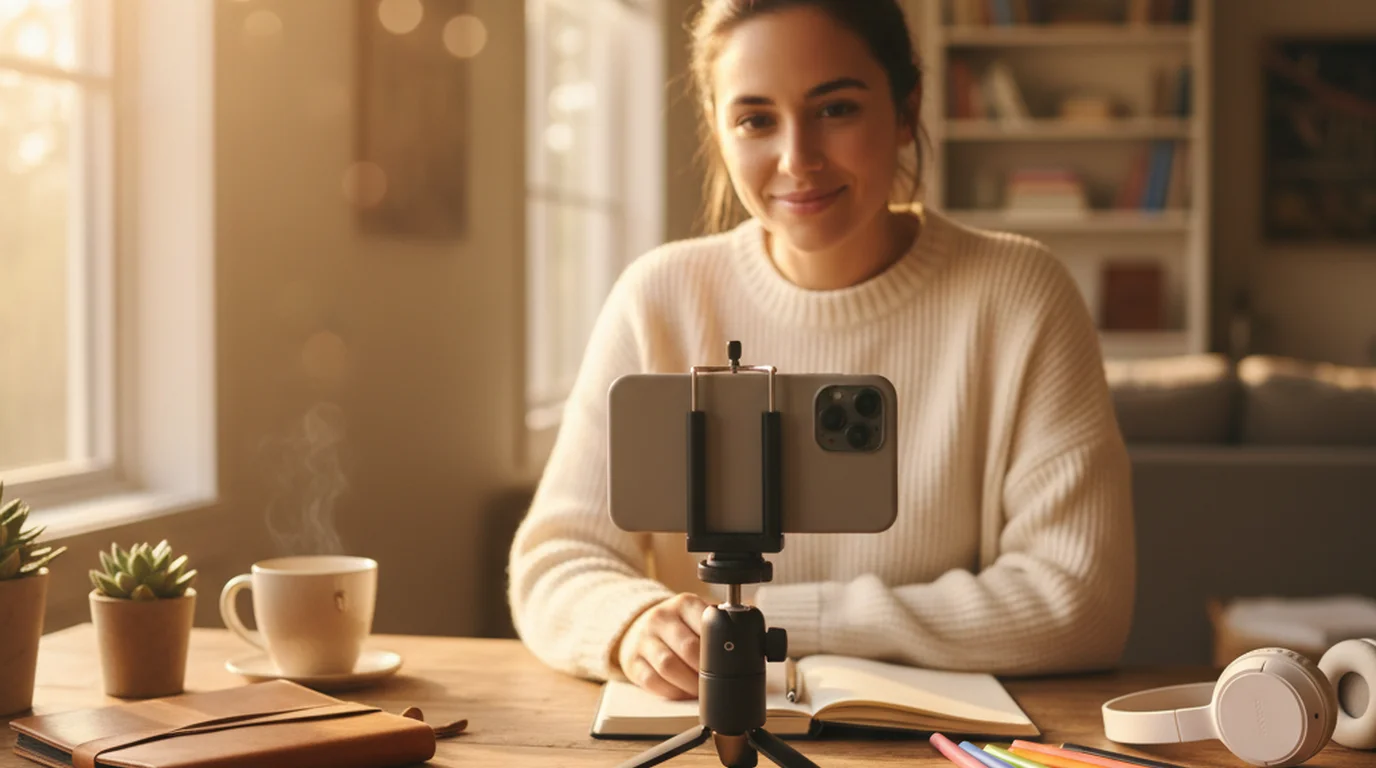
The best iPad teleprompter app gives course creators, educators, and YouTube producers the one thing a phone cannot: a large, readable screen for long scripts. When your lesson runs 15 minutes or your webinar script crosses 2,000 words, the iPad handles it more comfortably than any other Apple device. This guide covers every practical use case — recording inside the app, using the iPad as a secondary display, portrait versus landscape orientation, and the exact settings that produce natural-looking footage.
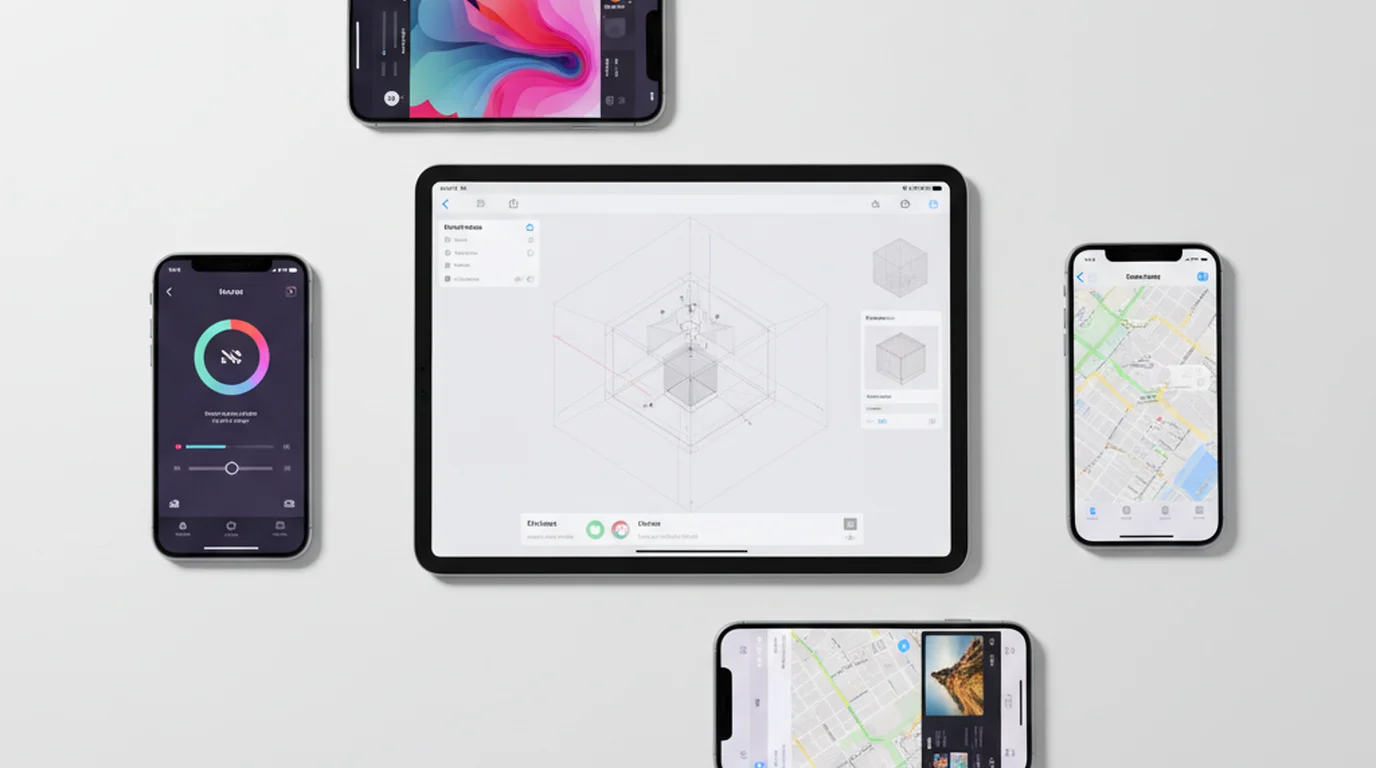
Teleprompter-Scrolling Scripts is free on the App Store for iPad and works fully offline. Scripts are stored locally, the app opens without a login, and you can switch between Camera mode and Prompter mode depending on whether the iPad is your primary recording device or a dedicated script display.
Why the iPad is the best screen for long teleprompter scripts
Every Apple device can run a teleprompter app. The question is which one handles long-form content without creating new problems. The answer is almost always the iPad.
On iPhone, the screen is compact by design. You are reading two or three lines at a time, the font has to stay large enough to see at arm's length, and the physical size of the phone limits how much text is visible in a single glance. For 60-second social clips, that constraint barely matters. For a 12-minute course module, it adds up to dozens of micro-adjustments per take — glances that shift slightly off-camera, tiny hesitations as the next line scrolls into view.
On Mac, the screen is large but fixed to the desk. You cannot position a MacBook behind a camera rig or mount it above a DSLR. The Mac is a great teleprompter for desk recording and Zoom calls, but it does not travel and it cannot serve as a secondary display behind another camera setup.
The iPad fills both gaps. The screen is large enough that 52pt text displays three to four comfortable reading lines simultaneously. Battery life handles multi-hour recording sessions. The device is light enough to mount on a standard stand behind a camera, or prop on a desk behind a DSLR or webcam. For educators, course creators, and anyone recording content over five minutes, its combination of screen size, portability, and battery endurance makes it the strongest choice.
Scripts over 500 words — a full course lesson, a webinar intro, a training video — benefit most from the larger reading area. The eye does not have to work as hard. Line breaks are less frequent. Pacing feels more natural because the reader can see further ahead in the script.
The teleprompter app advantage over iPhone is not just screen size — it is reading comfort at scale. For long-form content, comfortable reading translates directly into fewer retakes and better on-camera pacing.
iPad teleprompter app for online courses and educational content
Online course creators who record five to twenty minute lesson segments get more value from an iPad teleprompter app than almost any other creator type. Here is why: course content is long, structured, and high-stakes. You cannot ramble your way through a Teachable or Kajabi lesson the way you might wing a casual YouTube video. The script exists because the content has to be accurate, complete, and in the right order.
On iPhone, reading a full lesson script means tracking through dozens of scroll increments over fifteen minutes. On the Apple tablet, the same script occupies a wider reading area with larger text, meaning fewer scroll steps and more time looking at the camera rather than waiting for the next line.
Landscape orientation is the standard setup for course recording because the output format is widescreen video. Camera mode in landscape mirrors the 16:9 recording frame — the script overlay and the live camera preview occupy the same screen in the same aspect ratio as the final video. What you see in the app is close to what the student will watch.
For YouTube educators who publish long tutorials — step-by-step technical walkthroughs, educational explainers, documentary-style content — the tablet handles the same workflow. Position your device on a stand at eye level, load the script in Camera mode, set the text area to the upper center of the landscape frame, and record. The built-in camera captures solid video quality for most YouTube formats without requiring a separate camera.
Course creators on platforms like Kajabi, Teachable, Thinkific, or Podia typically record individual lesson segments separately. The device's offline capability means you can batch-record a full week of lessons in a studio or quiet room without needing internet access between takes. Scripts stay available, the app stays open, and you move through segments without waiting for anything to sync.
Using an iPad teleprompter in portrait vs landscape
The orientation you choose affects both how the script reads and how the final video looks. The decision comes down to what you are recording and whether your device is the primary camera.
Portrait orientation is best for:
- Prompter-only sessions where no recording happens inside the app — speeches, rehearsals, lecture prep, podcast script reading.
- Vertical video formats (Instagram Reels, TikTok, YouTube Shorts) if you are using Camera mode on the tablet.
- Situations where you want maximum script height — more text visible per screen without scrolling.
In portrait, the full height of the display is available for the reading area. For a speech rehearsal where you want to see large chunks of text at once, portrait gives you the most reading real estate.
Landscape orientation is best for:
- Camera mode recording for YouTube, Teachable courses, webinar videos, or any widescreen output.
- Using the Apple tablet as a secondary display positioned behind a widescreen camera setup.
- Any recording where the final video will be watched in a 16:9 aspect ratio.
In landscape with Camera mode active, the live preview mirrors a standard widescreen video frame. The text area sits in the upper center, close to the front camera, and the composition of the recording looks proportional to the final video.
Switching between orientations in Teleprompter-Scrolling Scripts is automatic — the app responds to device orientation. You do not need to change a setting. The practical habit is to orient your device before you start the session and leave it in place.
iPad as a secondary display while recording with another device
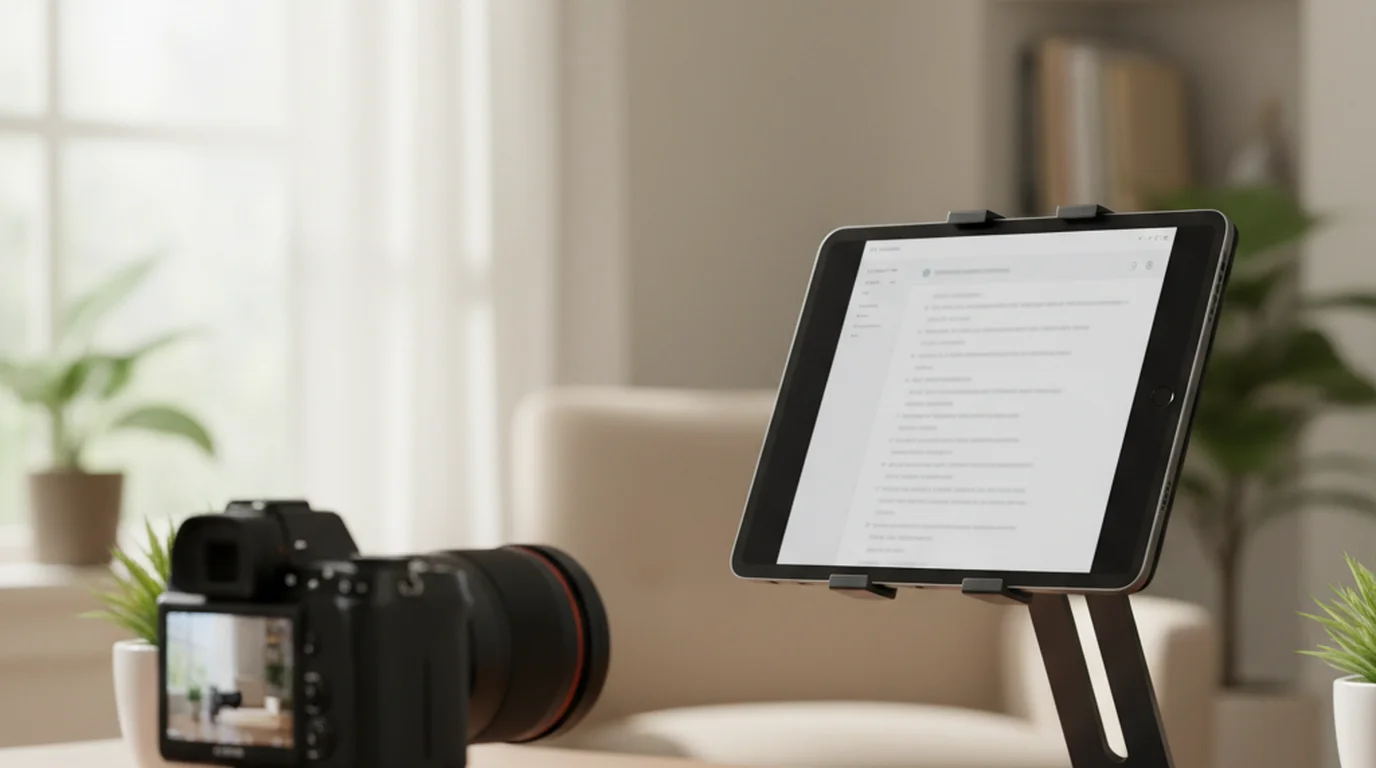
One of the most underused setups in content creation is the iPad as a dedicated teleprompter display paired with a separate recording camera. This is how broadcast teleprompter systems work — a monitor in front of the camera lens displays the script, a separate camera captures the presenter. The iPad makes that setup accessible without broadcast-level hardware.
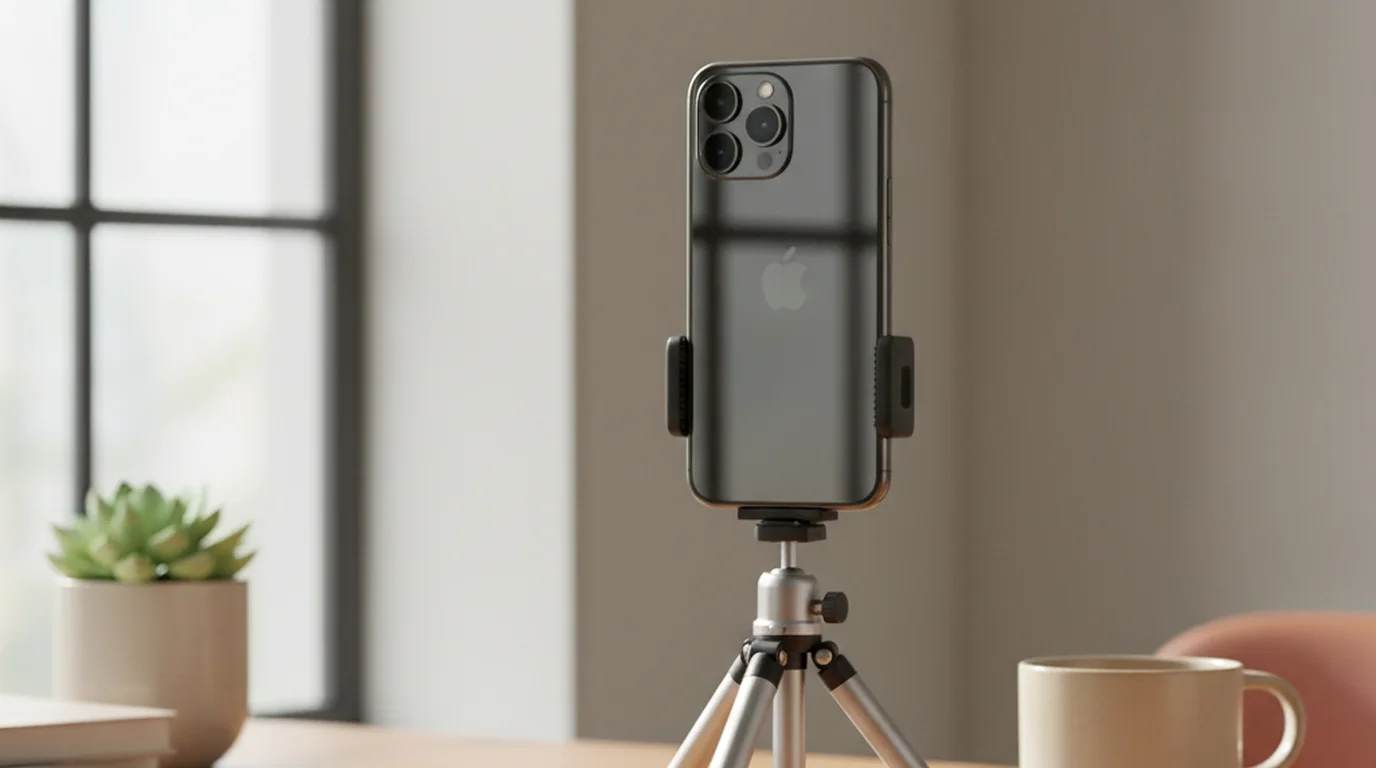
The workflow: run Teleprompter-Scrolling Scripts in Prompter mode on the iPad. Mount or position the Apple tablet directly behind your recording camera — an iPhone on a tripod, a DSLR, a webcam on a monitor arm, or a mirrorless camera on a stand. The recording camera points at you. The screen, positioned just above or behind the lens, displays the scrolling script at eye level.
From the viewer's perspective, you appear to be looking directly at the camera the entire time. You are actually reading from the display inches away from the lens. The eye contact looks natural because the gaze distance between the camera and the script is minimal.
This setup is particularly useful for iPhone users who want a larger script display. Mount the iPhone on a tripod as the primary camera, position the iPad behind it in Prompter mode, and you get iPhone video quality with broadcast-style script reading. The two apps run independently — your device handles the script, the iPhone handles the recording. For a complete look at all your options, see our best teleprompter app comparison.
For Mac users who record with an external webcam or DSLR, the same logic applies. The Mac teleprompter app handles Zoom calls and in-app Mac recording; the iPad handles the script display for camera setups where the Mac screen is too far from the lens.
This secondary-display setup requires no hardware beyond a tablet stand. It gives any creator broadcast-style teleprompter performance using devices they likely already own.
Best settings for an iPad teleprompter app
iPad settings differ from iPhone settings in one key way: you have more screen to work with, which means the defaults that work on a phone will typically look too small or too sparse on the Apple tablet. Start fresh rather than copying your phone configuration.
Orientation: Landscape for Camera mode and widescreen recording. Portrait for Prompter-only sessions and speech rehearsal.
Text area position: Upper center of the screen in landscape, close to the front camera. In portrait, the upper third works well for camera-facing sessions; full screen height works for reading-only sessions.
Text area height: Three to four lines in Camera mode for camera-facing recording. Five to seven lines for Prompter mode sessions where you want more script visible without frequent scrolling. More visible text means fewer scroll steps per minute, which reduces the visual rhythm disruption of watching text advance.
Font size: 52 to 64pt is the practical range at standard recording distance (60 to 90cm from the screen). Start at 56pt, record a 30-second test, and adjust. Larger text makes individual words easier to read; smaller text keeps more content on screen simultaneously. Find the balance where you can read without leaning forward.
Scroll speed: 2.5 to 3 lines every 4 seconds is a baseline for conversational speech on the Apple tablet. The larger screen means each scroll increment moves more text than on iPhone, so be conservative with speed until you have completed one full rehearsal of the script.
Text color and overlay: White text on a semi-transparent dark background. Adjust overlay opacity so the camera preview is visible beneath the script area in Camera mode — around 65 to 75% opacity gives good text contrast while keeping the live preview readable. For Prompter-only sessions, full opacity black background reduces glare and improves readability in bright rooms.
Check the FAQ page for additional settings questions specific to your recording setup. If you want a free option, see our guide to the best free teleprompter app for all Apple devices.
iPad teleprompter app for presentations and rehearsals
Not every teleprompter session ends with a video file. Some of the most valuable uses of an iPad teleprompter app involve no recording at all — speech rehearsal, presentation practice, lecture prep, and pitch refinement.
Prompter mode without Camera mode active is the right setup for rehearsal. The app displays the full script in a clean reading view — no camera preview, no recording controls — with text scrolling at the pace you set. The scroll forces consistent pacing in a way that reading from a static document does not.
Voice commands make rehearsal hands-free. Say "pause" to stop and collect your thoughts. Say "previous" to back up and re-read a section. Say "next" to skip ahead. Your hands stay free throughout, which matches the physical state of an actual speech or presentation delivery.
For educators preparing lectures, Prompter mode functions as a full-session script display. Load the transcript, set your font size, and run through the material at your intended teaching pace. The scroll speed you calibrate during rehearsal will be close to the right speed for the recording session that follows.
The result of consistent rehearsal with a properly configured teleprompter app is footage that sounds like a prepared conversation rather than a read script — and that difference is what keeps an audience watching past the two-minute mark.
Frequently Asked Questions
What is the best free teleprompter app for iPad?
Teleprompter-Scrolling Scripts is free on the App Store and includes full features on iPad — Camera mode for in-app recording, Prompter mode for external camera setups, adjustable text size, scroll speed, and offline-first script storage. For a no-install alternative, the online teleprompter runs in Safari on iPad for script review and rehearsal.
Can I use an iPad teleprompter app for recording YouTube videos?
Yes. Camera mode uses the iPad's built-in camera to record video with the script overlaid on the live preview. Set the text area in the upper center of the screen in landscape orientation so the script stays close to the camera lens while you record.
Is there an iPad teleprompter app that works offline?
Yes. Teleprompter-Scrolling Scripts stores all scripts locally on the iPad. The app runs without an internet connection and does not require an account, making it reliable in classrooms, studios, and locations without stable Wi-Fi.
Can I use an iPad to display scripts while recording on another device?
Yes. Run Teleprompter-Scrolling Scripts in Prompter mode on the iPad and position it behind your recording camera — iPhone, Mac, or mirrorless. The iPad acts as a dedicated script display while the other device handles the video recording, similar to a broadcast teleprompter setup.
Wendy ZhangWendy Zhang is the indie developer behind Teleprompter-Scrolling Scripts, which she built after cycling through teleprompter apps that were too heavy, too expensive, or dependent on a network connection to open. She writes about the mechanics of recording yourself — scroll pacing, script formatting, and the app decisions that decide whether a take survives.
Read long scripts naturally on iPad
Teleprompter-Scrolling Scripts is free for iPad, iPhone, and Mac. Local scripts, no account required, Camera mode and Prompter mode included.
Use Free Online Teleprompter Get the Free App