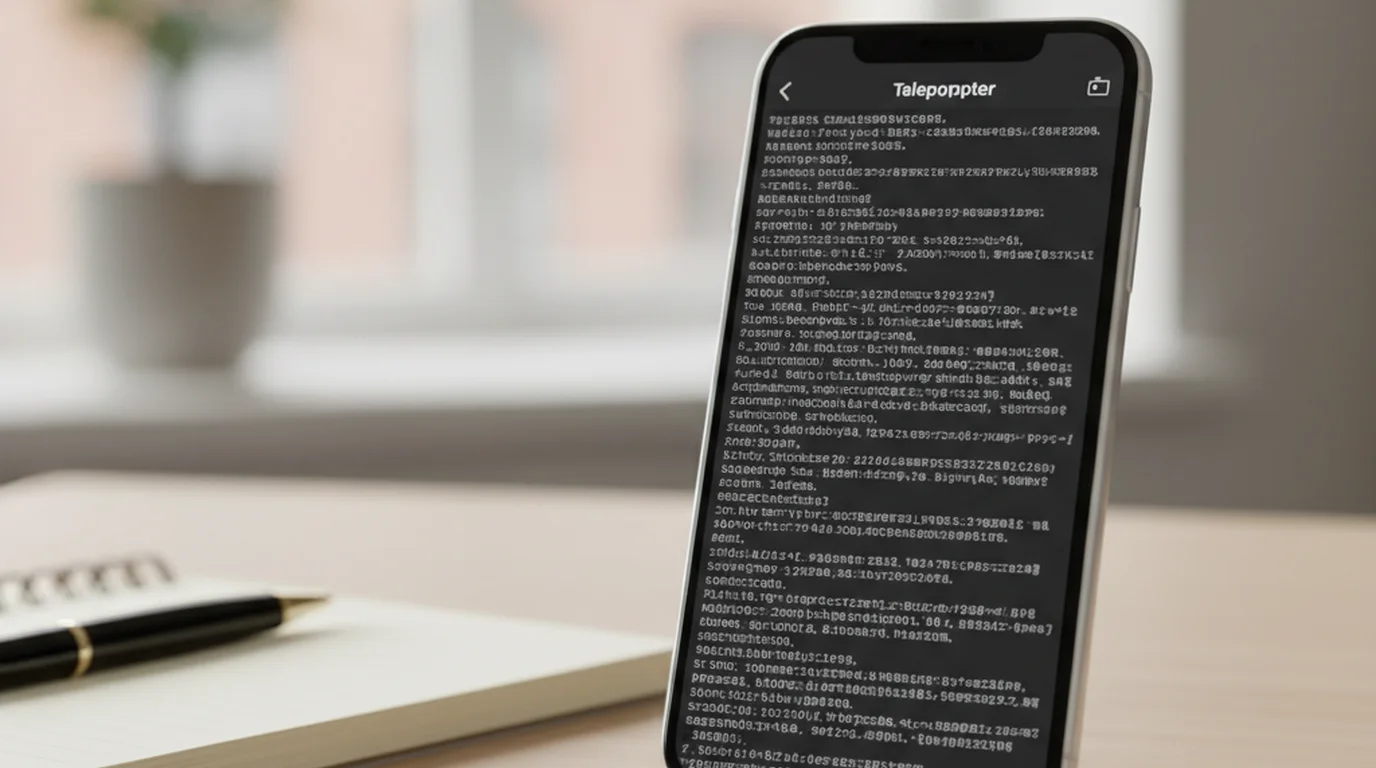
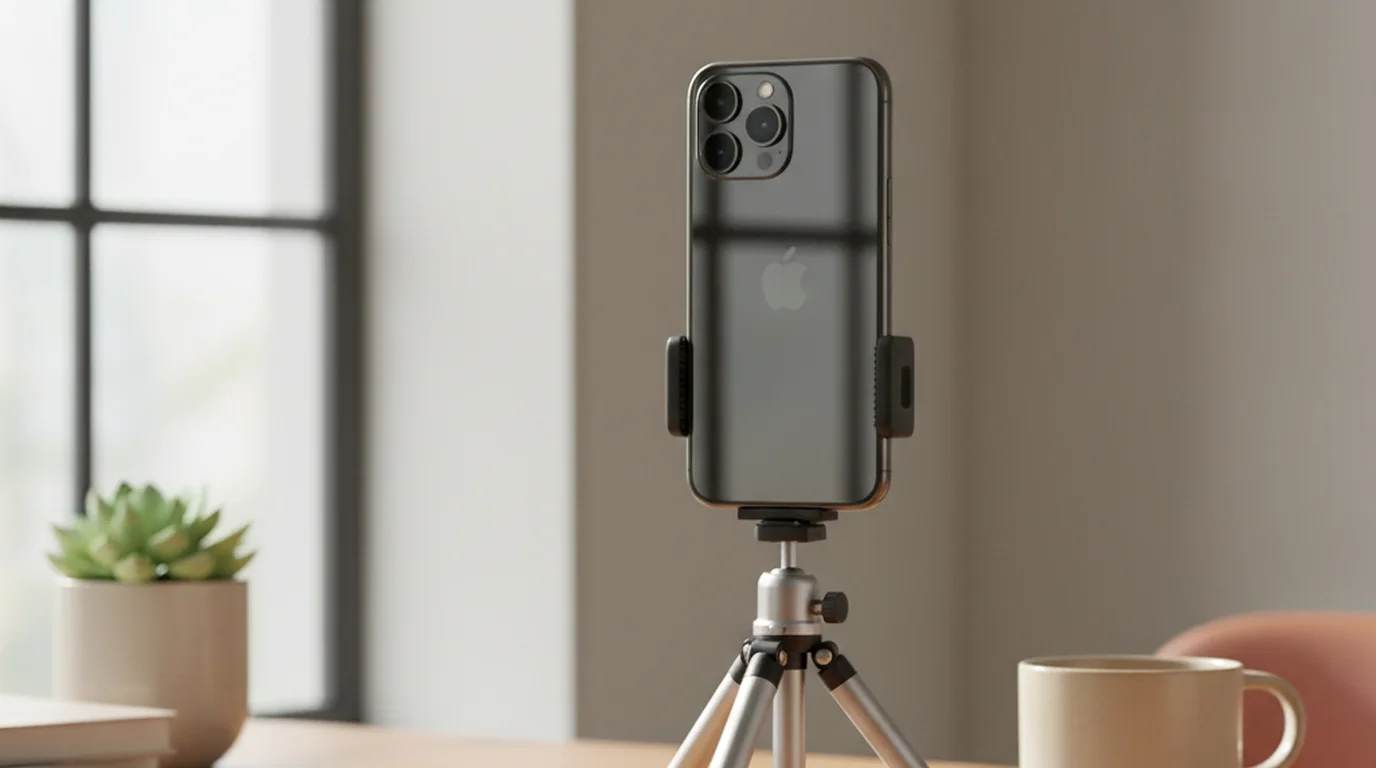
Teleprompter App for iPhone: Complete Recording Guide
 Wendy Zhang · June 13, 2026 · 9 min read
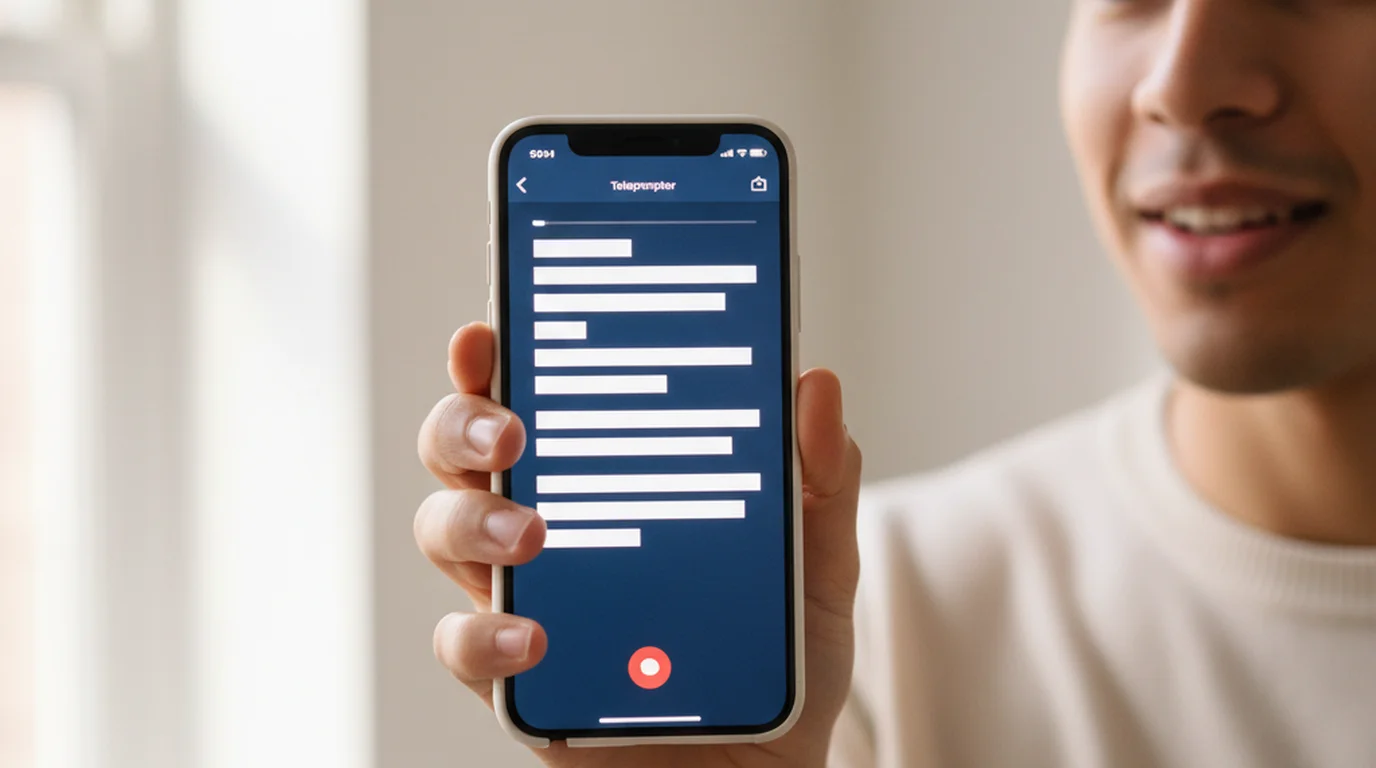
If you want to use a teleprompter app for iPhone, you already have the right device for the job. iPhone handles quick takes, handheld recording, and vertical short-form video without a separate rig. This guide covers what makes iPhone the natural fit for teleprompter recording, the features that change how a take goes, and how to get natural eye contact instead of the glazed reading look.
Teleprompter-Scrolling Scripts is a free teleprompter app for iPhone. It supports Camera mode for recording video while the script scrolls, Prompter mode with voice commands, portrait and landscape orientations, and local-first script storage that requires no account or internet connection.
Why iPhone works for teleprompter recording
iPhone is the dominant device for short-form video recording, and the teleprompter workflow on it is straightforward: one device records and prompts simultaneously. You hold it, frame yourself, and roll. No second screen, no external monitor, no hardware setup.
The size that looks like a constraint is actually an advantage. Because the phone is close to your face, text positioned near the front camera sits very close to where your eyes naturally point. The gaze offset between reading the script and looking at the lens is small — much smaller than with a monitor or tablet at desk distance. That proximity is why iPhone teleprompter video tends to look more natural than desktop setups when done right.
iPhone excels at: TikTok, Instagram Reels, YouTube Shorts, quick vlogs, social-first content, and any recording where you want to move fast without a production setup. Keep scripts to 60–90 seconds for this format and use portrait orientation.
Using iPad? The same app runs on iPad with a larger reading canvas — better suited for long scripts, course recordings, and lecture-style content. See the iPad teleprompter guide for that workflow.
iOS teleprompter app features that matter for recording
Not every teleprompter feature gets used in real recording sessions. These four iOS-specific capabilities are the ones that change how a take actually goes.
Camera mode overlays your scrolling script directly on the live camera view. You read while the camera records. No second device, no split-screen. The video saves to Camera Roll when you stop. This is the feature that makes a teleprompter app for iOS genuinely different from reading notes off another screen.
Voice commands in Prompter mode let you navigate hands-free. Say "next" to advance three lines, "previous" to move back three lines, or "pause" to stop scrolling. Useful when your hands are occupied, when you are doing lecture-style delivery where you want to control the pace without touching the screen, or when the phone is mounted just out of easy reach.
Portrait and landscape support means the app works whether you are shooting vertical video or horizontal. Camera mode adapts to whichever orientation you choose — the script area repositions to keep text near the top of the frame regardless of how the phone is held.
Front and back camera are both available in Camera mode. Front camera is the default for talking-head video. Back camera is useful for demonstration videos or when you want higher-quality footage from the main lens and do not mind a mirrored script display.
On the storage side: scripts are stored locally on the device. No iCloud sync is needed for basic use. Open the app, find your script, record. That predictability matters when you are about to roll and cannot afford a loading spinner.
Setting up Camera mode on iOS for video recording
Camera mode is the core recording workflow for the iOS teleprompter app. Here is the full setup process from a blank script to a saved take.
- Add your script. Tap to create a new script, then paste or type your text. Write in short spoken sentences — under 20 words each — so the script reads naturally out loud rather than sounding like an essay.
- Tap Camera mode. The live camera view opens with the script area overlaid.
- Select your camera. Front camera for standard talking-head video. Back camera if you need the main lens quality.
- Set orientation. Portrait for vertical video (TikTok, Reels, Shorts). Landscape for widescreen YouTube or course content.
- Drag the text area near the top of the frame. On iPhone, the front camera sits at the top of the device. Position the script text directly below the camera indicator so your gaze stays close to the lens. A narrow 2-line area works better than a tall block of text — smaller eye movement means less visible reading.
- Adjust font size and scroll speed. Font should be readable at your natural recording distance without squinting. Scroll speed should feel slightly slower than your natural speaking pace so you always have a half-second buffer before the next line arrives.
- Do one rehearsal take. Record 30 seconds, watch it back, check whether your gaze drifts downward. If it does, move the text area higher. Adjust speed if you are rushing or waiting.
- Record the final take. Video saves automatically to Camera Roll when you stop.
Most creators need one or two adjustments before the eye line settles. The rehearsal take catches the obvious problems so the final take is clean.
Eye-line tips for iPhone recording
iPhone's small screen creates an eye-line problem that iPad and desktop setups do not have. On a larger screen, you can place a wide text block near the camera without cramming the frame. On iPhone, you have to be deliberate about every placement decision or the reading becomes visible on camera.
The front camera sits at the top center of the device. Position the text area so its top edge is as close to that camera cutout as the app allows. Keep the column width at 70–80 percent of screen width — not edge to edge. Full-width text forces your eyes to sweep left-to-right across the frame, and that horizontal movement is obvious to a viewer. A narrower column keeps the movement small.
Use a minimum font size of 36pt. Smaller text pulls your gaze downward as you lean in to read it, which creates the same eye-drop problem as placing the text too low.
On iPad, the camera-to-text distance is naturally short because the screen is big enough to hold text near the top without losing readable space. On iPhone, that distance is compressed and any drift shows. The fix is always the same: text higher, column narrower, font larger.
iPhone teleprompter for TikTok, Reels, and YouTube Shorts
Short-form vertical video is the highest-volume use case for a phone teleprompter. The setup is optimized differently than a standard YouTube recording.
For TikTok, Instagram Reels, and YouTube Shorts, use portrait orientation with the front camera. Set the script text area to the top 15 percent of the screen — this puts the words as close as possible to the front camera at the top of the phone. Use a narrow column: two lines of text, not five. The narrower the column, the less your eyes move left to right, and the more natural the eye contact looks on screen.
Font size at arm's length should be readable without effort. For most phones at a comfortable handheld distance, 36 to 44 point is the right starting range. High-contrast white text on the camera overlay is easier to read than gray or colored text.
iPhone is purpose-built for this workflow. It is a single-device setup — no tripod required. Hold the phone at a natural selfie distance, text sits at the top, camera rolls. Keep scripts to under 90 seconds for this format. Natural delivery in one unbroken take is harder to sustain past that point, and short-form audiences do not watch content that runs long anyway. For longer scripts and course recordings where a bigger screen helps, the iPad teleprompter app guide covers that workflow in full.
Scroll speed for short-form should be slightly faster than a course recording pace. You are talking to a phone camera, not teaching a class. Match the energy level of your delivery and set the speed to trail it by half a sentence.
Using iOS voice commands for hands-free scrolling
Prompter mode with voice commands solves a specific recording problem: situations where you cannot or do not want to tap the screen to control the scroll.
The three commands are simple. Say "next" to advance three lines forward. Say "previous" to go back three lines. Say "pause" to stop the scroll entirely. The commands work via the device microphone, so they function when the phone is on a stand or out of easy reach.
This is most useful for lecture-style or interview-style delivery where you want to control your own pacing rather than following a continuous scroll. You advance when you are ready for the next section rather than racing to keep up with the speed setting. It also helps when both hands are occupied — demonstrating something on camera, holding an item, or gesturing as part of the delivery.
One practical note: voice commands work best in a reasonably quiet recording environment. If background noise is high, the microphone may not catch the command cleanly. In noisy environments, manual scroll or continuous auto-scroll at a set speed is more reliable.
For most short-form video, continuous auto-scroll at a dialed-in speed is faster and simpler. Voice commands are the right tool when the delivery style benefits from pause-and-advance navigation rather than constant motion. If you want voice-activated scrolling that follows your speech automatically (rather than discrete commands), the PromptSmart Pro review covers that alternative in depth.
iPhone teleprompter vs Android teleprompter: key differences
Teleprompter-Scrolling Scripts is an iOS and macOS app. It does not run on Android. That is a meaningful platform difference worth stating plainly.
Android users have teleprompter options available — there are several apps in the Google Play Store. But they are different apps with different feature sets, different Camera mode implementations, and different interfaces. There is no direct Android equivalent of the same app.
If you have an iPhone, the iOS advantage is tight camera integration. iOS gives apps close access to the camera system, which is why Camera mode in the iOS app can record directly to Camera Roll while the script overlays the live view. That integration is tighter on iPhone than what most browser-based or cross-platform tools can offer.
If you have both an iPhone and a Mac, the same Teleprompter-Scrolling Scripts app covers both. Scripts sync across devices. You write on Mac, record on iPhone, or do the whole workflow on one device. No separate desktop tool, no second account. If you also use an iPad, the same app runs on it natively — useful for longer scripts or as a dedicated display beside another camera.
If you are on Android and iPhone — most creators stick to one platform for their recording workflow. If iPhone is your primary camera, the iOS teleprompter app is the right choice. If Android is your only option, explore what is available natively on that platform.
Frequently Asked Questions
Is there a free teleprompter app for iPhone?
Yes. Teleprompter-Scrolling Scripts is free on the App Store for iPhone. The core prompting and Camera mode recording workflow requires no subscription or in-app purchase to use. If you prefer a browser option with no installation, try the free online teleprompter — it works in Safari on any device.
Does the iPhone teleprompter app record video?
Yes. Camera mode overlays the scrolling script on the live camera view and records video directly to Camera Roll. It works with both front and back camera on iPhone.
Does the teleprompter app also work on iPad?
Yes. Teleprompter-Scrolling Scripts runs on both iPhone and iPad. Scripts are shared across devices. For iPad-specific guidance on longer scripts and course recordings, see the iPad teleprompter guide.
Does the teleprompter app for iPhone require internet?
No. Scripts are stored locally on your iPhone. You can type a script, open Camera mode, and record without a Wi-Fi or cellular connection. No account or cloud sync is needed for basic use.
Wendy ZhangWendy Zhang is the indie developer behind Teleprompter-Scrolling Scripts, which she built after cycling through teleprompter apps that were too heavy, too expensive, or dependent on a network connection to open. She writes about the mechanics of recording yourself — scroll pacing, script formatting, and the app decisions that decide whether a take survives.
Get the free teleprompter app for iPhone
Teleprompter-Scrolling Scripts runs on iPhone. Camera mode records video while the script scrolls. Scripts stay on-device — no account, no internet required.
Use Free Online Teleprompter Get the Free App