Best Free Autocue App for iPad: Top Picks Compared for 2026
 Wendy Zhang · May 20, 2026 · 8 min read
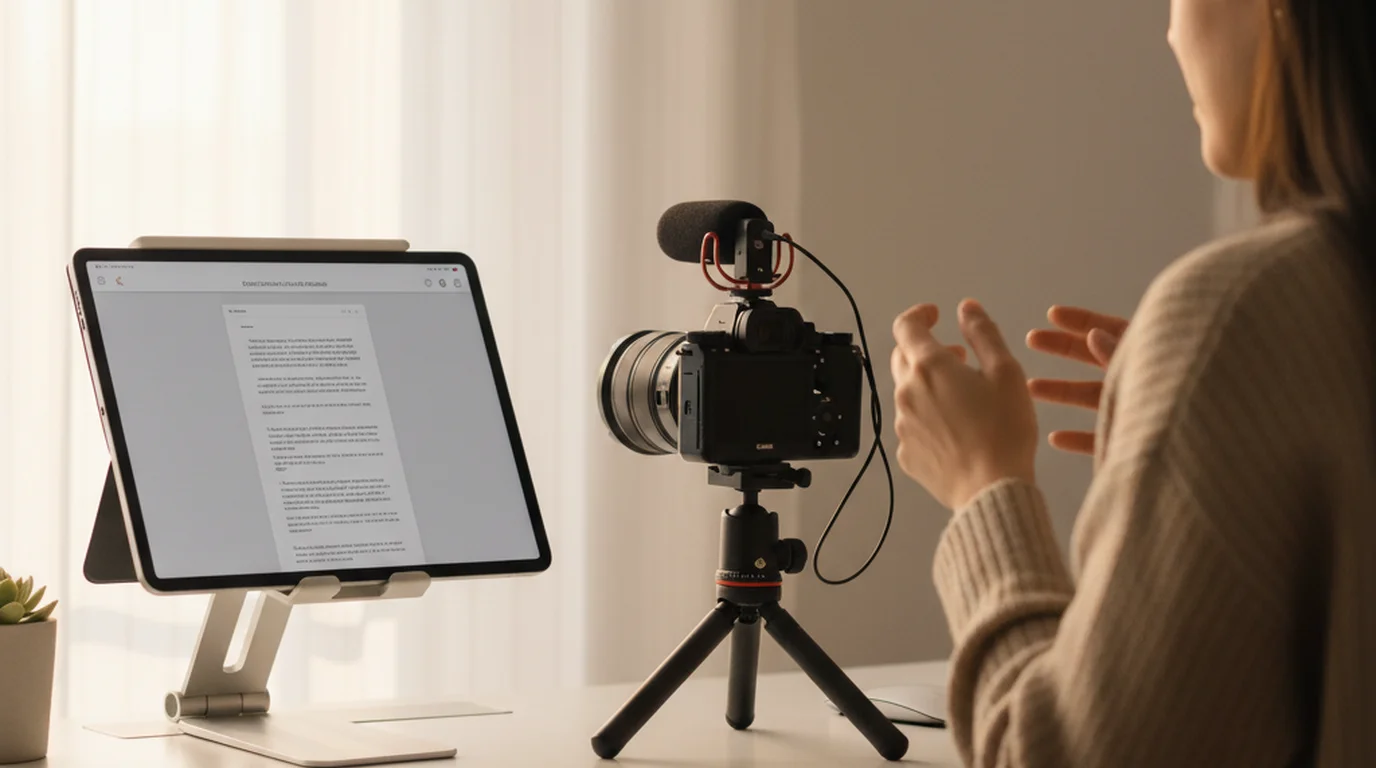
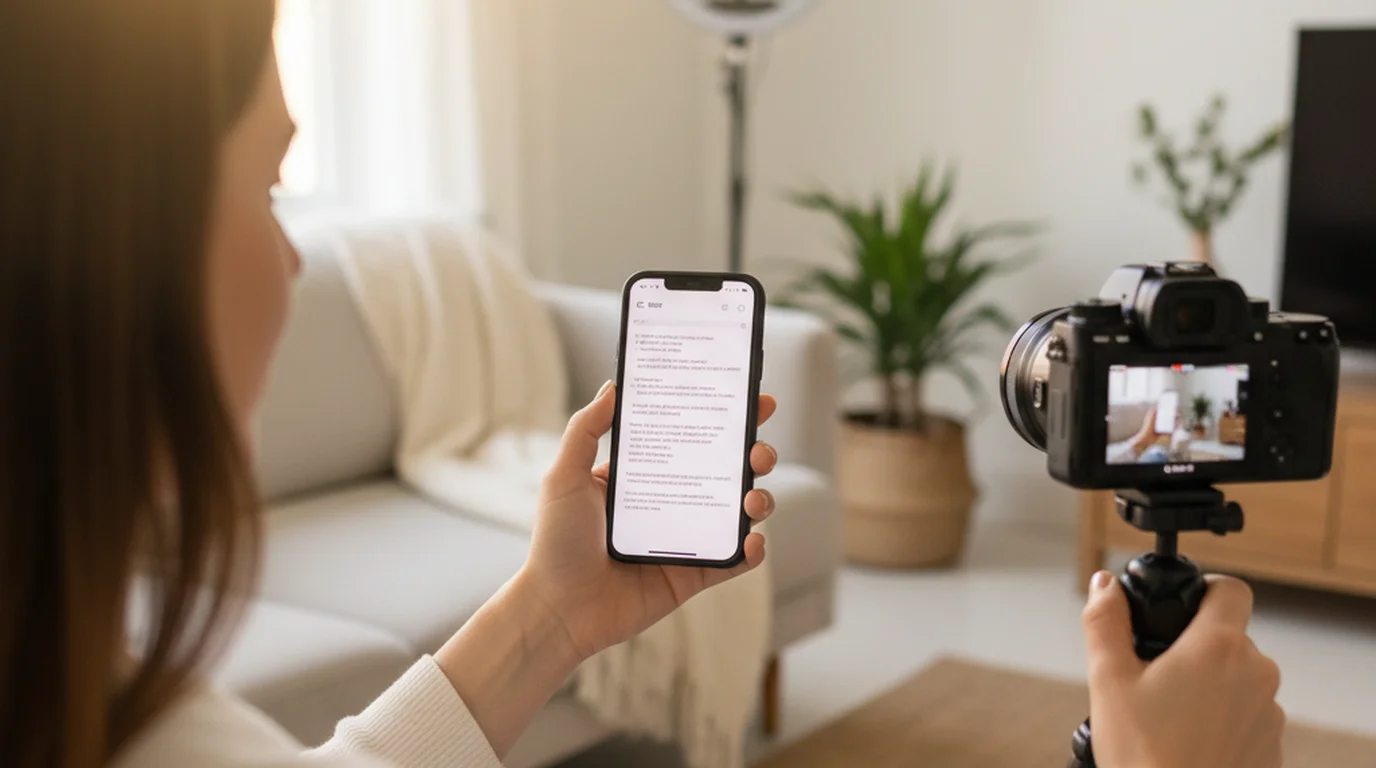
The best autocue app for iPad gives you a large, comfortable reading area, a Camera mode that records clean video alongside the scrolling script, and full offline use — without requiring a subscription or an account. iPad is one of the best platforms for autocue use because its large screen creates a reading experience that iPhone simply cannot match. More text is visible at once, the font can be larger without looking crowded, and the reading distance from a mounted iPad is closer to a traditional broadcast prompter setup than any smartphone can achieve.
Teleprompter-Scrolling Scripts is the best free autocue app for iPad. Camera mode, Prompter mode, voice commands, adjustable text, and offline use are all included at no cost. Download free from the App Store and start recording scripted video today. If you would rather not download anything, the online autocue runs in Safari on iPad and supports mirror mode for beam-splitter rigs.
If you also prompt on other devices, the complete guide to free autocue apps compares the iPad option against iPhone, Mac, and browser setups.
Why iPad is ideal for autocue use
iPad's screen size is the primary reason it outperforms iPhone as an autocue device. The larger display means more words are visible at any moment, which reduces the cognitive effort of reading a scrolling script under recording pressure. A wider text area also allows for slightly larger font sizes without the text feeling truncated or rushed — you see complete phrases rather than fragments, which makes natural-sounding delivery easier.
The physical stability of an iPad on a stand also helps. A mounted iPad creates a reading platform that stays in place through a long recording session without the micro-movements that can make a phone mount feel less stable. For course creators, coaches, and educators who record long-form content — modules of five to fifteen minutes — that stability matters across the full duration of the take.
iPad's camera quality has improved consistently with each hardware generation. Recording directly in Camera mode with a current iPad Pro or iPad Air produces footage that meets the quality standard for YouTube, online courses, and business video without any external camera. The all-in-one nature of the setup — autocue display and recording device in one — simplifies the recording workflow and eliminates the complexity of syncing a separate recording device with a separate prompter display.
What features make the best iPad autocue app
Camera mode is the most important feature in an iPad autocue app for anyone who records video. Camera mode simultaneously displays the scrolling script and records video through the iPad camera. Without Camera mode, you need two devices — one to display the script and one to record — which adds complexity and cost. The best autocue app for iPad handles both in a single device.
Text control depth matters more on iPad than on iPhone because the larger screen gives you more flexibility to optimize the reading area. The best iPad autocue apps let you adjust font size, text column width, scroll speed, text color, background color, and the vertical position of the text area on screen. Each of these adjustments affects eye-line accuracy and reading comfort, and the optimal configuration varies by recording setup and individual preference.
Offline use is essential for any iPad autocue app intended for professional use. Network dependency creates a single point of failure that can disrupt a recording session at any time — in a borrowed studio, on location, in a classroom, or simply when a building's Wi-Fi is unreliable. Scripts stored locally on the device are always available regardless of connectivity.
Voice commands for scroll control are a practical necessity when your hands are on camera or occupied. The ability to say a wake phrase to start, pause, or adjust scroll speed without touching the screen keeps the recording clean and avoids the break-and-restart that comes with on-screen interaction mid-take.
Teleprompter-Scrolling Scripts as a free iPad autocue
Teleprompter-Scrolling Scripts is a native iPad app that includes every feature described above at no cost. Camera mode records video using the iPad's front or back camera while displaying the scrolling script overlay on screen. The recorded video is saved to your camera roll as a clean file — no text overlay, no watermark, no branding added to the footage. The script is visible only during recording, not in the output.
Prompter mode displays your script in a full-screen scrolling view without activating the camera. This is the mode for rehearsal, in-person presentations, speeches, and any situation where you want the script in front of you but are not recording video on the iPad itself. The scroll speed, font size, and text area settings carry over from Camera mode, so your rehearsal experience matches your recording setup exactly.
Voice commands in the app let you control the scroll without touching the screen. Start the scroll, pause it, speed up, and slow down — all without a tap. This is particularly useful when you are recording at a distance from the iPad, or when your hands are part of the composition and touching the screen would break the shot.
Scripts are stored locally in the app. There is no account required and no internet needed at any point in the workflow. Open the app, select your script, configure your settings, and record. The setup for a returning user takes under thirty seconds.
Best iPad autocue app for long scripts and online courses
Online course creators have specific autocue requirements that differ from short-form social video. Course modules are long — five to twenty minutes per segment — and the script is dense and precise. Technical instructions, procedural steps, and curriculum content cannot be paraphrased without introducing errors. The autocue needs to display the full script accurately and scroll at a pace that allows careful, deliberate delivery.
iPad is the right device for this use case because the larger screen allows for a comfortable font size at a slow, measured scroll speed without the reading experience feeling cramped. On an iPhone, a slow scroll at a large font size leaves very few words visible at once, which can create a disorienting reading experience. On an iPad, the same font size and scroll speed shows two to three full sentences — enough context to deliver the current sentence naturally while the next one comes into view.
The local storage model in Teleprompter-Scrolling Scripts is well-suited for course production, where you may be recording many modules across multiple sessions. Scripts for each module can be saved in the app and accessed instantly without loading from the cloud. There is no session timeout, no login prompt between takes, and no service disruption risk that could interrupt a long recording session.
For course creators, the practical recommendation is to break long scripts into module-length segments rather than a single continuous document. Shorter segments are easier to re-record if a take is unusable, and they match the structure of a course module more naturally than a single long scroll.
Setting up the iPad autocue for video recording — Camera mode step by step
Camera mode setup in Teleprompter-Scrolling Scripts takes less than five minutes the first time. Open the app and select the script you want to record. Tap the settings icon to access text and display controls. Set font size — for most iPad recording setups at arm's length, 40–55pt reads comfortably without straining. Set the text column width to approximately 60–70% of the screen width, centered. A narrower column reduces the left-right eye movement that reveals script reading to viewers.
Set scroll speed to the lower end of your comfortable range. Most creators start at a speed that feels slightly slower than natural speech and adjust upward after a rehearsal run. The speed that feels right during a test read may feel rushed during a real recording when you are managing your delivery at the same time. Build in a small margin.
Switch to Camera mode. The camera view appears at the top of the screen, and the scrolling text appears below. Position the iPad so the text area sits close to the camera lens — the top of the text column should be as close to the lens as your text size and layout allow. Mount the iPad at eye level, approximately an arm's length away. Landscape orientation works better for talking-head video that will be edited for YouTube or courses; portrait works better for vertical video.
Tap play to start the scroll and begin speaking. The recorded video is saved automatically to your camera roll when you stop. Review the take, adjust scroll speed or text size if needed, and record again. After two or three takes you will have settled on settings that work for your delivery style and setup — save them and they will apply automatically to future sessions.
iPad autocue for Prompter mode — lectures, speeches, and rehearsals
Prompter mode on iPad is the right choice for situations where you are speaking live — a lecture, a presentation, a speech, or a webinar — and you want the script in front of you without recording video inside the app. In Prompter mode, the full screen displays the scrolling text. There is no camera preview. The script scrolls at the set speed, and voice commands give you hands-free control of the pace.
For educators delivering lectures with an iPad on a lectern, Prompter mode replaces printed notes or a separate display without adding any visible equipment. The audience sees the educator standing with an iPad — which is unremarkable in a teaching context — rather than reading from paper, which signals script dependency more visibly.
Coaches and consultants who deliver webinars or virtual workshops with the iPad positioned beside or behind a laptop screen use Prompter mode to maintain a clear, structured delivery without memorizing the full content. The scroll speed is set to match the pace of a deliberate, confident speaker — slightly slower than casual conversation, leaving room for emphasis and pause.
Rehearsal is the most practical application of Prompter mode for most creators. Before any recorded session, running the full script once in Prompter mode reveals the phrasing that is awkward to deliver aloud, identifies the scroll speed settings that match your natural pace, and builds enough familiarity with the material that the Camera mode recording sounds practiced rather than sight-read.
Comparing free vs. paid iPad autocue apps
The free vs. paid distinction in iPad autocue apps comes down to AI features and cloud services rather than core recording functionality. In 2026, Camera mode, Prompter mode, offline use, and voice commands are available for free in Teleprompter-Scrolling Scripts. These are the features that determine the quality of a recording session, and they require no payment.
Paid iPad autocue apps add AI script writing, cloud script libraries, Bluetooth remote control, and in some cases team collaboration features. AI script writing is the most significant premium feature for creators who want to generate scripts from a topic brief rather than writing from scratch. If your content volume is high and writing is the bottleneck in your production workflow, that feature has genuine value. For creators who write their own scripts, it adds no benefit.
Cloud sync is the other feature that justifies payment for specific workflows. If you write scripts on a Mac or PC and need them available on an iPad without manual transfer, cloud sync removes a step. The manual alternative — copy the script text and paste it into the iPad app — takes under a minute and works without any subscription. The value of cloud sync scales with volume: the more scripts you manage and the more frequently you switch between devices, the more useful it becomes.
For individual creators, educators, coaches, and consultants recording solo on an iPad, the free version of Teleprompter-Scrolling Scripts covers every functional requirement. For teams with multiple presenters or creators with high-volume AI-assisted scripting workflows, evaluating paid options is reasonable. The comparison should always start with what you actually use, not what the premium tier lists as available. For a step-by-step setup walkthrough on iPad, the iPad teleprompter app guide covers Camera mode, Prompter mode, and calibration in detail.
Frequently Asked Questions
What is the best free autocue app for iPad?
Teleprompter-Scrolling Scripts is the best free autocue app for iPad. It includes Camera mode (records video with script overlay), Prompter mode (text-only scroll for rehearsal), adjustable text size, scroll speed, text area position, voice commands, and full offline use. Free to download from the App Store.
What is an autocue app for iPad?
An autocue app for iPad displays your script on the iPad screen and scrolls it at a set speed while you speak. iPad autocue apps typically offer Prompter mode (text display only) and Camera mode (records video with script overlay). The term "autocue" is the British English equivalent of "teleprompter."
Can I use my iPad as an autocue for professional recording?
Yes. iPad is an excellent autocue platform because of its large screen, which allows for a comfortable reading area without straining your eyes. In Camera mode with Teleprompter-Scrolling Scripts, you can record professional-quality video directly on the iPad while reading your script at the same time.
Is there a free autocue app for iPad with Camera mode?
Yes. Teleprompter-Scrolling Scripts includes Camera mode for free on iPad. It records video using the iPad's front or back camera while displaying the scrolling script overlay. The recorded video is saved to your camera roll without any text overlay.
Wendy ZhangWendy Zhang is the indie developer behind Teleprompter-Scrolling Scripts, which she built after cycling through teleprompter apps that were too heavy, too expensive, or dependent on a network connection to open. She writes about the mechanics of recording yourself — scroll pacing, script formatting, and the app decisions that decide whether a take survives.
Download the best free autocue app for iPad
Teleprompter-Scrolling Scripts is free on iPad, iPhone, and Mac. Camera mode, Prompter mode, voice commands, offline use — no subscription, no account required.
Use Free Online Teleprompter Get the Free App