Best Teleprompter App in 2026 for iPhone, iPad, and Mac: Compared
 Wendy Zhang · May 20, 2026 · 9 min read
The best teleprompter app in 2026 is the one that works on your device, supports camera recording, and costs nothing to start. Teleprompter-Scrolling Scripts covers iPhone, iPad, and Mac with a free native app. teleprompter.works/online is the free web option for anyone on any device — Android, Windows, or any browser. Here is how each platform compares.
What makes a teleprompter app worth using?
Before comparing options, it helps to know what separates a useful prompter from a frustrating one. There are several criteria that matter across every platform.
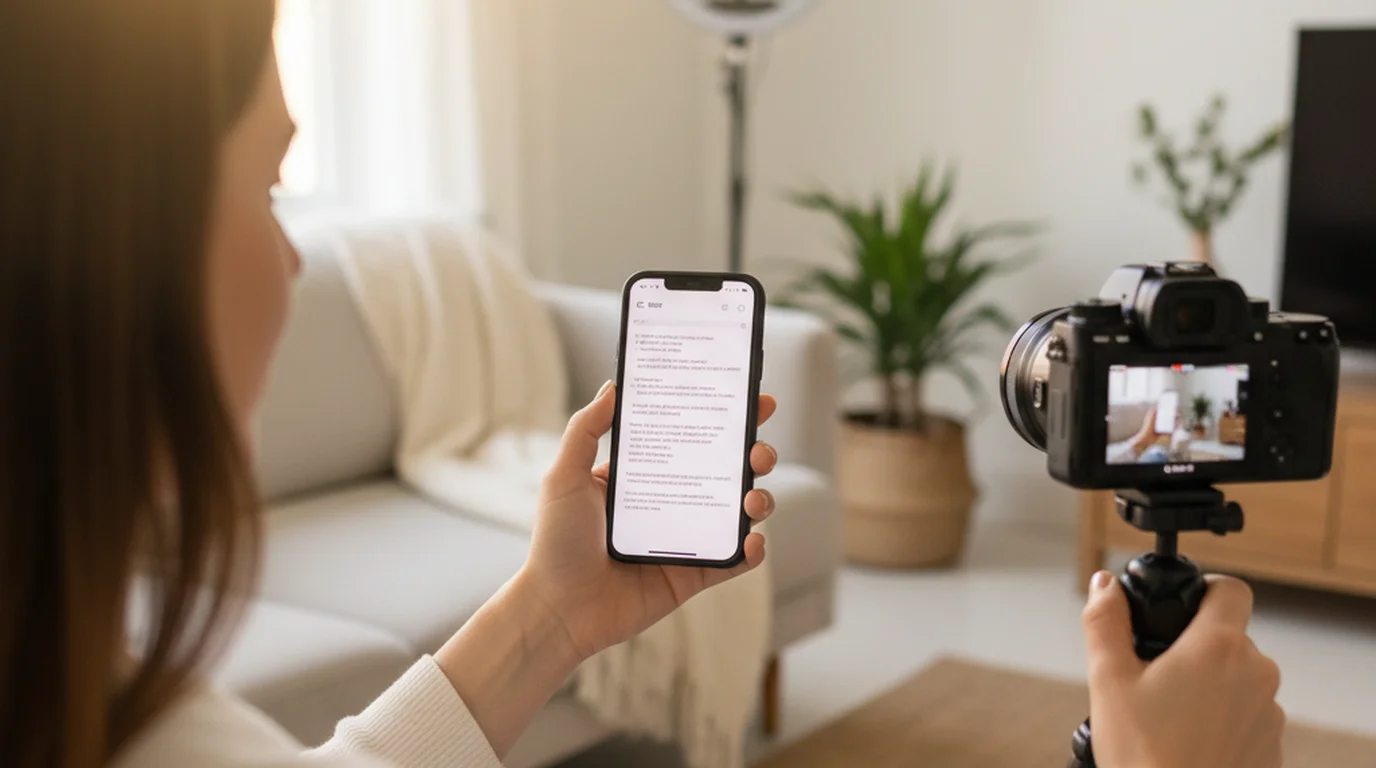
Camera overlay (Camera mode). The most important feature for video creators is the ability to record through the app while the script scrolls. This is called Camera mode — the live camera feed appears behind the scrolling text, so you can read your script and record at the same time. Without camera overlay, you either need to memorize your lines, read from a second device, or stop and start your recording app separately. Native apps on iPhone, iPad, and Mac can access the camera directly and layer text over the viewfinder. Most browser-based prompters cannot — but that is a property of those tools, not of browsers. teleprompter.works/online does it in Recording mode: the script sits over a 16:9 camera preview and the take is recorded in the tab, then downloaded to your device. To test the browser option without installing anything, open the free browser prompter.
Prompter mode. Prompter mode is the simpler alternative — the script scrolls across the full screen without any camera feed behind it. This is ideal for speeches, live presentations, lecture recording (where the camera is separate), or any situation where you just need to read without simultaneously capturing video inside the app.
Scroll speed control. A script reader with only one speed is nearly unusable. Good apps let you set words per minute or a manual speed, and ideally let you adjust on the fly while speaking. Some apps add voice-paced scrolling that follows your speech automatically.
Script storage. If you record frequently, you want to save multiple scripts and return to them without re-pasting every session. Native apps handle this naturally. Browser-based apps sometimes lose your content when you close the tab unless they have local storage.
Free vs. paid. Most people do not need to pay for a scrolling app. The core function — scrolling text at a set speed — is something free apps do perfectly well. Paid apps tend to add features like script import from Google Docs, cloud sync across devices, advanced voice control, and extra export formats. For occasional use, free is more than enough.
Offline support. Native apps work without an internet connection once installed. Browser-based apps require a connection to load, though the web app at teleprompter.works/online is lightweight enough that slow connections are rarely an issue in practice.
Platform availability. This is perhaps the biggest differentiator. Many top-rated prompter apps are iOS and Mac only. Android and Windows users have fewer options — but browser-based apps close that gap entirely.
Quick comparison table
Here is a side-by-side view of the major apps and tools available in 2026.
| App / Tool | Platform | Camera overlay | Price | Offline |
|---|---|---|---|---|
| Teleprompter-Scrolling Scripts | iPhone, iPad, Mac + browser | Yes | Free | Yes |
| teleprompter.works/online | Any browser (Windows, Android, Mac, iOS) | Yes (Recording mode) | Free | No (requires browser) |
| Teleprompter Premium | iPhone, iPad, Mac | Yes | Paid (subscription) | Yes |
| PromptSmart Pro | iPhone, iPad, Mac, Android | Yes | Paid | Yes |
| Parrot Teleprompter | iPhone, iPad | Yes | Free (basic) / Paid | Yes |
| Speakflow | Browser (Chrome extension) | Yes (with extension) | Freemium | No |
| CuePrompter | Browser (any) | No | Free | No |
The table shows the landscape clearly: if you are on Apple hardware, you have the most capable free native prompter options. If you are on Windows or Android, the browser-based path is the most accessible and lowest-friction starting point.
Best teleprompter app for iPhone
For iPhone users, Teleprompter-Scrolling Scripts is the best free autocue app available in 2026. It installs in seconds from the App Store, requires no account, and gives you full Camera mode right away. It is very convenient: recording feels like opening the camera, with no login and no internet connection needed.
You can also move and resize the text area. If you like reading from the middle of the screen, put it there; if you would rather keep your eyes on the camera, drag it up right under the lens. The size of the text area, the text size, and the scroll speed are all yours to set, so the setup fits the way you read and your delivery looks natural.
Camera mode on iPhone lets you use either the front-facing or rear-facing camera. This matters because shooting styles differ: vloggers who face the phone toward themselves want the front camera, while creators using their iPhone on a tripod to capture a wider shot may prefer the rear camera pointed at them. The app handles both, and switching between portrait and landscape orientations is seamless.
Setting up on iPhone: Download the app, create a new script, paste or type your text, tap the Camera button to enter Camera mode, and adjust scroll speed with the slider. For best results, set font size to 28–34pt so text is readable at arm's length without straining.
Eye contact tip for iPhone. The biggest challenge on a phone is the small screen — your eyes naturally drift to the center of the text block, which means you're looking at the middle of the screen rather than the camera lens at the top. To fix this, narrow the text column in settings so text runs in a thin strip near the top of the screen, close to the lens. This brings your gaze naturally toward the camera and makes recordings look more direct and natural.
In Prompter mode, the app also supports English voice commands such as “next” and “pause” for hands-free control, which is useful when the device is mounted out of reach.
For more on the iPhone-specific setup and features, see the teleprompter app for iPhone or the complete iOS prompter guide.
Best teleprompter app for iPad
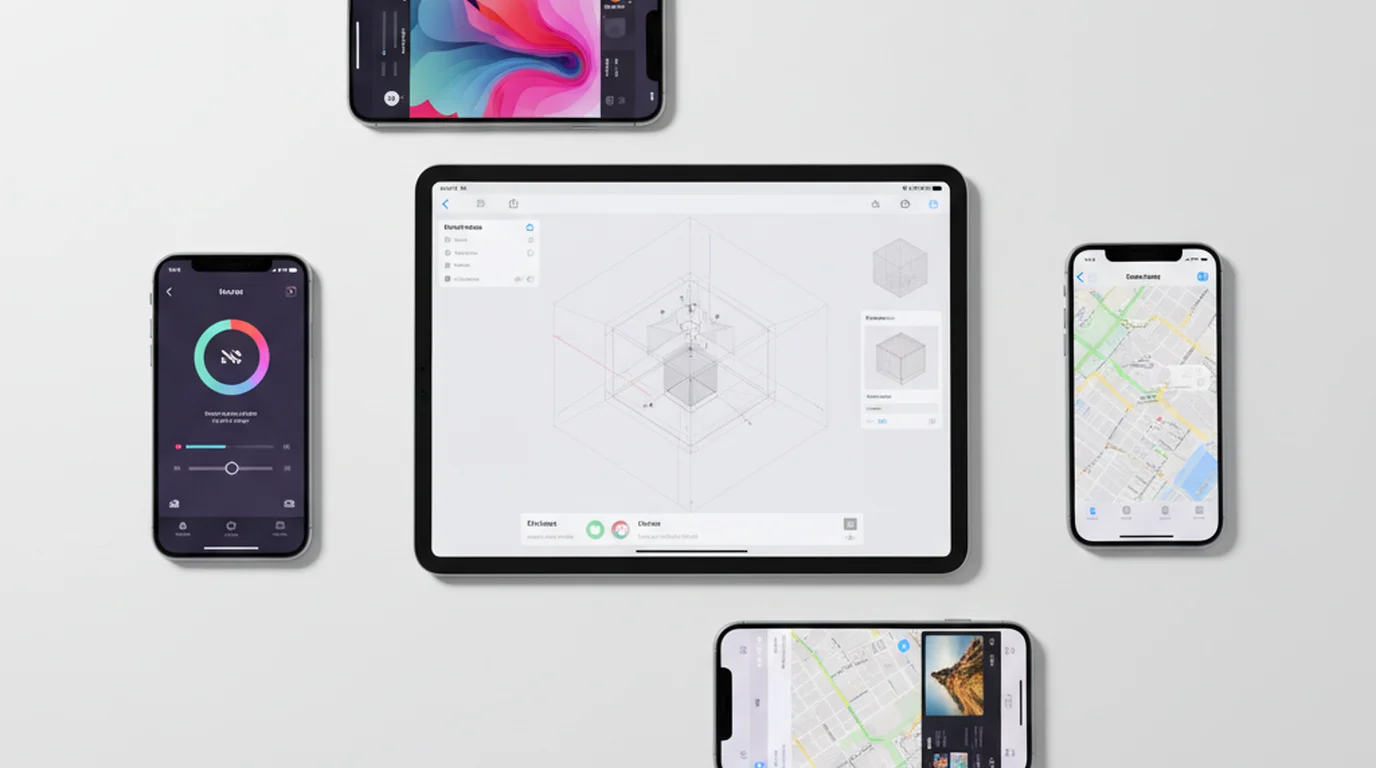
The iPad is arguably the best platform for a handheld prompter setup, and Teleprompter-Scrolling Scripts takes full advantage of the larger display. The same free app that runs on iPhone runs natively on iPad with a layout optimized for the bigger screen.
Larger screen real estate means you can comfortably display longer passages of text before needing to scroll, which reduces the mental load of keeping up with fast-moving text. For course creators, educators recording lecture content, or webinar presenters, the iPad is a natural fit. You can prop it on a stand at a comfortable distance, set font size to 32–40pt for easy reading across the room, and maintain natural pacing throughout a long recording session.
The iPad's natural eye-level position also helps. When placed on a stand at desk height and angled slightly upward, the camera sits very close to where you'd naturally look at someone across a table. This gives iPad recordings a remarkably natural feel compared to phone setups where the camera is often too low or too high.
For video creators who shoot with a dedicated camera and use the iPad purely as a reading display (Prompter mode), the screen size makes it easy to read from several feet away — something a phone cannot match. A 12.9-inch iPad Pro can function as a passable prompter display even in bright outdoor conditions when brightness is maxed out.
See the full breakdown on the iPad teleprompter page, including tips for studio setups and distance-reading configurations.
Best teleprompter app for Mac
Teleprompter-Scrolling Scripts runs natively on Mac — MacBook Air, MacBook Pro, Mac mini, Mac Studio, and iMac. The same free app from the App Store covers all these devices. There is no separate Mac version to manage; scripts are saved locally on each device and do not sync between your iPhone, iPad, and Mac.
On Mac, Camera mode uses either the built-in webcam (on MacBook and iMac) or a Continuity Camera setup where your iPhone serves as a high-quality external webcam. Continuity Camera is particularly powerful: it gives you iPhone-quality video for desk recordings without any additional hardware, while the script scrolls on the same screen. This combination turns a MacBook into a capable recording studio at zero hardware cost.
Mac is the preferred platform for desk-based recording setups — YouTube videos shot at a desk, Zoom session recordings, tutorial screencasts where you narrate over slides, and corporate video content. The larger monitor means the script can display at a comfortable font size while still leaving the camera view visible, making it easier to monitor framing while reading.
For professionals using external cameras via capture cards (Sony, Canon, or similar), the app's Prompter mode works alongside any recording software. The autocue app runs in a window that you can position near the camera, and your recording software captures the camera separately.
For setup guides and Mac-specific tips, visit the Mac teleprompter page.
Best free teleprompter web app — teleprompter.works/online
teleprompter.works/online is the free web app version of the prompter — and it is one of the most important tools in this comparison, because it is the only option that works on every platform without any download or installation.
Open any browser — Chrome, Edge, Firefox, Safari — on any device — Windows PC, Android phone, Android tablet, Chromebook, Linux machine, iPhone, iPad, Mac — and the full script reader is available immediately. No account. No download. No credit card. Paste your script, adjust font size and scroll speed, and press play.
This is a genuine differentiator. Every other high-quality option in this comparison is either iOS/Mac only, requires installation, or charges a subscription fee. The web app closes that gap for every user who cannot or does not want to install a native app.
What the web app does well: script entry and editing, adjustable font size and color, adjustable scroll speed, full-screen Prompter mode for reading on any screen, and Recording mode, which overlays the script on a 16:9 camera preview and records the take in the same tab. The interface is clean and loads fast. It works on a 10-year-old Windows laptop as well as the latest Android tablet.
The limitations to know: the page needs a connection to load, and scripts are not kept between sessions — close the tab and the script is gone unless you saved it elsewhere. The native app on iPhone, iPad, and Mac stores scripts on the device with a title, runs with no network at all, and adds Voice mode for audio-only takes.
If you film with a dedicated camera or a capture card rather than the device's own camera, the workflow stays split: keep the web app in a browser window on one half of your screen and your recording software (OBS, Zoom, QuickTime, Loom) on the other. Read from the browser while recording from the separate app. It takes a little more screen management, but works well on larger monitors or dual-screen setups.
For Android and Windows users in particular, this web app is the recommended first step — it is free, instant, and requires nothing beyond a browser. For a curated list of the top no-cost options across all platforms, see our best free teleprompter app guide.
Best teleprompter app for Android
There is no first-party Android version of Teleprompter-Scrolling Scripts. The native app is Apple-only. However, Android users have a straightforward free option: teleprompter.works/online.
Open Chrome or Firefox on any Android phone or tablet, navigate to teleprompter.works/online, and the full web prompter loads immediately. This works on Android phones from budget models to flagship devices, and on Android tablets like the Samsung Galaxy Tab series. The scroll is smooth and the font size is adjustable — the experience on a large Android tablet is particularly good.
Recording mode works in Chrome on Android too, so reading and recording happen in one tab. The limitations are the ones every browser tool shares: the page needs a connection to load, and the script is not kept between sessions. If you would rather record with the phone's own camera app for image quality, run the prompter in one app and the camera in the other — on a tablet, split-screen mode in Android 12 and later makes that setup clean.
PromptSmart Pro is the best-rated paid option on Android for creators who need native camera overlay. It offers voice-paced scrolling and camera mode on Android, but it requires a paid subscription. For most Android users starting out, the free web app is the better starting point.
For a deeper look at Android-specific options and workarounds, see the dedicated Android prompter guide.
Best teleprompter for PC and Windows
Windows users face a similar situation to Android users: most top-rated prompter apps are designed for Apple platforms. But the browser-based solution is even more powerful on a Windows PC, because the larger monitor makes reading comfortable and positioning becomes easy.
The recommended free option for Windows is again teleprompter.works/online. Open it in Chrome, Edge, or Firefox. On a desktop with a large monitor, you can run the app full-screen and read comfortably from a normal sitting distance, while a separate recording app runs on a second monitor or is switched to when needed.
Setting up for Windows recording: position your webcam at the top of your monitor. In the browser autocue app, set font to 36pt or larger. Expand the browser to fill the monitor. Sit at your normal recording distance — usually 60–90 cm from the screen. Your eyes will naturally drift to the top area of the text, close to the webcam, which gives recordings a natural eye-contact feel.
Other Windows options worth mentioning: Mirror is a free Windows desktop application with basic prompter functionality. Speakflow offers a Chrome extension that can overlay a script reader on a browser-based camera view. CuePrompter is another browser-based option, though its interface is more dated than teleprompter.works/online. For a full comparison of Windows desktop options, see the PC and Windows prompter guide.
Best teleprompter for YouTube creators
YouTube creators have specific needs: they typically want camera overlay so they can read and record simultaneously, they need smooth scroll at a consistent pace, and they want the final output to look natural — no visible eye movement, no reading stiffness.
For iPhone and iPad-based YouTube setups, Teleprompter-Scrolling Scripts is the top recommendation. Camera mode overlays the script on the live camera feed. You record the video directly inside the app or use it in Prompter mode while your camera app runs separately on a tripod setup. Either way, the script is visible on the same screen as your face, which produces the most natural-looking recordings.
For Mac desk setups — a common configuration for tech reviewers, educators, and tutorial creators — the same app in Camera mode with Continuity Camera delivers iPhone-quality video from your Mac's screen. This is an underrated configuration: you get a large screen for reading comfort, a high-quality camera (the iPhone on a Continuity Camera mount), and the script overlaid on the live feed.
For creators on Windows who record YouTube content, the web app combined with OBS or a screen-capture recording tool is the practical path. Run the script reader in one browser window, record from another window or hardware camera, and edit in post.
Natural delivery is the goal regardless of platform. See how to avoid looking like you're reading and what scroll speed to use for natural-sounding recordings.
Best teleprompter for live presentations and speeches
Not every use case for a prompter involves video recording. Speakers giving live presentations, educators lecturing, and executives delivering prepared remarks need Prompter mode — the script scrolling cleanly on a screen, without any camera overlay or recording.
For solo presenters and speakers, an iPad on a stand is a highly effective setup. The large screen is easy to read at a natural speaking distance. The free app's Prompter mode gives you a clean black background with white or amber text, adjustable font size, and manual or automatic scroll. No one in the audience sees it if you angle the screen correctly.
For on-stage professional setups, presidential-style glass teleprompters are still the standard — these reflect the script from a screen below the stage onto a transparent glass panel in front of the speaker, invisible to the audience. These rigs are outside the scope of app-based options, but for anyone setting up their own basic version: a tablet on a stand, in Prompter mode with large text, is a practical and free substitute for solo speaker rehearsals and smaller events.
For more on how a prompter helps with public speaking delivery, see how a teleprompter helps with public speaking.
Free vs. paid teleprompter apps — is it worth paying?
The honest answer: for most creators, a free prompter app is entirely sufficient. The core job — scrolling text at a consistent speed while you read and record — is something free apps do without compromise.
What free gives you: Camera mode with front and rear camera support, Prompter mode, scroll speed control, multiple saved scripts, font size and color adjustments, and voice commands. Teleprompter-Scrolling Scripts covers all of these at no cost.
What paid apps add: Cloud sync for teams (relevant for producers managing multiple presenters), import from Google Docs or Microsoft Word, advanced AI-paced voice scroll calibration, export of recordings directly from the app, extended script libraries, and customer support. These are genuinely useful for production environments — broadcast studios, corporate communications teams, and high-volume video producers who need team features and integrations.
If you are a solo creator, educator, or podcaster who records on your own, the free app handles everything you need. Start free, and only consider a paid upgrade if you hit a specific limitation that a paid feature would solve.
For a detailed head-to-head comparison, see Teleprompter Premium vs. free — is it worth paying?
Comparing the competition: Parrot Teleprompter, Speakflow, and CuePrompter
Three alternatives deserve specific mention because they appear frequently in searches alongside the apps already covered.
Parrot Teleprompter is an iOS app with a similar feature set to Teleprompter-Scrolling Scripts. The free tier is functional but limits the number of saved scripts. Camera mode works well. The paid tier adds more storage and sync. It is a solid alternative for iPhone and iPad users who want a different interface. See the Parrot Teleprompter alternative comparison for a detailed breakdown.
Speakflow is a browser-based tool that works through a Chrome extension. Unlike most browser-based script readers, Speakflow can show a camera overlay inside Chrome, which is a meaningful technical achievement. The free tier is limited; the paid tier is priced for teams and professionals. For creators who are already deep in a browser-based workflow, it is worth evaluating — but for most users, the simpler free web app at teleprompter.works/online or the native app is a better starting point. See the Speakflow alternative comparison.
CuePrompter is one of the oldest free browser-based prompters. It works, but the interface shows its age — no script saving, limited font options, and a basic control set. For one-off uses where you just need to scroll some text quickly in a browser, it does the job. For anything more regular, teleprompter.works/online is a more polished and capable free alternative. See the CuePrompter alternative comparison.
How to choose the right teleprompter app
The decision comes down to platform and use case. Here is how to think through it:
If you are on iPhone, iPad, or Mac: Download Teleprompter-Scrolling Scripts from the App Store. It is free, works offline, supports Camera mode with camera overlay, runs on iPhone, iPad, and Mac, and has everything you need to start recording immediately. This is the clearest recommendation in the guide.
If you are on Windows, Android, Chromebook, or Linux: Open teleprompter.works/online in your browser. No download, no account, no cost. Use it immediately. If you later need camera overlay on Android, consider PromptSmart Pro. If you are a Windows user wanting a desktop install, explore Mirror or Speakflow as secondary options.
If you need camera overlay on a platform where the native app is unavailable: The cleanest solution is to use a separate device. Record on your main camera or phone, and use the prompter on a second device — tablet, laptop, or secondary phone. Many creators use this two-device workflow by choice because it separates the recording quality from the script readability.
If you need team features, cloud sync, or Google Docs integration: Look at Teleprompter Premium or PromptSmart Pro. Both offer paid plans designed for professional environments. For most individual creators, this is not necessary. See the paid vs. free comparison before spending money.
The bottom line: start free. The combination of Teleprompter-Scrolling Scripts on Apple devices and teleprompter.works/online on everything else covers the vast majority of use cases without cost, without installation friction, and without compromise on the features that actually matter.
Frequently Asked Questions
What is the best teleprompter app in 2026?
Teleprompter-Scrolling Scripts is the best free prompter app for iPhone, iPad, and Mac. It includes Camera mode, Prompter mode, voice commands, offline script storage, and no subscription. For browsers and Android, the free web app at teleprompter.works/online works on any device.
Is there a free teleprompter app?
Yes. Teleprompter-Scrolling Scripts is free on the App Store for iPhone, iPad, and Mac. The web app at teleprompter.works/online is also free and works in any browser with no download required.
What is the best teleprompter app for Android?
There is no native Android version of Teleprompter-Scrolling Scripts. Android users get the best experience with the free web autocue app at teleprompter.works/online, which runs in Chrome and has Recording mode for filming with the script on screen.
Do teleprompter apps work on PC?
Yes. The free web app at teleprompter.works/online works on any PC or Mac in a browser. Windows users also have options like Teleprompter Pro and CuePrompter, though the app covers most needs without installation.
Wendy ZhangWendy Zhang is the indie developer behind Teleprompter-Scrolling Scripts, which she built after cycling through teleprompter apps that were too heavy, too expensive, or dependent on a network connection to open. She writes about the mechanics of recording yourself — scroll pacing, script formatting, and the app decisions that decide whether a take survives.
Ready to record without memorizing your script? Download the free app for iPhone, iPad, and Mac — or open the web app in any browser.
Try the Free Web App Use Free Online Teleprompter Get the Free App