Best Free Autocue App for iPhone, iPad, and Mac (2026)
 Wendy Zhang · May 20, 2026 · 9 min read
The best autocue app in 2026 is free, works across iPhone, iPad, Mac, and browser, and needs no glass hardware or dedicated operator. Teleprompter-Scrolling Scripts is the top choice for Apple devices; teleprompter.works/online covers anyone on a browser — including Windows, Android, and any device without an app store.
"Teleprompter app" and "autocue app" name the same technology. See our best teleprompter app guide for the same comparison under that terminology. If you want to try one right now without installing anything, the free online autocue opens in a browser tab.
What is an autocue app?
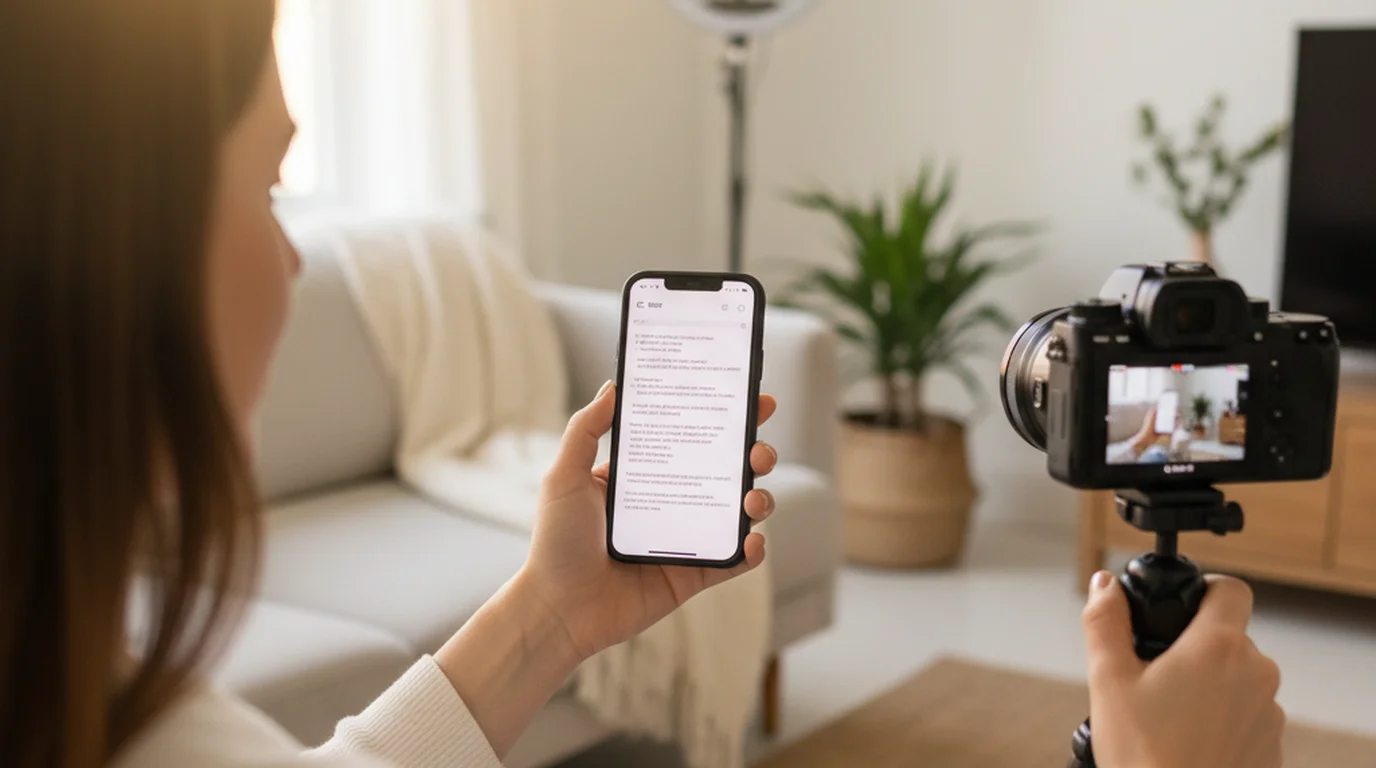
An autocue app is the digital equivalent of a broadcast autocue machine. It scrolls a script at a controlled speed so a presenter, journalist, or creator can read while appearing to look at the camera. Rather than needing a glass reflector rig and a dedicated operator sitting at a hardware console, your phone, tablet, or laptop screen becomes the scrolling prompter display.
"Autocue" is the British English term for this technology. "Teleprompter" is the American English equivalent. Both refer to the same thing — a scrolling script display used by presenters, newsreaders, politicians, and video creators to deliver words naturally without memorising them.
The term "Autocue" comes from Autocue Ltd., a UK company founded in the 1950s that dominated broadcast prompting hardware for decades. The brand became so synonymous with the technology that British English speakers adopted "autocue" as the generic word — much as "Hoover" became synonymous with vacuum cleaners. Today, any app that scrolls your script for you can correctly be called an autocue app. See our FAQ on the difference between autocue and teleprompter for a deeper look at the terminology.
Modern autocue apps do far more than the original hardware: they record video with script overlay, respond to voice commands, sync across devices, and run entirely offline. And unlike the broadcast machines they replaced, the best autocue apps cost nothing.
Why you no longer need an autocue machine
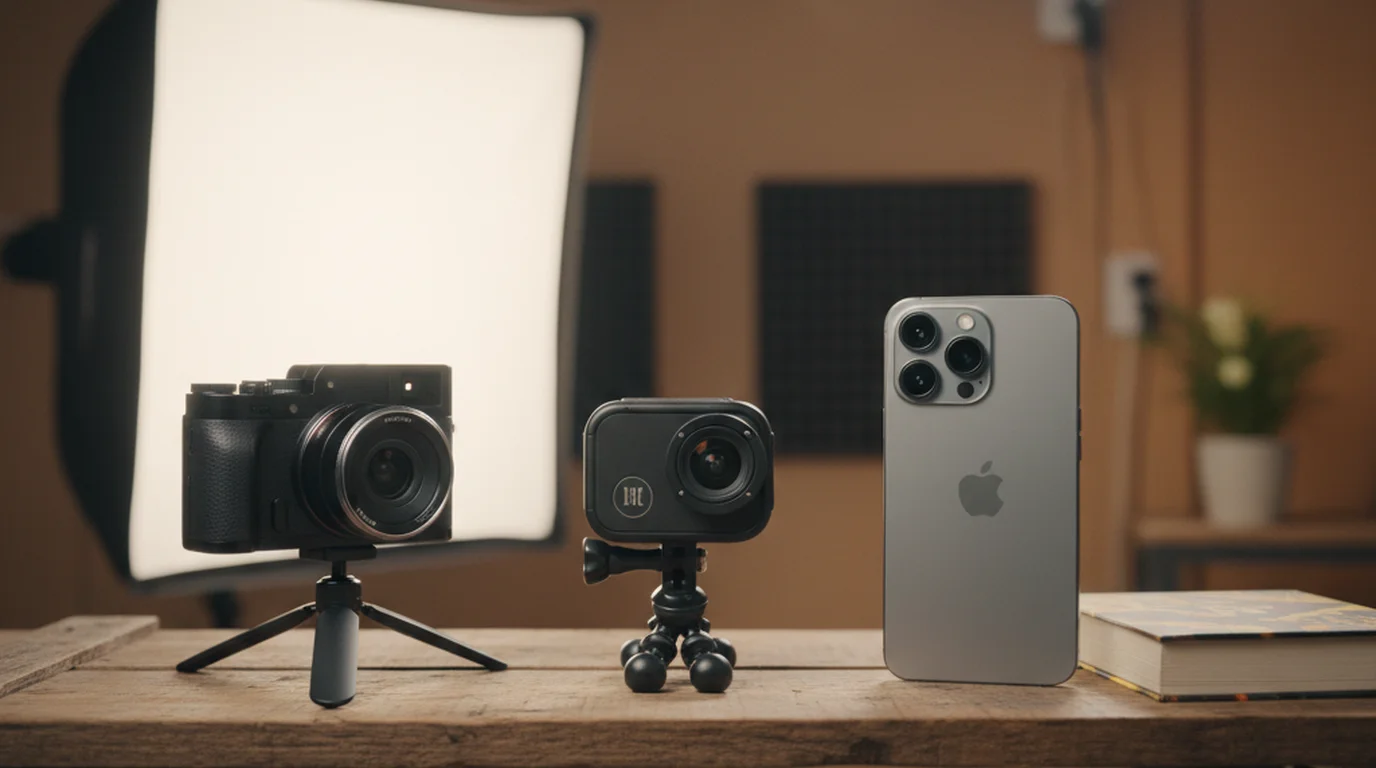
Traditional broadcast autocue machines are serious pieces of kit. A full studio setup — prompter unit, beam-splitter glass, camera mount, cabling, and operator console — can cost anywhere from £1,500 to over £5,000 for professional-grade hardware. Running one requires a dedicated prompter operator who adjusts scroll speed in real time as the presenter delivers the script. For a daily news programme with multiple presenters, this is a normal production expense. For an independent creator, a journalist filing a video story from their kitchen, or a business owner making LinkedIn videos, it is completely impractical.
App-based autocues in 2026 close that gap almost entirely. A free iPhone autocue app and a free browser-based autocue together cover 95% of what creators, journalists, educators, and business video producers actually need. The key differences between hardware and app-based autocue are:
- Cost: Hardware starts at hundreds of pounds; app-based autocue is free.
- Portability: A phone fits in your pocket. A studio autocue rig does not.
- Setup time: An app is ready in under a minute. Hardware requires rigging.
- Operator: Apps are single-person operated. Hardware traditionally requires two people.
- Eye contact quality: Hardware glass rigs allow the presenter to look directly down the camera lens. App-based autocue on a phone screen placed near (but not in front of) the camera creates a slight but manageable eye-line offset. For most online video formats, this is imperceptible to viewers.
The one area where traditional autocue hardware retains an advantage is live broadcast with multiple cameras and a director calling shots. For that professional context, a full rig is still the standard. For everything else — and that is most video content being created in 2026 — an app is the better choice.
Quick comparison: the best autocue apps in 2026
Here is a side-by-side overview of the main options. "Camera overlay" means the app can record video with the scrolling script visible on screen simultaneously, so you read and record in a single step.
| App | Platform | Camera overlay | Price | Offline |
|---|---|---|---|---|
| Teleprompter-Scrolling Scripts | iPhone, iPad, Mac + browser | Yes | Free | Yes |
| Parrot Teleprompter | iPhone, iPad | Yes | Free (basic) / Paid | Yes |
| Teleprompter Premium | iPhone, iPad, Mac | Yes | Paid subscription | Yes |
| PromptSmart Pro | iPhone, iPad, Mac, Android | Yes | Paid | Yes |
| Autocue traditional hardware | Studio / stage | N/A (glass rig) | £500–£5,000+ | Yes |
The short version: Teleprompter-Scrolling Scripts is the best free option — native app for Apple devices plus teleprompter.works/online for any browser on Windows, Android, or iOS. For Android-specific options, see our dedicated guide to the best autocue app for Android.
Best free autocue app for iPhone
Teleprompter-Scrolling Scripts is the top choice for iPhone. It is entirely free, requires no account, and works offline — you do not need a Wi-Fi or mobile data connection once the app is installed. The Camera mode overlays your scrolling script on the live camera view and records directly to your photo library. This means you read and record in a single step, with no second device needed.
Key features for iPhone users:
- Camera overlay mode: See your script while recording. The text scrolls automatically over the camera preview.
- Vertical and landscape video: Record in portrait (9:16 for Instagram Reels, TikTok) or landscape (16:9 for YouTube, LinkedIn).
- Voice commands: Say "next", "previous", or "pause" to control the scroll hands-free in Prompter mode (the commands are in English).
- Adjustable scroll speed: Set a words-per-minute rate that matches your natural delivery.
- Font size control: Scale text for comfortable reading at your filming distance.
- No account required: Open the app, paste your script, record. That is the entire workflow.
Setting up iPhone autocue in 4 steps:
- Download Teleprompter-Scrolling Scripts free from the App Store.
- Tap the + button, give the script a title, and paste or type your text.
- Tap Camera mode. Grant camera and microphone permission when prompted.
- Set font size (36–48pt recommended), adjust speed, and tap record.
For longer scripts or when filming with a separate camera, use Teleprompter mode instead of Camera mode: the script scrolls full-screen on your iPhone, and you film with a DSLR, mirrorless camera, or second phone. Position the iPhone directly above or below the camera lens for the best eye contact.
Full details on the iPhone autocue page and our guide to the best free iPhone autocue app.
Best free autocue app for iPad
The same app — Teleprompter-Scrolling Scripts — runs natively on iPad, and the iPad's larger screen makes it the most comfortable autocue display for reading long scripts. The extra screen real estate means you can use a larger font at the same scroll speed, reducing eye strain during extended recording sessions. Portrait and landscape orientations are both fully supported.
iPad is particularly well suited to:
- Seated video production: Online courses, tutorial recordings, presentations. The iPad sits on a desk stand or small tripod at reading distance without feeling cramped.
- Interview preparation: Journalists and podcast hosts can run notes or question lists on the iPad while recording on a separate camera.
- Stage and event presenting: An iPad on a music stand or lectern becomes a professional-grade floor prompter for speeches and keynotes.
- Education: Teachers recording lesson content can see their full script without needing a dedicated prompter monitor.
iPad autocue setup tips:
- Use font size 42–56pt at typical desk-to-camera distance (60–90 cm).
- Set line height to 1.4–1.6x for comfortable line-by-line reading without jumping.
- In Camera mode, landscape orientation gives a wider preview and lets you see more script lines at once.
- A phone/tablet stand that holds the iPad just above or beside the camera creates the most natural eye contact line.
See the iPad autocue page and our full post on the best free autocue app for iPad for a complete setup walkthrough.
Best free autocue app for Mac
Teleprompter-Scrolling Scripts also runs as a native Mac app, supporting MacBook Air, MacBook Pro, iMac, and Mac mini. The Mac version is ideal for desk-based recording where your MacBook or iMac is already part of your filming setup — no second device needed.
Mac-specific strengths:
- Built-in webcam or Continuity Camera: Use the built-in FaceTime camera, an external USB webcam, or Apple's Continuity Camera feature (which uses your iPhone camera wirelessly as a high-quality Mac webcam). All three work with Camera mode in the app.
- Larger display: A 13-inch or 15-inch MacBook screen, or an iMac display, provides a very comfortable reading area — especially for speakers who prefer larger text.
- Desk recording workflow: The Mac sits naturally at eye level on a desk. Position the camera above or below the screen. The eye-line offset is minimal and undetectable in most online video contexts.
- Zoom and video call preparation: The scrolling script in Teleprompter mode (not recording, just scrolling) is perfect for prepared remarks in Zoom or Teams meetings — run the script on the same screen while the camera is active.
- No subscription: Unlike some Mac teleprompter apps that require monthly payments, Teleprompter-Scrolling Scripts is completely free on Mac.
Mac autocue quick setup:
- Download from the Mac App Store (same free app as iOS).
- Open the app and create or paste your script.
- Choose Camera mode and select your camera source (built-in, USB, or Continuity Camera).
- Set font size and speed. Position the Mac screen at eye level. Record.
For details on the Mac-specific setup and Continuity Camera integration, see the Mac autocue page and the guide to the best autocue app for Mac and MacBook.
Best free autocue online — no download required
Not everyone can install an app. Windows users, Android users, people on shared or work computers, and anyone who prefers a zero-installation workflow all need a browser-based autocue. The free online autocue is the best free option in this category.
It works in any modern browser — Chrome, Edge, Firefox, Safari — on any operating system. There is no account, no email address required, no paywall, and no trial period. The workflow is:
- Open the online autocue in any browser.
- Paste or type your script into the text box.
- Adjust font size and scroll speed with the on-screen controls.
- Click Start. The script scrolls in full-screen mode.
- Film with your camera, phone, or webcam independently.
The difference from the native app is not the camera — the browser version has Recording mode, which overlays the script on a live camera preview and records in the tab. It is that the browser version does not keep your scripts between sessions and needs a connection to load. This is the correct workflow for anyone filming with a dedicated camera anyway (a DSLR, mirrorless camera, or a second phone). You run the autocue on a laptop or tablet screen and film with the camera positioned near the screen.
The web app is the most frictionless entry point for first-time autocue users. There is nothing to download, configure, or sign up for. You can go from "I have never used an autocue" to actively reading a scrolling script in under 90 seconds.
For a full overview of what is possible without downloading anything, see the online autocue and our guide to running an autocue with no download.
Best autocue app for Android
Teleprompter-Scrolling Scripts is an Apple platform app. It does not have an Android version. Android users are genuinely underserved by native autocue apps — most of the highest-rated prompter apps in 2026 are iOS-first or iOS-only.
The best free autocue option for Android is teleprompter.works/online in Chrome on Android. It works on Android phones and Android tablets (Samsung Galaxy Tab, Lenovo Tab, and others). Open Chrome, go to the URL, paste your script, and scroll. For Android tablets, landscape mode with a larger font is especially comfortable — the screen real estate closely matches what iPad users get from the native app.
A practical tip for Android users: tap the Chrome menu and select "Add to Home Screen" to create a home screen shortcut. This makes the web app feel much more like a native app — one tap to open, full-screen view, fast launch.
For Android users who want a paid native app with camera overlay, PromptSmart Pro is the main option — it offers voice-activated scroll control on Android. But for free use, the browser is both faster to start and more reliable than most free Android apps in the category.
For a full guide covering Android setup step by step, see our dedicated post on the best autocue app for Android.
Best autocue for PC and Windows
There is no Windows desktop app from Teleprompter-Scrolling Scripts. The recommended solution for PC and Windows users is teleprompter.works/online in Chrome, Edge, or Firefox.
The browser-based approach works well for Windows users filming at a desk. The typical setup:
- Open the web app in Chrome or Edge on your Windows PC or laptop.
- Expand the browser to full screen (F11) or maximise the window.
- Position the laptop or monitor at eye level near your webcam or camera.
- Start scrolling and record with OBS, a webcam app, or a separate camera.
A Windows laptop screen running the web autocue is a very effective prompter display for desk-based recordings — blog videos, LinkedIn content, YouTube tutorials, training material, and presentations. The only limitation compared to the iOS app is the absence of a built-in camera overlay for recording.
For creators who primarily use Windows and want to explore further, our guide to the best free autocue for PC and Windows covers the full setup including multi-monitor configurations and OBS integration.
Free autocue vs. paid autocue — what do you actually get?
Most creators who try a paid autocue app do so because they assume free means limited. That assumption is worth examining directly.
What Teleprompter-Scrolling Scripts gives you for free:
- Unlimited scripts — no cap on the number of scripts you can store.
- Camera mode — record video with script overlay.
- Offline operation — no internet needed after installation.
- Voice commands — control playback without touching the screen.
- Font size, speed, and colour customisation.
- Portrait and landscape recording.
- No account or subscription required. Ever.
What paid apps typically add:
- Advanced voice-activated scrolling (PromptSmart's main differentiator — it adjusts speed in real time to your actual speaking pace).
- Script export to PDF or formatted documents.
- Team collaboration and shared script libraries.
- Branded scripts for agency or production company use.
- Remote prompter control (one device controls another over Wi-Fi).
- Presenter notes and hidden operator cues.
For an independent creator, journalist, educator, or business owner making video content, the free feature set covers everything required. The paid additions are meaningful in production house or broadcast team contexts, where multiple people are working together and script management at scale matters.
Our full comparison — Teleprompter Premium vs. free app: is it worth paying? — goes through each paid feature in detail and identifies who actually needs it.
How to use an autocue app for broadcast and video
Having the right app is only part of the equation. How you use it determines whether your delivery looks natural or robotic. Here is the step-by-step workflow used by experienced on-camera presenters and broadcast journalists.
Step 1: Write for speech, not for reading. Autocue scripts that sound natural are written differently from prose. Use short sentences. Avoid subordinate clauses. Write numbers as words ("forty-seven" not "47"). Remove parenthetical asides — if it would be uncomfortable to say aloud, cut it. Read the script aloud once before recording to catch anything that sounds unnatural.
Step 2: Paste and format in the app. Open Teleprompter-Scrolling Scripts, create a new script, paste your text. Set font size to 36–48pt (larger if filming from further away). Use a light text on dark background for most recording environments — it reduces screen glare and is easier to read under studio or ring light conditions.
Step 3: Set scroll speed to your natural pace. A typical conversational speaking rate is 120–150 words per minute. Set the scroll speed to the lower end of your natural range — you want to lead the scroll slightly, not chase it. Do a 30-second test run before recording and adjust.
Step 4: Position text near the camera. The goal is to minimise the angle between the camera lens and the text you are reading. Place your phone, tablet, or screen as close to the camera as possible — ideally directly above or directly below the lens. The narrower the column of text, the less your eyes travel horizontally, and the more natural your on-camera gaze appears.
Step 5: One practice run before recording. Read through the full script at speed. This serves two purposes: it catches any awkward phrasing you missed, and it lets your body settle into the delivery pace before the take that counts.
For the specific question of how to avoid looking like you are reading, see our FAQ: how do I avoid looking like I am reading a teleprompter?
Autocue tips for journalists and news presenters
Broadcast news journalists have been using autocue professionally for decades. Their conventions and habits are worth adopting, even if you are presenting from a home studio or a smartphone on a tripod.
Script formatting for autocue:
- Keep sentences to one breath — roughly 15–20 words maximum.
- Use action cues in capitals: [PAUSE], [TURN TO CAMERA 2], [HOLD], [SMILE]. These help the presenter mark natural beats without them appearing as spoken content.
- Write phonetic spellings for names and places that might be mispronounced: "Worcestershire [WOOS-ter-sher]".
- Use double line spacing in the script for easier reading.
- Bold key words in each sentence — the eye picks up the stressed word and the rest flows naturally.
Hand-off language: When transitioning between topics or to another speaker, end the sentence with a falling tone cue. Broadcast convention uses phrases like "Over to you" or "More on that shortly" — these signal a natural pause point, even in solo recordings.
Reading speed calibration: Broadcast journalists are trained to read at approximately 150–180 words per minute for news delivery (faster than conversational YouTube content). For most online video formats, 120–140 wpm is more natural. Calibrate your scroll speed in a test recording, play it back, and adjust until the pace matches the way you naturally speak in conversation.
Working without an operator: Traditional autocue requires a prompter operator to adjust scroll speed in real time. App-based autocue is self-operated. This means you need to pre-set a speed and trust it, or use a foot pedal or remote to nudge speed manually. For most short-form content (under 5 minutes), a pre-set speed and a brief rehearsal is sufficient.
For a deeper look at professional newsroom practices, see our guide: how news anchors read scripts on camera.
The difference between autocue and teleprompter
"Autocue" and "teleprompter" are the same technology described by two different regional terms. Both refer to a scrolling script display used to prompt presenters, newsreaders, politicians, and video creators. In British English — the dominant usage in the UK, Australia, New Zealand, and Ireland — the device and its software are called an autocue. In American English and internationally (including Canada and much of non-British Asia), the same thing is called a teleprompter.
The divergence has practical roots. "Teleprompter" is a US brand name (registered by TelePrompTer Corporation in the 1950s) that became a generic term in American English. "Autocue" comes from the British company Autocue Ltd., also founded in the 1950s, which dominated the UK broadcast market and gave its name to the generic concept in British usage.
For search purposes, this distinction matters. A British journalist searching for "best autocue app" and an American journalist searching for "best teleprompter app" want exactly the same product. Any teleprompter app is an autocue app. Any autocue app is a teleprompter app. The terminology is regional, not technical.
When evaluating any app labelled "teleprompter app" — including Teleprompter-Scrolling Scripts — it fully serves as an autocue app for British English speakers. The features, the workflow, and the output are identical. See our full explainer: what is the difference between autocue and teleprompter?
Choosing the right autocue app for your workflow
The correct choice depends primarily on your device and recording setup. Here is a quick decision guide:
- You have an iPhone: Download Teleprompter-Scrolling Scripts. Free, Camera mode, offline, voice commands. See the teleprompter app for iPhone.
- You have an iPad: Same app. Larger screen is a significant advantage for long scripts. iPad setup guide.
- You have a Mac: Same app, native Mac version. Use with built-in webcam or Continuity Camera. Mac setup guide.
- You have an Android phone or tablet: Use teleprompter.works/online in Chrome. Add to home screen for quick access. Full guide: best autocue app for Android.
- You are on Windows or a PC: Use teleprompter.works/online in Chrome or Edge. Full guide: best autocue for PC.
- You need zero installation, any device: teleprompter.works/online. No download. No account. Immediate start.
- You need voice-activated auto-speed (script follows your voice): Consider PromptSmart Pro (paid, iOS and Android).
- You are in a professional broadcast context with an operator: Consider dedicated hardware autocue, or Teleprompter Premium with remote control features.
For the overwhelming majority of creators, journalists, educators, and business video makers, the free combination of Teleprompter-Scrolling Scripts (Apple devices) and teleprompter.works/online (all other devices) covers everything needed to produce professional, natural-looking on-camera delivery — at no cost.
Frequently Asked Questions
What is the best free autocue app?
Teleprompter-Scrolling Scripts is the best free autocue app for iPhone, iPad, and Mac, with Camera mode, voice commands, and offline script storage. The free browser version at teleprompter.works/online works on any device with no download required.
What is the difference between autocue and teleprompter?
Autocue and teleprompter refer to the same technology. "Autocue" is British English, derived from Autocue Ltd., a UK broadcast hardware company. "Teleprompter" is American English. Both describe a scrolling script display used by presenters and video creators.
Can I use an autocue app on Android?
There is no native Android version of Teleprompter-Scrolling Scripts. Android users can use the free web app at teleprompter.works/online in Chrome — it works on any Android phone or tablet with no download required.
Does the autocue app work without internet?
Yes. Teleprompter-Scrolling Scripts stores scripts locally on your device. You can create scripts, open Camera mode, and record without a Wi-Fi or mobile data connection. No account or cloud sync is needed.
Wendy ZhangWendy Zhang is the indie developer behind Teleprompter-Scrolling Scripts, which she built after cycling through teleprompter apps that were too heavy, too expensive, or dependent on a network connection to open. She writes about the mechanics of recording yourself — scroll pacing, script formatting, and the app decisions that decide whether a take survives.
Ready to try the best free autocue app? Download Teleprompter-Scrolling Scripts for iPhone, iPad, and Mac — or use the free web app in any browser, no installation needed.
Try the Free Web App Use Free Online Teleprompter Get the Free App