Best Free Autocue App for iPhone: No Subscription, Works Offline
 Wendy Zhang · May 20, 2026 · 8 min read
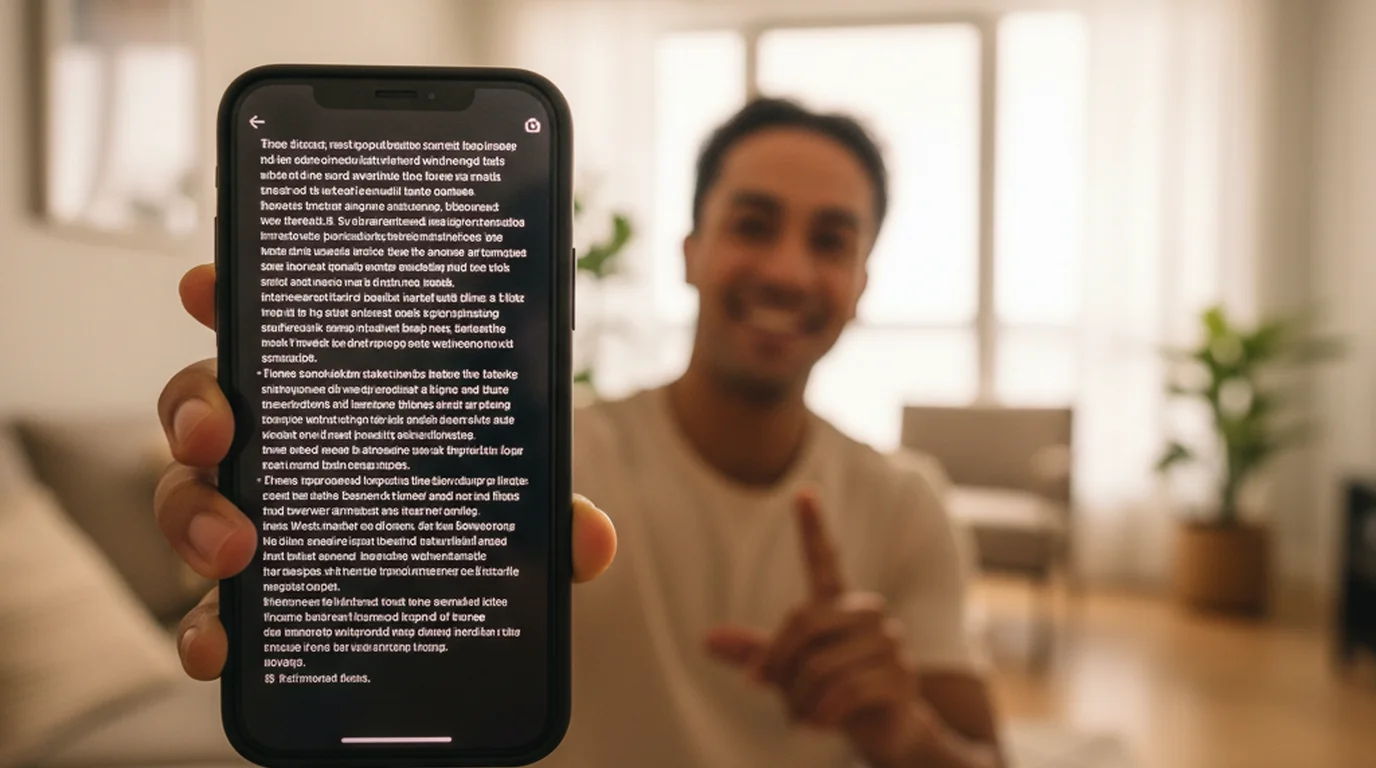
An autocue app for iPhone is what British English speakers call a teleprompter app — software that scrolls your script at a controlled speed while you speak to the camera. Whether you are recording TikToks, coaching content, YouTube Shorts, or using Zoom for remote presentations, the best autocue app for iPhone gives you a clean reading interface, natural delivery controls, and the ability to record directly in the app. The key distinction among iPhone autocue apps is whether the core features are actually free or locked behind a subscription after a limited trial.
Teleprompter-Scrolling Scripts is a free iPhone autocue app with Camera mode, Prompter mode, offline storage, and voice commands — no subscription required and no weekly recording limits. This guide covers what to look for in an iPhone autocue app, how to set it up for different recording scenarios, and what the free tier actually includes. On a bigger screen, the free online autocue covers the same job with no App Store step.
For how the iPhone app compares with iPad, Mac, and browser-based prompting, see the complete guide to free autocue apps.
What an autocue app does on iPhone
The term "autocue" comes from the broadcast industry — specifically from the Autocue brand of professional teleprompter hardware used in television studios. In everyday usage, "autocue" and "teleprompter" mean the same thing: a device or app that displays a scrolling script so a speaker can deliver content to camera without memorizing lines or reading from notes.
On iPhone, an autocue app replaces the hardware rig with software. The script appears on the iPhone screen and scrolls at a speed matched to your natural speech rate. You look at the screen — ideally positioned near the front camera — and read the scrolling text while appearing to speak directly to the lens. The result, when set up correctly, is a delivery that looks natural and well-prepared without the visible gaze-drop that comes from looking at notes.
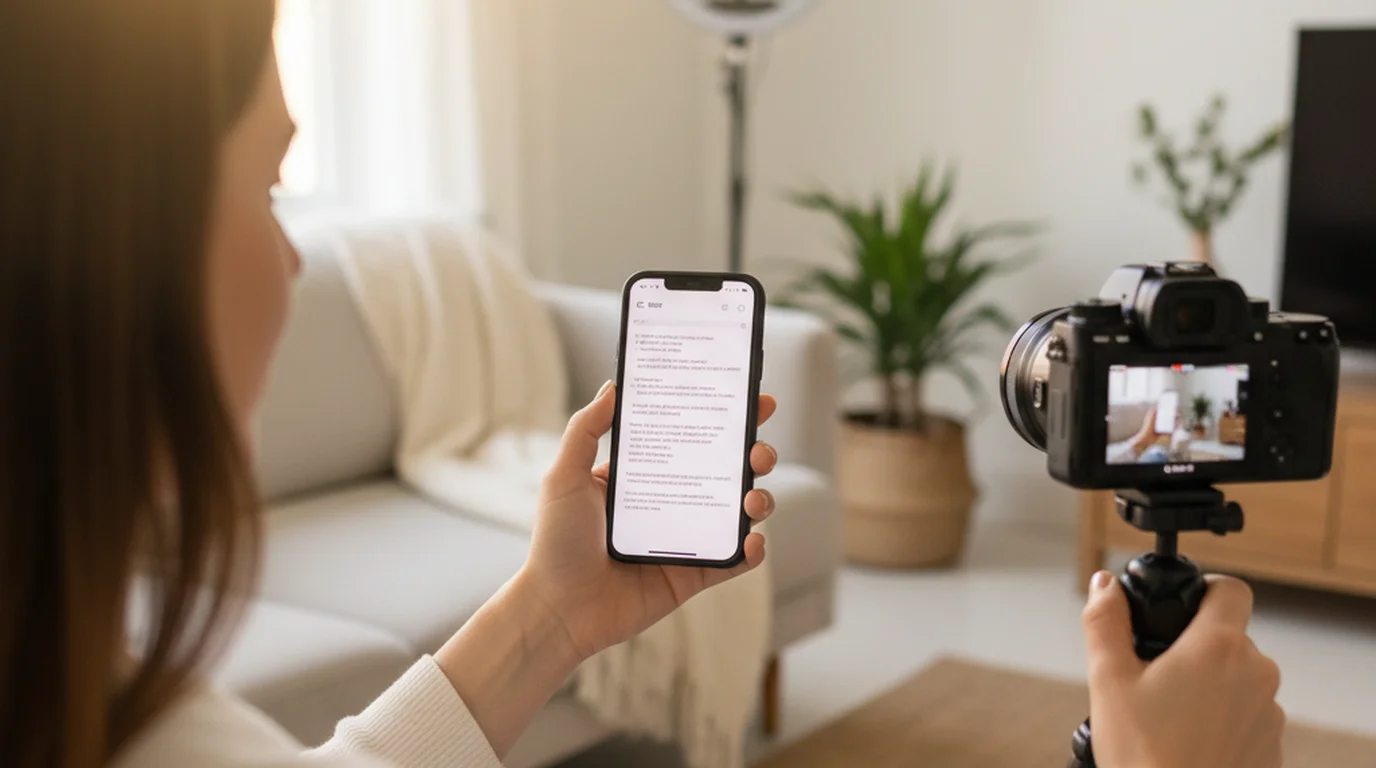
Modern iPhone autocue apps offer two primary modes. Camera mode records video directly in the app while displaying the scrolling script — the script is overlaid on the camera preview so you can see yourself and your text simultaneously. Prompter mode displays only the text, with no camera involved, for use in rehearsal, during live calls, or when recording from an external camera or a second device. Both modes serve different parts of a creator's or speaker's workflow.
"Autocue" is the British English term for what North American users call a teleprompter. The functionality is identical: a scrolling script display that allows a speaker to deliver content naturally to a camera or audience. On iPhone, autocue apps replace professional hardware with a native app experience.
What makes the best autocue app for iPhone
Not all iPhone autocue apps are equal, and the difference shows up most clearly in the details of the recording experience rather than the feature list. The best autocue app for iPhone combines four characteristics: Camera mode that works reliably with the front camera, fine-grained text control, full offline capability, and voice or hands-free controls that let you manage the scroll without touching the screen.
Camera mode quality matters because the script overlay needs to be readable without covering the camera preview in a way that makes framing impossible. The text position should be adjustable — top, middle, or a configurable region — so you can place the script close to the front camera lens. A text overlay positioned at the very top of the screen, just below the front camera, creates the most natural eye-line alignment. Apps that only place text in the center or bottom force a noticeable downward gaze that breaks the direct-to-camera feel.
Text control means the ability to set font size, scroll speed, line spacing, and text color independently. Speech rates vary significantly between speakers and content types. A creator recording 60-second TikToks at a fast, casual pace needs different settings than a coach recording a 10-minute module with deliberate, measured delivery. The best iPhone autocue app lets you save these preferences per script or globally.
Offline capability is a practical requirement for creators who record in unpredictable environments — travel, events, classrooms. Cloud-dependent autocue apps require an active connection to load scripts, which creates a failure point at the worst possible moment. Local-first apps store scripts on the device and function identically with or without a network connection.
Voice commands or hands-free controls allow you to start and stop the scroll without touching the screen mid-recording. Tapping the iPhone screen during a Camera mode recording causes visible camera movement and breaks the take. An app that responds to voice triggers or supports Bluetooth remote control eliminates that problem entirely. Teleprompter-Scrolling Scripts takes the voice route — English voice commands in Prompter mode, plus a steady auto-scroll at the speed you set — and does not support Bluetooth remotes.
Teleprompter-Scrolling Scripts as a free iPhone autocue app
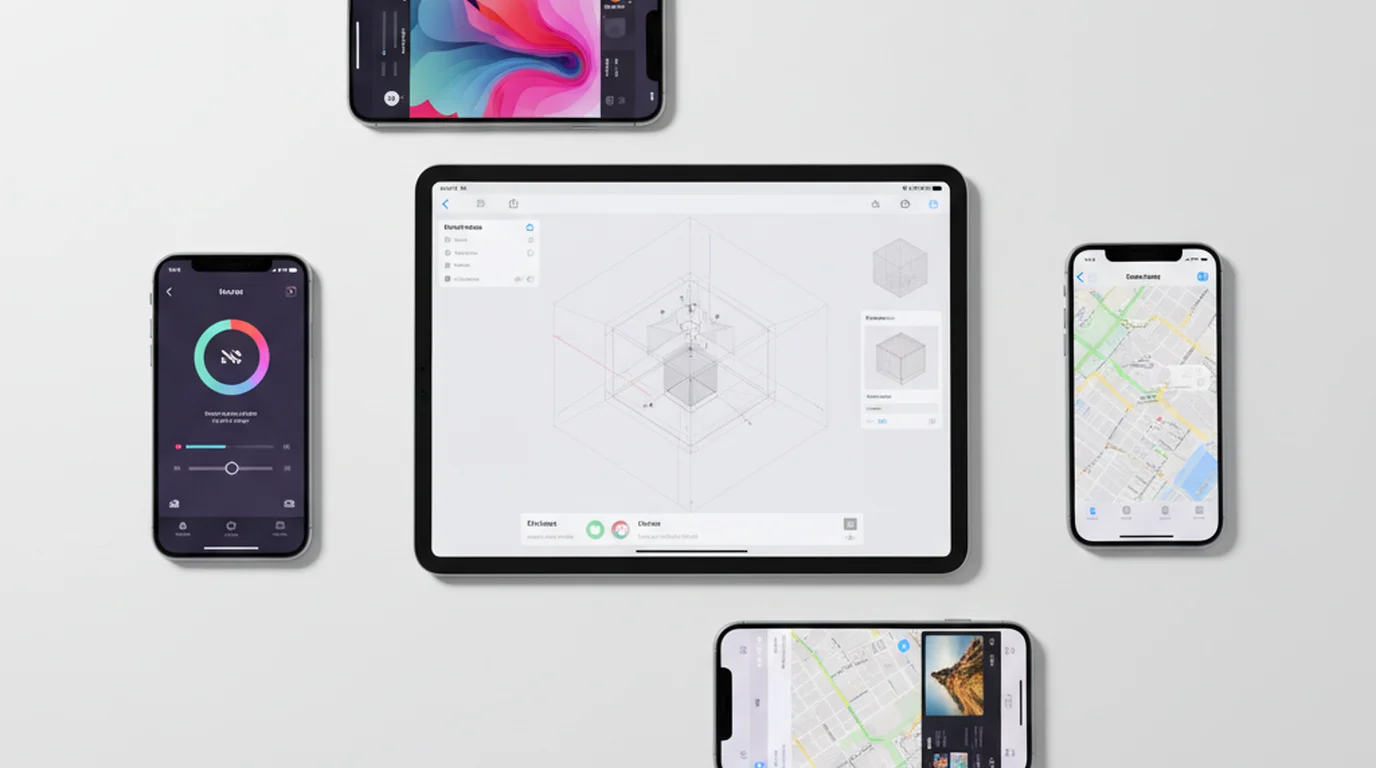
Teleprompter-Scrolling Scripts meets all four criteria for the best autocue app for iPhone and is free to download from the App Store with no subscription required. The app runs natively on iPhone and also on iPad and Mac — a single purchase covers all three platforms.
Camera mode records video with the script overlaid on the front camera view. The text area is adjustable so you can position the script near the top of the frame, close to the front camera, for the most natural eye-line alignment. The recorded video file is saved locally to your iPhone Photos library and does not include the script text burned into the final clip. You can then share or edit the recording with any tool you already use — iMovie, CapCut, DaVinci Resolve, or direct share to TikTok or Instagram.
Prompter mode provides a text-only scrolling interface with no camera involvement. This is the mode for rehearsal sessions, live presentations, and any context where an external camera is recording you rather than the iPhone itself. Prompter mode is also the correct setup when using the iPhone autocue alongside Zoom or FaceTime — position the iPhone with Prompter mode running next to your webcam and read the scroll during the call.
Scripts are stored locally on the device. There is no account creation required and no cloud sync dependency. The app functions fully without Wi-Fi or cellular data. Voice commands let you advance, reverse, and pause the scroll hands-free in Prompter mode — the mode that records nothing, and therefore the only one where the microphone is free to listen for them. Scroll speed, font size, text position, and background color are all adjustable and persist between sessions.
iPhone autocue for vertical video: TikTok, Reels, and Shorts setup
The dominant use case for an autocue app on iPhone is vertical video — TikTok, Instagram Reels, and YouTube Shorts. These formats require portrait-orientation recording with a tight frame on the face and upper body. The autocue setup for vertical video is slightly different from landscape recording because the usable screen space is narrow and the front camera is at the very top edge of the device.
The optimal setup for TikTok and Reels autocue on iPhone is to use Camera mode with the text area set to two to three lines at the top of the screen, positioned as close to the front camera notch or pill as possible. This placement minimises the downward angle of your gaze when reading — the difference between your eyes appearing to look "just past the lens" versus "reading from the floor." Two to three lines of text provide enough look-ahead for smooth delivery without covering most of the camera preview.
Scroll speed for short-form vertical video typically runs between 120 and 140 words per minute. This is slightly faster than the pace used for long-form content because short-form delivery tends to be more energetic. Set the scroll speed during a rehearsal take before recording for real — watch the playback and adjust until the pace feels natural rather than rushed or lagging.
Font size for iPhone vertical video should be large enough to read at arm's length with one quick glance — typically 36–48 points depending on your screen brightness and ambient light. In bright daylight, larger text compensates for glare. Indoors with controlled lighting, slightly smaller text lets you fit more words on screen before the next scroll advance, which produces a smoother reading flow.
iPhone autocue for Zoom and video calls using Prompter mode
Using an iPhone as an autocue during Zoom calls is a different workflow than recording video. On Zoom, the camera is typically a laptop webcam or an external camera — not the iPhone itself. The iPhone autocue role in this setup is to display the scrolling text next to or above the webcam so you can read during the call without losing eye contact with the camera lens.
Prompter mode is the right choice here. It displays only the scrolling text with maximum contrast and brightness, no camera preview, and no recording. Open Teleprompter-Scrolling Scripts in Prompter mode on your iPhone, prop it up beside or slightly above your laptop screen near the webcam, and load your talking points or script before the call begins.
This setup works particularly well for sales calls, coaching sessions, investor pitches, and any Zoom context where you have prepared material to deliver. The iPhone autocue displays your structure and key phrases while your face stays forward toward the webcam — a significant improvement over glancing down at notes or a second browser tab that pulls your gaze dramatically off-axis.
For iPad users, the same Prompter mode setup applies — and the larger screen of an iPad is easier to position beside a monitor without blocking the webcam sightline. The free browser version at teleprompter.works/online also works for this purpose on any device with a browser, if an additional app install is not preferred.
Free vs. paid iPhone autocue apps — what the free tier actually includes
The iPhone autocue app market has a notable pattern: many apps advertise as free but gate the most useful features — Camera mode, script length, scroll speed control, or export — behind a subscription paywall that is only revealed after the initial download. Understanding what "free" actually means for the app you are considering saves time and avoids the frustrating experience of setting up a recording workflow only to hit a paywall mid-session.
Common free-tier restrictions in iPhone autocue apps include: limited script length (often 500–1000 words), no Camera mode in the free tier (only text display, no recording), watermarks on exported video, limited scroll speed range, and no offline access. Some apps offer a short free trial — seven or fourteen days — after which the full subscription kicks in. Others use a freemium model where the core feature works but is deliberately crippled to encourage upgrade.
Teleprompter-Scrolling Scripts does not restrict any of the core features in the free tier. Camera mode is included. Prompter mode is included. Script length is not capped. Scroll speed is fully adjustable. The app works offline. There are no watermarks on recorded video. No subscription is required to use any of these features — they are all available from the first launch. This is an intentional design choice: the app is built to be a tool that works without friction, not a subscription funnel with a teleprompter attached.
Setting up the iPhone autocue for natural delivery
The technical setup of an iPhone autocue app is only half the equation. The other half is physical positioning — where the iPhone sits relative to your camera and your eye line — and how the scroll speed is calibrated to your natural speech pace. Getting both right is what separates a delivery that looks assisted from one that looks confident and direct.
Eye line is the most important physical variable. The goal is to position the iPhone autocue screen so that reading it requires only a minimal shift from looking directly at the camera lens. For Camera mode recordings on the iPhone itself, the text area placement controls this — position the text at the top of the screen near the front camera for the best alignment. For Prompter mode on a second device beside your recording setup, position the device at camera height and as close horizontally to the lens as the physical setup allows.
Scroll speed calibration should be done with a test recording, not just a live preview. Record 60 seconds of yourself reading the script in Camera mode, then watch the playback at full speed. Two things to check: whether you are visibly rushing to keep up with the scroll, and whether there are noticeable pauses where you are waiting for the text to advance. Either issue indicates the scroll speed needs adjustment. A scroll speed that feels slightly slow in practice is almost always better than one that feels slightly fast — it leaves room for natural pauses, emphasis, and breath without falling behind.
For the text area itself, two to three visible lines strikes the best balance between look-ahead time and screen coverage. More than three lines and the text becomes a wall that is harder to track. Fewer than two lines means you are reading almost word-by-word, which creates a stilted, stop-start delivery. Keep the font large enough to read without squinting, and use a high-contrast color combination — typically white text on a dark background or the reverse — that remains legible under whatever lighting conditions you record in.
Frequently Asked Questions
What is the best free autocue app for iPhone?
Teleprompter-Scrolling Scripts is the best free autocue app for iPhone. It includes Camera mode (records video with script overlay), Prompter mode (text-only scroll for rehearsal and calls), adjustable text size and position, voice commands, and full offline use. No subscription required — download it free from the App Store.
What is an autocue app on iPhone?
An autocue app on iPhone displays your script on screen and scrolls it at a controlled speed while you speak. "Autocue" is the British English term for teleprompter. Camera mode records video and shows the script at the same time. Prompter mode scrolls text only, without the camera, for rehearsal, speeches, and calls.
Does the iPhone autocue app work without internet?
Yes. Teleprompter-Scrolling Scripts is local-first — scripts are stored on your device and the app works fully offline. You do not need a connection for Prompter mode or Camera mode.
Can I record TikTok videos with an iPhone autocue app?
Yes. Use Camera mode in Teleprompter-Scrolling Scripts to record vertical video with the script overlaid on the front camera view. Set the text area to 2–3 lines near the top of the screen, close to the front camera lens, and keep the scroll speed around 120–140 words per minute. The script text is not burned into the recorded video.
Wendy ZhangWendy Zhang is the indie developer behind Teleprompter-Scrolling Scripts, which she built after cycling through teleprompter apps that were too heavy, too expensive, or dependent on a network connection to open. She writes about the mechanics of recording yourself — scroll pacing, script formatting, and the app decisions that decide whether a take survives.
Download the best free autocue app for iPhone
Teleprompter-Scrolling Scripts is free on iPhone, iPad, and Mac. Camera mode, Prompter mode, offline use — no subscription, no weekly limits, no watermarks.
Use Free Online Teleprompter Get the Free App