Autocue With No Download: How a Browser Autocue Works
 Wendy Zhang · May 20, 2026 · 8 min read
A browser autocue needs no download and no account. The free online autocue works in Chrome, Safari, Firefox, and any modern browser — on PC, Android, iPhone, and Mac. Paste your script, set the scroll speed, and start reading. No subscription, no login, no hardware required.
The free online autocue is the browser version of Teleprompter-Scrolling Scripts — no download, no account. This guide explains how to use it and when the native iPhone, iPad, or Mac app adds Camera mode and offline recording. It is the tool described throughout this guide — paste a script and it starts scrolling.
What is an autocue online?
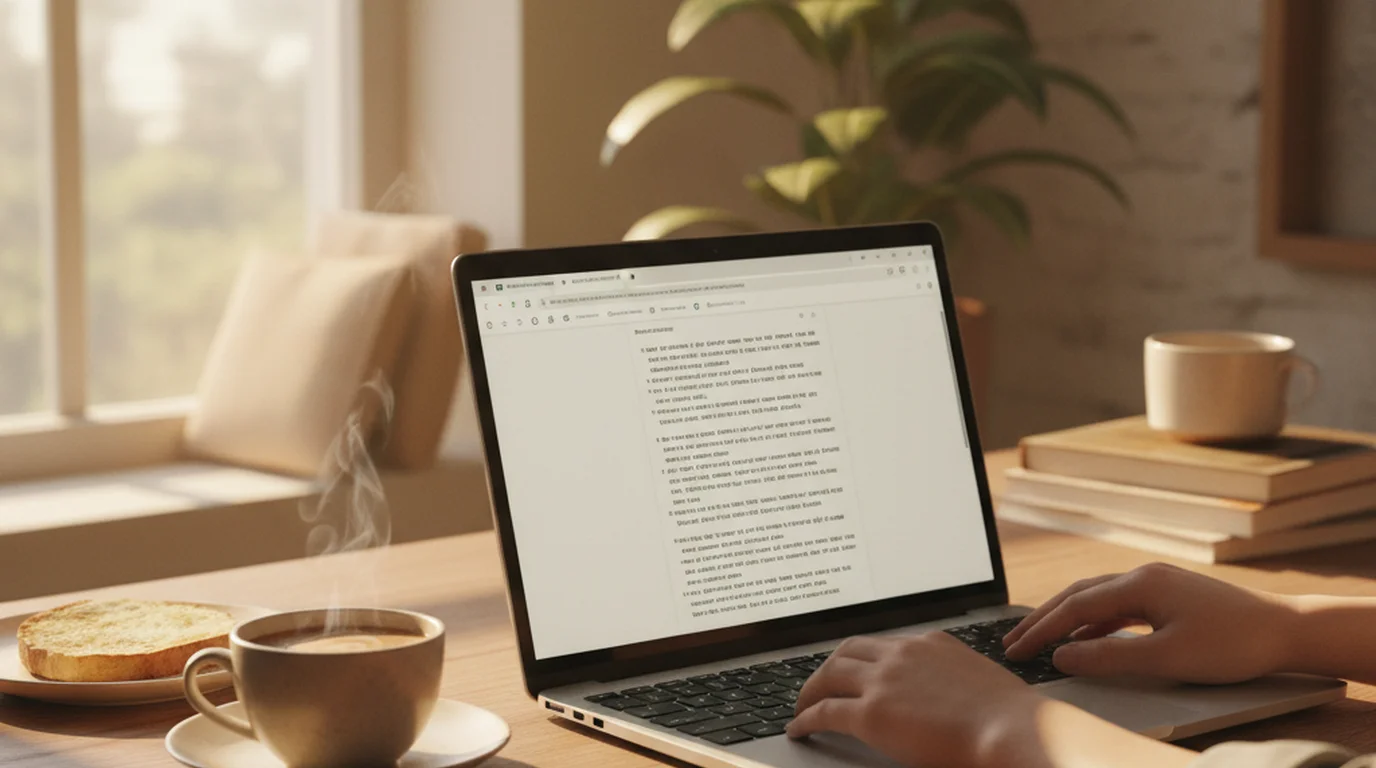
An autocue online is a browser-based teleprompter tool. You open a website in your browser, type or paste your script, and the text scrolls on screen at a controlled speed while you speak or present. No hardware. No download. No installation. The tool runs entirely in your web browser.
"Autocue" is the British English term for teleprompter. In broadcasting, news anchors and on-camera presenters use it — a device that displays scrolling text so they can maintain eye contact with the camera while reading their lines. Online autocue tools bring the same concept to any device with a browser. Whether you are a creator in the United States using the word "teleprompter" or a presenter in the UK using "autocue," the tool does the same job. For a deeper look at how the two terms compare, see our guide to autocue vs teleprompter.
The key advantage of a browser-based prompter is universal access. There is no platform restriction. Android phones, Windows PCs, Chromebooks, iPhones, iPads, and Mac computers all run a browser — which means they can all use the tool without installing a separate app for each platform.
Why use a free online autocue instead of downloading an app
The main reason to use a free online autocue is instant access. On a PC or Android device — where a dedicated teleprompter app may not be available or may cost money — a browser-based prompter requires zero setup. Open the page and the tool is ready. No App Store, no Play Store, no installer to run.
For educators and coaches who work across different devices, an online script reader removes the compatibility problem entirely. A school laptop running Windows, a personal iPhone, and a classroom Android tablet can all open the same URL and use the same tool without installing different apps on each device.
For creators who only need a prompter occasionally — to rehearse a presentation, practice a speech, or record a quick explainer — the zero-friction setup of a browser tool is a practical advantage over downloading and configuring a native app. There is nothing to update, nothing to delete, and nothing that requires storage space on your device.
A free autocue online is the right tool when you need to read a script right now, on whatever device is in front of you, without any setup. The browser is already installed. It just needs a URL.
How teleprompter.works online works as a free autocue
The free online autocue at teleprompter.works is open-source and requires no account. Here is how to use it in three steps.
First, open teleprompter.works/online in any browser on any device. The tool loads immediately — there is no login screen, no onboarding flow, and no paywall. Second, paste or type your script into the text editor. The editor accepts plain text. For best results on screen, keep paragraphs short — three to four sentences per block. Third, set your scroll speed and text size using the controls on screen, then press Play. The script begins scrolling at your chosen speed. Use full-screen mode to eliminate browser UI and fill the display with your text.
Adjustments during playback are simple. You can increase or decrease scroll speed, pause the scroll, or restart from the top. The tool remembers your speed and text size settings for the session. Because the tool is browser-based, scripts are not saved between sessions — paste your text each time you open the page, or keep your scripts in a text editor and paste when needed.
Free autocue online vs. native iOS/Mac app
The browser teleprompter and the native app serve different use cases. Understanding the difference helps you choose the right tool for each recording situation.
The browser-based prompter at teleprompter.works works on any device — Android phones, Windows PCs, Chromebooks, and iOS devices all access the same tool. It is the right choice for quick reading sessions, PC or Android recording setups where you read the script and record separately with another camera app, and situations where you need the tool immediately without any installation.
The native iPhone, iPad, and Mac app adds capabilities that a browser cannot replicate. Camera mode records video with the script overlaid on the live camera view inside the same app — you do not need to run a separate camera app alongside it. Scripts are saved locally on your device and available without an internet connection. For regular recording sessions, the native app removes friction at every step: scripts are waiting when you open the app, Camera mode is one tap away, and the session does not depend on a working internet connection or a browser tab staying open.
| teleprompter.works online | Native iOS/Mac app | |
|---|---|---|
| Device | Any browser (Android, PC, iPhone) | iPhone, iPad, Mac |
| Camera mode | No | Yes |
| Offline use | No | Yes |
| Account needed | No | No |
| Best for | Quick reads, PC/Android | Recording, long sessions |
How to set up an online autocue for Zoom calls and video recordings
A free online autocue is particularly useful for Zoom calls, webinars, and presentations where you need to read a script while keeping your eyes toward the camera. The setup is straightforward.
For Zoom calls, open the tool in a browser window and position it directly below or behind your webcam. The closer the scrolling text is to your camera lens, the more natural your eye contact appears to viewers. On a laptop, dragging the browser window to sit just beneath the built-in camera is usually enough. On a desktop setup with an external monitor, a second screen positioned behind the webcam gives you a clean reading line.
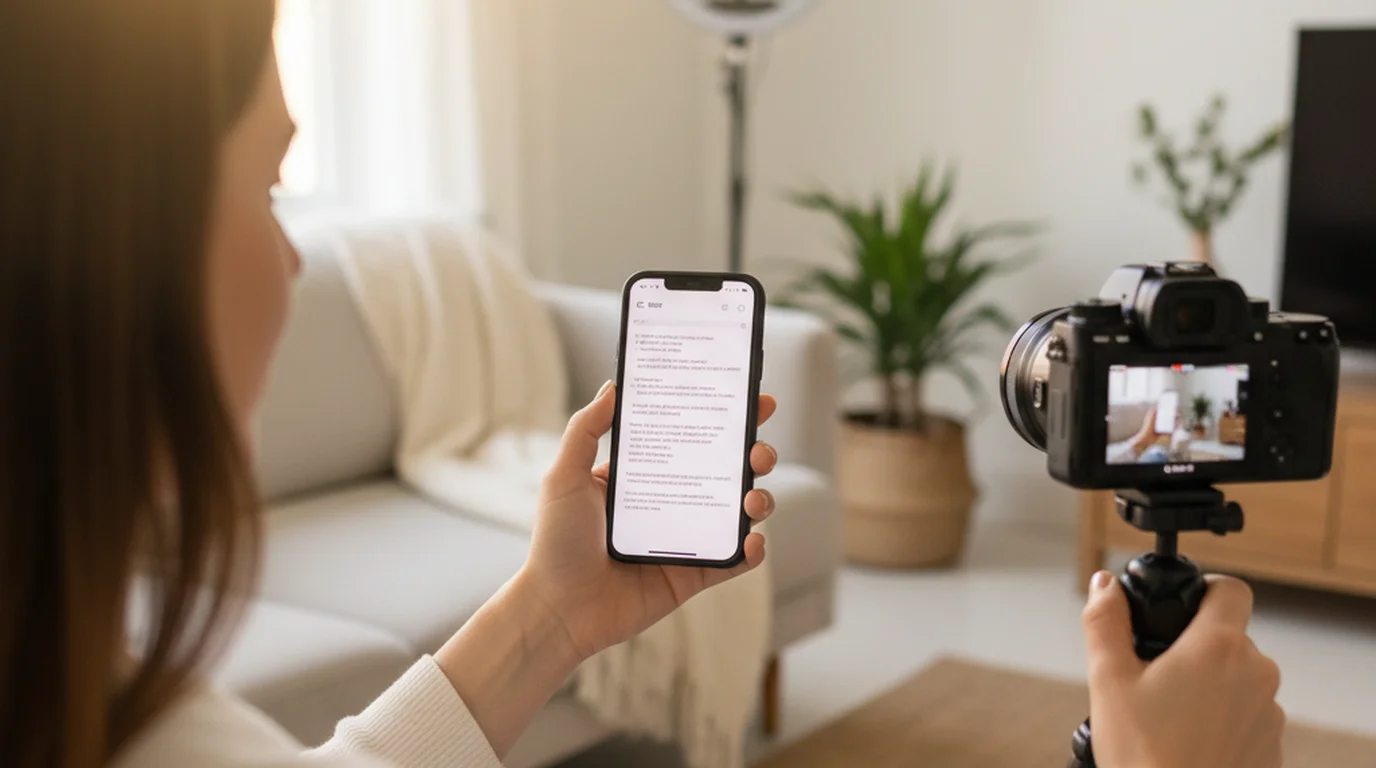
For video recordings where your camera records separately from the prompter, open it in full-screen mode on your reading device. Start the scroll, then start your camera recording. Read the scrolling text while the camera captures your delivery. Export the recording and edit as normal — the session in the browser has no effect on the recorded file.
For integrated Camera mode — where the script and the camera recording happen inside the same app simultaneously — use the native iPhone or Mac app instead. Recording mode does both in a single browser tab — script over the camera preview, recorded in place — but the scripts live only for that session.
Best settings for a free online autocue
Two settings matter most for comfortable reading: scroll speed and text size. Getting both right before you start recording saves you from retakes caused by awkward pacing.
Scroll speed should match your natural speaking pace. Most people speak between 130 and 160 words per minute in a recorded delivery. Set the speed so the text moves at roughly that rate, then do a short test read before you go live or hit record. If you are reading faster than the scroll or pausing to wait for words, adjust. A few test runs are worth the time.
Text size should be large enough to read comfortably without squinting, and without leaning toward the screen. On a laptop or desktop, a larger font than you would use in a document is appropriate — it is not a document to read closely, it is a script to glance at while speaking. Increase the size until reading feels effortless at arm's length.
Full-screen mode eliminates browser chrome — the address bar, tabs, and toolbars — and fills the display with your script. This is important for recordings where the browser UI might appear in the background, and equally important for focus. Reading in full-screen reduces visual distractions and keeps your attention on the scrolling text.
When to upgrade from a browser autocue to a native app
A free online autocue covers most basic reading and recording needs, but there are clear signals that a native app will serve you better. For a full breakdown of options, see our best autocue app complete guide.
The first signal is Camera mode. If you want to record video with the script visible on screen — not in a separate window or on a separate device — the native app is the only option. Camera mode in the iPhone app, iPad app, and Mac app displays the scrolling script over the live camera view and records both simultaneously. A browser-based prompter cannot replicate this in a single interface.
The second signal is offline use. If you record in locations without reliable Wi-Fi — on the road, in classrooms, at events — it will not load if the connection drops mid-session. The native app stores scripts locally and works with no internet connection at all.
The third signal is session frequency. If you record multiple videos per week, the friction of pasting scripts into a browser each time adds up. The native app stores all your scripts and opens them instantly. For daily or near-daily recording, the time saved across a week of sessions is meaningful.
The native app is free to download with no account required — the same zero-friction entry point as the browser tool, with the added capability of Camera mode and offline access for creators who record regularly on iPhone, iPad, or Mac.
Frequently Asked Questions
Is there a free autocue online?
Yes. teleprompter.works is a free open-source autocue that works in any browser — Chrome, Safari, Firefox — on any device. No download, no account, and no subscription required. Paste your script, set the scroll speed, and start reading.
What is an autocue online?
An autocue online is a browser-based teleprompter tool. You paste or type your script, and the text scrolls on screen at a controlled speed while you speak. "Autocue" is the British English term for teleprompter, widely used in broadcasting. Online autocue tools work on any device with a browser, including PC, Android, iPhone, and Mac.
Can I use an online autocue for video recording?
Yes. Use Recording mode at teleprompter.works/online — the script overlays the live camera in the same browser tab. Or use Camera mode in the native Teleprompter-Scrolling Scripts app on iPhone, iPad, or Mac for offline integrated recording.
What is the difference between autocue and teleprompter?
Autocue and teleprompter mean the same thing. "Teleprompter" is the American English term and refers to the device that scrolls text for a speaker to read. "Autocue" is the British English equivalent. The original Autocue was a brand name, similar to how "Teleprompter" was originally a brand. Today both terms describe any system that scrolls a script on screen.
Wendy ZhangWendy Zhang is the indie developer behind Teleprompter-Scrolling Scripts, which she built after cycling through teleprompter apps that were too heavy, too expensive, or dependent on a network connection to open. She writes about the mechanics of recording yourself — scroll pacing, script formatting, and the app decisions that decide whether a take survives.
Try the free autocue online — or download the native app
Use the free browser teleprompter at teleprompter.works right now — no account, no download. Or get the native app for iPhone, iPad, and Mac for Camera mode and offline use.
Use Free Online Teleprompter Get the Free App