Best Free Autocue App for Android: Browser-Based Options That Work
 Wendy Zhang · May 21, 2026 · 7 min read

If you have been searching for an autocue app for Android, you have probably already noticed that the options are thin compared to iOS. "Autocue" is the British English term for teleprompter — the scrolling script display used by broadcasters, speakers, and video creators to deliver content naturally without memorizing lines. On Android, the native app ecosystem for autocue is limited and what does exist tends to sit behind paywalls. The most practical and genuinely free solution is not a Play Store app at all — it is a web autocue that loads in Chrome on any Android device.
The best free autocue app for Android is the web autocue at teleprompter.works/online. It runs in Chrome (or Samsung Internet, or Firefox) on any Android phone or tablet — no download, no account, no payment. This guide covers how to set it up, what you can and cannot do compared to the native iOS app, and how to use it effectively for rehearsal, speeches, and recording alongside a camera. Android tablets do not need an install at all — the online autocue works in the mobile browser.
Android is only one of the platforms worth comparing — the complete guide to free autocue apps covers iPhone, iPad, Mac, and browser options side by side.
What "autocue" means and why Android users are searching for it
The word "autocue" comes from the broadcast industry. Autocue Ltd was a British company that manufactured the professional teleprompter hardware used in television studios — the glass-and-mirror rigs that sit in front of broadcast cameras and display the presenter's script. Because the Autocue brand dominated the UK market, British English speakers adopted "autocue" as the generic term for any scrolling script display. It means exactly the same thing as "teleprompter": software or hardware that scrolls your script at a controlled pace so you can deliver it naturally to a camera or audience.
Searches for "autocue app for Android" come primarily from UK and Commonwealth English speakers — the same people who say "maths" instead of "math" and "mobile" instead of "cell phone." They are looking for precisely what iOS users in North America call a teleprompter app. The functionality is identical: a scrolling script that replaces memory work and lets you deliver prepared content with natural eye contact and confident pacing.
On Android, the demand is real. Android holds the majority of the global smartphone market, and creators, coaches, teachers, journalists, and public speakers all use Android devices. The gap in the market is partly why the web autocue option has become the practical default for Android users who want a free, no-friction tool.
"Autocue" is the British English term for teleprompter. Both refer to a scrolling script display used by speakers and video creators to deliver content naturally to camera. On Android, the best free autocue is a browser-based web app — no Play Store installation required.
Why there is no native Android autocue app — and what to use instead
Teleprompter-Scrolling Scripts is a native app built for iPhone, iPad, and Mac using Apple's development platform. Building and maintaining a high-quality native Android app in parallel is a significant engineering commitment, and for an indie developer, iOS first is the typical path. That is the honest answer: no native Android app exists right now.
What does exist is the free web autocue at teleprompter.works/online. This is a browser-based tool, not a watered-down placeholder — it provides genuine script scrolling with adjustable speed and text size, and it is designed to work properly on mobile screens including Android. Because it runs entirely in the browser, there is nothing to install, no account to create, and no payment involved at any point.
Chrome on Android handles the web autocue well. The page is responsive, full-screen mode works correctly, and the touch controls for adjusting scroll speed work as expected on Android's touch interface. Samsung Internet and Firefox on Android also work. If you have a mid-range or better Android phone from the last three to four years, the experience will be smooth.
For Android users who want to understand the full native feature set available on iOS, see the overview of Android teleprompter options — it covers the broader landscape including Play Store apps and their limitations.
How to use the web autocue on Android: step-by-step setup
Setting up the web autocue on an Android device takes about two minutes the first time. Open Chrome — or whichever browser you prefer — and navigate to teleprompter.works/online. The page loads without any sign-in prompt or paywall. You land directly on the autocue interface.
Paste your script into the text area. The input field accepts plain text from any source — Google Docs, Notes, a messaging app, or typed directly. There is no word limit. Once your script is in, adjust two settings before you start: scroll speed and font size. Scroll speed controls how fast the text advances — start around the middle of the range and test it against your natural reading pace. Font size should be large enough to read comfortably at arm's length without squinting. For most Android phones, 40–50pt is a good starting point in portrait orientation.
Tap the full-screen button before you begin your session. This removes the browser chrome — the address bar, navigation buttons, and any notification bars — and gives you the maximum amount of screen devoted to your script. On Android, you may also want to enable "Do Not Disturb" mode before a long session to prevent incoming call or message notifications from interrupting a rehearsal.
To control the scroll during your session: tap the screen once to pause, tap again to resume. Speed adjustments can be made with the on-screen controls. If you are using the autocue for a live speech or rehearsal and want hands-free control, position the phone on a stand or prop it against a surface, start the scroll before you begin speaking, and let it run. Most speakers find it takes two or three run-throughs to calibrate the speed to their natural delivery pace.
What Android users miss compared to the native iOS app
Being honest about the limitations of the web autocue on Android is more useful than pretending the browser version and the native iOS app are equivalent — they are not, and the main gap is Camera mode.
On iPhone and iPad, the native Teleprompter-Scrolling Scripts app includes Camera mode: a recording interface that activates the device camera and overlays your scrolling script on the live camera preview. You see yourself and your script simultaneously. When you are done, the recorded video file saves to your Photos library — without the script text burned in. This is the mode that enables single-device recording: one iPhone, one take, script visible while recording. It is the core feature for TikTok, Reels, Shorts, and any short-form content where the creator is also the camera operator.
Recording mode is available in the browser version: it overlays the script on the camera preview and records the take in the tab, then hands you the file. What the browser cannot do is keep your scripts between sessions or open without a connection — those stay native-app capabilities. This is a real limitation, not a marketing distinction.
What the web autocue does fully support on Android is Prompter mode: scrolling text only, no camera. This covers a substantial portion of real-world autocue use — rehearsal sessions before recording, live speeches and presentations, scripts for Zoom or Google Meet calls, and reading alongside an external camera or second device. If your workflow involves any device other than the Android phone itself doing the recording, Prompter mode on the web autocue is a complete solution.
Setting up Android autocue for video recording
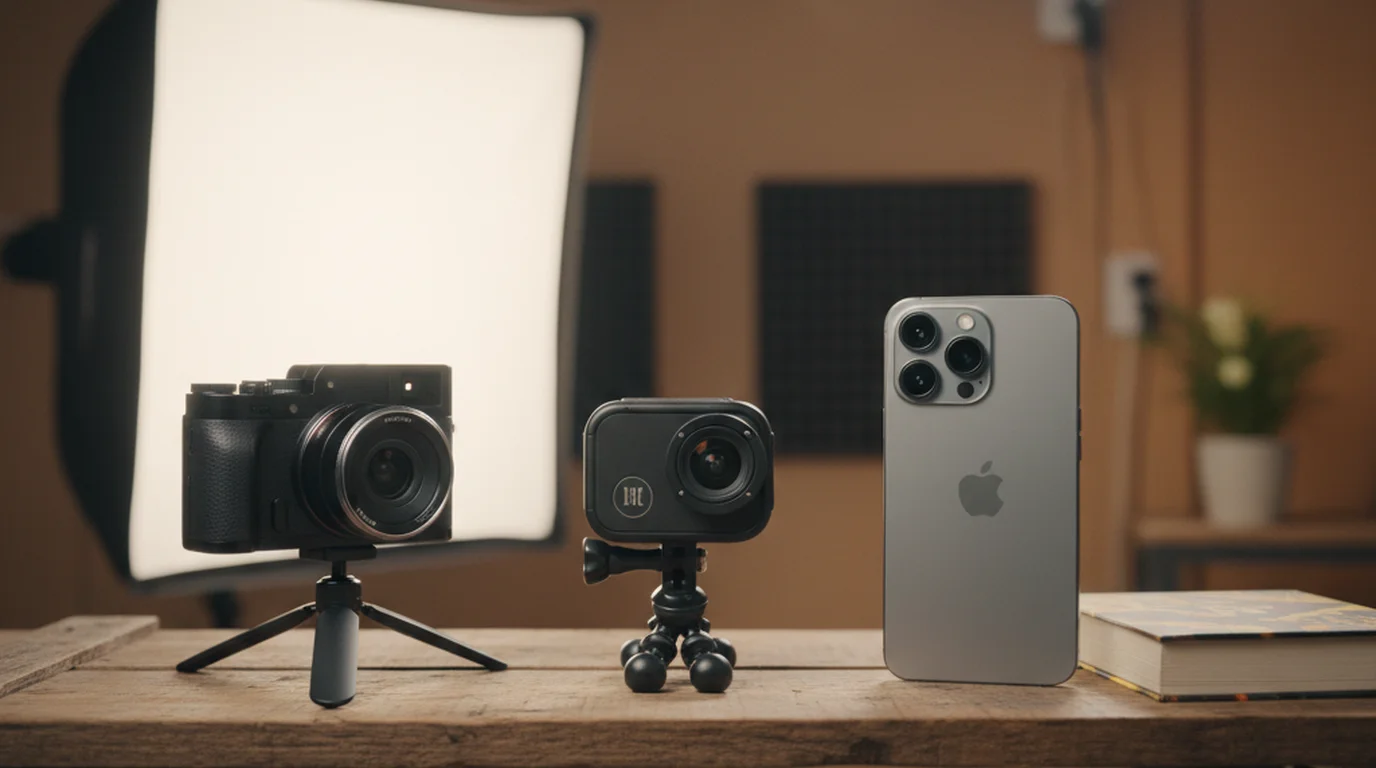
If you want to use your Android phone as an autocue while recording video, the approach is to use the Android device purely as the script display and have a separate device handle the recording. This is a practical two-device setup that many creators already use — a dedicated camera or a second phone recording from a fixed position while the autocue runs on the primary device.
The setup works like this. Position your recording device — a camera, a second smartphone, or a laptop webcam — aimed at your face. Then position the Android phone running the web autocue at teleprompter.works/online as close to the recording camera lens as physically possible, ideally at the same height. The goal is to minimize the angle between where you look to read the script and where the recording camera is pointing. The smaller that angle, the more natural the eye contact in the final video looks.
For seated recording setups — a desk, a home studio — a phone stand or small tripod is worth using to hold the Android autocue steady at camera height. A phone propped against a mug works in a pinch but tends to slip during a long session. Keep the Android screen brightness at maximum so the text remains readable if any ambient light is present.
Start the scroll on the Android autocue, wait two to three seconds, then start your recording on the separate device. This buffer gives the autocue a moment to get to full speed before you begin speaking. At the end of your take, finish speaking, pause the scroll, then stop the recording. This sequence ensures the autocue is running cleanly through your entire delivery.
If you are an iOS user looking for the single-device recording experience — Camera mode with script overlay in the same app — the native iPhone app or iPad app is worth downloading. It is free from the App Store and available on any iPhone or iPad running a recent iOS version.
Free vs. paid Android autocue apps in the Play Store
There are autocue and teleprompter apps in the Google Play Store, and a few of them have reasonable download counts. The pattern across most of them follows the same playbook: free to install, functional for a brief trial or basic use, then a subscription prompt for anything beyond the minimal feature set. Understanding what that means in practice helps you decide whether any of them are worth the friction.
Common restrictions in paid Android autocue apps include: script length limits in the free tier (often capped at a few hundred words), scroll speed control locked behind a subscription, no ability to save multiple scripts without paying, and watermarks on any video recorded through the app. Some apps use a seven-day or fourteen-day free trial that then converts to a monthly charge — the charge appears on your Play Store billing after the trial, often without a prominent reminder. Others use a credit or session model where free accounts get a fixed number of uses per week.
The web autocue at teleprompter.works/online has none of these restrictions. There is no script length cap, no speed restriction, no account, no trial period, and no payment at any point. The entire tool is free because it is the browser companion to a native iOS and Mac app — it exists to serve the use cases that the native app cannot reach, including Android. If you are on Android and want a completely free autocue with no gotchas, the web version is the straightforward answer.
If you specifically need Camera mode — the ability to record video with the script overlaid — and you are using an Android phone as your primary device, a paid Play Store app may be the route. Evaluate the subscription cost against how frequently you use Camera mode. For occasional recording, the two-device setup described in the previous section avoids the ongoing subscription cost entirely.
Tips for getting the best results from the Android web autocue
The web autocue on Android works well out of the box, but a few practical adjustments make a meaningful difference to the experience. The first is full-screen mode, already mentioned — always enable it before a session. The second is scroll speed calibration, which takes a few minutes the first time but pays off in every subsequent session.
To calibrate scroll speed: open the web autocue, paste your script, and run through the first two to three paragraphs at what feels like your natural speaking pace. Do not try to match the scroll — just speak. Then adjust the speed up or down until the scroll roughly tracks your delivery. A speed that is slightly slower than your fastest pace is almost always better than one that is slightly faster. Running behind the scroll forces rushed delivery; running slightly ahead of the scroll means natural pauses land on completed lines rather than mid-sentence, which is much easier to manage.
For speeches and presentations where you cannot look at a phone in your hand, consider using a tablet-sized Android device on a stand at lectern height, or placing the phone on a music stand or podium holder. The larger screen of an Android tablet running the web autocue in landscape orientation gives you more text visible at once, which reduces the amount of time your eyes spend tracking the scroll rather than facing your audience.
For Zoom or Google Meet calls on a laptop, open the web autocue on your Android phone and position the phone beside or just above the laptop screen near the webcam. Prompter mode on the phone gives you a clean, distraction-free script display without cluttering your laptop screen. This setup is cleaner than running the autocue in a browser tab on the same machine you are using for the call, where accidental window switching can expose the tab to other call participants.
Frequently Asked Questions
What is the best free autocue app for Android?
The best free autocue app for Android is the web autocue at teleprompter.works/online. It runs in Chrome on Android with no download and no account required. Paste your script, adjust speed and text size, and use full-screen mode for a clean reading experience. It works on any Android phone or tablet at no cost.
Does Android have a native autocue app?
There is no native Android version of Teleprompter-Scrolling Scripts — the native app is available on iPhone, iPad, and Mac only. Android users get the best free experience through the web autocue at teleprompter.works/online, which works in any Android browser without installation. Some third-party autocue apps exist in the Play Store, but most restrict core features behind a subscription.
Can I use an autocue on Android without downloading an app?
Yes. Open Chrome on your Android device and go to teleprompter.works/online. The web autocue loads instantly — no download, no account, no sign-in required. Paste your script, set your scroll speed and font size, then tap the full-screen button. The page works in any modern Android browser including Chrome, Samsung Internet, and Firefox.
What is an autocue on Android for video recording?
An autocue on Android for video recording displays your scrolling script on the Android screen while a separate device or camera records you. Open teleprompter.works/online on your Android phone, paste your script, and position the phone next to your recording camera. Read the scrolling text while the camera captures your delivery — no camera mode required on the Android device. This works for YouTube, social media, interviews, or any professional recording scenario.
Wendy ZhangWendy Zhang is the indie developer behind Teleprompter-Scrolling Scripts, which she built after cycling through teleprompter apps that were too heavy, too expensive, or dependent on a network connection to open. She writes about the mechanics of recording yourself — scroll pacing, script formatting, and the app decisions that decide whether a take survives.
Start using the free Android autocue now
Open Chrome on your Android device and go to teleprompter.works/online — no download, no account, no payment. On iPhone, iPad, or Mac, download the native app free from the App Store.
Use Free Online Teleprompter Get the Free App