What is a teleprompter app?
A teleprompter app is software that displays your script on a phone, tablet, or computer and scrolls the text at a pace you control while you speak. It removes the need to memorize every line, so you can focus on delivery instead of recall. Teleprompter-Scrolling Scripts is a free teleprompter app for iPhone, iPad, and Mac with two modes: Prompter mode for text-only reading and Camera mode for recording video with a live script overlay.
What a teleprompter app does
A teleprompter app turns your device screen into a scrolling script display. You type or paste your text, set a reading speed, and press play. The words move up the screen at the pace you choose, so you can read continuously without looking down at notes or stopping to remember what comes next.
The result is a delivery that sounds prepared but natural. You control the words, the pace, and the structure before you start speaking. The app handles the scrolling so you can give your full attention to tone, expression, and presence.
Teleprompter-Scrolling Scripts is local-first, meaning scripts are stored on your device. There is no account to create, no browser tab to keep open, and no internet connection required to run a session. It works on iPhone, iPad, and Mac.
Physical teleprompter vs. teleprompter app
A physical teleprompter is a dedicated piece of hardware. It typically uses a half-silvered mirror mounted in front of a camera lens. A separate display reflects text onto the mirror so the speaker can read while looking directly into the lens. Broadcast studios, political speechmakers, and large event productions use this setup. The equipment costs hundreds to thousands of dollars and requires a separate operator in professional settings.
A teleprompter app replaces all of that with software on a device you already own. There is no mirror, no dedicated camera mount, and no additional hardware required. For individual creators, educators, coaches, and founders, a teleprompter app delivers the same core benefit — reading a script while facing a camera — at no cost beyond the device you already carry. Camera mode in Teleprompter-Scrolling Scripts places the text directly over the live camera view, producing a similar eye-line effect without any extra equipment.
How teleprompter apps work: the scroll mechanism
The scroll mechanism in a teleprompter app is straightforward. Your script is displayed in a text area on screen. When you start a session, the text moves upward at a constant speed you have set in advance. As each line rises past a fixed reading position — usually the center or upper portion of the screen — you read it aloud. The next line appears below it, and the previous line disappears above.
The scroll speed is expressed as a relative value, not a fixed words-per-minute number, because the visible line count depends on your text size and text area size. A wider text area with smaller font shows more words per line and may feel faster. A narrow area with large text shows fewer words and may feel slower even at the same numeric setting. The practical method is to set a starting speed, run a short test, watch the result, and adjust from there.
In Teleprompter-Scrolling Scripts, you can also pause scrolling or manually move the script up or down at any point during a session. This means a missed line or unexpected pause does not ruin the take — you can hold the script, catch up, and continue.
Prompter mode: reading without recording
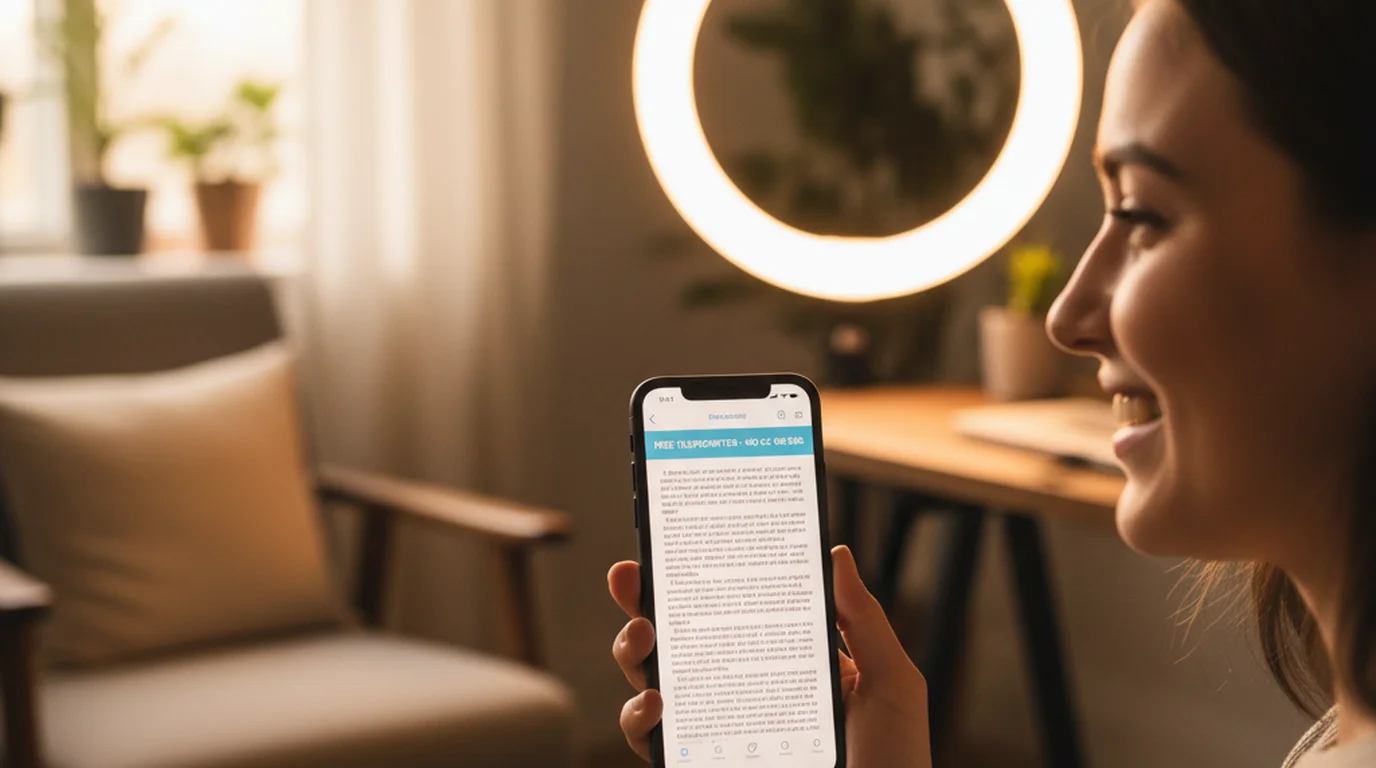
Prompter mode is the text-only mode. It displays your script and scrolls it on screen without activating the camera. Nothing is recorded in Prompter mode — it is purely a reading display.
This mode is useful for a wide range of situations beyond video production. Rehearsing a speech before a live event, practicing a lesson before teaching it, reading notes during a live presentation, and running through a podcast intro before pressing record are all good uses of Prompter mode. If you are using a separate camera, a DSLR, or a webcam to record, Prompter mode lets your iPhone, iPad, or Mac serve as the script display while another device handles the video.
Prompter mode is also the right choice when you want to practice without any recording pressure. You can run the script multiple times, adjust the text, and change the speed without creating video files.
Camera mode: recording while reading
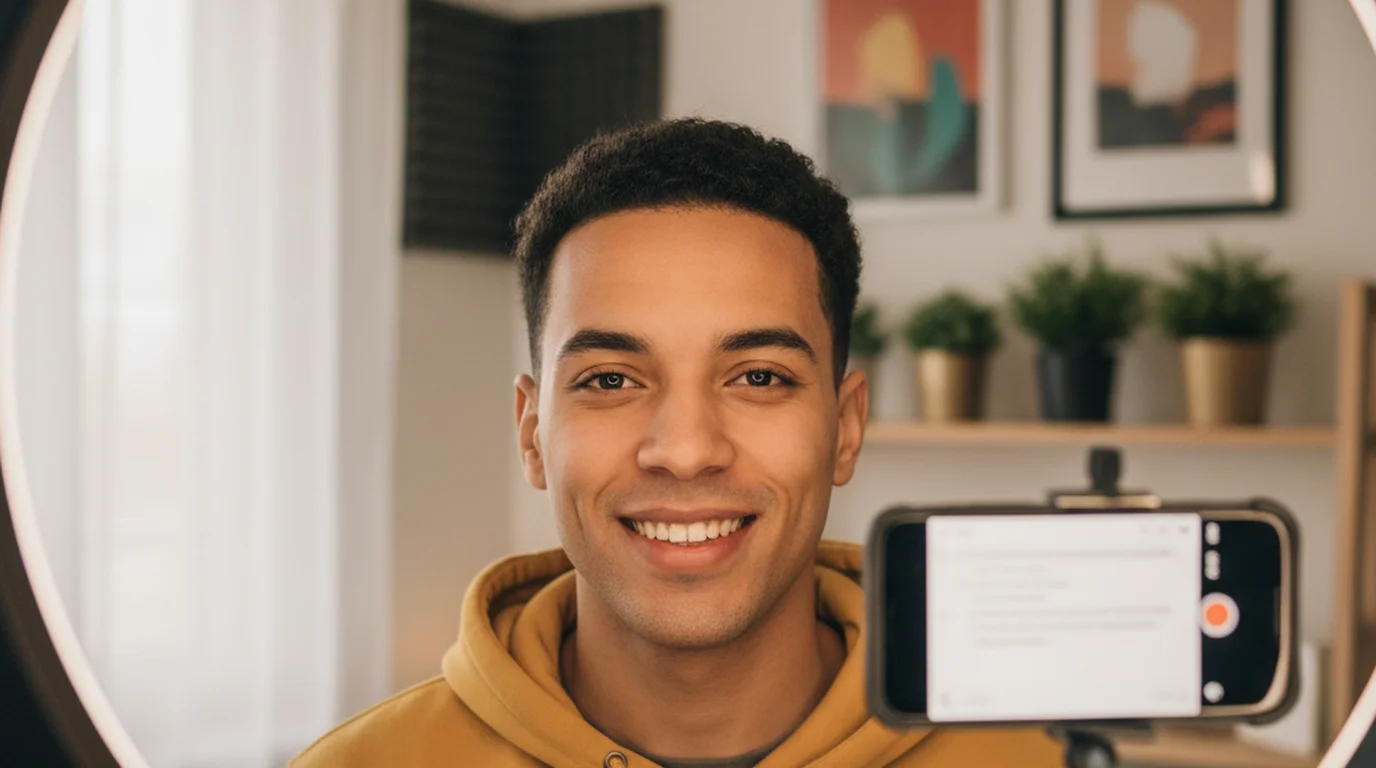
Camera mode opens the built-in camera on your iPhone, iPad, or Mac and places the teleprompter script on top of the live camera view. You can see the camera feed behind the text, read as the script scrolls, and record the video inside the same app. The text is a screen overlay — it appears during recording but is not burned into the video file.
This is the mode that most closely replicates a professional teleprompter setup. You face the camera, read the script, and record in one step. Camera mode supports pausing and manual script movement during a take, so you can hold a moment, re-read a line, or extend a pause without stopping the recording. On iPhone and iPad, both front and back cameras are supported where the device provides them. On Mac, Camera mode works with the built-in FaceTime camera.
Who uses teleprompter apps
The people who benefit most from a teleprompter app are those who speak on camera regularly and want their delivery to be consistent, clear, and on-message without spending extra takes on forgotten lines.
Creators use teleprompter apps for YouTube videos, short-form clips, course content, and paid promotions where a precise script is required. Educators use them for online course recordings, lecture videos, and recorded lessons where the material needs to be accurate and complete. Coaches use them for training videos, introductory content, and onboarding recordings. Founders use them for product demo videos, investor pitches, and explainer content where every word carries weight. Podcasters use Prompter mode for intros, sponsor reads, and scripted segments. Professionals preparing presentations or speeches use Prompter mode to rehearse without a printed script.
A teleprompter app is less useful when the content is entirely improvised or when a short bullet list is sufficient. The core use case is a prepared script that needs to sound natural and be delivered accurately on camera.
Getting started on iPhone, iPad, or Mac
Teleprompter-Scrolling Scripts is free to download on the App Store and works on iPhone, iPad, and Mac. There is no account required and no subscription. Scripts are stored locally on your device.
To get started, open the app and create a new script. Paste or type the text you want to read. Adjust the text size until it is comfortable to read at your normal recording distance. Set an initial scroll speed slightly slower than your normal speaking pace. Choose Prompter mode if you are reading without recording, or Camera mode if you want to record inside the app. Run a 20-second test, watch the result, and adjust the text area position and scroll speed before doing the full take.
On iPhone, a narrow two-to-three line text area positioned near the top of the screen works well for front-facing camera recordings. On iPad, a larger text area is comfortable for long scripts and lesson recordings. On Mac, the text area can be positioned to sit close to the built-in camera for better eye-line. If you use a free teleprompter online, the same principles apply — but a native app removes browser dependency and keeps your scripts private on-device.
Teleprompter-Scrolling Scripts is free on the App Store. Use Prompter mode to rehearse or read scripts hands-free, or switch to Camera mode to record video with a live script overlay — on iPhone, iPad, or Mac.
Use Free Online Teleprompter Get the Free App