Free Teleprompter App: Complete Guide for Natural Recording
 Wendy Zhang · May 14, 2026 · 9 min read
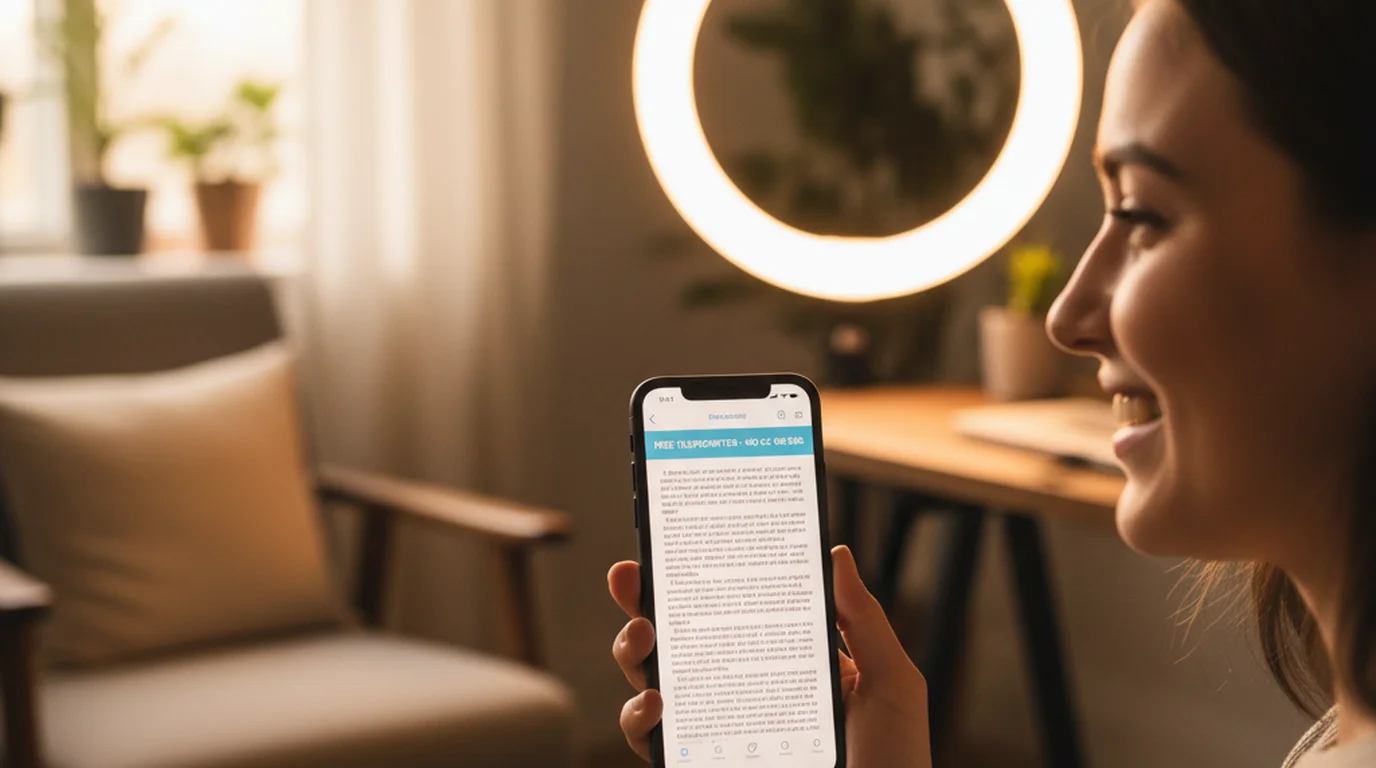
You don't need to memorize your script to sound natural on camera. A good free teleprompter app puts the words where your eyes already look, scrolls at the pace you speak, and stays out of the way so the viewer sees a confident presenter — not someone who is clearly reading. This guide covers what actually makes a free teleprompter app worth using in 2026, and how to set it up for TikTok, YouTube, Instagram Reels, podcasting, coaching, and online courses across iPhone, iPad, and Mac.
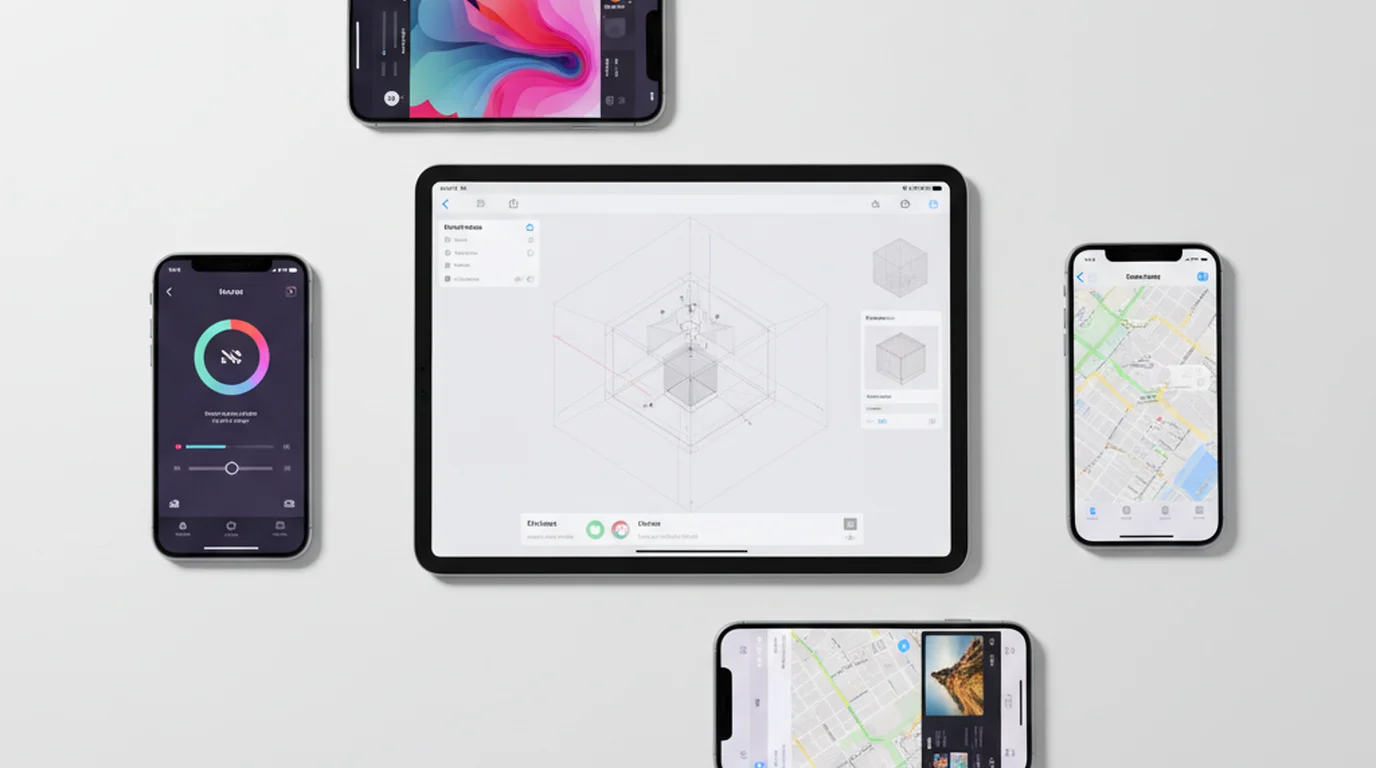
Teleprompter-Scrolling Scripts is a free teleprompter app that works natively on iPhone, iPad, and Mac. Scripts are stored locally on your device, so the app works whether you have Wi-Fi or not. Camera mode overlays your script on the live camera view for recording, and Prompter mode keeps the script visible while you use a separate camera or appear on a call.
What makes the best free teleprompter app in 2026
Most free teleprompter apps fail in one of two directions: they do too much and bury the basic prompting function under subscription upsells, or they do too little and leave you with no way to control the scroll mid-take. The useful benchmark is simple — does the app let you read a script, control the scroll, and keep your eyes close to the camera without paying a monthly fee? The teleprompter has operated on this same principle since its invention in 1950s broadcast television — readable text positioned close to the camera lens so the speaker appears to look directly at the audience.
In 2026 that benchmark also includes one more requirement: the app has to work without an internet connection. Creators record in borrowed classrooms, hotel rooms, borrowed studios, outdoor locations, and event venues where the Wi-Fi is unreliable or locked. A free teleprompter app that depends on a live browser session or a cloud sync is not reliable enough to build a recording habit around.
Teleprompter-Scrolling Scripts is built local-first by design. Scripts are saved directly on your device. When you open the app, your scripts are already there — no login, no reload, no waiting for a sync. That reliability is what separates a tool you use once from one you use every time you record.
The practical test for any free teleprompter app: open it in a place with no signal, load a script, and start recording. If it works without hesitation, it belongs in your kit. If it stalls or asks for a connection, it will cost you takes when it matters most.
Free teleprompter app for iPhone: vertical video and Reels
iPhone is the fastest recording setup for most creators. The camera is always with you, the quality is more than good enough for TikTok, Instagram Reels, and YouTube Shorts, and the setup time from idea to first take is measured in seconds rather than minutes. A free teleprompter app for iPhone should match that speed.
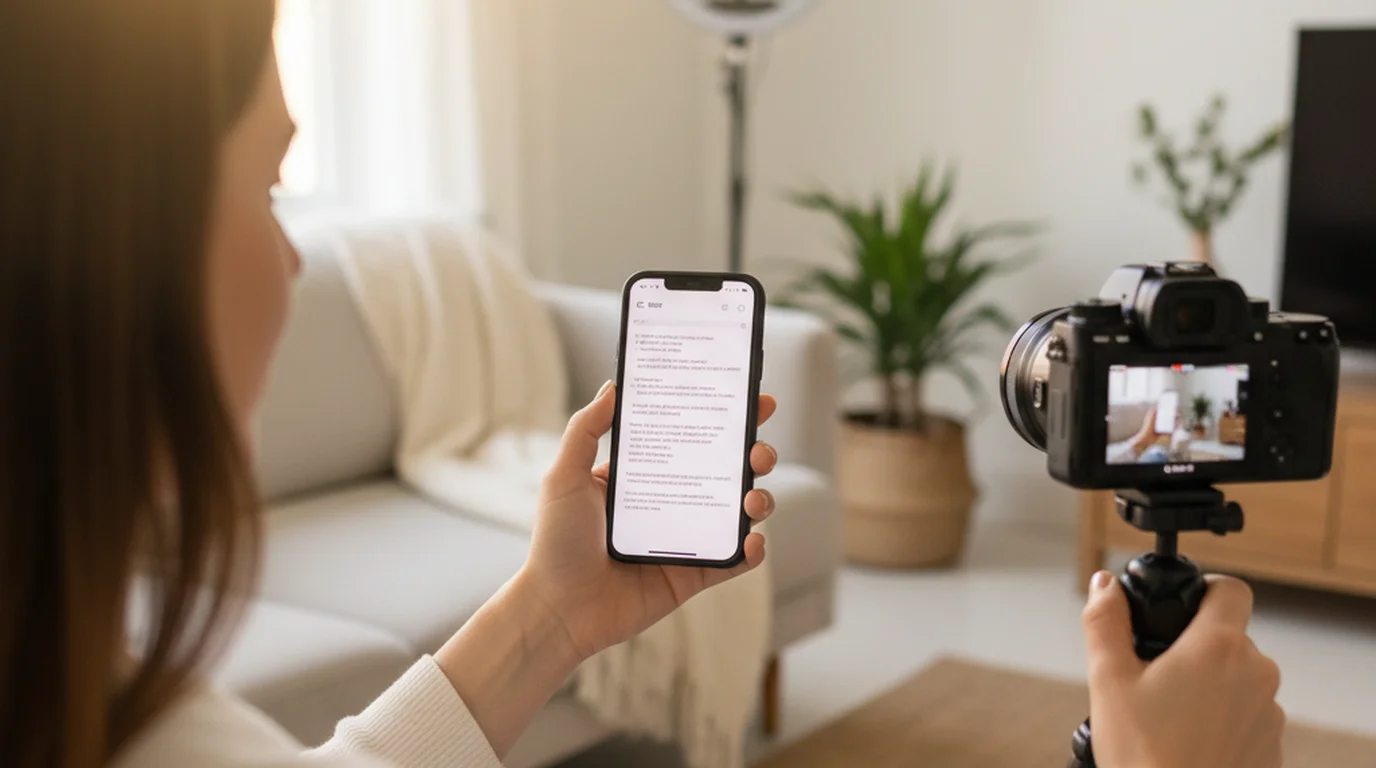
Camera mode in Teleprompter-Scrolling Scripts overlays your scrolling script directly on the live camera view. You read and record at the same time — no second screen, no phone propped against a cup. For vertical video, set the text area to a narrow 2–3 line band near the top of the screen, close to the front lens. That small adjustment is the difference between a presenter who looks straight at the audience and one who clearly looks up at a script every few words.
For TikTok and Reels, shoot in portrait orientation so the video fills the full screen. Keep the font large enough to read at arm's length — most creators land between 40 and 52pt depending on their phone model. For YouTube vlogs in landscape, a slightly wider text band works well because the camera is farther from your reading line.
Use the front camera for talking-head videos where eye contact with the viewer matters most. Switch to the back camera when you are narrating a demo, walking through a product, or shooting B-roll commentary — the back camera captures sharper detail while the script keeps your narration tight. Check the FAQs for tips on getting camera mode set up for the first time.
Free teleprompter app for iPad: long scripts and online courses
iPad is the better choice when the script is long. Course modules, educational explainers, webinar presentations, and coaching sessions often run five to fifteen minutes per segment. On a phone screen, that length means the text scrolls fast and the reading area feels compressed. On an iPad teleprompter app, the larger canvas gives the script room, the font can be bigger without cutting off every line, and the presenter's reading distance is more comfortable.
There are two practical setups. The first is to record directly in the app on iPad — Camera mode uses the iPad camera and overlays the script. This works well for stationary course videos where the iPad is on a stand. The second setup is to use the iPad as a dedicated prompter display while a separate camera records. In Prompter mode, the script scrolls on the iPad screen while your DSLR, mirrorless, or iPhone records from a tripod or stand beside it. Many educators and coaches prefer this because the external camera produces cleaner footage.
For widescreen course videos in landscape, position the iPad directly below or beside the recording camera and set the font large enough to read without leaning forward. For portrait lessons and direct-to-camera coaching content, portrait mode keeps the reading experience close to how the viewer will watch — full vertical attention on the speaker.
Free teleprompter for Mac: Zoom calls, desk recording, and YouTube
The free teleprompter for Mac solves a different problem than mobile. On a phone or tablet, you are usually recording alone. On a Mac, you might be recording a YouTube video at your desk, hosting a Zoom call, running a Teams webinar, or going live on a streaming platform. In all of those contexts, you need the script visible on your screen without it interfering with the call window, the camera feed, or the editing software open in the background.
Prompter mode on Mac keeps your talking points visible in a floating window you can position anywhere. During Zoom calls or live sessions, you can glance at the script between answers without closing your camera view or switching apps. This is especially useful for coaches and educators who run structured sessions and need to stay on topic without memorizing every point.
Camera mode on Mac is the better choice for standalone desk recording — YouTube tutorials, educational explainers, product walkthroughs, and talking-head videos where your Mac webcam or an attached camera does the recording. The script overlays the camera preview so you can record and read in one pass.
Teleprompter-Scrolling Scripts is free to download on the Mac App Store. There is no monthly subscription to read a script at your desk. That matters because the free tier of many competing tools either watermarks your video, limits how long a script you can load, or requires a login before every session. None of those restrictions exist here. If you prefer not to install anything at all, the online teleprompter runs in any browser with no download required.
Features that actually matter in a free teleprompter app
Every teleprompter app lists features. Most of them are noise. Here are the six that actually change how your recordings come out:
- Adjustable scroll speed: Start at a pace slightly slower than you naturally speak. Speed creates pressure; pressure creates stumbles. Build up only after your first rehearsal take feels too slow. Most creators end up at a pace they would describe as "almost too slow" when they are reading and "just right" when they watch the playback.
- Text area position: Place the reading area as close to the lens as possible. On iPhone, that means near the top of the screen for front-camera use. On Mac, it means near the top center of the display. Every centimeter between the script and the lens shows up as visible eye movement in the finished video.
- Text size and contrast: Large enough to read at your actual recording distance without squinting. High enough contrast to be visible in bright room lighting. Test with the room lights on, not with the screen at maximum brightness in a dark room.
- Pause and manual control: Recorded takes are not live broadcasts. You will need to stop, reread a sentence, and continue. A free teleprompter app without manual pause control forces you to restart the scroll from the beginning every time you stumble.
- Offline and local script storage: Covered above — this is a reliability requirement, not a nice-to-have.
- Camera integration: The ability to record video inside the app means one fewer app switch in your recording workflow. Camera mode in Teleprompter-Scrolling Scripts handles both the script and the recording in the same session.
Watch out for free apps that watermark your video output, require account creation before you can load a script, or use auto-scroll without a pause button. Those three friction points will cost you more time than the feature list saves.
How to set up a free teleprompter app for natural delivery
Setup takes about five minutes the first time. After that, your settings are saved and each recording session starts from where you left off. Here is the exact workflow:
- Write your script in short paragraphs. Three to four sentences per paragraph is the practical limit. Longer blocks feel like walls when you are reading under pressure. Short paragraphs give you natural pause points between ideas.
- Open the app and create a new script. Paste or type directly. Keep formatting simple — no bullet points in scripts you are going to speak aloud. Bullets interrupt rhythm.
- Choose your mode. Camera mode for recording inside the app. Prompter mode if you are using a separate camera or appearing on a call.
- Position the text area near your camera lens. On iPhone, drag the text band toward the front camera. On Mac, position the window near the top of your screen close to the webcam. Even a few centimeters matters.
- Set font size for your actual recording distance. Stand or sit at the distance you will be from the screen when recording. Increase the font until you can read comfortably without leaning in. Most people underestimate how large the text needs to be.
- Set scroll speed slightly slower than your speaking pace. If it feels too slow when you read silently, it is probably right for speaking aloud. Speech is slower than silent reading.
- Record one rehearsal take. Do not watch it for performance — watch only the eye line. Are your eyes steady, or do they drift? If they drift, move the text area closer to the lens.
- Record the final take. Leave a half-second pause at the end of each paragraph. That breathing room makes editing easier and gives your delivery a natural, unhurried rhythm.
The goal is not to eliminate retakes entirely. It is to reduce them to one or two takes per segment instead of ten. A well-configured free teleprompter app makes that achievable even for new creators.
Frequently Asked Questions
Is there a truly free teleprompter app without watermarks?
Yes. Teleprompter-Scrolling Scripts is free to download on the App Store and does not add watermarks to your video. The core prompting and Camera mode recording features are available without a paid subscription.
Does a free teleprompter app work on iPhone and Mac?
Yes. Teleprompter-Scrolling Scripts runs natively on iPhone, iPad, and Mac through one App Store download. You use the same app and the same scripts across all three devices without separate accounts or syncing steps.
Can I record video with a free teleprompter app?
Yes. Camera mode overlays your scrolling script on the live camera view on iPhone and Mac, so you can record video and read your script at the same time inside the app. No second screen or second app is needed.
Does the free version require an internet connection?
No. Scripts are stored locally on your device so the app works without Wi-Fi or cellular data. This is useful for recording in classrooms, events, hotel rooms, or any location where the internet connection is unreliable.
Wendy ZhangWendy Zhang is the indie developer behind Teleprompter-Scrolling Scripts, which she built after cycling through teleprompter apps that were too heavy, too expensive, or dependent on a network connection to open. She writes about the mechanics of recording yourself — scroll pacing, script formatting, and the app decisions that decide whether a take survives.
Record more naturally with Teleprompter-Scrolling Scripts
Free teleprompter app for iPhone, iPad, and Mac. No watermarks, no subscription, no internet required. Adjust text position, font size, and scroll speed to match your recording setup.
Use Free Online Teleprompter Get the Free App