Best teleprompter app for video recording
This is a quick-answer overview. For the complete guide, see Best Teleprompter App for Video Recording — Guide.
The best teleprompter app for video recording does three things well: it overlays your script on a live camera view so you can record without a second device, it lets you control text size and scroll speed until your delivery feels natural, and it keeps your scripts stored locally so you can work anywhere. Teleprompter-Scrolling Scripts is free on the App Store and covers all three on iPhone, iPad, and Mac.
What separates a great teleprompter app from a basic one
Most teleprompter apps can scroll text. The difference shows up when you are actually recording. A basic app gives you a scrolling window and nothing else. A great teleprompter app lets you control where the text sits on screen, how fast it moves, how large the words appear, and whether the camera is built into the same session or requires a separate device.
For video recording specifically, the gap matters most at three points: setting up the shot, running the take, and reviewing the result. If the text is in the wrong place or the scroll speed is off, you notice immediately on playback. The best teleprompter app for video recording makes those adjustments fast and keeps them saved so the next session starts from where you left off.
Two other factors separate good apps from basic ones: offline access and device flexibility. An app that requires a browser tab or a cloud sync adds friction. Scripts should be available the moment you open the app, regardless of signal strength.
Camera mode: the must-have feature for video recording
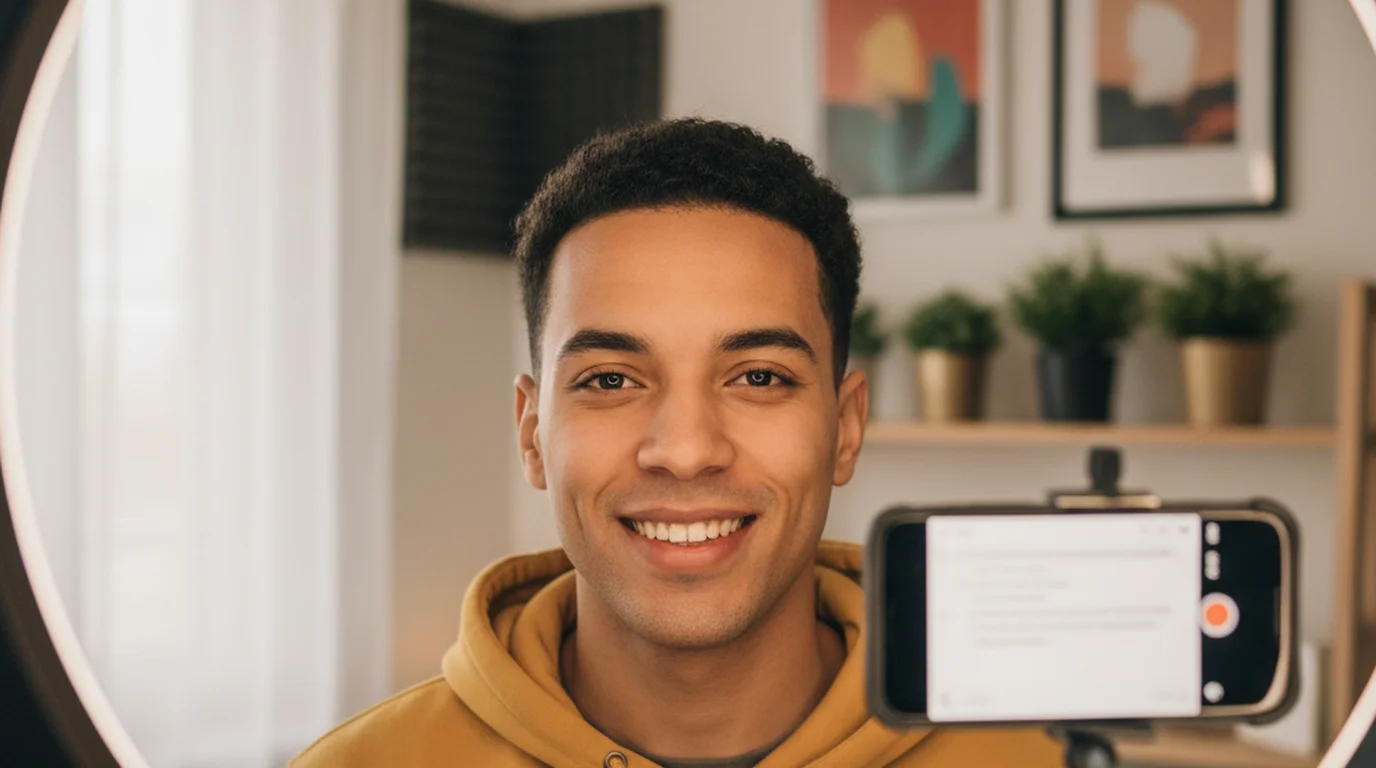
Camera mode is the feature that defines a video-recording teleprompter app. It opens the device's built-in camera and overlays the scrolling script directly on the live camera view. You read while the camera records — no second device required, no external hardware, no switching between apps mid-take.
Without Camera mode, using a teleprompter for video recording means either propping a second phone nearby to read from while your main device records, or reading from a laptop screen while a camera sits elsewhere. Both approaches compromise eye contact and add setup time.
In Teleprompter-Scrolling Scripts, Camera mode supports front and back cameras on iPhone and iPad, portrait and landscape orientations, and manual scroll pause so you can hold a moment mid-take without stopping the recording. On Mac, Camera mode works with the built-in webcam for desk recordings, calls, and screen-facing sessions.
Prompter mode — the text-only mode — is available when you want a clean scrolling display without recording. Use it for rehearsal, speeches, or when a separate camera is handling the video. But for any session where the same device records and prompts, Camera mode is the right choice.
Script management: local-first vs. cloud-based
Cloud-based teleprompter apps store scripts on a server. That means you need an account, an internet connection, and a working sync before you can read. For creators who record in studios, at home desks, or in the field, that dependency creates unnecessary risk.
A local-first app stores scripts on the device. Open the app, tap the script, start reading. No login, no sync delay, no exposure of script content to a third-party server. For creators, coaches, and educators who handle proprietary content — product announcements, client pitches, unpublished course material — local storage is the more professional choice.
Teleprompter-Scrolling Scripts is built around local storage. Scripts live on your iPhone, iPad, or Mac. You can paste text from any source, edit it inside the app, and access it instantly the next time you open the session. Nothing is uploaded.
Layout control: text area size, position, and text settings
Layout control determines whether your eyes stay near the camera during a take. Two mistakes are common: the text area is too wide, which forces the eyes to scan left to right, and the text area is positioned too low on screen, which pulls the gaze away from the lens.
The best teleprompter app for video recording gives you control over all three layout variables: the size of the text area, where it sits on screen, and how the text itself appears. For recording, the ideal setup is a narrow column of 2–3 lines positioned close to the camera. Wide lines and large text areas are better for rehearsal and speeches where eye contact with a lens is not the goal.
Text settings matter too. Adjustable font size lets you find the sweet spot between comfort and eye movement. High-contrast color combinations — white text on dark backgrounds or dark text on light ones — reduce squinting. Teleprompter-Scrolling Scripts gives you control over text size, text color, background color, and the width and position of the reading area, on every supported device.
Multi-device support: iPhone, iPad, and Mac
Most creators do not record on a single device. A short vertical clip goes on an iPhone. A long explainer or product walkthrough might use an iPad for the larger reading area. A desk recording or Zoom-style video uses a Mac. The best teleprompter app works the same way across all three, so your workflow does not change when your setup does.
On iPhone, Camera mode supports portrait and landscape, front and back cameras. The compact screen means layout control is especially important: a small, well-positioned text area keeps the eyes close to the lens.
On iPad, the larger screen is an asset for long scripts. You can increase the text area size, slow the scroll, and read more comfortably without eye strain. Camera mode works on iPad too, useful for seated or desk-style recordings.
On Mac, Camera mode connects to the webcam. This is the right setup for tutorial videos, explainers, presentations, and any recording where you are seated at a desk facing the screen. The text sits on top of the camera view, and all the same scroll speed and layout controls apply.
Free vs. paid: what you actually need
The teleprompter app market ranges from completely free to subscription-based products that charge monthly. The meaningful question is not price but feature coverage: does the free option include Camera mode, flexible layout control, and local script storage?
Teleprompter-Scrolling Scripts is free on the App Store with no subscription required. Camera mode, Prompter mode, adjustable text size, scroll speed control, text area positioning, and local script storage are all included without a paywall.
Paid teleprompter apps typically add AI script generation, remote control hardware support, or team collaboration features. Those are useful for specific workflows — broadcast studios, remote presenters, content agencies — but they are not required for the core recording workflow that most creators, coaches, and educators use daily.
If you are evaluating a teleprompter app for the first time, start with a free option that has Camera mode. Test it on a real recording before deciding whether a paid feature is worth adding.
How to evaluate any teleprompter app before you rely on it
The standard evaluation mistake is testing a teleprompter with a sample paragraph in good lighting at a desk. That tells you almost nothing about how it performs in a real recording session. Here is a more useful test.
Paste a real script — something you would actually record. Set up your device in the position it will occupy during a real take. Choose Camera mode, position the text area near the camera, and record 30 seconds. Watch the playback with the sound off and look at your eyes. If the eye movement is visible and distracting, adjust the text area position and repeat. If your voice sounds rushed on the audio, slow the scroll speed.
That single test reveals the most common problems: text too far from the lens, scroll speed too fast, text area too wide. Fix those three variables before deciding whether an app works for your recording workflow. The best teleprompter app for video recording is the one that passes this test with minimal adjustments.
Also check offline access. Close your network connection and open the app. If your scripts are gone or the app fails to load, that is a local-first problem that will surface at the worst possible time — when you are on location or in a space with unreliable signal.
Teleprompter-Scrolling Scripts is free on the App Store with Camera mode, Prompter mode, local script storage, and full layout control on iPhone, iPad, and Mac — no subscription required.
Use Free Online Teleprompter Get the Free App