How does a teleprompter app work?
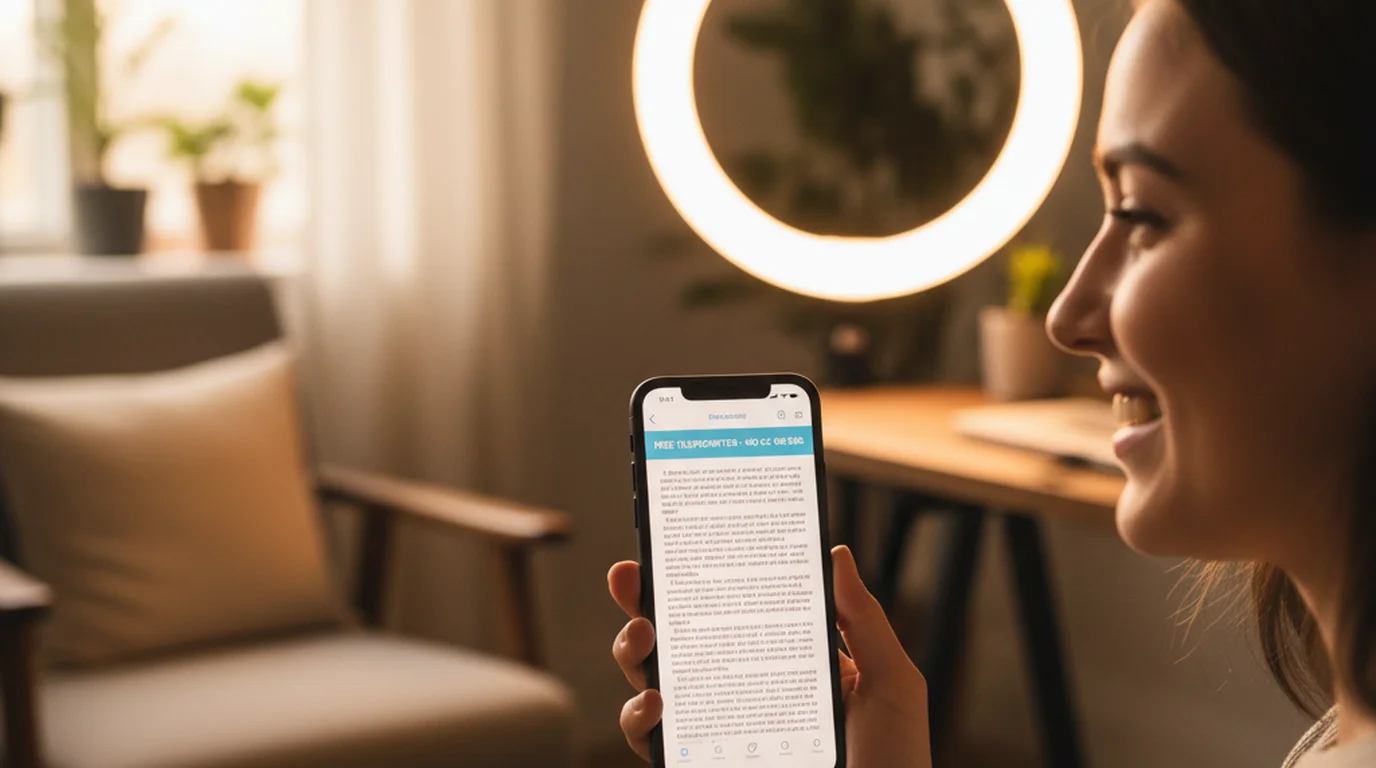
A teleprompter app works by displaying your script on screen and scrolling it at an adjustable speed while you speak. You read each line as it passes a fixed position on the display, and the app keeps the next line coming so you never have to pause to find your place. Teleprompter-Scrolling Scripts does this in two modes: Prompter mode for text-only reading and Camera mode for recording video with a live script overlay on iPhone, iPad, and Mac.
The core mechanism: text and scroll
At its simplest, a teleprompter app displays a block of text and moves it upward at a constant rate. You read the words as they pass through a reading zone — typically the center or upper section of the screen — and the text continues scrolling until the script ends or you pause it.
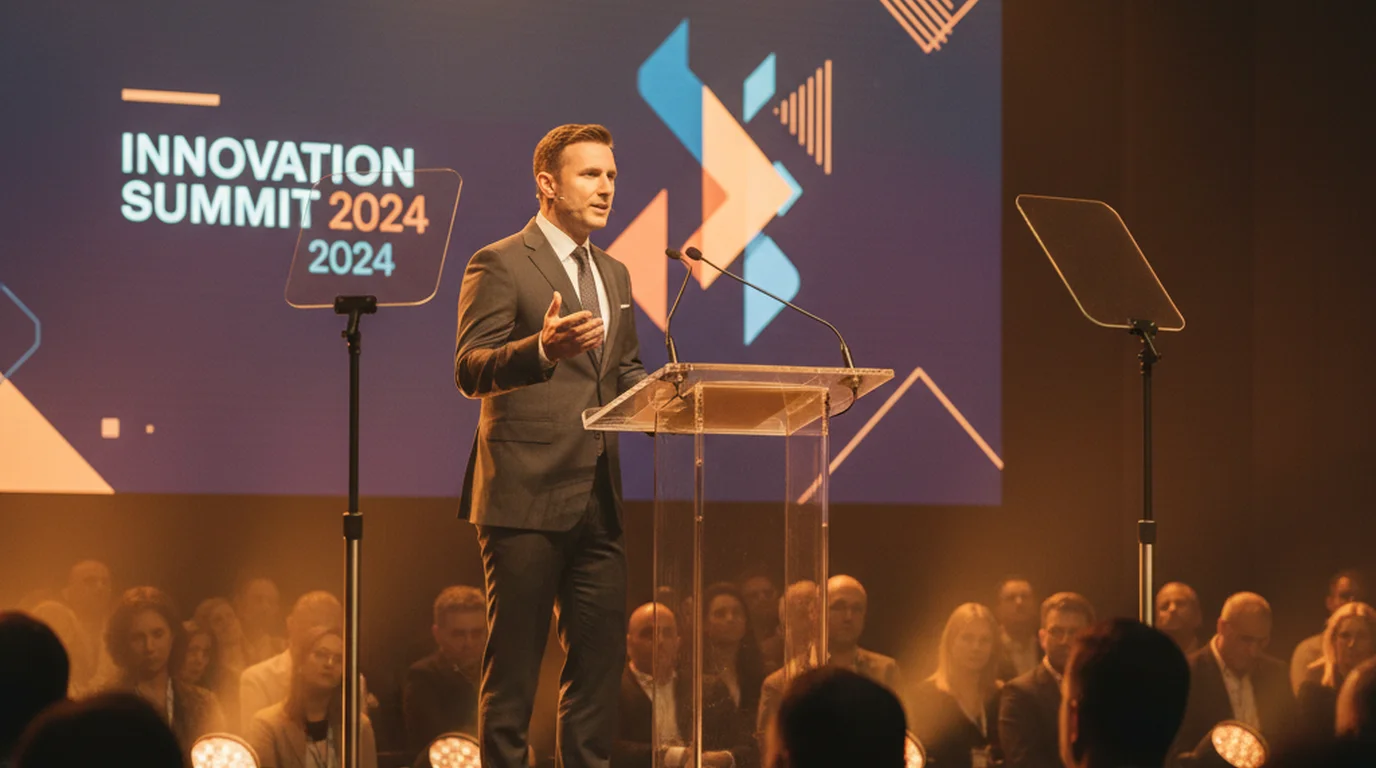
This continuous motion is what allows you to maintain eye contact with the camera instead of glancing down at notes. Your eyes stay in one place. The words come to you rather than requiring you to hunt for them. The result is a delivery that appears natural and connected rather than rehearsed from memory.
Every element of the display is adjustable. In Teleprompter-Scrolling Scripts, you can change the text size, the text color, the width and height of the text area, the position of the text area on screen, and the scroll speed. These adjustments exist because the right setup for a YouTube creator on an iPhone differs from the right setup for a teacher recording a lesson on an iPad or a founder doing a desk recording on a Mac.
How the scroll speed works
Scroll speed controls how quickly the text moves up the screen. A faster speed advances more text per second, which is appropriate for a rapid-delivery social video. A slower speed gives more time between lines, which is appropriate for a formal presentation or a complex explanation.
Speed is not expressed as a fixed words-per-minute number because the visible word count depends on your text size and text area width. A large font in a narrow column shows fewer words per line, so the scroll covers less ground per screen-height than a small font in a wide column. The practical calibration method is to run a short test, watch yourself back, and adjust until the scroll matches your natural speaking rhythm.
In both Prompter mode and Camera mode, you can pause the scroll at any moment and resume it, or manually drag the text to a different position. If you lose your place, stumble on a word, or want to extend a pause for effect, you are not locked into the automatic speed. You control the pacing throughout the session.
Prompter mode: hands-free text scrolling
Prompter mode is the text-only reading mode. It displays your script and scrolls it on screen without activating any camera. No video is recorded in Prompter mode — the screen is a clean, focused reading surface.
This is the right mode for rehearsal before a live event, for public speaking practice, for reading notes during a live presentation, or for any session where a separate camera or recording device is handling the video. It is also the right mode when you simply want to practice without the pressure of recording. You can run the script as many times as you want, refine the wording between passes, and adjust the display settings until the experience feels right.
Prompter mode works well on all three supported platforms. On iPhone it is useful for quick rehearsals and live-event reading. On iPad the larger screen is comfortable for long scripts and lesson material. On Mac it works for desk-based rehearsal and any session where an external camera is doing the recording.
Camera mode: recording with script overlay
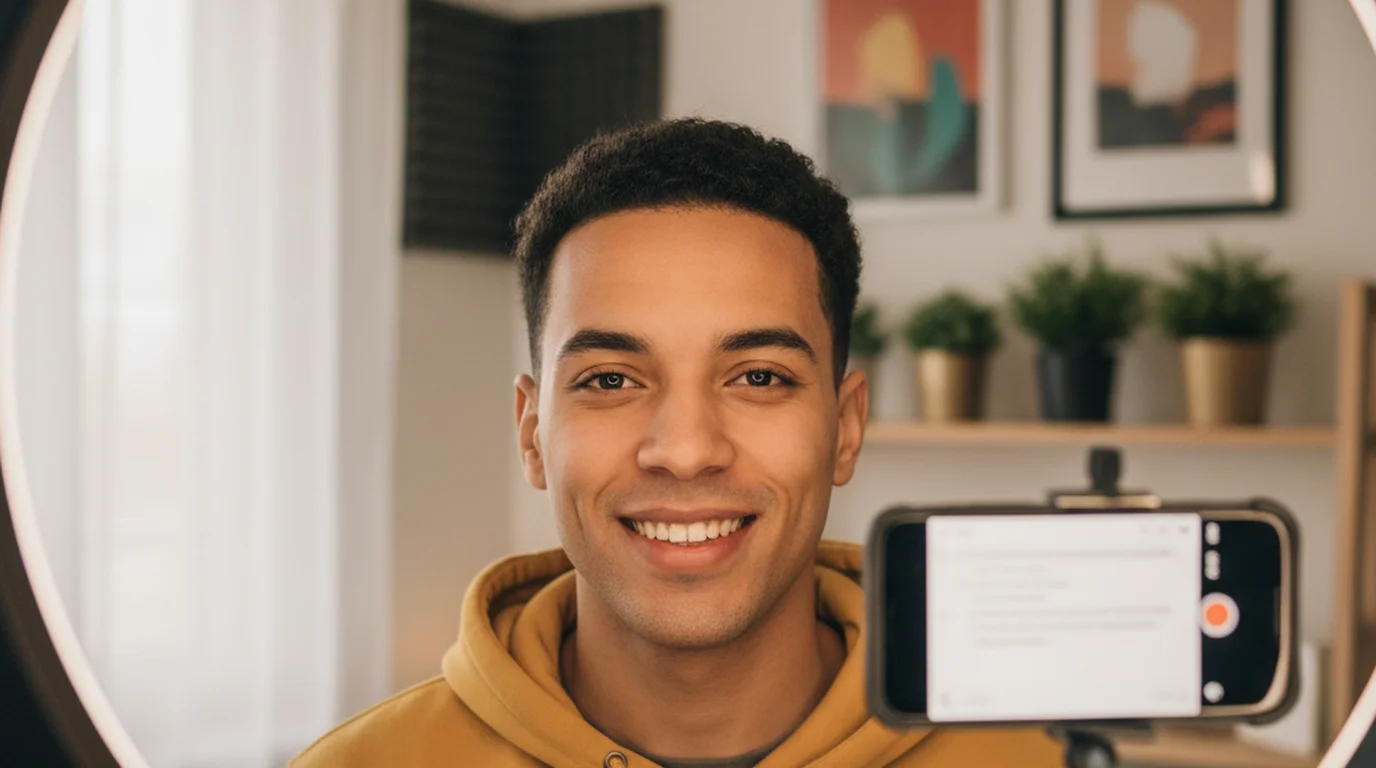
Camera mode opens your device's built-in camera and places the teleprompter script on top of the live camera view. The camera feed appears behind the text, the script scrolls as normal, and the app records the video. When you finish, you have a video file recorded inside the app with the text visible only on your screen during recording — it is not burned into the exported video.
This is how a teleprompter app replicates the professional setup without the hardware. Instead of a half-silvered mirror mounted in front of a camera, the text simply overlays the camera feed on the same screen. The effect on the viewer is similar: the speaker appears to maintain eye contact because they are reading text that sits close to the lens rather than looking away at notes off-screen.
Camera mode supports pausing and manual script adjustment mid-take. On iPhone and iPad, both front and back cameras are available where the device supports them, so you can use the same app for selfie-style vertical video and traditional landscape recording. On Mac, Camera mode works with the built-in FaceTime camera for desk-facing recordings, Zoom-style content, and talking-head segments.
How eye-line works in a teleprompter app
Eye-line is the key quality difference between a teleprompter session and a speaker glancing at notes. When your eyes are consistently pointed at or near the camera lens, the viewer perceives direct eye contact. When your eyes move away from the lens — down to a phone in your hand, to the side toward a monitor, or to notes on a desk — the viewer notices the break.
A teleprompter app improves eye-line by keeping the words in the same area of the screen where the camera lens sits. In Teleprompter-Scrolling Scripts, the text area position is adjustable, so you can move the reading zone to sit as close to the camera as the screen geometry allows. On iPhone, placing a narrow two-to-three line text area near the top edge brings the words close to the front-facing camera. On Mac, positioning the text area near the top center of the window keeps it near the FaceTime camera above the display.
The width of the text area also affects eye-line quality. A wider area requires the eyes to travel left and right across each line, which produces a visible scanning movement. A narrower area reduces horizontal eye movement so the viewer sees steadier focus. The trade-off is fewer words visible per line, which means the scroll needs to advance more frequently. Finding the right balance between area width and scroll speed is part of the calibration process for any new setup.
Offline and privacy: how scripts are stored
Teleprompter-Scrolling Scripts is local-first. Scripts are written, edited, and stored on your device. Nothing is sent to a server, synced to a cloud account, or processed remotely. This architecture has two practical benefits.
First, the app works without an internet connection. You can rehearse backstage, record in a location with poor Wi-Fi, or use the app on a flight without any degraded experience. There is no loading screen waiting for a script to sync, and no risk of the session failing because a browser tab lost connection.
Second, sensitive content stays private. Founders preparing unreleased product announcements, coaches recording proprietary course material, and professionals handling confidential client content do not need to paste that text into a web-based tool. The script exists on the device and nowhere else. This is a meaningful difference from browser-based teleprompter tools that require an account and process text through a server.
iPhone, iPad, and Mac: how the app differs per device
The teleprompter experience varies by device because screen size, camera position, and typical recording distance all differ. Understanding these differences helps you configure the app correctly for each platform.
On iPhone, the screen is compact. The camera is usually positioned at the top of the device. For front-facing recordings, a narrow text area positioned near the top brings the reading zone close to the lens. Larger text size compensates for the reduced screen real estate. Portrait and landscape orientations are both supported, which means the same app works for vertical social clips and traditional widescreen content.
On iPad, the larger display allows a wider and taller text area. Long scripts that would require constant scrolling on iPhone are more manageable on iPad because more lines are visible at once. Lesson recordings, webinar content, and speech rehearsal benefit from this. The larger screen also reduces eye strain during extended sessions.
On Mac, the app runs natively with the FaceTime camera available for Camera mode. Mac works well for desk-based recordings, talking-head video segments, educational content recorded at a desk, and any session where the recording distance is greater than arm's length. A wider text area at a comfortable reading size works well at typical desk-to-monitor distances. If you sometimes use a teleprompter online, the Mac app provides the same functionality without a browser.
Teleprompter-Scrolling Scripts runs on iPhone, iPad, and Mac — no internet required, no account needed. Prompter mode for reading without recording, Camera mode for recording with a live script overlay. Free to download.
Use Free Online Teleprompter Get the Free App