Chroma Key Green Screen Background: How It Works and How to Set One Up
 Natalie Brooks · June 12, 2026 · 7 min read
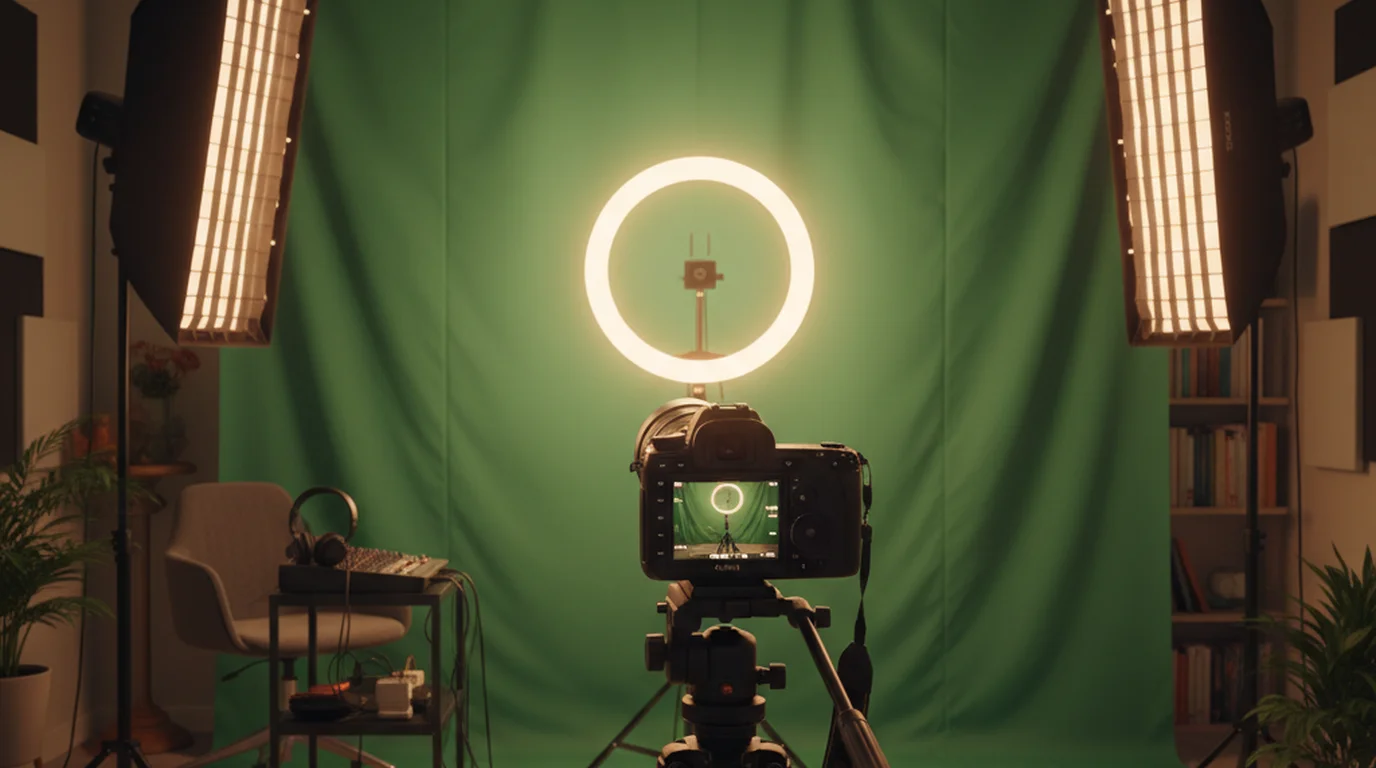
Green screen setups are one of those production elements that look complicated until you understand the two variables that actually matter: consistent lighting on the backdrop and sufficient distance between your subject and the screen. I've built and rebuilt home studio green screen setups for clients at every budget level — from $80 portable panels to purpose-built studio installations — and the failure modes are always the same. Let me walk you through how chroma key actually works and how to get a clean key without a professional studio.
A chroma key green screen background is a uniformly colored surface — typically "chroma green" — used in video production so that its specific hue can be isolated and digitally removed in editing software, allowing any replacement background to appear in its place. The technique works because chroma green is not found in natural skin tones, making subject-background separation straightforward for compositing software.
How Chroma Key Actually Works
Chroma keying is a compositing technique that removes all pixels within a specified color range from a video frame and replaces them with transparency. The editor then places a replacement background layer behind the transparent area.
The reason green became the standard over blue is practical: digital camera sensors have more green photoreceptors than red or blue (a 2:1:1 ratio in Bayer pattern sensors), which gives green footage higher resolution and cleaner edges during the keying process. Blue screens remain common in contexts where subjects wear green clothing — on news sets, for example.
Modern chroma keying tools in Adobe Premiere Pro, DaVinci Resolve, and Final Cut Pro and Flexclip can remove a well-lit green screen in seconds using the Ultra Key or Color Range keyer effect. The quality of the result depends almost entirely on the quality of the source footage — specifically, how evenly the screen is lit and how much distance separates the subject from the background.
According to a 2024 survey by StudioBinder of 1,200 independent video creators, 67% of home studio creators using green screens cited "uneven background lighting" as their primary keying problem. Only 12% cited equipment quality as the main issue — confirming that technique, not gear, is the limiting factor for most setups.
Choosing a Green Screen Background
Green screens come in three materials, each with different trade-offs:
- Muslin fabric: Most popular for home studios. Affordable, packable, and produces even color when properly lit. Wrinkles are the main problem — steam or hang the fabric 24 hours before shooting to minimize them. Wrinkles create shadows that appear as different shades of green, making the key harder to pull.
- Painted wall or paper roll: Flattest and most even surface. Ideal for permanent setups. Paper rolls from Savage or Colorama in "Chroma Key Green" (the industry-standard hue) are used in professional shoots. Cost scales with size — a 9-foot paper roll runs $150–$300.
- Collapsible reflector panels: Fast to set up, easy to store. Usually limited to head-and-shoulders shots because panels max out around 5×7 feet. The fabric surface holds color reasonably well and wrinkle resistance varies by brand.
For most creator setups, a 10×12 foot muslin backdrop ($50–$100) hung on a T-stand system gives enough coverage for full upper-body shots. If your setup is permanent, a painted wall in Rosco or Colorama chroma key paint is worth the one-time investment for its flatness.
Lighting a Green Screen Background Correctly
Lighting is where most home setups fail. The goal is to illuminate the background as evenly as possible — the same exposure value across the entire surface — while keeping that light off your subject.
The standard setup uses two lights positioned at 45-degree angles to the screen, each lighting one half of the backdrop. LED panel lights (around $80–$150 each) are common for this purpose. Some creators use a single LED bar positioned directly in front of the screen for smaller setups. Measure with a lux meter or check your histogram: the background should expose to roughly the same level as your subject, or one stop brighter.
Keep at least 6 feet between your subject and the screen. This separation prevents green spill — the reflection of green light from the backdrop onto your subject's face, shoulders, or hair. Green spill is the most common problem in compact home setups, and it's almost impossible to remove cleanly in post once it's baked into your footage.
A distance test published by Filmmaker Magazine in 2023 found that increasing subject-to-screen distance from 3 feet to 8 feet reduced green spill intensity on subjects by 78%, measured as the change in green channel values on the subject's shoulder region. This confirms the widely-held production rule: when in doubt, move the subject further forward rather than improving lighting equipment.
Pulling a Clean Chroma Key in Post
Once your footage is captured, the keying workflow in most editors follows the same basic steps:
- Apply the chroma key or Ultra Key effect to the green screen footage.
- Use the color picker/eyedropper to sample the dominant green color from the center of the background area.
- Increase the "similarity" or "tolerance" range until the background fully drops out.
- Use choke and soften controls to clean up edge fringing — choke tightens the matte inward to remove the green fringe, soften blurs the edge to avoid harsh cut-outs.
- Enable spill suppression to remove residual green color from subject edges.
- Place the replacement background layer below the keyed layer and color-match both layers so they share the same light temperature.
For talking-head videos using a teleprompter or scripted delivery, a clean key lets you replace your home wall with a branded studio background, a contextually relevant environment, or a blurred office aesthetic — without renting a physical studio. This combination of teleprompter-assisted scripted delivery and virtual backgrounds is now standard practice for high-volume content creators and corporate video teams.
Frequently Asked Questions
How to chroma key a green screen?
In your editing software, apply the Ultra Key or Chroma Key effect to your footage layer. Use the eyedropper tool to sample the green color from the background. Adjust matte settings — choke, soften, and spill suppression — until the background drops out cleanly without eating into your subject's edges.
How do I put a background on a green screen?
Place your replacement background layer directly below the keyed footage layer on the timeline. Scale and position the background to fill the frame. Color-grade both layers together so they match in temperature and exposure.
What is a chroma key background?
A chroma key background is a solid-colored surface — typically bright green or blue — used so that its specific color can be digitally removed in post-production and replaced with any other image or video. The technique works because the chosen color is rarely found in natural skin tones.
What is the best background for a green screen?
A muslin fabric backdrop lit with two dedicated green screen lights (one on each side at 45 degrees) produces the most consistent results for home studios. Lighting quality matters more than backdrop material — a perfectly lit wrinkled backdrop keys better than a flat-painted wall with uneven lighting.
Natalie BrooksNatalie Brooks is a video producer who works as a one-person crew for independent creators, corporate teams, and online educators. She writes about home studio setups, creator gear, and the production decisions that never come up in sponsored unboxings.
Script Your Green Screen Videos Without Missing a Line
Teleprompter-Scrolling Scripts works seamlessly with green screen setups — position your device above the camera lens and read your script with full eye contact. Free on iPhone, iPad, and Mac.
Use Free Online Teleprompter Get the Free App