What Is a Teleprompter? How It Works, Types, and When to Use One
 Wendy Zhang · May 20, 2026 · 9 min read
A teleprompter is a device or software that displays a scrolling script in front of or beside a camera, allowing a speaker to read prepared text while maintaining eye contact with the audience or lens. The technology started as a broadcast tool in 1950 and is now available as a free app on any iPhone, iPad, Mac, or browser.
The short definition
A teleprompter — sometimes called an autocue, especially in British English — is a display system that shows a speaker their pre-written script while they look toward the camera or audience. The core purpose is simple: let someone deliver a polished, word-perfect performance without needing to memorize anything.
In practice, teleprompters take two main forms. The first is a hardware rig built around a beam-splitter glass panel placed at 45 degrees in front of a camera lens. A monitor below the glass shows mirrored text; the glass reflects that text upward so the speaker sees the script while the camera records through the glass without capturing the reflection. The second — and far more common today — is a software or app solution that overlays scrolling text directly on a device screen. The presenter reads the text while the device's built-in camera records. This software-only approach is what most creators and professionals mean when they search for a virtual teleprompter: see the full virtual vs hardware teleprompter comparison for the complete breakdown of how each type works and when each is the right choice.
Both approaches achieve the same goal: the audience or viewer sees natural eye contact, while the speaker confidently delivers scripted content. See our full explainer on the origin and definition of the word "teleprompter" for more on how the term came about.
A brief history of the teleprompter
The teleprompter has a surprisingly specific origin date. In 1950, Hubert Schlafly — a television engineer — and Irving Berlin Kahn created the first practical teleprompter device through their company, the Teleprompter Corporation. Their original system used a paper roll printed with large type that was unrolled beside a TV camera, letting actors on live soap operas read their lines without memorization. The first production known to use the device was the CBS soap opera The First Hundred Years, which debuted in December 1950.
The technology spread rapidly. Within just a few years, teleprompters were standard equipment in television studios across the United States. The political world adopted them quickly too — presidents have used teleprompters since the Eisenhower administration in the 1950s, and today no major political address is delivered without one.
Over time, the brand name "Teleprompter" became a genericized trademark, much like "Kleenex" for facial tissue. People started using "teleprompter" as a generic noun for any script-display device, regardless of manufacturer. In the United Kingdom, the parallel innovation came from Autocue Ltd., founded in the late 1950s, which is why British English speakers typically say "autocue" where Americans say "teleprompter." The two words describe exactly the same thing. For a deep dive on this distinction, see our FAQ: what is the difference between autocue and teleprompter?
From paper rolls to electronic displays to modern smartphone apps, the fundamental concept has never changed: show the speaker their words so they can focus entirely on delivery.
How a hardware teleprompter works
The classic hardware teleprompter relies on a physics trick called a beam-splitter. A piece of partially reflective glass is mounted at a 45-degree angle directly in front of the camera lens. A bright monitor is placed below this glass, facing upward, displaying the script in mirrored (reversed) text. Because the glass is both partially transparent and partially reflective, the camera records through it — seeing the subject and background normally — while the speaker standing in front sees the reflected text from the monitor below floating in mid-air at eye level.
From the speaker's perspective, the script appears to hover in front of them, directly in line with the camera. From the camera's perspective, the glass is nearly invisible and the presenter appears to be looking directly into the lens. The result is an on-screen presence that looks natural and engaged.
Hardware teleprompter configurations come in several varieties:
- Camera-mounted rig: A compact glass hood attaches to the front of a camera or lens. A small monitor below the hood displays the script. This is the most common setup for film crews, documentary production, and interview-style shoots where a single camera is involved.
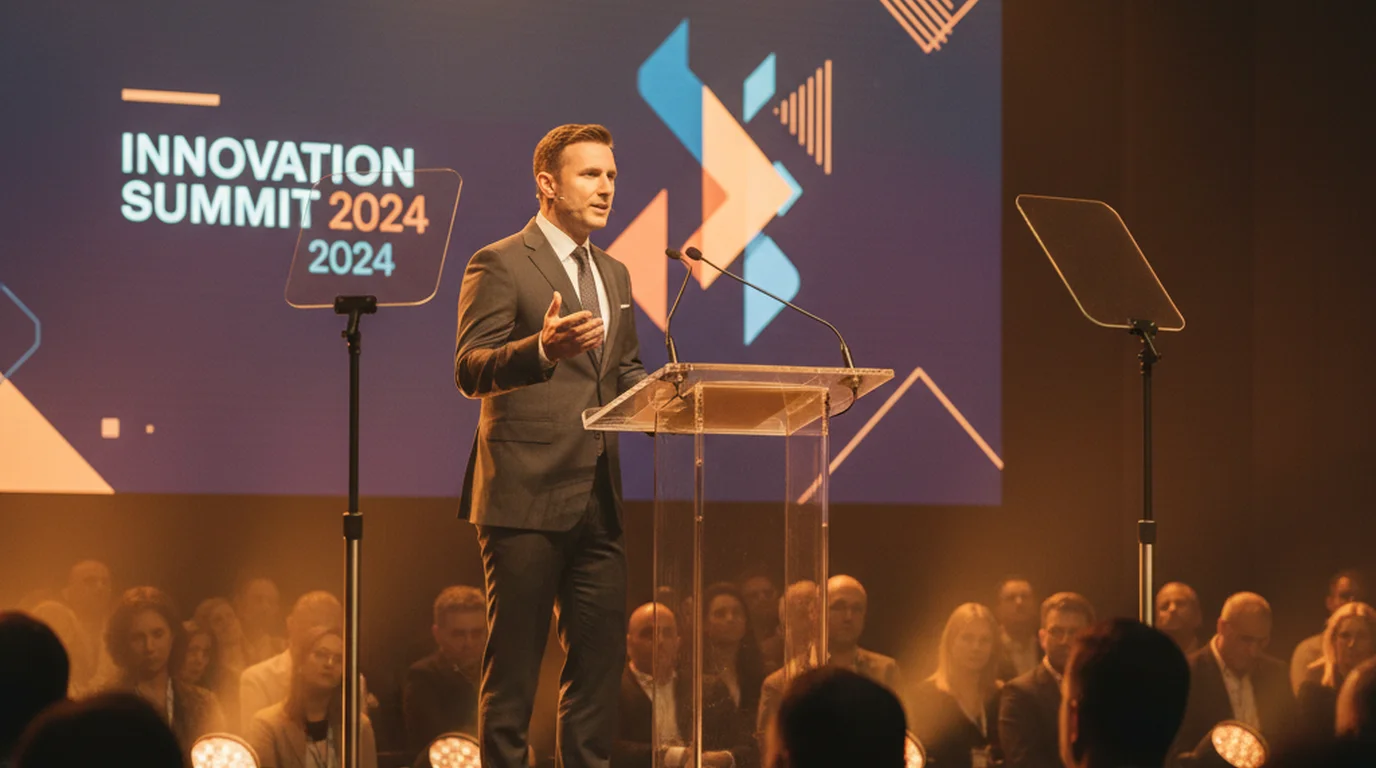
- Presidential / podium teleprompter: Two glass panels are mounted on poles on either side of a podium or stage. Monitors on the floor below each panel display the script. The speaker alternates glancing left and right, giving the impression of scanning the room while actually reading. This configuration is used for major speeches, political events, and large-stage presentations.
- Studio floor monitor: Large monitors placed at the base of studio cameras display the script reflected upward through glass mounted on the camera. TV news anchors use this setup every day. The system is usually operated by a dedicated teleprompter operator who controls scroll speed in real time to match the anchor's delivery pace.
Hardware rigs require a dedicated monitor, a hood assembly, cabling, and often a trained operator. Professional broadcast-quality setups can cost anywhere from $500 to over $5,000. They remain essential for multi-camera broadcast productions and formal stage events, but they are overkill for the vast majority of individual creators and presenters.
Understanding the mirrored display used in glass rigs is a common source of confusion. Our FAQ on what a mirror script is in a teleprompter explains exactly how the text reversal works. For the full physics and engineering of how the glass works — and why the camera can see through it while the presenter sees the reflected text — the teleprompter glass guide covers the beam-splitter principle in detail, including the non-reverse mirror variant used in some modern rigs. The non-reverse mirror teleprompter guide explains what distinguishes this variant and why it's become common in compact hardware kits.
How a teleprompter app works
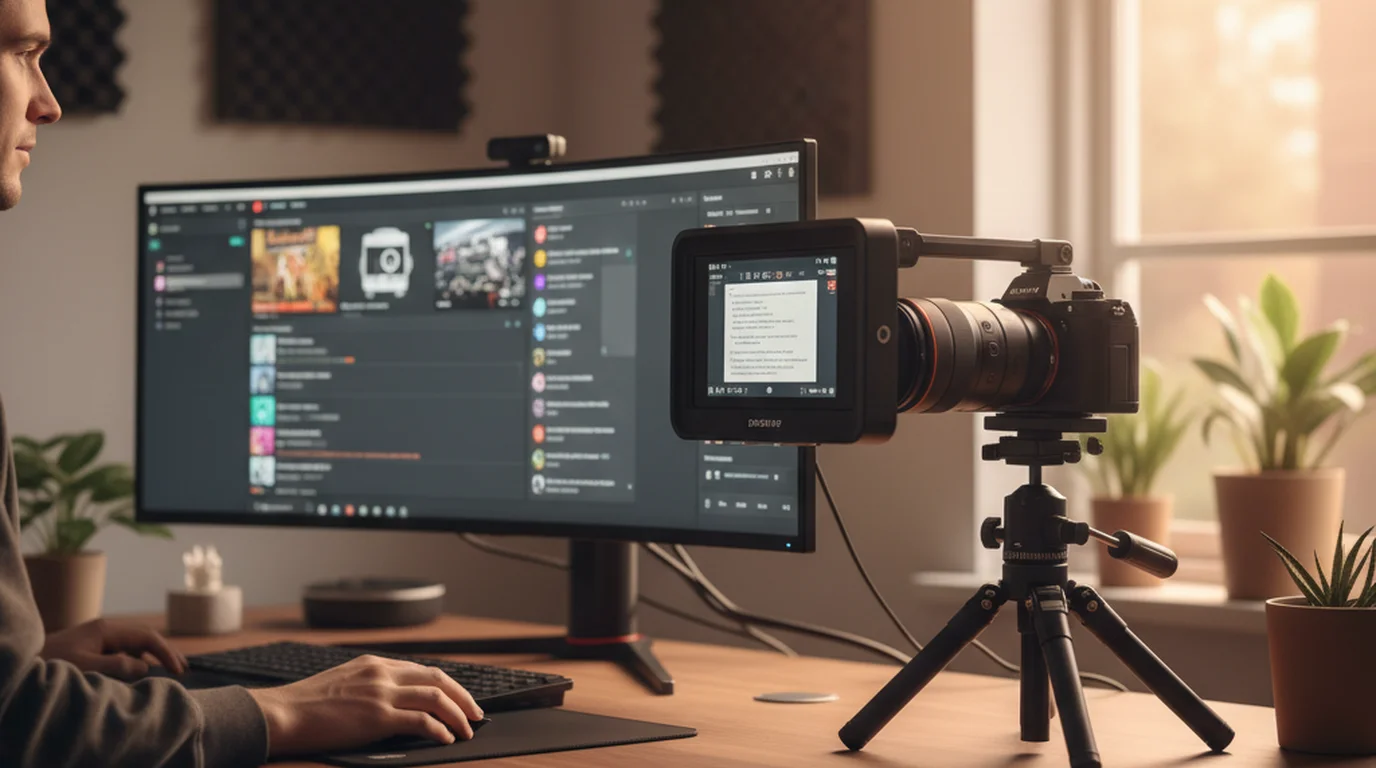
A teleprompter app achieves the same result as hardware — readable scrolling script with natural camera eye contact — without any glass, mirrors, or external monitors. Instead, the app overlays the scrolling text directly onto the device's own screen, and the speaker reads from that screen while the device's camera records.
The key to maintaining natural eye contact with an app-based teleprompter is positioning the text area near the camera lens. On a smartphone or tablet, the front-facing camera is typically at the top center of the screen. When the text column is positioned in the upper portion of the display, the presenter's gaze naturally falls close to the lens, producing on-camera eye contact that looks convincing and engaged.
Modern teleprompter apps like Teleprompter-Scrolling Scripts for iPhone combine three modes, including a Camera mode that overlays the script on a live camera feed so you read and record simultaneously, and a Prompter mode that displays the script full-screen without recording — useful for rehearsing a speech, practicing delivery, or using a second device while a separate camera records.
App-based teleprompters handle all the controls the operator would manage in a broadcast setup: scroll speed, font size, text column width, text color, background color, and line spacing. These are adjusted through the app interface before or during a recording session. Because the app runs locally on the device, scripts stay private and the system works fully offline.
One choice that trips up first-time users: which mode to use for which situation. The guide on how to use a teleprompter app explains the difference between Camera mode (your phone IS the recording camera — script overlays the live feed) and Prompter mode (a separate camera records you, and your phone just displays the scrolling text nearby). Choosing the wrong mode is the most common beginner mistake.
Types of teleprompters — comparison
The table below summarizes the five main teleprompter types, their typical setup requirements, the use cases they suit best, and approximate cost.
| Type | Setup | Best for | Cost |
|---|---|---|---|
| Camera-mounted glass rig | Hardware, dedicated monitor, beam-splitter glass hood | Film and broadcast production | $500–$5,000 |
| Presidential / podium glass | Two glass panels on floor stands beside podium | Stage speeches, political events | $1,000+ |
| Studio floor monitor | Fixed monitor at camera base, built into studio | TV news anchors, broadcast studios | Built into studio |
| Teleprompter app (iPhone / iPad / Mac) | App on phone, tablet, or computer — no extra hardware | Video creators, solo recording, online courses | Free |
| Browser-based teleprompter | Any web browser on any device — no download | One-off scripts, PC/Windows users, quick use | Free |
For the overwhelming majority of individuals — YouTubers, educators, podcasters, corporate presenters — a teleprompter app or browser-based tool covers every need at zero cost. If you want a side-by-side comparison of the leading app options with scores across all major criteria, the best teleprompter app comparison covers iPhone, iPad, and Mac options tested in 2026 — including Teleprompter-Scrolling Scripts, Speakflow, BIGVU, and five others.
Who uses teleprompters?
Teleprompters are used wherever a polished, scripted delivery matters. The range of users is broader than most people expect:
- TV news anchors: Every news broadcast relies on teleprompters. Anchors read the entire broadcast from the prompter while maintaining the appearance of speaking directly to viewers. A dedicated operator adjusts scroll speed in real time.
- Politicians and heads of state: Presidential addresses, campaign speeches, and parliamentary statements are read from teleprompters. The presidential podium setup with two glass panels is now iconic in political photography.
- YouTube creators and video bloggers: Solo creators use teleprompter apps on iPhones, iPads, or Macs to deliver polished talking-head videos without relying on memory or jump cuts. A single device handles both script and recording. The teleprompter for YouTube guide covers the exact iPhone Camera mode setup, scroll speed calibration, and Shorts-specific adjustments.
- Corporate presenters and executives: Earnings calls, product launches, company-wide video announcements, and Zoom recordings all benefit from teleprompter-aided delivery. Executives can convey key messages accurately without stumbling over financial figures or policy details. For Zoom-specific setup — where the teleprompter needs to sit near a webcam rather than serve as the recording camera — see the teleprompter for Zoom guide. For Loom async video recordings, the teleprompter for Loom guide covers the Mac browser setup and iPhone Continuity Camera workflow.
- Educators recording courses: Online course instructors use teleprompters to deliver clear, organized lesson content without verbal fillers or repeated takes. This dramatically speeds up production.
- Podcasters with video: Video podcasters who work from a script use teleprompters to keep the conversation on track while maintaining eye contact with their co-host or camera.
- Wedding speakers, event MCs: Anyone delivering a structured speech at a live event — toasts, eulogies, award announcements — benefits from a teleprompter running on a nearby tablet or laptop.
- Voice-over artists: Recording voice-over in sync with a video timeline is easier when the script scrolls automatically at a consistent pace, matching the playback speed.
The common thread across all these use cases is the desire to sound natural and look confident while delivering prepared content exactly as written.
Teleprompter hardware vs. teleprompter apps — which is right for you?
The honest answer for most people reading this guide is that a teleprompter app is the right choice. Here is how to think through the decision.
Choose hardware if: You are producing broadcast-quality video where the camera lens must be perfectly centered in the speaker's eye line. Multi-camera productions, live broadcast news, formal stage events, and film shoots where the director needs the on-screen talent to look precisely into a specific lens — these are the scenarios where glass rigs justify their cost and complexity. A presidential teleprompter setup is also essential for large-audience stage events where multiple cameras at different angles all need the speaker to appear to be looking at each of them.
Choose a teleprompter app if: You are a solo creator, educator, podcaster, corporate video producer, or anyone recording on a single device. Teleprompter apps work on the iPhone, iPad, and Mac you already own. Setup takes about two minutes: download the app, paste your script, and press play. The best teleprompter app for iPad and best teleprompter app for iPhone are both free. For Mac desk recordings, the best teleprompter app for Mac integrates directly with the built-in camera.
The practical reality is that app-based solutions are suitable for well over 95% of individual teleprompter use cases. The only scenarios where hardware is genuinely required involve multi-camera broadcast or a professional need to position the camera lens precisely at the center of a specific beam-splitter rig. For creators who want to build a full setup without any hardware purchase, the home teleprompter setup guide covers the software-only configuration from scratch. For those evaluating which software to use, the best teleprompter software guide compares free and paid options across Mac, iPhone, and iPad.
For anyone who wants zero installation at all, the free online teleprompter at teleprompter.works/online runs in any browser with no account and no download required.
What does a teleprompter cost?
Costs vary enormously across the spectrum of teleprompter types:
- Professional glass rigs (camera-mounted): $500–$5,000. Higher-end models from broadcast suppliers include larger glass, brighter monitors, and heavier-duty mounting hardware for studio and field production use.
- Mid-range camera-mount kits: $150–$500. Consumer-grade glass rigs designed for mirrorless or DSLR cameras, often sold with a small tablet monitor. Suitable for semi-professional YouTube and commercial video production.
- Presidential podium kits: $1,000–$3,000+. Floor-standing two-panel setups for stage use. Typically rented rather than purchased for one-off events.
- Teleprompter-Scrolling Scripts app (iPhone, iPad, Mac): Free. Download from the App Store at no cost. No subscription required for core functionality.
- teleprompter.works/online: Free. No download, no account, no payment. Open in any browser and start scrolling immediately.
For the majority of creators, the free app option is not just the cheapest option — it is genuinely the most practical. A glass rig adds complexity (setup time, alignment, operator management) that simply is not worth it unless a broadcast-quality multi-camera setup is required.
How to use a teleprompter — step by step
Whether you are using a hardware rig or a free teleprompter app, the workflow follows the same logical sequence. Here is the standard process for using a teleprompter app on iPhone, iPad, or Mac:
- Write your script. Keep sentences short and conversational — the way you actually speak, not the way you write. Avoid complex compound sentences or jargon that will sound stiff when read aloud. Reading a script that sounds natural requires that it was written to sound natural.
- Paste the script into the teleprompter app. In Teleprompter-Scrolling Scripts, tap the "+" button to create a new script, give it a title, and paste or type your content. The app stores it locally on your device.
- Set the font size. Choose a size large enough to read comfortably at your recording distance without straining. For phone recordings at arm's length, 40–50pt is typical. For iPad or Mac at desk distance, 36–44pt usually works well.
- Set the scroll speed. Start slightly slower than you think you need. Most people underestimate how much they slow down when on camera. The recommended scroll speed for natural delivery is around 130–150 words per minute for conversational content, but you should calibrate this to your own natural speaking pace.
- Do one practice run. Read through the script with the scroll running before you start the actual recording. This reveals any sentences that sound awkward when spoken aloud, and lets you fine-tune the scroll speed to match your delivery.
- Record. Switch to Camera mode, position the device at eye level, and start the recording. The script scrolls as you speak. Focus on the words and let the app handle the pacing.
The first recorded take is rarely the best. Give yourself two or three takes and pick the one where delivery feels most natural and conversational. Most modern teleprompter apps also support automatic scrolling — where the speed adjusts to match your voice rather than running at a fixed WPM. The auto-scroll teleprompter guide explains how voice-tracking scroll works, which apps support it, and whether it's better than manual speed for your use case.
Eye contact tips when using a teleprompter
The most common criticism of teleprompter delivery — that the speaker looks like they are reading — almost always comes down to one of three problems: scroll speed is too fast, the text area is too far from the camera lens, or the speaker has not practiced enough to feel relaxed.
Here is how to fix each issue:
- Position the text column close to the camera lens. In a teleprompter app, the text should scroll in the upper portion of the screen, as close as possible to where the front camera sits. The smaller the angle between "where my eyes are pointing" and "where the lens is," the more natural the eye contact looks on camera.
- Keep the text area narrow. A narrower text column means your eyes move less from side to side while reading. Left-to-right scanning is the most obvious giveaway that someone is reading. Aim for a column width of 50–60% of the screen.
- Use a shallow text window height. Show only 2–3 lines of text at a time. This keeps your focal point concentrated in a small area near the lens rather than scanning up and down a large block of text.
- Match scroll speed precisely to natural pace. If the scroll is too fast, your eyes race ahead and you lose the connection with what you are saying. If it is too slow, you pause unnaturally. Take the time to calibrate speed during your practice run.
- Practice until delivery feels automatic. Even with a perfect setup, the first time using a teleprompter feels mechanical. After a few sessions, reading from a scroll becomes as natural as reading a menu.
For a deeper treatment of this topic, see our FAQ on how to avoid looking like you are reading from a teleprompter. The reading a script while recording guide goes further — covering font size, line spacing, column width, and the specific delivery habits (blinking rate, pause placement, gaze anchoring) that separate natural-looking teleprompter delivery from visible reading.
The teleprompter for public speaking
One of the most underappreciated applications of teleprompter technology is in non-broadcast public speaking — keynotes, conference presentations, wedding speeches, corporate town halls, and educational lectures. A teleprompter removes the single biggest source of speaker anxiety: the fear of forgetting what comes next.
When you know your script is right there, scrolling at your pace, your brain is freed to focus on delivery. You can think about your tone, your emphasis, the emotional weight of a particular sentence. You stop monitoring your memory and start genuinely communicating. This cognitive shift is why seasoned speakers often say they feel more confident and natural with a teleprompter than without one — even though they have spent years memorizing material without one. If you're weighing whether to use a teleprompter or traditional notes, the cue cards vs. teleprompter comparison breaks down the trade-offs directly.
Pacing benefits too. Memorized speeches have a tendency to rush during anxious moments. A scrolling teleprompter anchors your pace and prevents the kind of speed-through-it delivery that makes audiences work hard to follow along. The script moves at a fixed speed; the speaker stays with it.
For event speakers who need a standalone prompter — one that scrolls on a tablet while a separate camera records — Prompter mode in Teleprompter-Scrolling Scripts works perfectly. The script runs on the iPad or iPhone screen; the speaker glances at it naturally as they would glance at notes, but without the distraction of shuffling paper. For more on this use case, see our FAQ on how a teleprompter helps with public speaking.
The free teleprompter option for every platform
Access to a teleprompter no longer requires any hardware investment or a subscription. Here is the free option for every major platform:
iPhone: Download Teleprompter-Scrolling Scripts for iPhone free from the App Store. Camera mode overlays your script on the live camera feed so you read and record simultaneously. All scripts are stored locally and the app works fully offline.
iPad: The same app runs natively on iPad, taking advantage of the larger screen to display a comfortable font size at greater reading distances. iPad is particularly popular for desk and studio recording setups where the device can be positioned just below or beside the camera.
Mac: Teleprompter-Scrolling Scripts for Mac brings the same Camera mode and Prompter mode to MacBook Air, MacBook Pro, Mac mini, iMac, and Mac Studio. For desk recording — Zoom, YouTube, online course content — it is the most frictionless setup available.
Browser (any device including Windows and Android): teleprompter.works/online is a fully free, browser-based teleprompter that requires no download, no account, and no payment. Open the page in Safari, Chrome, Firefox, or Edge on any operating system, paste your script, and start scrolling. This is the fastest possible path from script to scrolling for anyone who cannot or does not want to install an app. For laptop and Windows desktop users specifically, the teleprompter for laptop guide covers both the browser-based setup and the best free native app options for Mac and Windows.
Both the native app and the web app are free because the goal is simple: every person who wants to use a teleprompter should be able to do so immediately, without cost or friction.
Frequently Asked Questions
What is a teleprompter?
A teleprompter is a device or app that displays a scrolling script at eye level so a speaker can read while maintaining eye contact with the camera or audience. Modern teleprompters range from professional broadcast hardware to free smartphone apps.
How does a teleprompter work?
Teleprompters work by putting your script in the same line of sight as the camera lens, so you can read it and still appear to be looking straight at your audience. Hardware and software do it differently. A hardware rig reflects a screen mounted below the lens onto a sheet of angled one-way glass in front of it: the text hangs exactly where the camera is pointing, but the glass is transparent from the camera's side, so the lens never sees it. A teleprompter app skips the glass — it scrolls large text on a phone, tablet, or monitor placed as close to the lens as possible, or overlays the script straight onto the camera preview. Either way the two things that decide whether it looks natural are the same: text large enough to read without tracking your eyes across the line, and a scroll speed matched to how fast you actually speak.
How does a teleprompter app work?
A teleprompter app displays your script in large, scrolling text on your screen. You control the scroll speed to match your speaking pace. Camera mode overlays the script on your front-facing camera view so you read and record at the same time without looking away from the lens.
Is a teleprompter the same as an autocue?
Yes. Teleprompter and autocue are two names for the same technology. "Teleprompter" is American English, while "autocue" is British English. Both describe a system that scrolls script text so speakers can read while looking at the camera.
Can I use a teleprompter app on my phone?
Yes. Teleprompter-Scrolling Scripts is a free app for iPhone and iPad. Android users can use the free web app at teleprompter.works/online. Both let you load a script, set scroll speed, and record directly in Camera mode.
Wendy ZhangWendy Zhang is the indie developer behind Teleprompter-Scrolling Scripts, which she built after cycling through teleprompter apps that were too heavy, too expensive, or dependent on a network connection to open. She writes about the mechanics of recording yourself — scroll pacing, script formatting, and the app decisions that decide whether a take survives.
Start using a free teleprompter today — no hardware, no subscription, no catch.
Try the Free Web App Use Free Online Teleprompter Get the Free App