Teleprompter for Loom: How to Read Your Script While Recording
 Natalie Brooks · July 18, 2026 · 6 min read

Recording a Loom video is easy. Sounding confident and prepared in it — without visible notes, without stumbling over key figures, without re-recording the same 90 seconds six times — is harder. Most people recording Loom rely on mental notes or glance at a document in a second window, and both approaches show on camera. Your eyes drift, your delivery loses rhythm, and what should be a polished async presentation becomes a rough take.
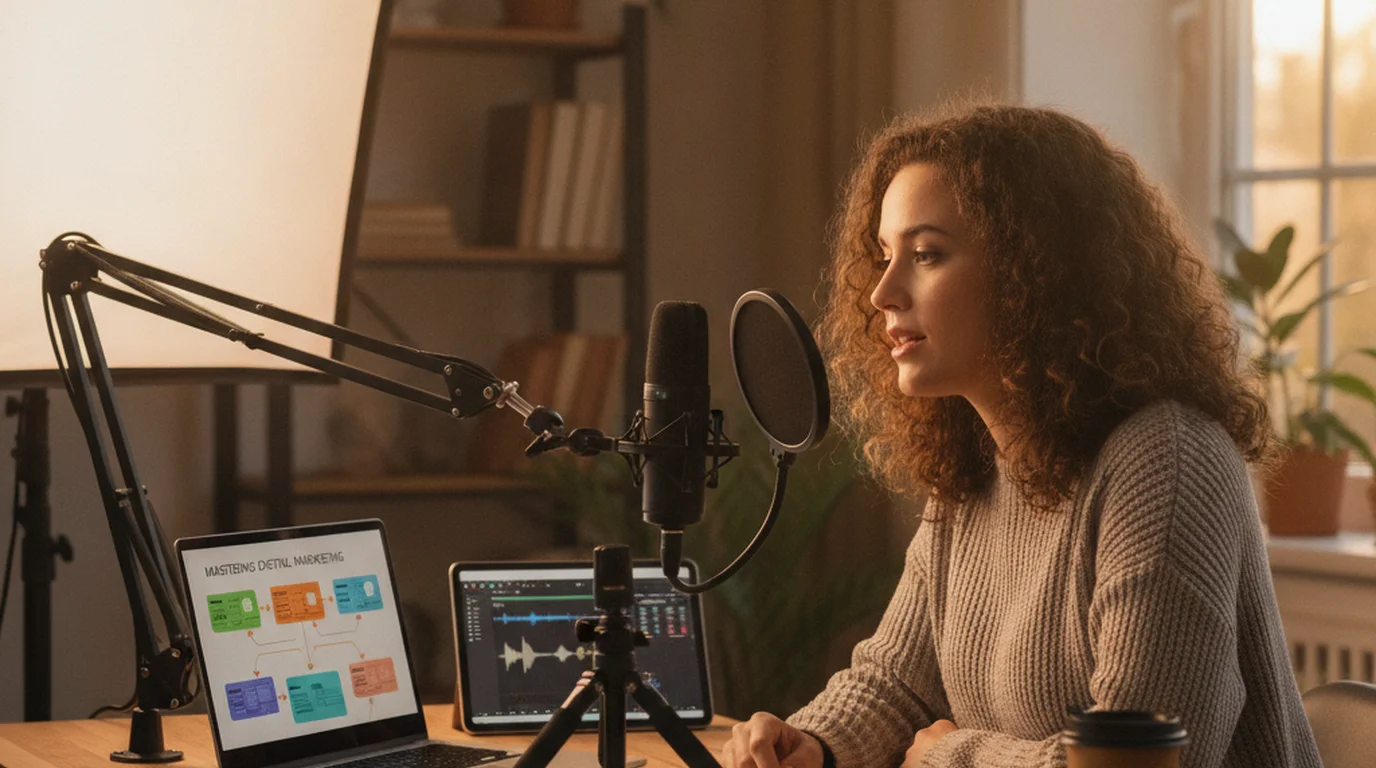
A loom teleprompter works by displaying your script in a scrolling window near your camera while you record. On Mac, open the free online teleprompter at teleprompter.works/online/, paste your script, position the window directly below your MacBook camera, and start recording in Loom. Your text scrolls at your speaking pace; Loom captures your delivery without any visible notes in frame.
Does Loom Have a Built-In Teleprompter?
This is the most common question from people who've tried Loom's speaker notes feature and found it falling short. Loom does have speaker notes — accessible during recording through the recording toolbar — but they don't scroll, aren't sized for reading on camera, and are designed as a reference checklist rather than a scrolling script.
In practice, speaker notes work for two or three bullet points you want to glance at. They don't work for full sentences, data-heavy content, or recordings where you need to maintain a consistent delivery pace. If you've watched your own Loom recording and noticed your eyes darting toward the screen mid-sentence, that's what speaker notes look like from the viewer's side.
A dedicated teleprompter for Loom fixes this. It scrolls text at a controlled, adjustable pace near your camera so that reading your script and looking at the lens become nearly the same action. Loom captures confident delivery; viewers see eye contact throughout.
How to Set Up a Loom Teleprompter on Mac (Free, 3 Minutes)
Mac is where most Loom recordings happen — it's where the desktop app lives and where screen recordings are most practical. Here's the exact setup process:
- Open the free online teleprompter. Go to teleprompter.works/online/ in Chrome or Safari. No login, no account, no installation. This is the Mac teleprompter that runs in any browser window alongside Loom.
- Paste your script. Write the way you speak — short sentences, one idea per sentence, key statistics written out precisely. For a Loom recording, you don't need every word scripted: write the opening paragraph, your transitions, key data points, and your close. Leave the connective tissue for natural delivery.
- Set font size to 36–44pt and scroll speed to 90–110 WPM. Loom recordings tend to be faster-paced than formal presentations. Calibrate speed by running a 30-second test before you record so the scroll matches your natural delivery pace.
- Position the browser window directly below your MacBook camera. The built-in camera sits at the top center of the display. The closer the first line of text is to the camera, the smaller the angle your eyes move when switching between reading and looking at the lens. On a MacBook, there's roughly 5cm between the camera and the top edge of the screen — target that gap.
- Start the scroll a second before you speak. This ensures your opening sentence is visible before you begin, so you're not hunting for your place in the first frame of the recording. Then record in Loom as normal.
According to a 2024 usage analysis published by Atlassian, Loom recordings under 2 minutes achieve a 78% completion rate, while those over 5 minutes drop to 41%. The implication: front-load your key point in the first 60 seconds. A teleprompter helps you deliver that opening with consistent pacing and eye contact — precisely where viewer attention is highest and where first impressions form.
Using a Teleprompter for Loom with iPhone via Continuity Camera
iPhone is increasingly the preferred camera for Loom recordings, especially since Apple's Continuity Camera lets your iPhone appear as a webcam source in the Loom desktop app on Mac. The iPhone's camera system — optical image stabilization, better low-light performance, and cinematic bokeh — outperforms most built-in laptop cameras in recording quality.
While Loom is using your iPhone as its camera through Continuity Camera, the iPhone cannot show your script at the same time, so the script goes on the Mac. Use the Teleprompter-Scrolling Scripts Mac app or the free online teleprompter:
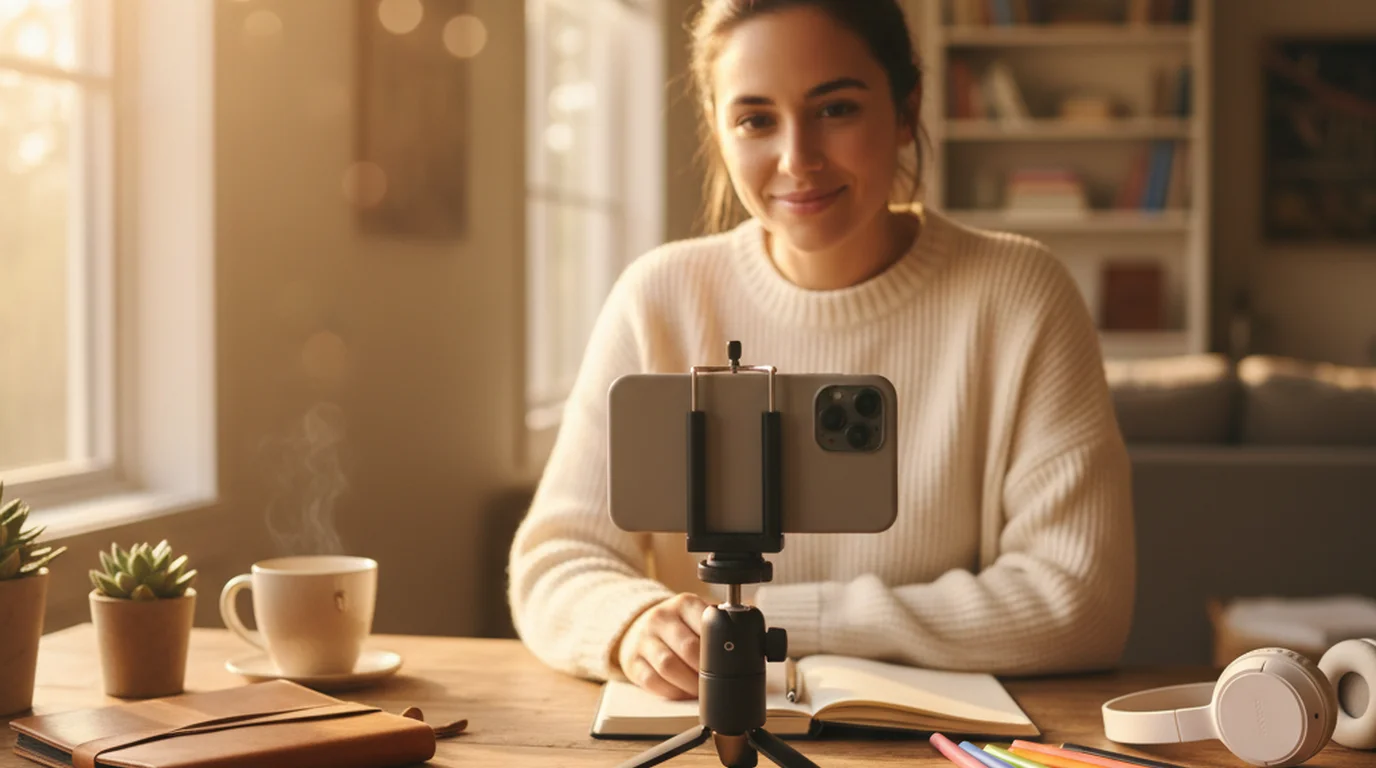
- Position your iPhone on a tripod or monitor mount at eye level, just above your Mac screen, facing you.
- On your Mac, open Loom and select your iPhone as the camera source via Continuity Camera in the camera selector.
- Open the Mac app's Prompter window (or teleprompter.works/online/), paste your Loom script, and place the window at the top of the screen, as close to the iPhone lens as possible.
- Start the scroll, then begin recording in Loom.
The script window stays on your Mac screen and doesn't appear in the Loom recording — Loom captures the raw camera feed. If you would rather read right at the lens, skip Continuity Camera: record on the iPhone in Camera mode with the script over the live view, then upload the finished clip to Loom.
What to Script and What to Leave Unscripted
The most natural Loom recordings are partially scripted. Full scripts tend to sound read. Zero scripts mean stumbling over the parts that matter most.
Script these:
- Your opening sentence. The first 5 seconds set tone and authority. Nail them every time.
- Data points and named figures. "Revenue grew by — I think it was 34%, maybe 37%..." is a credibility leak. Write numbers exactly.
- Transitions between sections. "Before I show the dashboard, let me explain the baseline context..." — clean transitions prevent rambling between segments.
- Your closing ask or next step. The last 15 seconds of a Loom determine whether viewers take action. Script them tightly.
Leave unscripted: Explanations of things you know deeply, walkthrough narration over a screen recording, responses to content you're visually reviewing. Your expertise carries these — scripting them makes delivery sound hollow.
This hybrid approach — scripted anchor points, natural connective tissue — gives you polished delivery where it matters and genuine energy everywhere else. For video calls using the same principle, see using a teleprompter for Zoom.
Tips for Sounding Natural While Reading Your Loom Script
Reading from a script and sounding natural are compatible. The setup that makes them incompatible is almost always wrong font size or too-fast scroll speed.
- Increase font size until you stop scanning horizontally. If your eyes move left to right to read a line, the text is too small. Large text (40pt+) means each line fits in your peripheral vision without scanning movement — your gaze stays centered on the camera.
- Slow the scroll until it feels slightly behind you. Most people set scroll too fast. The right speed is one where you feel slightly ahead of the text — that pace reads as confident and measured on recording, not rushed.
- Add pause markers in your script. Insert a line break or a dash where you'd naturally breathe or let a point land. Scripts without built-in pauses produce recordings that sound like you're racing.
- Record a 30-second test and watch your own eyes. Play it back and track your gaze. If your eyes move smoothly and your gaze reads as forward-facing, the setup is correct. If your eyes are clearly scanning, reduce scroll speed and increase font size.
Communication research published in Computers in Human Behavior (2023) found that perceived expertise in asynchronous video correlated more strongly with verbal fluency and camera-directed eye contact than with content quality alone. Participants rated presenters who maintained forward gaze and spoke without verbal filler as 22% more knowledgeable than those delivering identical content with frequent camera breaks. A calibrated teleprompter addresses both variables simultaneously — eye contact stays consistent, and scripting eliminates filler.
Frequently Asked Questions
Is there a teleprompter feature on Loom?
Loom has a speaker notes feature that displays static bullet points while recording, but it's not a scrolling teleprompter. Speaker notes are a reference checklist — they don't scroll automatically or pace with your delivery. For a real loom teleprompter that scrolls at your speaking speed, use a dedicated tool like the free online teleprompter at teleprompter.works/online/ positioned near your Loom camera.
Can you add a script to Loom?
Not directly in Loom's recording interface. Loom supports speaker notes — static bullet points visible while recording — but not a scrolling script. The workaround is an external teleprompter: the free online teleprompter at teleprompter.works/online/ on Mac, or the Teleprompter-Scrolling Scripts Mac app, placed at the top of your Mac screen — including when Loom uses your iPhone as the camera via Continuity Camera.
Which is better, Loom or OBS?
They serve different purposes. Loom is built for quick, shareable async video — recording, sharing, and analytics in one workflow with no configuration required. OBS is a professional broadcast tool with more control but no built-in sharing or viewer analytics. For scripted async video you send to colleagues or clients, Loom's simplicity wins. OBS makes sense only if you need studio-level output quality or complex multi-scene switching.
How much does Loom video cost?
Loom has a free plan with limits on storage and video length. Paid plans (Loom Business and Enterprise) add longer recordings, more storage, engagement analytics, and team features. The teleprompter tools in this guide — teleprompter.works/online/ and the Teleprompter-Scrolling Scripts app — are free regardless of which Loom plan you're using.
Does a teleprompter work with Loom screen recordings?
Yes, with one adjustment. If you're doing a camera plus screen recording in Loom, position the teleprompter window outside the screen capture area so it doesn't appear in the recorded screen. For camera-only Loom recordings, there's no conflict — the teleprompter is just another window on your desktop. The iPhone Camera mode setup avoids this entirely: the script overlay appears on your phone screen but not in the Loom recording output.
Can I use a teleprompter for Loom without downloading anything?
Yes. The free online teleprompter at teleprompter.works/online/ works in Chrome, Safari, or Firefox on Mac with no installation or login required. Paste your script, set font size and scroll speed, and position the window near your MacBook camera before recording in Loom.
Complete guide: What Is a Teleprompter? How It Works, Types, and When to Use One — history, hardware vs software, types, cost, and free options for every platform.
Complete guide: The Solo Content Creator's Complete Guide (2026) — scripting, delivery, camera setup, platform strategy, and the free tools every solo creator needs.
Natalie BrooksNatalie Brooks is a video producer who works as a one-person crew for independent creators, corporate teams, and online educators. She writes about home studio setups, creator gear, and the production decisions that never come up in sponsored unboxings.
Read your Loom script without looking away
The free online teleprompter works in any Mac browser — paste your script, position it below your camera, and record. No login, no download, no watermark.
Use Free Online Teleprompter Get the Free App