Reading Script While Recording: Natural Delivery Guide
 Wendy Zhang · May 20, 2026 · 9 min read
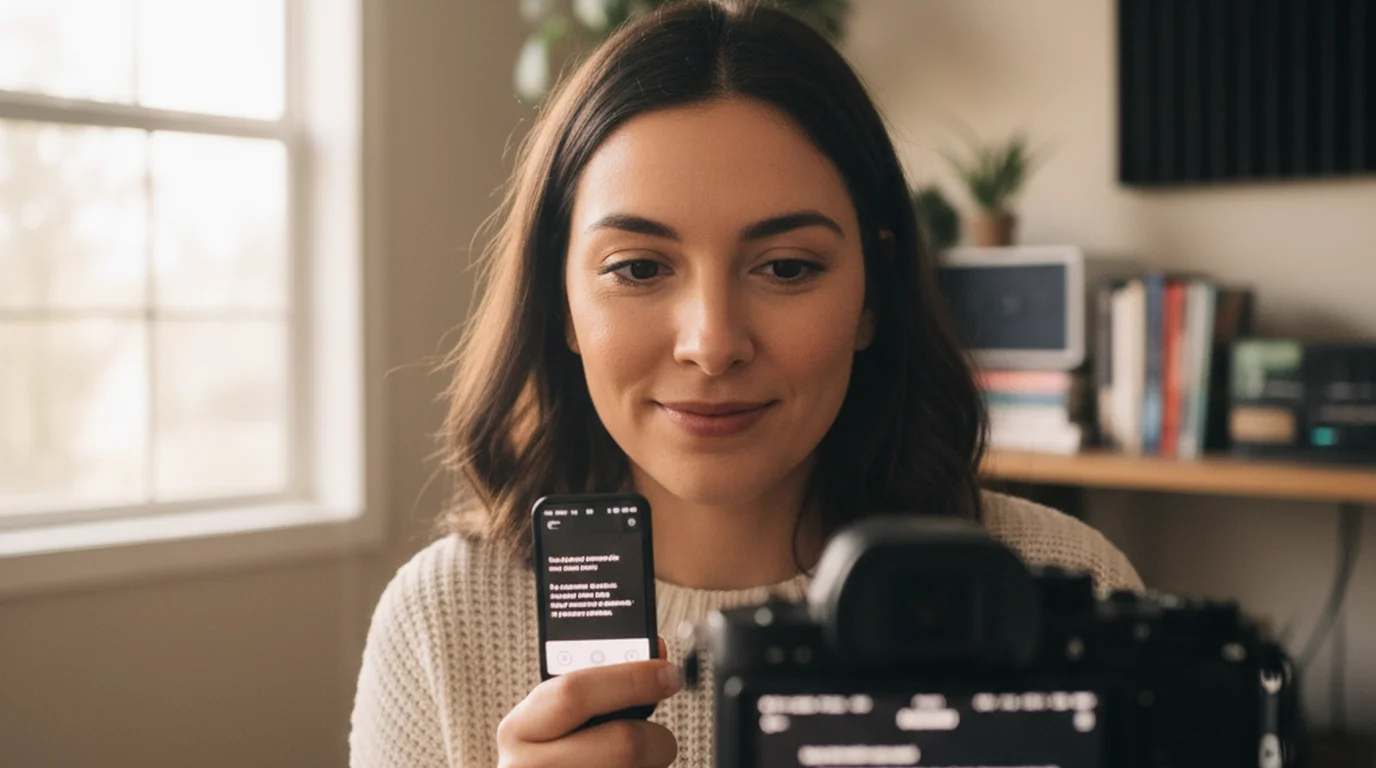
Reading a script while recording is one of the most common problems in creator video, and most people solve it badly. They stare at a phone or laptop screen they propped up beside the camera, their eyes move noticeably off-lens, and the viewer feels the lack of connection. The fix is not to act better or memorize more — it is to use a teleprompter app that puts the script directly on the recording device, close to the lens, scrolling at a pace that lets you deliver naturally.
Teleprompter-Scrolling Scripts is a teleprompter app for video recording on iPhone, iPad, and Mac. Camera mode overlays the scrolling script on the live camera view and records video simultaneously. Scripts are stored locally — no internet connection required.
The main challenge with reading a script while recording
Most people who read a script on camera look like they are reading. It is not a confidence problem or an acting problem. It is a setup problem with a visible symptom: the eyes move left to right across lines of text, and the gaze drops when the script scrolls forward. The camera catches both of these things, and viewers register them as "not looking at me."
The problem compounds when the text is positioned away from the camera. If your script is open in a notes app on the desk beside the laptop, your eyes shift off to the side during every sentence. If the script is in a browser tab below the camera window, your gaze drops for every line. The viewer never feels like you are talking to them.
The solution does not require better acting. It requires fixing three things in your setup: where the text sits relative to the lens, how wide the text column is, and what speed the text scrolls. Fix those three, and natural delivery follows from them. The camera records what you do — if your setup gives you a reason to look near the lens, you will look near the lens.
Reading-while-recording problems are setup problems, not performance problems. Fix text position, column width, and scroll speed, and the delivery improves without any extra rehearsal.
Eye line placement: the most important setting for natural delivery
Eye line placement is the core technical decision in any reading-while-recording setup. The camera is at a fixed position on your device. The script text needs to sit as close to that camera as possible. The distance between where you are reading and where the lens is determines how obviously you look like you are reading.
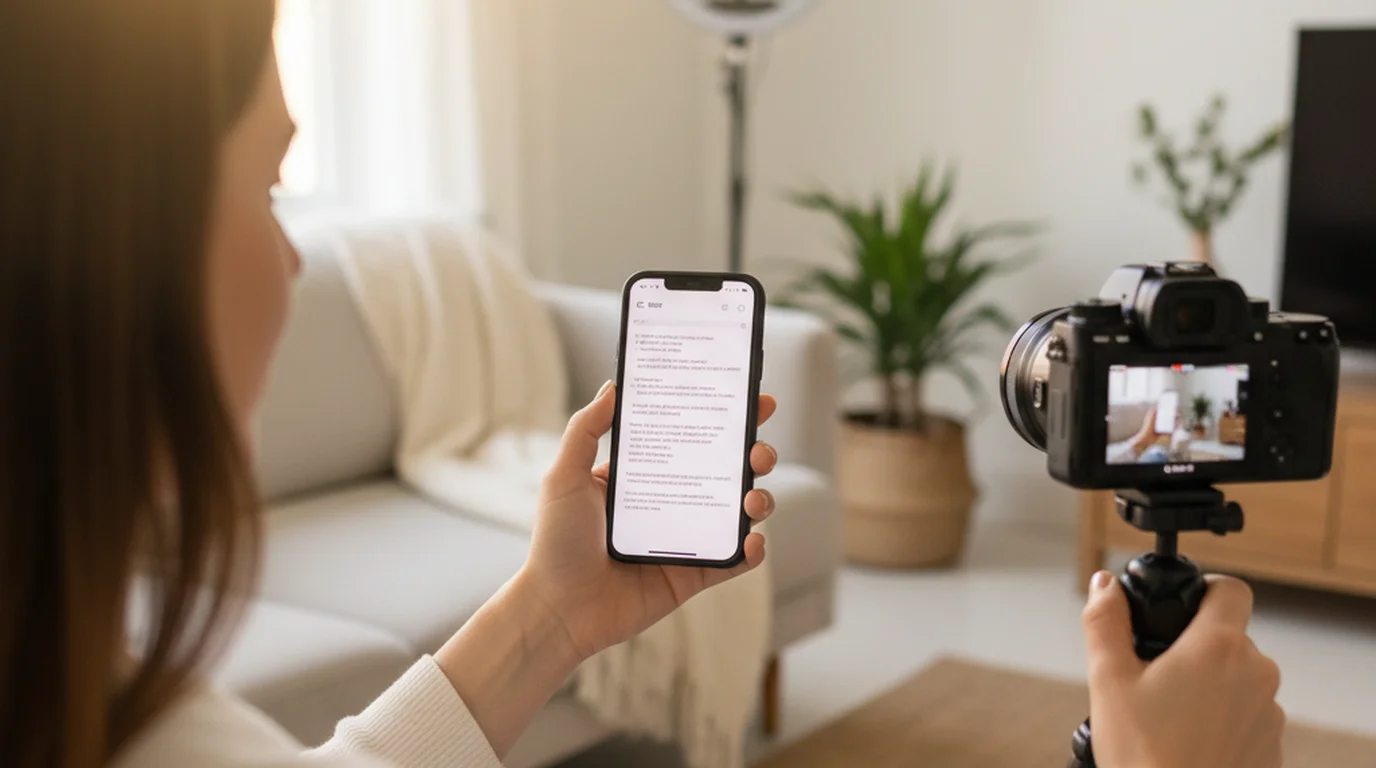
On a phone, the front-facing camera sits at the very top of the device. Script text should occupy the top 15 to 20 percent of the screen — directly below the camera indicator. When text sits at the bottom of the screen, your gaze drops visibly below the lens every time you read a new line.
On a laptop or desktop, the camera is at the top center of the screen. A teleprompter window positioned in the upper portion of the display, close to the camera, gives you the closest approximation to direct eye contact that a software setup can provide. See the Mac teleprompter setup guide for how to position the text area on a desktop screen. For a no-install option, the online teleprompter runs in any browser and works for quick recording sessions on any device.
The second factor is column width. A narrow text column means your eyes move less horizontally as you read each line. Wide lines push your gaze left and right across the screen, and that horizontal movement is obvious to viewers. Two narrow lines of text near the camera produce a far more natural eye line than six wide lines filling the screen.
The combination — text near the camera, narrow column — keeps your gaze close to center-frame and reduces visible eye movement to a minimum. That is what makes scripted video look like confident, natural delivery instead of reading from a page.
Script format that sounds natural on camera
How the script is written affects delivery as much as any setup setting. A script written in formal written language sounds written when read aloud, regardless of how good the teleprompter setup is. A script written in spoken language sounds natural because it was designed to be spoken.
Write short sentences. Under 20 words is a practical rule. Short sentences scroll cleanly — one sentence fits in the narrow text area without line-wrapping that requires several seconds of scroll before the next sentence begins.
Write in contractions. "You're" sounds natural. "You are" sounds like you are reading a document. "It's" sounds normal. "It is" sounds formal. The camera hears the difference between how people talk and how people write, and so do viewers.
Use short paragraphs — three sentences maximum. Shorter paragraphs create natural pause points in the scroll. They also make the script easier to navigate if you need to pause and resume mid-recording.
Read the script aloud before recording. Anything that makes you stumble or sounds written when spoken will be caught by the camera. If a sentence takes you more than two seconds to say naturally, split it into two. If a phrase sounds like an email rather than a conversation, rewrite it as something you would actually say.
The payoff: a script written in spoken language lets the teleprompter app do its job. The words flow naturally, the scroll speed matches your rhythm, and the viewer hears a person talking — not a document being read.
Camera mode: the direct solution for reading while recording
Camera mode is the feature in Teleprompter-Scrolling Scripts that directly solves the reading-while-recording problem. The script text overlays the live camera view. You read while the camera records. There is no second device, no split-screen, no switching between apps. One workflow handles both prompting and recording.
The overlay is transparent — the live camera preview shows through, and the text sits over it in a repositionable text area. You position the text near the top of the frame, set your font size and scroll speed, and start recording. When you stop, the video saves to Camera Roll. No export step, no additional processing.
Camera mode is available on iPhone and iPad, as well as Mac. On iPhone, it works with both the front and back camera. For talking-head recording, the front camera is standard. For demonstration content where you need the higher-quality main lens, the back camera with a mirrored script display is an option. For heavily scripted long-form content like video essays, the guide to creating video essays covers how to structure and record narration-heavy scripts.
The practical advantage over every other reading-while-recording approach: because the script is on the recording device rather than a separate screen, the camera and the text are always in the same spatial relationship. You are not positioning two separate devices relative to each other and hoping they stay aligned.
Scroll speed and pacing for natural-sounding recordings
Scroll speed is the setting that most creators dial in wrong on the first try. The natural instinct is to set it fast — to keep up with how fast you can read. That instinct produces rushed delivery.
The right principle: scroll speed should trail your delivery, not lead it. Set the speed so you finish saying a sentence 0.5 seconds before the text for that sentence scrolls past. This gives you a natural buffer for pauses between sentences. When the buffer exists, you can pause, take a breath, let the last point land, and then move naturally to the next line.
When speed is too fast: you rush through sentences to stay ahead of the scroll. The stress of keeping up is visible on camera — tighter jaw, faster blink rate, slightly compressed phrasing. Viewers feel it even if they cannot identify it.
When speed is too slow: you finish a sentence and then wait visibly for the next line to arrive. Awkward gaps appear between thoughts. Your eyes shift slightly as you wait, which viewers read as uncertainty.
The target is a speed that feels almost slow during a rehearsal — because a real take always has natural moments of pause, thinking, and emphasis that eat up the buffer. What feels slow in a read-through test often feels right in an actual recording. If you find fixed-speed scroll hard to calibrate, a voice-tracking approach might suit you better — the PromptSmart Pro review covers how voice-activated scroll works in practice.
How to rehearse before recording with a script
Rehearsal is not optional. A 30-second test take before the final recording catches every problem that text and setup adjustments cannot reveal. It takes two minutes and saves most of the common mistakes from making it into the final take.
Here is the process:
- Read the full script at speed without the camera. Just read it aloud. Note any sentences that make you stumble or sound written. Fix those before recording.
- Set scroll speed to match your reading pace from step one. Not faster — match it. Then slow it down by 10 percent.
- Record a 30-second test. Use Camera mode. Record the first 30 seconds of the actual script you plan to deliver.
- Watch the test back — check eye line first. Are your eyes consistently close to center-frame? Or are they dropping toward the bottom of the screen? If they drop, move the text area higher.
- Check pace second. Do you sound rushed, or are there awkward gaps? Adjust scroll speed accordingly.
- Record the final take. Most problems show up in the test take and are fixable in under two minutes of adjustment.
The rehearsal take is where the setup reveals itself. Text position, scroll speed, and script language all interact in a real take in ways that are not obvious when you are setting up. Two minutes of test recording saves 20 minutes of re-recording because something was off in the final take.
Frequently Asked Questions
How do I read a script while recording without looking like I'm reading?
Use a narrow text area positioned directly below the camera lens — top 15 to 20 percent of the screen for portrait, top-center for landscape. Set scroll speed to match your natural speaking pace. Write in short spoken sentences. These three changes eliminate most visible reading gaze.
Can I use a teleprompter app to record video while reading a script?
Yes. Camera mode in Teleprompter-Scrolling Scripts overlays the scrolling script on the live camera view and records video simultaneously. Video saves to Camera Roll when you stop. Available on iPhone, iPad, and Mac.
What is the best position for the script while recording?
Directly below the camera lens. For portrait phone recording, that is the top 15 to 20 percent of the screen. For landscape or desktop recording, top-center of the frame. Closer to the lens means better eye contact.
How do I avoid looking stiff when using a teleprompter?
Set scroll speed slow enough that you can pause naturally between sentences. Write the script in your speaking voice — contractions, short sentences, conversational rhythm. Stiffness usually comes from reading formal written language aloud, not from using a teleprompter.
Complete guide: What Is a Teleprompter? How It Works, Types, and When to Use One — history, hardware vs software, types, cost, and free options for every platform.
Complete guide: The Solo Content Creator's Complete Guide (2026) — scripting, delivery, camera setup, platform strategy, and the free tools every solo creator needs.
Wendy ZhangWendy Zhang is the indie developer behind Teleprompter-Scrolling Scripts, which she built after cycling through teleprompter apps that were too heavy, too expensive, or dependent on a network connection to open. She writes about the mechanics of recording yourself — scroll pacing, script formatting, and the app decisions that decide whether a take survives.
Start reading scripts while recording naturally
Teleprompter-Scrolling Scripts puts the script on the recording device. Camera mode records while the text scrolls. Works on iPhone, iPad, and Mac. Scripts stay offline — no account required.
Use Free Online Teleprompter Get the Free App