What Is a Virtual Teleprompter? (and How It Differs from Hardware Prompters)
 James Holloway · July 18, 2026 · 7 min read
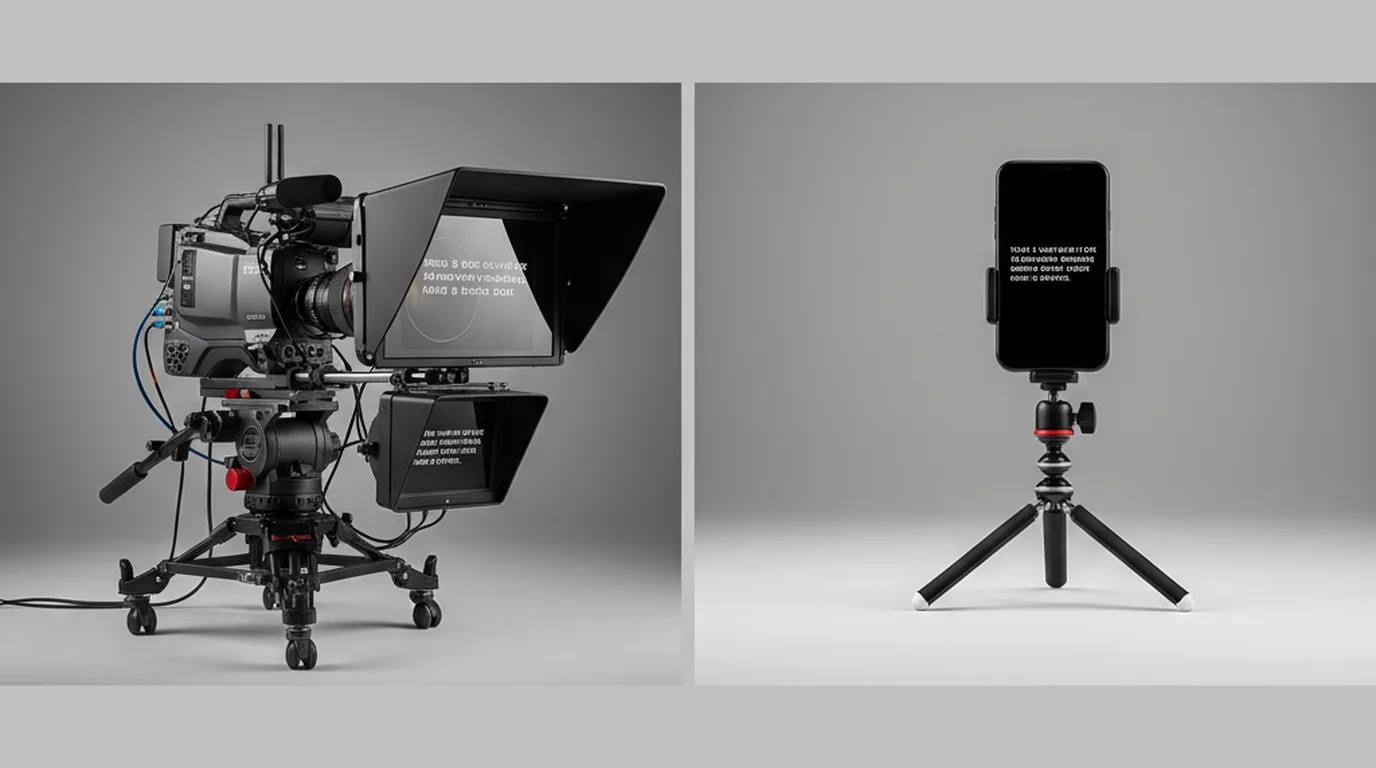
The word teleprompter still calls up the glass-and-mirror apparatus behind the camera in a TV news studio — a piece of equipment that costs thousands of dollars and requires a production crew to operate. That's a hardware teleprompter. The type that most creators, professionals, and public speakers actually use is a virtual teleprompter: a software app or browser tool that runs on the device you already own. Understanding the difference helps you choose the right setup for your situation — and avoid paying for hardware you don't need.
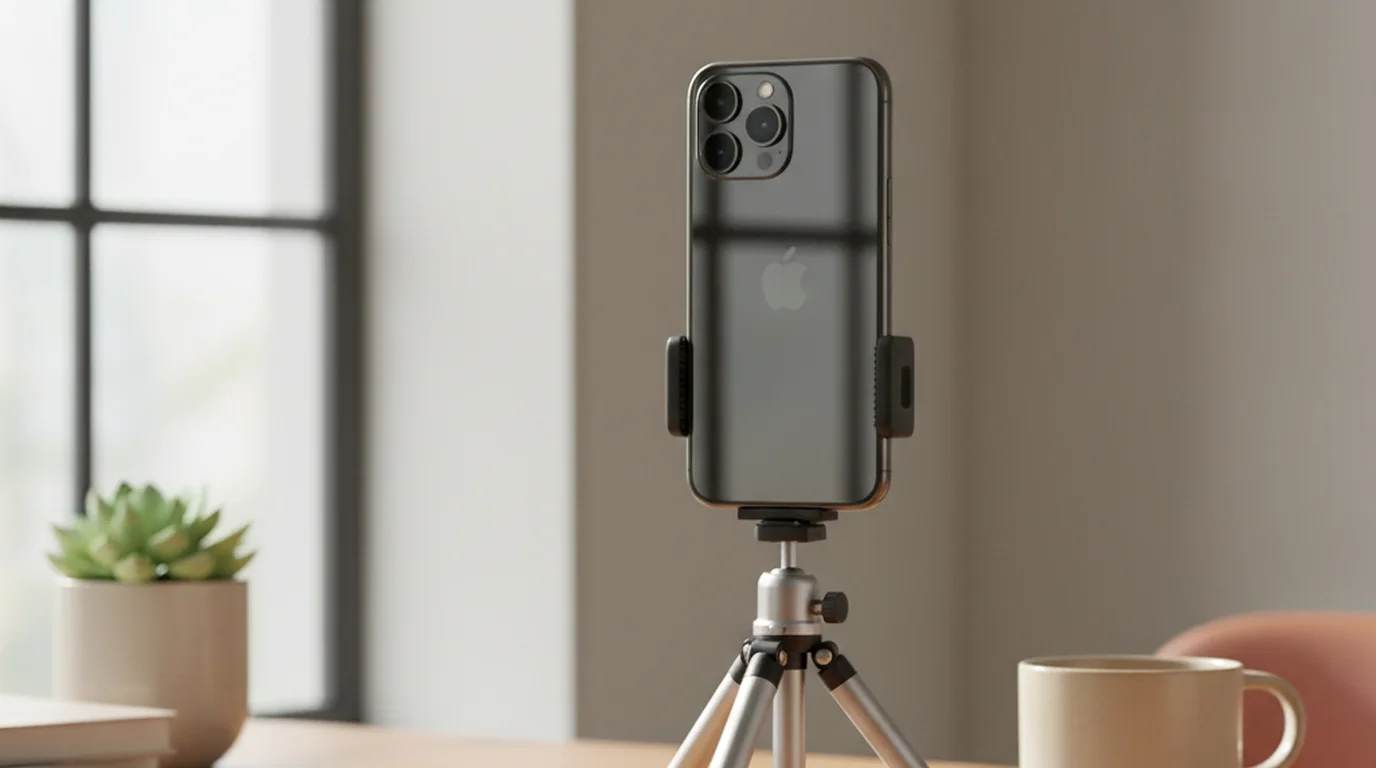
A virtual teleprompter is a software application or web tool that displays automatically scrolling text on your phone, tablet, computer, or browser, allowing you to read a script while appearing to face a camera. Unlike hardware teleprompters — which use a beam-splitter glass panel, a dedicated display, and a mounting bracket — a virtual teleprompter requires no special equipment. It runs on a device you already own, often for free. You can try a virtual teleprompter in the browser right now — no account and nothing to install.
What Is a Hardware Teleprompter?
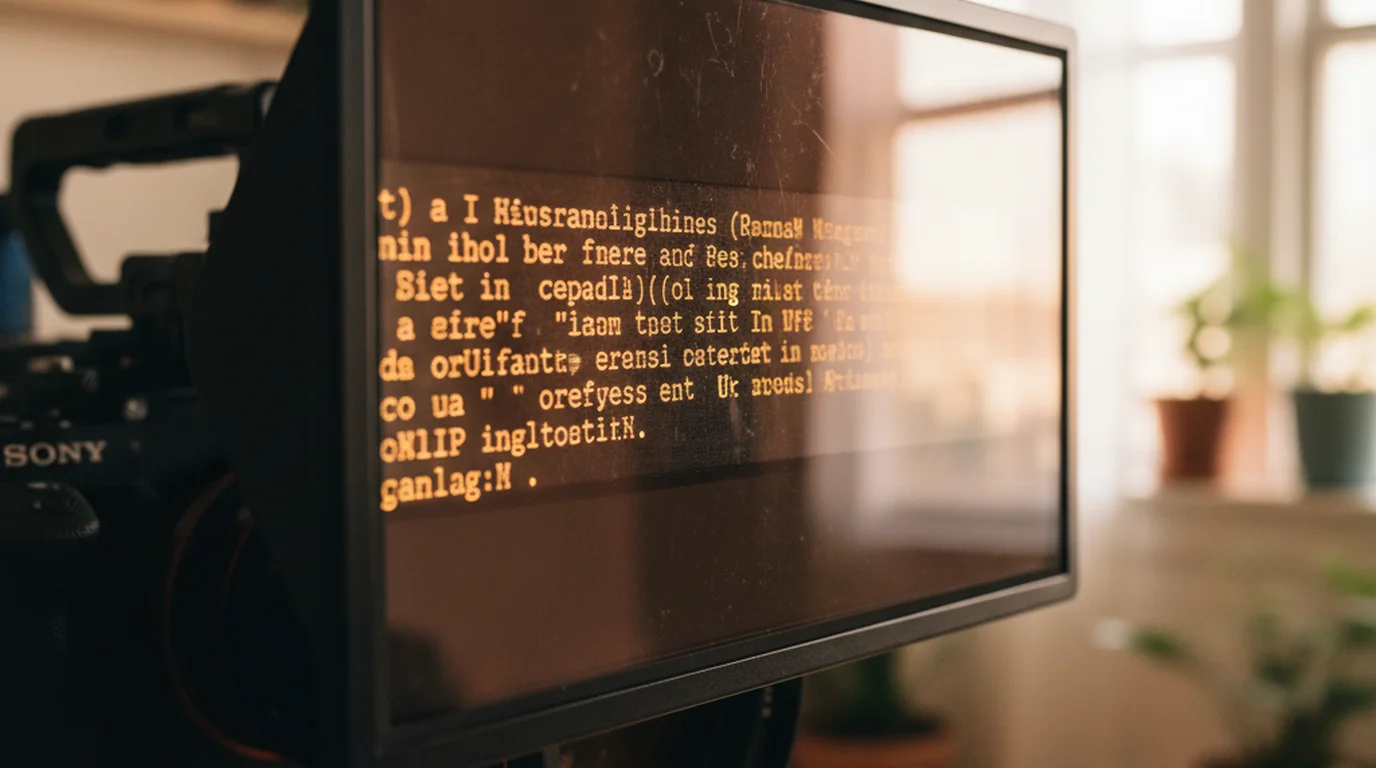
A hardware teleprompter has three components: a display unit (usually a monitor or tablet), a beam-splitter glass panel mounted at 45 degrees in front of the camera lens, and a mounting bracket that holds everything in alignment. The display shows mirrored text, which reflects off the semi-transparent glass toward the presenter. The camera, positioned behind the glass, records through it — the glass is transparent to the camera lens but reflective to the presenter's eyes.
The result: the presenter appears to look directly into the camera lens while reading text that floats in front of them. Professional news anchors, corporate video presenters, and political communicators use this setup because it allows extended scripted delivery — hour-long broadcasts, keynote addresses, political speeches — with no visible reading behavior.
For a closer look at how the glass component works, see the guide to teleprompter glass.
Cost and setup: Entry-level hardware teleprompter kits for use with cameras or iPads run $200–$800. Professional broadcast-grade systems used in studios and on stage cost $2,000–$10,000+. Setup requires mounting, display calibration, and motor speed adjustment for each session.
The first hardware teleprompter was patented in 1950 by Fred Barton Jr., Hubert Schlafly, and Irving Kahn of the TelePrompTer Corporation. The original design used rolled paper with typed text moved by a hand-cranked motor. The system was first used on the CBS television program "The Big Payoff" in 1950. By the 1960s, motorized scroll displays had replaced paper rolls in most broadcast environments.
What Is a Virtual Teleprompter?
A virtual teleprompter is purely software. It displays your script as large, automatically scrolling text on any screen — your iPhone, iPad, Mac, Windows PC, or browser — and you position that screen near your camera so reading the text and looking at the lens are nearly the same action.
There's no glass, no hardware mount, no specialized equipment. The core mechanism is the same as a hardware teleprompter — text scrolls past at a controlled speed so you can read while appearing to face forward — but the display is your existing device rather than a dedicated screen-and-glass assembly.
Virtual teleprompters typically offer two modes:
- Prompter mode (display-only): Text fills your screen and scrolls. Use this when a separate device is the camera — your phone sits near your webcam or external camera lens, displaying the script while you record with something else. This is the mode for video interviews, Zoom calls, Loom recordings, and setups with a DSLR or mirrorless camera.
- Camera mode (recording overlay): Text overlays the live camera preview on your phone or tablet. Use this when your phone IS the recording camera. The script appears on your screen; it doesn't appear in the video output. The app records your delivery directly.
For a complete guide on which mode to use in different situations, see how to use a teleprompter app.
A 2025 survey of video content creators by the Video Marketing Institute found that 84% of creators who used a teleprompter used a software-based virtual teleprompter rather than a hardware system. Among those using virtual teleprompters, 71% used a smartphone app, 19% used a browser-based tool, and 10% used a desktop application. Only 4% of respondents owned dedicated hardware teleprompter equipment.
Virtual vs Hardware Teleprompter: Side-by-Side Comparison
| Factor | Virtual Teleprompter | Hardware Teleprompter |
|---|---|---|
| Cost | Free to ~$15/month (subscription apps) | $200–$10,000+ (hardware kit) |
| Setup time | Under 5 minutes | 15–60 minutes per session |
| Equipment needed | Phone, tablet, or computer you already own | Display unit, beam-splitter glass, mounting bracket, camera |
| Portability | Fits in your pocket | Requires a carry case, careful transport |
| Eye contact quality | Good to excellent with correct positioning | Excellent — glass aligns text with lens exactly |
| Recording capability | Built-in (Camera mode records while scrolling) | Requires a separate camera |
| Use cases | YouTube, social media, interviews, Zoom, Loom, home studio | Broadcast studio, stage presentations, news anchoring |
| Learning curve | Low — most people need 2–3 practice recordings | Moderate — requires motor speed calibration and glass alignment |
When to Use a Virtual Teleprompter
A virtual teleprompter works for the vast majority of creator and professional recording scenarios. Use one when:
- You record YouTube videos, Reels, TikTok, or other social video — Camera mode on your iPhone or iPad handles this without any additional hardware.
- You record Zoom presentations, Loom videos, or online courses — Prompter mode on your phone or in a browser window near your webcam gives you scripted delivery with eye contact. For Loom specifically, see using a teleprompter for Loom recordings.
- You prepare for video job interviews — Prop your phone near your laptop camera and run Prompter mode. Read prepared answers to likely questions while maintaining eye contact with the interviewer.
- You record in a home studio with a DSLR or mirrorless camera — Use an iPad in Prompter mode between yourself and the camera lens. Large iPad text is readable from 60–90cm, the typical camera-to-subject distance in home setups.
- You're practicing public speaking or presentations — Run a browser teleprompter on your desktop and read your script aloud to build familiarity with the material before delivering it from memory.
When Hardware Still Makes Sense
Hardware teleprompters remain the professional standard in specific high-demand contexts:
- Broadcast and live TV — News anchors reading extended scripts for 30–60 minutes without interruption need the precision alignment of glass-and-mirror hardware. The beam-splitter system positions text exactly on the camera axis, which is difficult to replicate with a phone positioned nearby.
- Large-venue presentations — Stage teleprompters (sometimes called "confidence monitors") allow speakers to read text at 10–30 meters from the display. Virtual teleprompter screens are too small at that distance.
- Multi-camera broadcast productions — Hardware systems can be synchronized across multiple camera positions. Virtual teleprompters are single-device tools.
For most independent creators, educators, and business professionals, none of these conditions apply. A virtual teleprompter delivers equivalent results at zero hardware cost.
Free Virtual Teleprompter Options (as of 2026)
Three options cover most virtual teleprompter use cases without any cost:
- Teleprompter-Scrolling Scripts (iPhone, iPad, Mac, browser) — Free with both Prompter and Camera modes, adjustable scroll speed, font size control, and local-first script storage. No watermark, no account required. The browser version works on any Mac without installation. The iPhone and iPad apps support Camera mode for direct recording.
- CuePrompter (web) — A long-running free web teleprompter at cueprompter.com. Display-only (no recording mode), but reliable for Zoom and webcam setups.
- Virtual Teleprompter (Windows/Mac app) — Available from vtpapps.com, with a free tier for basic use on desktop. Better suited for Windows users who want a dedicated desktop application rather than a browser tab.
Paid options (Speakflow, sharespeak.co) add AI voice tracking and auto-scroll calibration that matches your delivery pace automatically. These features are valuable for high-volume recording, but unnecessary for most single-creator workflows.
How to Start Using a Virtual Teleprompter in 5 Minutes
If you haven't used a virtual teleprompter before, the fastest path to a working setup:
- Open the free online teleprompter at teleprompter.works/online/ on your Mac or phone — no download needed.
- Paste 3–5 sentences of content you already know well. Don't write a full script yet.
- Set font to 40pt, scroll speed to 90 WPM.
- Position your phone or browser window near your webcam or camera.
- Record a 30-second clip. Watch playback and adjust font and speed based on what you see.
That first test clip tells you everything you need to calibrate the setup. Most people land on their ideal settings within two or three short recordings. For a full breakdown of mode selection, script structure, and delivery technique, see the complete guide to using a teleprompter app.
Frequently Asked Questions
Is virtual teleprompter free?
Yes. Several virtual teleprompters are free. Teleprompter-Scrolling Scripts is free on iPhone and iPad with no watermark. The browser version at teleprompter.works/online/ is free on any device with no installation. CuePrompter at cueprompter.com is another free web-based option. Free virtual teleprompters cover the full functionality most creators need — script input, scroll speed control, font size adjustment.
What is a virtual teleprompter?
A virtual teleprompter is a software application or web tool that displays automatically scrolling text on your phone, tablet, computer, or browser, allowing you to read a script while appearing to face a camera. Unlike hardware teleprompters — which use a beam-splitter glass and dedicated display — a virtual teleprompter requires no special equipment beyond the device you already own.
Can I use my desktop as a teleprompter?
Yes. On a desktop or laptop, use the free online teleprompter at teleprompter.works/online/ in Chrome or Safari — no installation required. Position the browser window as close to your webcam as possible. On a MacBook, place it directly below the built-in camera. The closer the text is to the lens, the less visible your eye movement will be on camera.
Can I turn my phone into a teleprompter?
Yes, in two ways. In Prompter mode, your phone displays scrolling text so you can read while looking at a nearby camera — useful for Zoom, job interviews, or setups with an external camera. In Camera mode, your phone IS the camera: the scrolling text overlays the live camera view, and the recorded video contains only your delivery with no visible script. Both modes are free in the Teleprompter-Scrolling Scripts app on iPhone and iPad.
What is the difference between a virtual and hardware teleprompter?
A hardware teleprompter uses a beam-splitter glass panel mounted in front of a camera lens, with a display underneath that reflects text onto the glass — the presenter reads text that appears to float in front of the camera. A virtual teleprompter displays text on a regular screen positioned near the camera. Hardware setups cost $200–$10,000 and are used in TV studios. Virtual teleprompters are free, require no hardware, and work for most creator and professional recording scenarios.
Do virtual teleprompters work with external cameras?
Yes. When using an external camera (DSLR, mirrorless, or webcam), use a virtual teleprompter in Prompter mode on a separate device — phone, tablet, or iPad — positioned between you and the camera lens. The external camera records; the Prompter mode display shows your script. Position the display as close to the camera lens as possible for the best eye-contact angle.
Complete guide: What Is a Teleprompter? How It Works, Types, and When to Use One — history, hardware vs software, types, cost, and free options for every platform.
James HollowayJames Holloway coaches executives, founders, and professionals on scripted delivery and on-camera presence. His writing covers speech structure, words-per-minute pacing, and why most people's instincts about eye contact work against them.
Try a virtual teleprompter free — no hardware needed
The free online teleprompter works in any Mac browser. The iPhone and iPad app includes Camera mode for recording directly. No account, no watermark, no hardware required.
Use Free Online Teleprompter Get the Free App