Teleprompter for Laptop: Free Setup on Mac and Windows
 Ryan Kowalski · July 18, 2026 · 9 min read
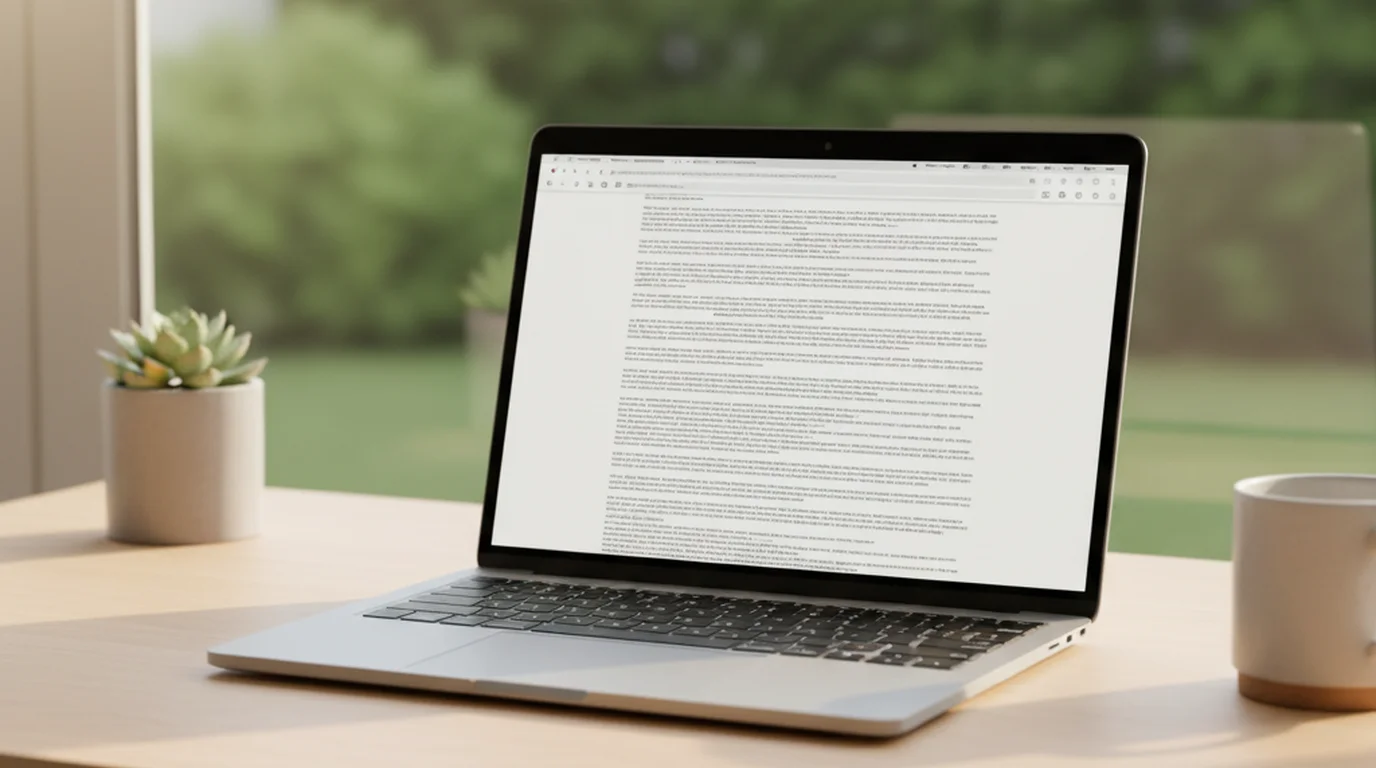
Your laptop is already a capable teleprompter. The screen is large enough to read from normal speaking distance, the browser runs any web-based prompter without installation, and most laptops have a built-in camera positioned near the top edge — close enough to the script display for decent eye contact. The setup takes under five minutes and costs nothing. Here's exactly how to do it on Mac and Windows, with the options ranked by how well they actually work.
Yes, you can use a laptop as a teleprompter. On Mac, open the free online teleprompter at teleprompter.works/online/ in Chrome or Safari, paste your script, and position the browser window directly below your built-in camera. On Windows, use the same browser teleprompter or download Teleprompter Mirror for a native app experience. Both are free with no account required.
Using Your Mac as a Teleprompter (Free, Browser-Based)
The fastest Mac setup uses no software installation at all. Open teleprompter.works/online/ in Safari or Chrome, paste your script into the text area, and configure two settings before you record: font size and scroll speed.
Font size: Set to 36-48pt for most laptop screens viewed from 2-3 feet. If you're further from the screen (using an external camera further back), increase to 52-60pt so you can read without squinting.
Scroll speed: Most natural speech runs between 120-150 words per minute. Start at 130 WPM, record a 30-second test, and check whether you're ahead of or behind the scroll. Adjust by 10 WPM increments until it matches your delivery pace.
For a native Mac app with more controls — mirror mode, camera overlay — the Mac teleprompter app (Teleprompter-Scrolling Scripts) is free on the Mac App Store. It adds Camera mode, which overlays the script on your camera feed so you can see both while recording.
Step-by-step for browser setup:
- Open teleprompter.works/online/ in your Mac browser.
- Paste your script. Set font size and speed.
- Position the laptop screen directly below your recording camera.
- Record a 30-second test clip and review the eye contact angle.
- Adjust laptop height or camera position until eye line looks natural.
- Record your full script.
Using Your Windows Laptop as a Teleprompter
Windows users have two strong free options: the browser-based teleprompter (same as Mac — works in Chrome or Edge) or Teleprompter Mirror, a free Windows desktop app.
Browser option (fastest): Open teleprompter.works/online/ in Chrome or Microsoft Edge. The browser teleprompter works identically on Windows — same font size controls, same speed settings, no installation needed. For most Windows users, this is the recommended starting point.
Teleprompter Mirror (native app): Download from telepromptermirror.com. The free version supports scripts up to a certain length with basic speed and font controls. It's a dedicated app rather than a browser tab, which means it won't compete with other browser windows for screen space and stays in focus more reliably during recording.
One Windows-specific consideration: if you're recording with a dedicated USB webcam (rather than the built-in camera), position the external webcam directly above the laptop screen so your eye line when reading is aimed at the lens rather than below it.
Can You Use Microsoft Word as a Teleprompter?
Technically yes — practically, no. Microsoft Word has a Read Aloud feature and a Focus Mode that presents text without toolbars, but neither provides the core function of a teleprompter: auto-scroll at a controllable words-per-minute rate that you can pace your delivery against.
In Word, you'd need to scroll the document manually during recording — which means your hand moves, your focus splits between scrolling and speaking, and your delivery suffers. The workaround is PowerPoint's presenter view with a scrolling slide, but that requires building the script into slides and still lacks WPM control.
The comparison for best teleprompter software covers the full range of options including paid apps — but for most laptop use cases, the browser teleprompter is faster to set up and produces better results than Word for scripted recording.
Word is useful for one thing in this workflow: writing and editing the script before you paste it into the teleprompter. Write in Word, paste into the teleprompter. Don't try to use Word as the prompter itself.
Positioning Your Laptop Teleprompter for Eye Contact
The most common mistake with laptop teleprompters is getting the script-to-camera angle wrong. When your script is too far below the camera, your eyes point downward and the viewer sees the top of your head — not direct eye contact.
The goal: position the teleprompter script as close to the camera lens as possible, vertically. On a laptop, the built-in camera is typically at the top center of the screen. If you're displaying the teleprompter in a browser window that takes up the full screen, the top of the script display is close to the camera position — which is ideal.
Practical adjustments:
- Raise the laptop on a stand or stack of books so the screen is closer to eye level. This reduces the downward angle of your gaze when reading.
- Keep the top of your script visible in the upper portion of the screen (nearest the camera) rather than centering it on the screen.
- If using an external camera on a separate tripod, align the camera lens with the vertical position of the script text — not just with the screen.
- The closer your camera is to the screen, the smaller the eye angle deviation. A camera 2 feet from the screen creates less visible off-axis gaze than a camera 6 feet away.
Research on on-camera eye contact indicates that viewers perceive a speaker as making direct eye contact when the speaker's gaze is within approximately 3-5 degrees of the camera lens axis. At a typical laptop-to-camera distance of 2 feet, this corresponds to the script text being within about 1.5 to 2.5 inches of the camera lens position on the screen. Displaying the teleprompter at the top of the screen (closest to the built-in camera) satisfies this threshold far more reliably than displaying it centered or at the bottom.
Best Free Teleprompter Apps for Laptop (Comparison Table)
Here is a direct comparison of the three main approaches for using a laptop as a teleprompter:
| Option | Platform | Cost | WPM control | Setup time | Account needed |
|---|---|---|---|---|---|
| teleprompter.works/online/ (browser) | Mac, Windows, any OS | Free | Yes | Under 2 min | No |
| Teleprompter-Scrolling Scripts (Mac app) | Mac only | Free | Yes | 5-10 min (download) | Apple ID |
| Teleprompter Mirror (Windows app) | Windows only | Free (basic) | Yes | 5-10 min (download) | No |
| Microsoft Word | Mac, Windows | Subscription | No | N/A | Microsoft account |
For most users recording in a browser, the browser-based teleprompter is the fastest start. The native Mac app adds value if you're recording frequently and want camera-overlay features.
Laptop vs. Phone as a Teleprompter: Which Is Better?
This depends on your recording setup. The laptop wins in some scenarios; the phone wins in others.
Laptop is better when: You're recording from a laptop webcam and the laptop is already in front of you. Adding a phone as a separate prompter introduces another device and complicates the setup. The laptop screen is larger and easier to read at distance.
Phone is better when: You're recording with a dedicated camera or a separate phone camera on a tripod, and you can position the phone directly below the lens. A phone running a teleprompter app can sit on a small stand immediately below the camera at the exact height needed — giving better eye contact alignment than a full laptop that sits lower on a desk.
The best setups for dedicated creators often use a phone or tablet as the teleprompter display, positioned directly below the camera on a purpose-built mount. For occasional use or quick recordings, the laptop-as-teleprompter setup covered here is faster and requires no additional hardware.
If you're recording Zoom calls or meetings with scripted content, the setup is slightly different — see the guide on teleprompter for Zoom for the specific window arrangement that works on calls. For async recording tools, the teleprompter for Loom guide covers that workflow specifically.
A 2024 study on creator content production workflows found that laptop-based recording (using the built-in webcam) accounts for approximately 61% of how-to and tutorial video production among solo creators who publish weekly or more frequently. Of those laptop-based creators, the majority used browser tools rather than dedicated software — primarily because browser tools require no installation and are accessible immediately when a recording session begins. Native app adoption was higher among creators with larger channel sizes (over 50,000 subscribers), suggesting that workflow investment scales with production volume.
Tips for Laptop Teleprompter Recordings
- Increase font size more than you think you need to. The standard teleprompter font in a TV studio is massive — because readers are 6-10 feet away. At laptop distance (2-3 feet), 36-48pt is minimum for comfortable reading without squinting, which shows on camera.
- Set scroll speed slightly slower than your natural pace. It's easier to speak naturally when the scroll is slightly behind you than when you're racing to keep up. You can always pause the scroll with the spacebar if you need a moment.
- Use a full-screen or near-full-screen browser window. A small teleprompter window in the corner of the screen means your eyes will drift away from the camera more noticeably. Full-screen keeps the script near the camera and removes visual distractions.
- Do one take just to calibrate. Speed and font size always need minor adjustments in real conditions. Don't try to nail it in the first take — do a 60-second calibration run first.
- Close other browser tabs and notifications. A notification pop-up during recording can interrupt your scroll or distract you mid-script. Before recording, enable Do Not Disturb and close unneeded tabs.
Frequently Asked Questions
Can I use my laptop as a teleprompter?
Yes. Open any browser teleprompter — such as teleprompter.works/online/ — paste your script, and position the laptop directly below your camera. The built-in screen is large enough to read comfortably from speaking distance, and auto-scroll moves at the speed you set. No additional hardware is required.
Is there a teleprompter app for my laptop?
Yes. For Mac, Teleprompter-Scrolling Scripts is a free native app available on the Mac App Store with features including camera overlay. For Windows, Teleprompter Mirror is a widely used free download. Browser-based teleprompters like teleprompter.works/online/ work on any laptop without installation and are the fastest option to start.
Can I use Microsoft Word as a teleprompter?
Not effectively. Word has no auto-scroll feature that advances at a controlled words-per-minute rate. You'd need to manually scroll during recording, which interrupts delivery and splits focus. A dedicated browser teleprompter takes under two minutes to set up and works far better for scripted recording than Word's reading modes.
How to set up a teleprompter on a laptop?
Open teleprompter.works/online/ in your browser, paste your script, set font size to 36-48pt and scroll speed to approximately 130 WPM. Position the laptop directly below your recording camera — built-in webcam or external — so the script is as close to the lens as possible. Record a 30-second test to check your eye contact angle and adjust as needed.
Complete guide: What Is a Teleprompter? How It Works, Types, and When to Use One — history, hardware vs software, types, cost, and free options for every platform.
Ryan KowalskiRyan Kowalski reviews iOS and macOS apps for content creators, with a focus on teleprompter, camera, and productivity tools. His rule: use an app daily for at least two weeks before writing a word about it.
Start your laptop teleprompter setup now
The free online teleprompter works in any browser — no download, no account. Paste your script and record in under five minutes.
Use Free Online Teleprompter Get the Free App