Scroller app vs. teleprompter app
A scroller app is any application that scrolls text at a controlled speed. A teleprompter app is a scroller built specifically for on-camera delivery — it integrates with the device camera, records video while scrolling the script, and is designed to position text close to the lens for natural eye contact.
What is a scroller app?
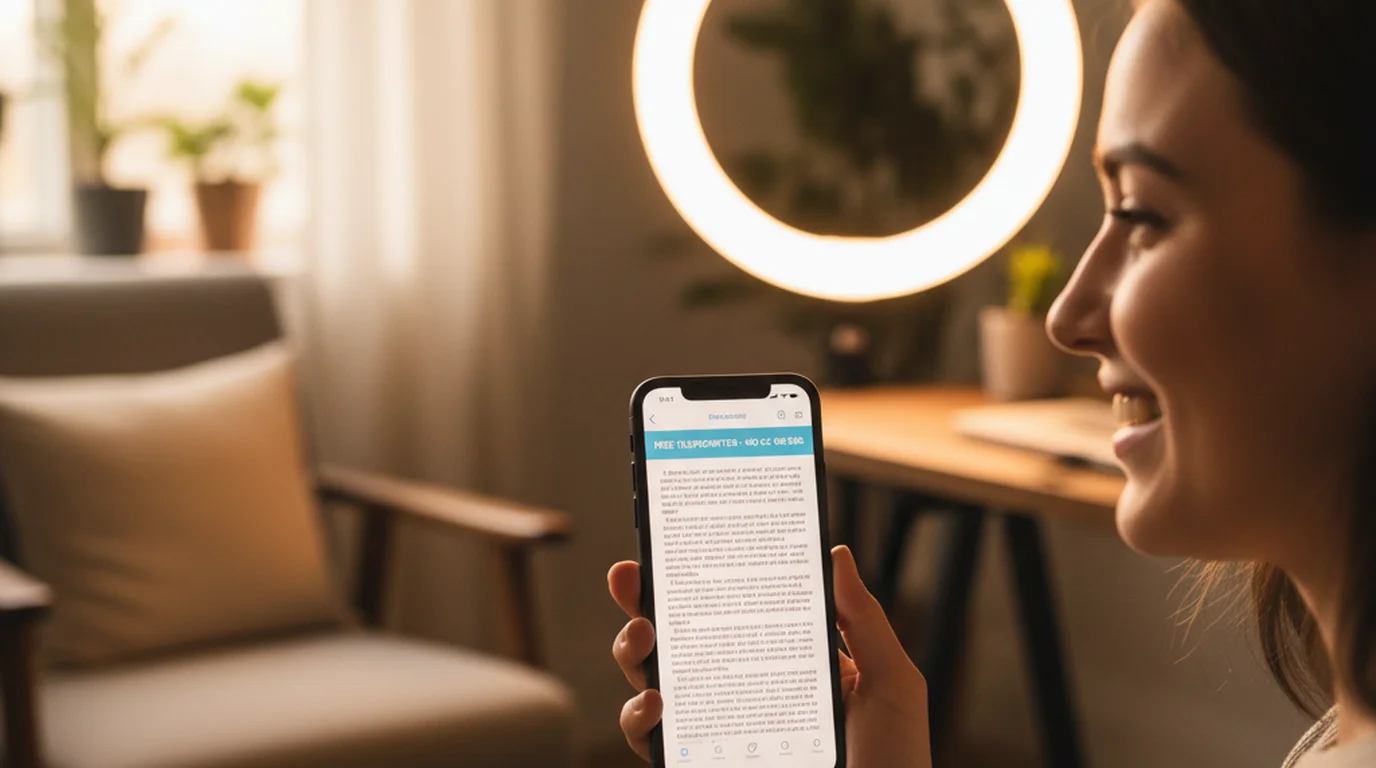
Any app that displays text and scrolls it automatically at a user-set speed qualifies as a scroller app. Examples include notes apps with auto-scroll features, speech prompter utilities, and dedicated text scroller tools. They are useful for reading scripts during rehearsal, displaying cue cards on a second screen, or presenting any text content without manually advancing the page.
What scroller apps typically do not do is integrate with the camera. A basic scroller shows text on a screen; it does not overlay that text on a live camera feed, it does not manage a script library organized for video production, and it does not offer recording controls. For many use cases — simple rehearsal, lyric display, note reading — that is perfectly adequate. For on-camera video recording, it falls short at the point that matters most.
What makes a teleprompter app different?
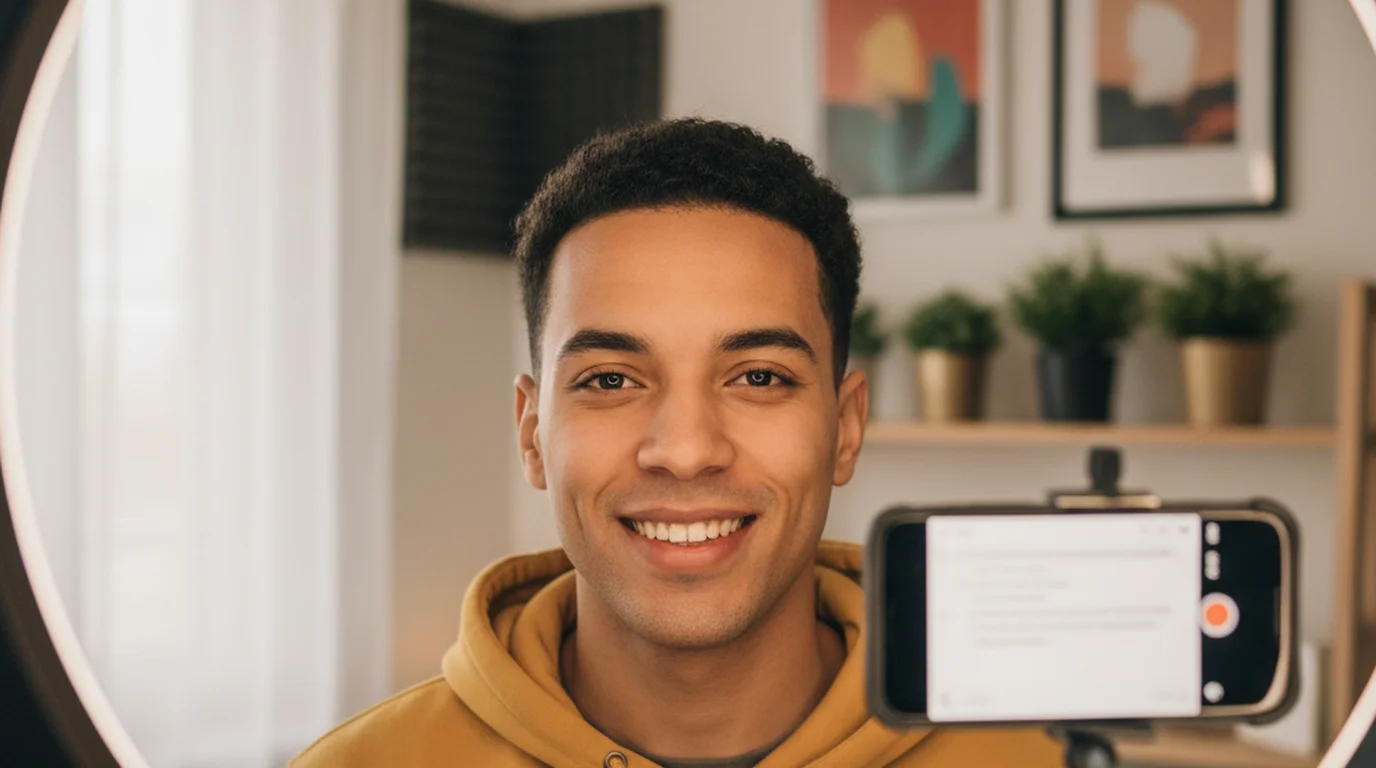
A dedicated teleprompter app is purpose-built for video production. The defining capability is camera overlay: the app places the scrolling script directly over the live camera view so the presenter can read while the camera records. This positions the reader's eye line close to the lens, which means the viewer sees something that looks like sustained eye contact rather than someone reading off a separate screen.
Beyond camera integration, a teleprompter app includes: a persistent script library for saving and organizing multiple scripts, font size and contrast controls tuned for at-a-distance readability, adjustable text area positioning to optimize the eye line for different device orientations and camera positions, real-time scroll speed adjustment during recording, and often voice command or remote control support so the presenter does not have to touch the device mid-take. Each feature addresses a specific production challenge that a basic scroller does not encounter and therefore does not solve.
Feature comparison: scroller vs. teleprompter app
A basic scroller provides: automatic text advancement at a set speed, a simple speed control, and a text display. That is the complete feature set for most scroller utilities. It is a single-purpose tool — and for rehearsal, reading, and non-camera use cases, that single purpose is all that is needed.
A dedicated teleprompter app adds: camera overlay mode that composites the script onto the live camera feed, simultaneous video recording so recording and reading happen in the same take, a script library with save and organize capabilities, font and layout controls optimized for reading under recording conditions, scroll speed controls accessible without interrupting the take, voice command scroll control for hands-free operation, remote control support for setups where the presenter is away from the device, and portrait and landscape modes adapted to different recording orientations. The gap between the two is not incremental — it is the difference between a general text tool and a production workflow tool.
When a basic scroller is enough
A basic scroller handles the job well in several situations. Rehearsal only, with no recording: if you are running through a script to practice delivery before stepping in front of a separate camera, a scroller gives you the pacing structure you need without requiring any of the camera integration features. Reading lyrics or cue cards on a second screen while a dedicated camera records on a separate device: the two functions are already separated, so a scroller on the reading device is sufficient.
Displaying text for someone else to read, such as cue cards for a subject being filmed who is not operating the recording device — a scroller works fine here. Low-production social content where eye contact is not a priority, where the camera is incidental and the content value is in the words rather than the on-camera connection — a scroller is a proportionate tool for a proportionate task. In all these situations the camera integration of a dedicated teleprompter app adds nothing, and the simpler tool is the better choice.
When you need a dedicated teleprompter app
The case for a dedicated teleprompter app is clearest when the device you are reading from is also the camera. iPhone and iPad are the most common recording devices for YouTube creators, social media content, corporate training videos, and educational recordings. In this setup, there is no second device available to run a separate scroller — the reading tool and the recording tool have to be the same device. Camera mode in a teleprompter app solves this exactly: it overlays the script on the camera view so reading and recording happen simultaneously.
Beyond the single-device constraint, any situation where eye contact with the viewer matters — and that is essentially every situation where the video includes a person speaking directly to the camera — is a situation where camera integration makes a visible difference. A presenter reading from a scroller on a separate screen looks away from the lens. A presenter reading from a teleprompter overlay looks into the lens. To the viewer, one looks like attention; the other looks like reading. For high-stakes content — YouTube videos, professional recordings, corporate video, training content, vlogs — that difference in perceived presence is meaningful.
Teleprompter-Scrolling Scripts as a teleprompter app
Teleprompter-Scrolling Scripts operates in two modes that cover both scroller and full teleprompter use cases. Prompter mode is a standalone scroller — the script advances at the set speed without camera integration, which is ideal for rehearsal, stage reading, and any non-recording use. Camera mode overlays the scrolling script on the live camera feed and records video simultaneously, which is the full teleprompter experience for on-camera delivery.
Both modes are available on iPhone, iPad, and Mac. Script storage is local and persistent — scripts save between sessions without cloud accounts or subscriptions. Font size, scroll speed, text area position, and camera selection are all adjustable within the app. Voice command control lets you start and stop the scroll without touching the screen. The result is a single app that replaces both a basic scroller and a dedicated recording setup for most video creators.
Free online scroller vs. dedicated app
For creators who want a teleprompter-grade scroller without installing an app, teleprompter.works/online is a free browser-based option. It provides scrolling text with teleprompter-focused controls — adjustable speed, font size, and text layout — and works on any device with a browser, including Windows and Android devices where the native app is not available.
The browser tool is more than a basic scroller but less than the native app: it overlays the script on the camera and records in Recording mode, but it does not store scripts between sessions or run offline the way a native app does. For desktop recording setups where a browser window can sit near the webcam, it works well as a reading tool. For mobile recording where the phone is the camera, the native app's camera overlay mode is the practical solution. Both tools are free; the choice comes down to device and workflow.
Choosing the right tool for your workflow
The decision between a basic scroller and a dedicated teleprompter app comes down to one question: is the device you are reading from also the device you are recording on? If yes — if your iPhone, iPad, or Mac is both camera and prompter — a dedicated teleprompter app with camera overlay is the right tool. If the reading device and the recording device are separate, a browser scroller or basic scroller utility handles the reading side adequately while the recording device captures the video independently.
For most creators building content on Apple devices, the answer is the native app. For creators working on a mixed device setup — a dedicated DSLR or mirrorless camera for recording, a laptop or tablet for reading — the online teleprompter or a basic scroller on the reading device is a practical and cost-free solution. Neither tool is universally superior; both are right in their context.
Ready to go beyond a basic scroller? Teleprompter-Scrolling Scripts gives you camera overlay, script management, and delivery controls on iPhone, iPad, and Mac — free to download, no subscription needed.
Use Free Online Teleprompter Get the Free App