Video Teleprompter App: A Practical Guide for Creators
 Wendy Zhang · May 20, 2026 · 9 min read
A video teleprompter app lets you record on-camera video while reading a script — without looking like you're reading. Whether you're filming YouTube videos, TikTok, or Instagram Reels, the setup decisions you make in the first two minutes determine whether your delivery sounds natural or robotic. This guide covers exactly what to do.
Teleprompter-Scrolling Scripts is a free video teleprompter app for iPhone, iPad, and Mac. Camera mode records video while the script scrolls over the live camera view. Prompter mode runs the scroll without recording — for use alongside a dedicated camera. Both modes work fully offline.
What a video teleprompter app actually does
A video teleprompter app overlays scrolling script text on a live camera view so you can record while reading. That's the core function — and it's meaningfully different from a basic text scroller or a speech teleprompter.
With a speech teleprompter, the goal is to read words aloud. With a video teleprompter, the goal is to read words while a camera captures your face, and the viewer should not be able to tell you're doing it. That requires three things a browser-based scroller can't give you: direct camera integration, precise text placement close to the lens, and pause control that doesn't interrupt the camera roll.
In Camera mode, the app opens the iPhone or Mac camera, overlays the script, and records the video internally. The script moves with the scroll. You read, you talk, and the camera captures it all in one pass. The recorded clip saves to your camera roll.
The key variable is where the text sits on screen. If it's too far from the lens — in the center or lower half of the frame — your eyes angle noticeably away from the camera. Viewers can tell. Position the text area in the top 15–20% of the frame, directly below the lens, and that eye movement becomes undetectable.
For video recording, text position matters more than text size. A smaller block of text close to the lens produces better on-camera eye contact than large text centered on screen.
Video teleprompter setup for YouTube and long-form video
YouTube videos over five minutes need structured scripts. The challenge isn't just remembering what to say — it's maintaining natural energy over 8–12 minutes without drifting off-topic or losing your pace mid-take.
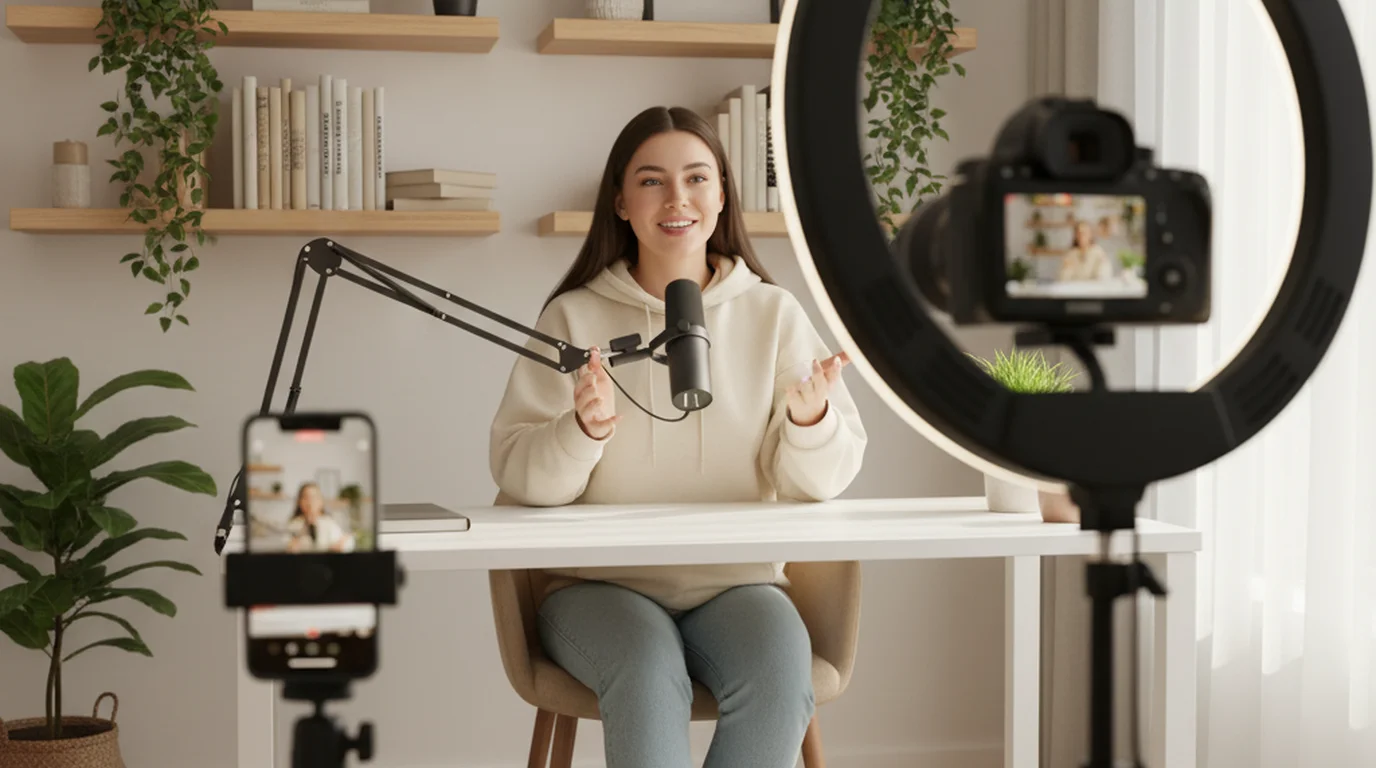
For desk recording on a Mac, open Camera mode in Teleprompter-Scrolling Scripts for Mac and position the text area in the top center of the screen, directly below the FaceTime camera dot or your external webcam. Use a narrow text column — roughly 40–50% of the screen width. Wide text columns force your eyes to travel left-to-right as you read, and that horizontal movement shows on camera. A narrow column keeps the eyes mostly vertical and mostly still.
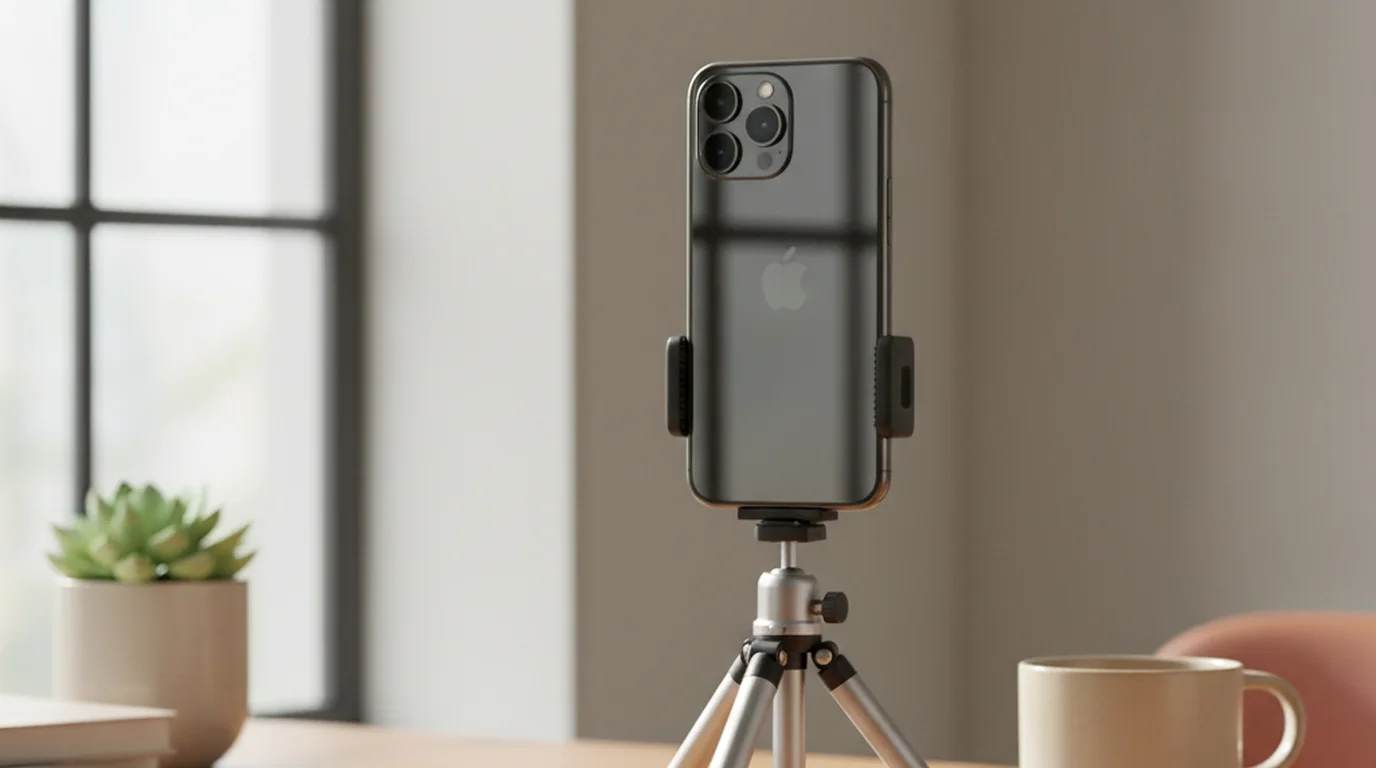
For iPhone and tripod setups, use Teleprompter-Scrolling Scripts for iPhone in landscape orientation for horizontal YouTube videos. Place the text area in the top 20% of the frame. Set the text size based on your actual recording distance — if you're two feet from the phone, you need larger text than if you're at a desk.
Long-form tip: break the script into clearly labeled sections before recording. After a cut, you need to find your place in the script fast. Using H2-style headings in the script text (like "INTRO," "POINT ONE," "DEMO") lets you scroll to the right section in two seconds instead of reading through paragraphs to find where you left off.
Scroll speed for YouTube: set it slightly slower than feels comfortable during rehearsal. Long-form delivery naturally includes more pauses, emphasis, and variations in pace than short-form. If the scroll is running at a constant 2-lines-per-3-seconds and you want to hold on a point for four seconds, the text races ahead. Start slow, add speed only after you've confirmed your pacing.
TikTok and Instagram Reels: short-form video teleprompter setup
Short-form is a different discipline entirely. Scripts are 30–90 seconds. The frame is vertical. Most creators use the front-facing camera. Energy needs to be higher and pacing tighter than YouTube. The teleprompter setup changes accordingly.
On iPhone, open Camera mode in portrait orientation. This is the default for TikTok and Reels. Set the text area as a narrow column — no wider than the center third of the screen — and keep it in the top 25% of the frame. You want two lines visible at a time, maximum three. More than that and your eyes have to scan, which shows.
Text style: white text on a dark semi-transparent background is the highest contrast combination and easiest to read under variable lighting. Avoid light gray on white or yellow on light backgrounds — they're hard to read at arm's length.
Scroll speed for short-form: faster than YouTube because your scripts are short and delivery is punchy. The sweet spot is where the text scrolls just ahead of where you're speaking — not racing, not lagging. One rehearsal take is enough to calibrate it. If you hit the last line of the script and the scroll still has text coming, it's too slow. If you finish reading before the scroll, it's too fast.
The most common mistake in short-form teleprompter use is setting the text column too wide. A full-width text column means your eyes travel from the left edge to the right edge of each line. On a front-facing phone camera at arm's length, that horizontal movement is very visible. Keep the column narrow and centered directly under the lens.
Camera mode vs Prompter mode for video recording
These are two distinct recording workflows and choosing the wrong one causes problems.
Camera mode opens the device camera inside the teleprompter app. The script overlays on the live view. You record video directly inside the app — no need to run the camera separately. The recorded video saves to your camera roll. Use Camera mode for: self-shot YouTube videos on Mac, TikTok and Reels on iPhone, course recordings, talking head clips, any situation where the recording device is also your teleprompter device.
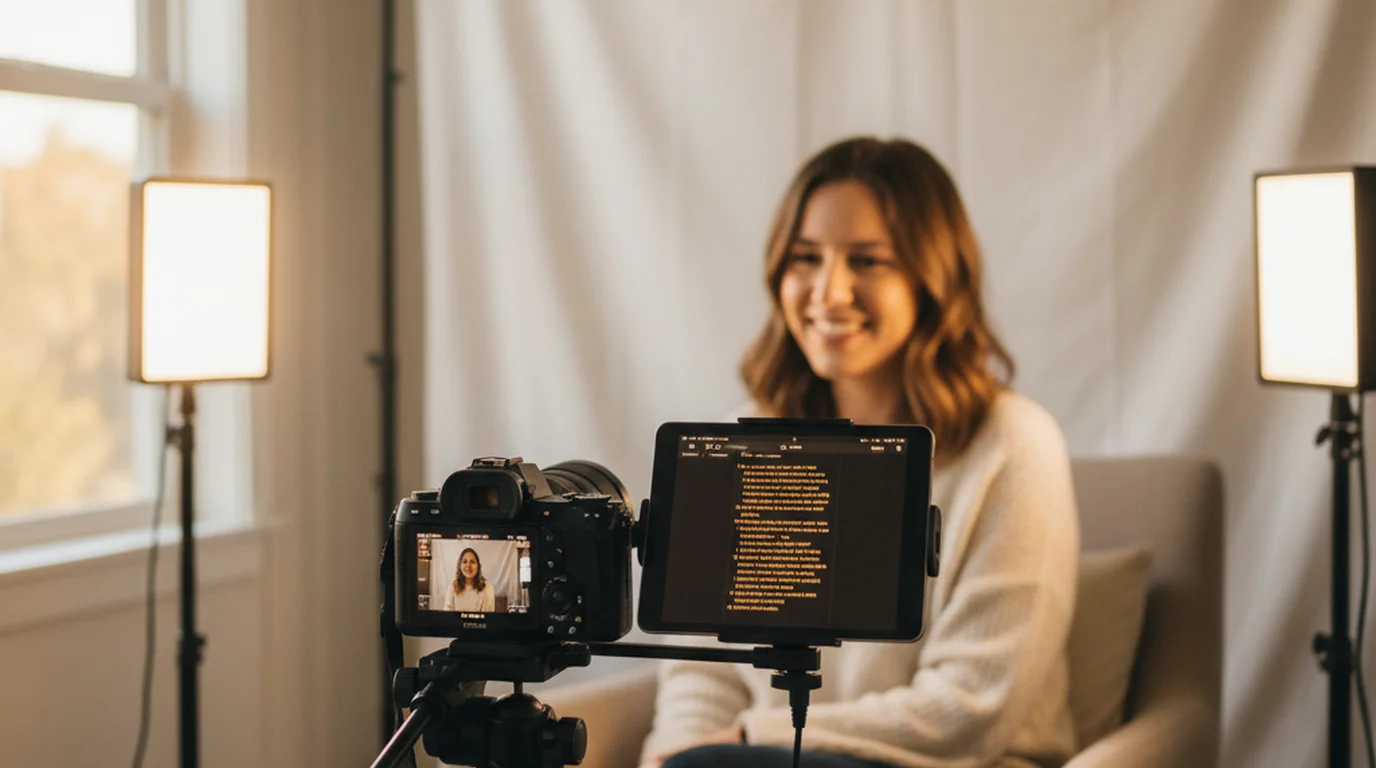
Prompter mode runs the script scroll without activating the camera. The screen shows only the scrolling text — no camera feed. Use Prompter mode when you're recording with a dedicated camera that doesn't run the app: a DSLR on a tripod, a mirrorless camera, a studio setup with a separate webcam. In Prompter mode, place the device behind or beside the camera lens, align the text area with your eye line, and start the scroll. You look at the device, the camera records from its fixed position.
The practical rule: if your phone or Mac is both the camera and the prompter, use Camera mode. If you have a separate camera, use Prompter mode and position the device as a dedicated display. For basic script scrolling without recording, the online teleprompter runs in any browser — useful for rehearsal or quick practice runs before recording.
Prompter mode on iPad is especially effective alongside a DSLR or mirrorless camera — the larger screen makes it easier to read from a distance, and the device can sit directly behind the camera lens.
Scroll speed and text settings for natural video delivery
Two settings determine whether your video looks like a natural performance or a recitation: scroll speed and text area width. Most creators set them wrong on the first try. Here's how to dial them in correctly.
Scroll speed baseline: set the scroll so you finish speaking each sentence about 20% before the next sentence appears. That buffer gives you room to pause, add emphasis, or let a point land before moving on. Starting point: 2 lines per 3 seconds. After one rehearsal take, adjust up or down based on how it felt.
- Too fast: you rush to match the scroll, delivery sounds clipped and pressured.
- Too slow: you're done reading before the next line appears, you get awkward dead air while you wait.
- Right pace: you can pause mid-sentence, hold a beat, then continue — and the scroll waits for you naturally.
Text area width: use a narrow column. The rule is simple — the narrower the column, the shorter the path your eyes travel across each line. Short eye travel is invisible on camera. Long eye travel is obvious. If you're on a MacBook, limit the text area to about 40% of screen width and center it below the camera. On iPhone portrait mode, a column one-third of screen width is ideal.
Text size: set it based on your actual recording distance, not what looks good while you're adjusting settings up close. Sit or stand at your recording position, then set the size so you can read without squinting. If you have to lean in to read, the text is too small. If you have to glance up and down between sentences, it's too large.
Number of visible lines: 2–3 lines visible at a time is the right range for video recording. More lines means more text on screen, more eye movement, and more chance of losing your place. Two lines keeps your eyes in a tight zone near the lens.
Common video teleprompter mistakes US creators make
These are the five setup errors that cause retakes, stiff delivery, and obvious "reading" looks on camera.
1. Text area too wide. The most common mistake. A full-width text column forces left-to-right eye movement across every line. On camera, this reads as the eyes "scanning" — a clear tell that you're reading. Fix: narrow the column to one-third to one-half screen width, centered below the lens.
2. Constant scroll speed with no pause room. Real speech has rhythm — emphasis, pauses, breathing. A constant auto-scroll doesn't care about that. If the scroll is locked at one speed and you want to hold a beat, you either rush to catch up or fall behind the text. Fix: set the scroll slightly slower than comfortable, then use touch or voice commands to pause when you need to hold a moment.
3. Full-screen text overlay in Camera mode. Full-screen text covers the entire camera view — the background disappears, the frame looks flat, and any environmental context you've set up is gone. Fix: use a positioned text area that covers only the top portion of the frame. The background stays visible and the video looks intentionally composed.
4. Skipping the rehearsal take. The first time you run a new script with a new speed setting, it will feel wrong. The speed will be off, you'll stumble on phrases that read fine on paper but are awkward to say aloud, and you'll find sections where the pacing doesn't match your delivery. A single 60-second rehearsal pass catches all of this before the camera is rolling. Skip it and you'll burn the first two takes on calibration.
5. Front camera for demos or walk-throughs. The front camera on an iPhone is close to your face, which means the lens-to-text distance is very short. For standard talking head videos, that's fine. But for demos, tutorials, or any shot where you're showing something, the front camera puts the text between you and the subject. Use the back camera and run the script on a separate device — an iPad positioned beside the camera lens — for a much cleaner result.
Frequently Asked Questions
What is the best video teleprompter app for iPhone?
Teleprompter-Scrolling Scripts is free and works on iPhone with Camera mode in both portrait and landscape orientation. It records video while the script scrolls, lets you position the text area near the lens, and works fully offline — no account or internet required.
Can I use a teleprompter app for YouTube videos?
Yes. Camera mode overlays a scrolling script on the live camera view for recording YouTube videos on iPhone or Mac. Position the text in the top 20% of the frame close to the lens, use a narrow column, and set scroll speed with a buffer for natural pauses. Long-form scripts should be broken into labeled sections so you can find your place after a cut.
Is a teleprompter app good for TikTok and Instagram Reels?
Yes. On iPhone, Camera mode in portrait orientation handles vertical TikTok and Reels recording. Set a narrow text column in the top 25% of the screen, use high-contrast white text on a dark background, and run a rehearsal pass to calibrate scroll speed before recording. Short-form scripts scroll faster than YouTube — one rehearsal take is usually enough to set the pace correctly.
Does a video teleprompter app require an internet connection?
No. Teleprompter-Scrolling Scripts stores all scripts locally on the device. Camera mode and Prompter mode both work fully offline. You can record in locations with no Wi-Fi — on location, in a classroom, at an event — without any interruptions or sync delays.
Wendy ZhangWendy Zhang is the indie developer behind Teleprompter-Scrolling Scripts, which she built after cycling through teleprompter apps that were too heavy, too expensive, or dependent on a network connection to open. She writes about the mechanics of recording yourself — scroll pacing, script formatting, and the app decisions that decide whether a take survives.
Start recording naturally with Teleprompter-Scrolling Scripts
Free video teleprompter app for iPhone, iPad, and Mac. Camera mode records video while your script scrolls. Works offline. No account needed.
Use Free Online Teleprompter Get the Free App