What is a script reader app?
A script reader app is an application that displays your written script in a scrolling format — moving the text at a controlled speed so you can read hands-free while recording video, presenting to a camera, or rehearsing. When it includes camera integration, it is also a teleprompter app. The two terms describe a spectrum: every teleprompter app is a script reader app, but not every script reader app is a full teleprompter.
What is a script reader app?
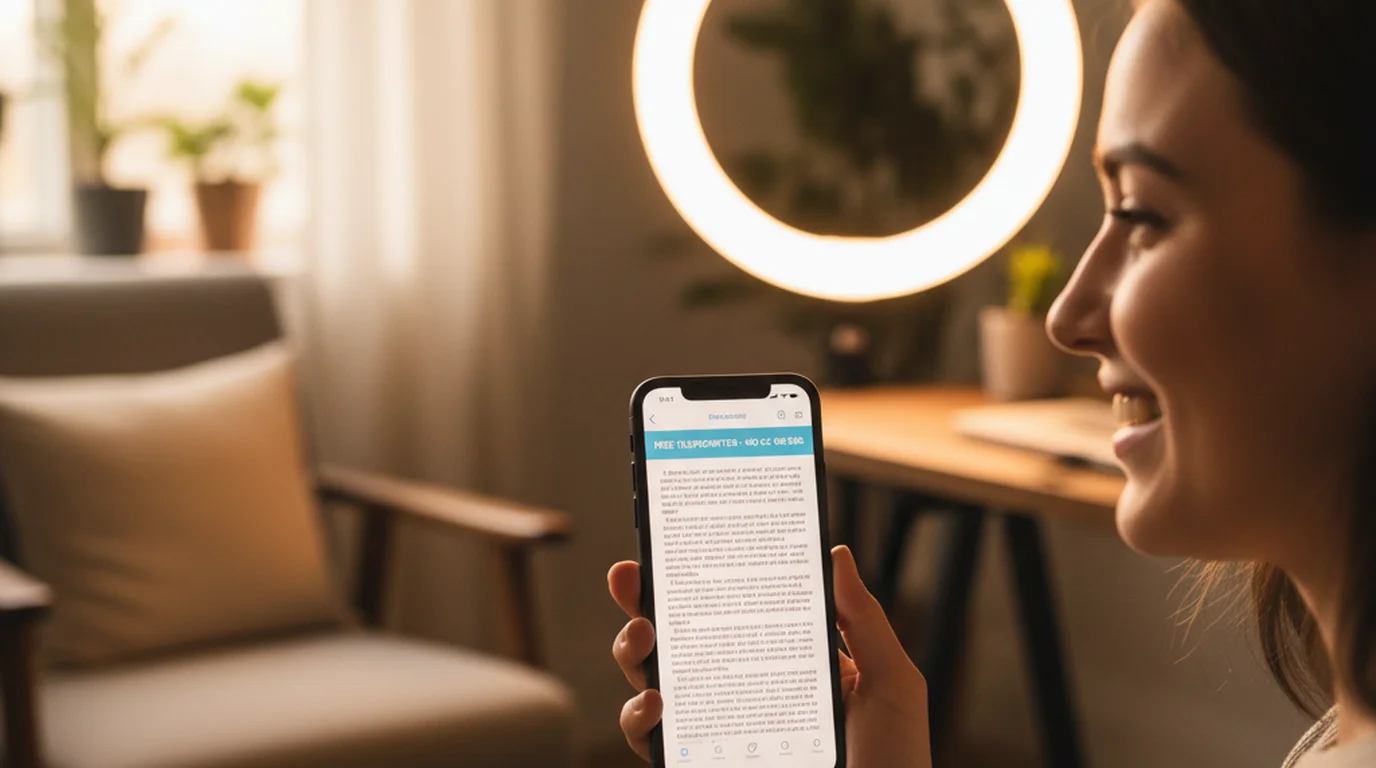
A script reader app is any application that loads a text document — a script, speech, set of notes, or any written content — and scrolls it automatically at a user-set speed. The central value is hands-free reading: no holding paper, no flipping note cards, no manually scrolling with a finger or mouse. The text advances on its own, matching the speaker's delivery pace, so the next line is always in view when needed.
The basic script reader function has been part of teleprompter hardware since the 1950s, when paper rolls were advanced by motor-driven mechanisms at operator-controlled speeds. The smartphone and tablet era moved this function into software that anyone can use on a device they already own. The hardware has disappeared; the core function — controlled automatic scrolling of a text document — is unchanged.
Script reader apps are used by a wide range of people who deliver scripted content: actors running lines before auditions, presenters rehearsing talks, YouTubers recording scripted videos, podcasters keeping themselves on track with show notes, voice-over artists reading copy for audio recording, corporate speakers preparing earnings call remarks, and educators delivering scripted lectures for online courses. Any situation where a person needs to deliver written content while appearing natural — not visibly reading from paper — is a script reader use case.
The category ranges from simple text scrollers (minimal controls, no camera integration) to full teleprompter apps (camera overlay, video recording, voice commands, script library, offline support). Where a given app falls on that spectrum determines which use cases it serves well.
How a script reader app works
The mechanics of a script reader app are simple. You load or paste your script into the app — either by typing directly, pasting from a clipboard, importing from a text or Word document, or syncing from a cloud storage service. The app displays the text at a font size you choose, filling the screen with readable text at a scale comfortable for the distance between your eyes and the device.
You set the scroll speed to match your natural speaking pace. Most apps express speed as a numerical value on an arbitrary scale (1–10, or words per minute) rather than an absolute measurement, so calibration requires a brief test run. Speak a few sentences of your script while the app scrolls and adjust until the text advances at the same rate you are delivering it. This synchronization is the key skill of teleprompter use — and the main thing to practice before a recording or live session.
Press play and the text begins scrolling upward from the bottom of the visible area. As you read, the text you have already delivered moves off the top of the screen, and the text you are about to speak rises into view from the bottom. The current line — the one you are reading right now — stays in a consistent position on screen, typically in the middle or upper-middle of the visible area.
Most apps include controls to pause the scroll without losing your place, rewind to an earlier point if you need to redo a section, and adjust speed mid-session if your pace changes. A good script reader app makes these adjustments possible without breaking the recording session — tap or swipe to pause, tap again to resume, long-press or drag to rewind. These micro-controls are where apps differ meaningfully in usability during actual recording.
Script reader app vs. teleprompter app
The distinction between a script reader app and a teleprompter app is camera integration. A basic script reader app is text-only: it scrolls the script on screen, but recording requires a separate camera and the speaker must divide their attention between the device showing the script and the camera they are looking at. This works — many creators use this configuration — but it requires a physical setup that positions the script display close enough to the camera that the speaker's eye line toward the text is close to the camera lens.
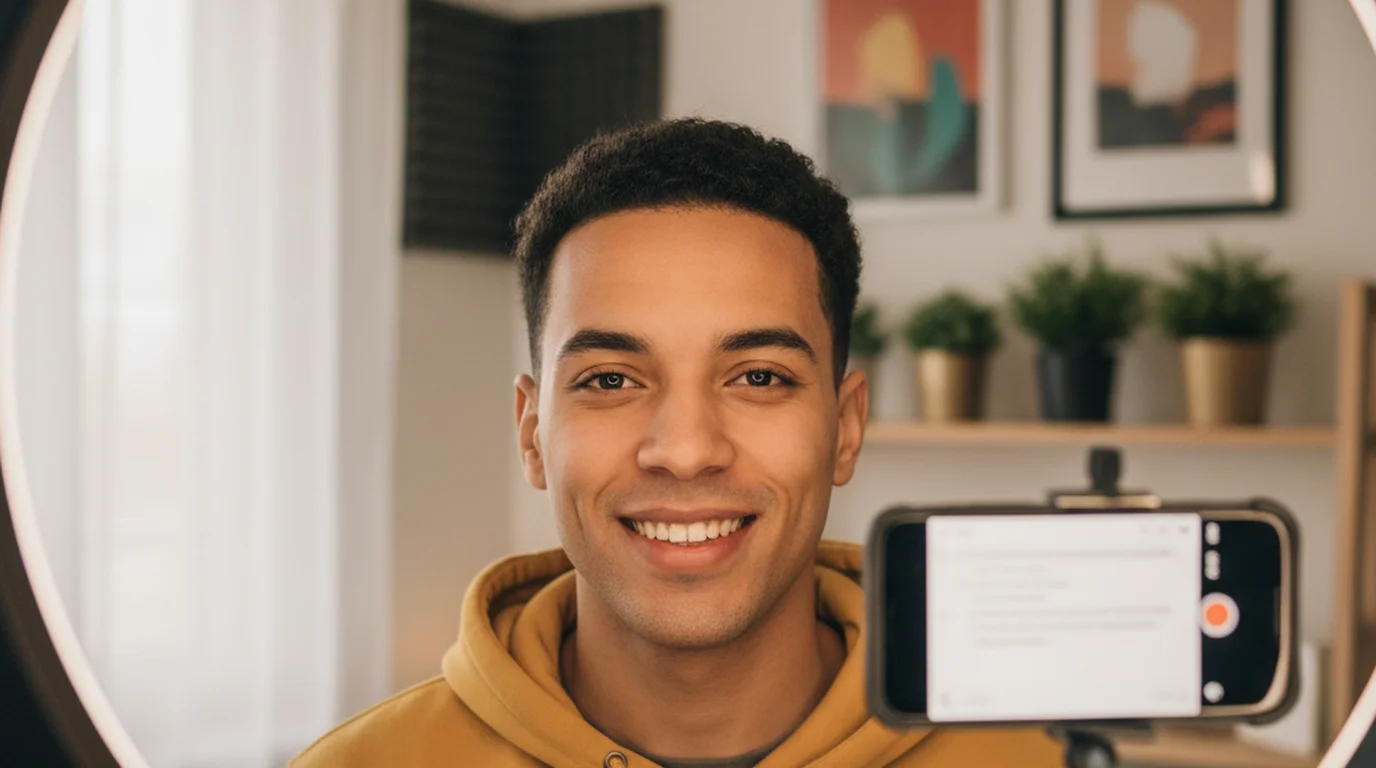
A teleprompter app adds a camera overlay: the scrolling script is displayed on top of the device's live camera view, so the presenter reads text that appears to float in front of the lens they are looking into. The device camera captures the presenter looking directly into it while they are actually reading the script. This is the camera-mode function that makes a teleprompter app distinctly more useful for video recording than a basic script reader — there is no eye-line split, no two-device setup, no need to position a separate script display near the camera.
All teleprompter apps are script reader apps. A basic script reader app is useful for rehearsal, for non-camera delivery (live speeches, audio recording), and for desktop recording setups where a laptop acts as the script display while a separate camera handles the recording. The right choice depends on your recording setup: if your phone or tablet IS the camera, you need teleprompter camera-overlay mode. If you are recording with a separate camera and using a device only for script display, a basic script reader or browser tool works fine.
Key features to look for in a script reader app
Adjustable scroll speed is the single most important feature. Every speaker reads at a different pace, and every script has passages that flow quickly or slowly. An app that locks you to a fixed speed or provides only coarse speed adjustment will create friction in every session. Look for fine-grained speed control and the ability to adjust speed during a session without stopping.
Adjustable font size matters for reading comfort at different distances. A script displayed on an iPhone held at arm's length needs a larger font than a script on a 12-inch iPad on a stand. Apps that allow font sizes from small (more text per screen) to very large (fewer words, more readable at distance) give you control over how much text is visible and how comfortably you can read it.
Pause and resume without losing place is essential for multi-take recording. If you stop a take and want to restart from where you left off — or from a specific earlier point — the app needs to hold your position accurately. Apps that reset to the beginning on pause, or that lose position when you switch away, create unnecessary friction in workflows involving multiple takes.
A script library that stores multiple scripts is important for anyone who records regularly. Being able to name, organize, and return to scripts across sessions without re-importing from external files makes the app genuinely useful as a workflow tool rather than just a one-off viewer.
Camera mode integration is the feature that distinguishes a teleprompter app from a basic script reader. If you are recording video with the device running the app, camera overlay mode is the feature you need. Look for apps where the script overlay is clearly readable against the camera view and where the camera capture quality is not significantly degraded by the overlay processing.
Offline support is practically important for recording workflows. Connectivity issues during a recording session are a significant source of interruption. An app that stores scripts locally and operates without an internet connection removes this dependency entirely.
Use cases: who uses script reader apps
YouTubers and video creators represent the largest and fastest-growing user group for script reader and teleprompter apps. Scripted content — tutorials, explainers, reviews, commentary, educational videos — requires word accuracy that memorization cannot reliably provide at scale. A creator publishing several videos per week cannot memorize fresh scripts each time. A script reader or teleprompter app is the practical solution that maintains content quality without unsustainable rehearsal demands.
Actors use script reader apps for line rehearsal. Running through a script on a scrolling reader simulates the experience of a live run-through: the actor cannot stop to think or consult the script on the page, so gaps in line memory become apparent. Many actors prefer rehearsing with a script reader app to rehearsing with a scene partner who holds the script, because the pace and continuity are easier to control.
Voice-over artists use script reader apps for audio recording sessions. The script needs to be visible without paper noise, without page-turning sounds, and without the risk of losing the page mid-take. A script scrolling silently on a tablet positioned at eye level solves all three problems. Camera mode is not needed for audio-only recording; the basic script reader function is sufficient.
Educators creating online courses, recorded lectures, and instructional video content use script reader apps to deliver lesson content accurately while maintaining the forward-facing posture and natural delivery that makes educational video engaging. Teachers who spend hours recording course content cannot memorize every lesson; a teleprompter app enables professional-quality delivery across long recording sessions.
Corporate presenters, communications professionals, and executives preparing for earnings calls, town halls, recorded addresses, and media appearances use script reader apps to ensure that specific language — legal language, financial disclosures, brand messaging — is delivered precisely as written. In these contexts, word accuracy is not just a quality preference but a compliance and legal requirement.
Teleprompter-Scrolling Scripts as a script reader and teleprompter
Teleprompter-Scrolling Scripts covers all script reader functions and extends them into full teleprompter capability across iPhone, iPad, and Mac. Scripts are loaded by typing, pasting, or importing; stored locally in a named library; and accessible without an internet connection during recording sessions.
In Prompter mode — the basic script reader mode — the app scrolls the script at your chosen speed with full font size and speed control, pause-resume without position loss, and rewind. This mode works for rehearsal, audio recording, live speech delivery where the device acts as a standalone prompter, and any scenario where a separate camera is handling the recording.
In Camera mode, the scrolling script overlays the live camera view. The device records video while you read — the camera captures your face looking directly at the lens while the script appears as a transparent layer between you and the camera. Speed, font size, and scroll position are all adjustable in Camera mode, and the recording is saved to your device's camera roll in standard video format.
The app runs entirely offline once installed. No account is required to create, store, or use scripts. This means there are no subscription barriers, no network dependencies during recording, and no sign-in steps between opening the app and starting a session. For creators who record regularly, the frictionless workflow matters as much as the feature set.
Browser-based script reader
Teleprompter.works/online is a free browser-based script reader with teleprompter-focused controls. Paste a script into the text field, set your scroll speed and font size, and press play — the text scrolls in the browser window on any device with a modern web browser. No app download, no account, no payment required for basic use.
The browser tool is well suited to desktop recording setups where a laptop or desktop computer acts as the script display and a separate camera — a DSLR, mirrorless camera, or webcam — handles the recording. In this configuration, the browser teleprompter sits on the laptop screen while the camera captures from a tripod. The presenter looks slightly toward the laptop screen (script) rather than directly into the camera, which works acceptably for most video formats outside of direct-to-camera content where sustained eye contact is critical.
The browser tool also works well for rehearsal on any device. Running through a script on the browser teleprompter before a recording session — to calibrate pace, check that the scroll speed feels right, and identify sections that need more practice — is a quick, low-friction way to prepare without setting up the full recording workflow. It works on smartphones, tablets, laptops, and desktop computers without any installation step.
For mobile recording where the device is both the camera and the script display, the native app with Camera mode is the more capable tool. The browser version overlays the script on the device camera view too, in Recording mode; what it does not do is keep your scripts between sessions or work without a connection, so repeat recording workflows are better served by the dedicated app.
Choosing the right app for your workflow
The decision between a basic script reader app, a teleprompter app with camera integration, and a browser-based script reader comes down to one practical question: what is your recording setup?
If your iPhone or iPad is the camera — you are recording directly with the device's built-in camera in a portrait or landscape orientation — you need camera-overlay mode. This means a native teleprompter app like Teleprompter-Scrolling Scripts, which puts the scrolling script in front of the camera lens so you read and record in the same direction. No browser tool and no basic script reader handles this scenario as effectively.
If you are recording with a separate camera — a DSLR, a mirrorless camera, a dedicated webcam, or a studio camera — and using a laptop, tablet, or secondary screen as the script display, a browser-based tool or basic script reader is sufficient. The script displays on one device while the camera captures from another position. The key setup consideration is positioning the script display as close to the camera lens as possible to minimize the visible eye-line shift.
If you are using the app purely for rehearsal — running through scripts before a live speech, an audio recording session, or a live-stream — any script reader or teleprompter app in Prompter mode handles the task. Camera integration is not needed; the value is in the hands-free scrolling that lets you practice continuous delivery without page management interruptions.
Teleprompter-Scrolling Scripts is a full script reader and teleprompter app for iPhone, iPad, and Mac — free to download, no account required, works completely offline.
Use Free Online Teleprompter Get the Free App