Best Free Parrot Teleprompter Alternative for iPhone, iPad, and Mac
 Wendy Zhang · May 20, 2026 · 8 min read
Parrot Teleprompter is a well-regarded cross-platform prompter with Bluetooth remote control, multi-device pairing, and versions for Windows, Mac, iOS, and Android. For professional broadcasters and stage presenters who need hardware remote integration, it has earned its reputation. But for individual creators who primarily record on iPhone or Mac and want Camera mode without a subscription, Parrot's pricing model creates friction where none needs to exist.
Teleprompter-Scrolling Scripts is a free native app for iPhone, iPad, and Mac that is free to download and use: it needs no login and no internet connection, records 1080p up to 4K depending on the device with no watermark, and covers video, audio, and reading practice in three modes. If you use Parrot for iOS recording with a paid plan, or if you find the Parrot Teleprompter software more than you need for a straightforward read-and-record workflow, this comparison will help you decide whether switching makes sense.
What is Parrot Teleprompter?
Parrot Teleprompter is a cross-platform teleprompter application with native apps for Windows, Mac, iOS, and Android. Its standout feature is remote control: Parrot supports Bluetooth pairing between devices, letting an operator on one phone or tablet control a teleprompter running on a second device. This makes it popular with two-person production setups — a presenter reads from a mounted iPad while an assistant controls scroll speed and position from a separate phone nearby.
The Parrot Teleprompter app has been around long enough to develop a following among professional presenters, corporate video teams, and broadcasters who need reliable remote control in live or semi-live settings. The Windows version of the Parrot Teleprompter software extends that reach to PC-based production environments, making it one of the few prompter tools with genuine cross-platform parity across desktop and mobile.
Parrot offers a free tier with basic prompter functionality and paid plans that unlock Camera mode on iOS, more remote control options, and additional script management features. The pricing tiers reflect the professional positioning of the product — it is built for use cases where remote control and multi-device coordination matter, not just individual creators recording alone.
Parrot Teleprompter is a strong choice when remote control and multi-platform compatibility are primary requirements. For solo iPhone and Mac creators who only need Camera mode and local script storage, the paid requirement for Camera mode is where the Parrot Teleprompter alternative search typically begins.
Where the Parrot rig gets expensive
The most common reason creators move off the Parrot rig is cost. Camera mode — recording video with script overlay — is available in Parrot's paid tier on iOS. For individual creators who are not using Parrot's remote control features or multi-device pairing, paying for a subscription primarily to access Camera mode on iPhone feels disproportionate. When a free alternative offers the same Camera mode feature at no cost, the calculus is straightforward.
Platform mismatch is the second driver. Parrot supports Windows, Mac, iOS, and Android — a genuinely wide platform coverage. But users who exclusively work within the Apple ecosystem often find that a native app built specifically for iPhone, iPad, and Mac delivers a tighter integration with iOS conventions and Apple hardware features like Continuity Camera. A cross-platform app built for four operating systems simultaneously is not always as polished on any individual platform as an app built exclusively for one ecosystem.
Complexity for simple use is the third factor. Parrot Teleprompter software has a feature depth that serves professional production environments well but can feel heavyweight for a creator who just needs to open an app, load a script, and record. Setup for remote control pairing, device connectivity, and multi-display configurations is not difficult but it is more than a solo creator needs for a one-person desk recording session. Simpler tools with a shorter path from launch to record have genuine appeal for high-frequency solo creators.
Finally, some Windows users find Parrot and then discover they primarily record on iPhone rather than PC. For those users, the Parrot Teleprompter software on Windows is not the right tool for their actual recording device — and a free native iPhone app handles the iPhone recording use case more naturally.
Parrot Teleprompter vs. Teleprompter-Scrolling Scripts comparison
The table below shows how the two apps compare across the dimensions that matter most for individual creators and small production teams.
| Parrot Teleprompter | Teleprompter-Scrolling Scripts | |
|---|---|---|
| Platform | Windows, Mac, iOS, Android | iPhone, iPad, Mac, any browser |
| Camera mode (iOS) | Paid | Free, 1080p up to 4K (device-dependent), no watermark |
| Price | Free basic / paid | Free, no account or internet needed |
| Offline use | Yes | Yes |
| Remote control | Yes (paid) | Steady WPM scroll, 3-line jump buttons, voice commands in Prompter mode (free) |
| Best for | Multi-platform, remote-heavy | Quick, simple recording on iPhone, iPad and Mac |
The comparison shows that both apps are competent teleprompters with offline support and local script storage. The meaningful differences are Camera mode cost (paid in Parrot, free in Teleprompter-Scrolling Scripts) and control approach (Bluetooth pairing in Parrot; a steady words-per-minute scroll plus optional English voice commands in Prompter mode in Teleprompter-Scrolling Scripts). For creators who do not use hardware remotes and primarily record on iPhone or Mac, the free app covers every required feature without a subscription.
Camera mode for iPhone, iPad and Mac recording
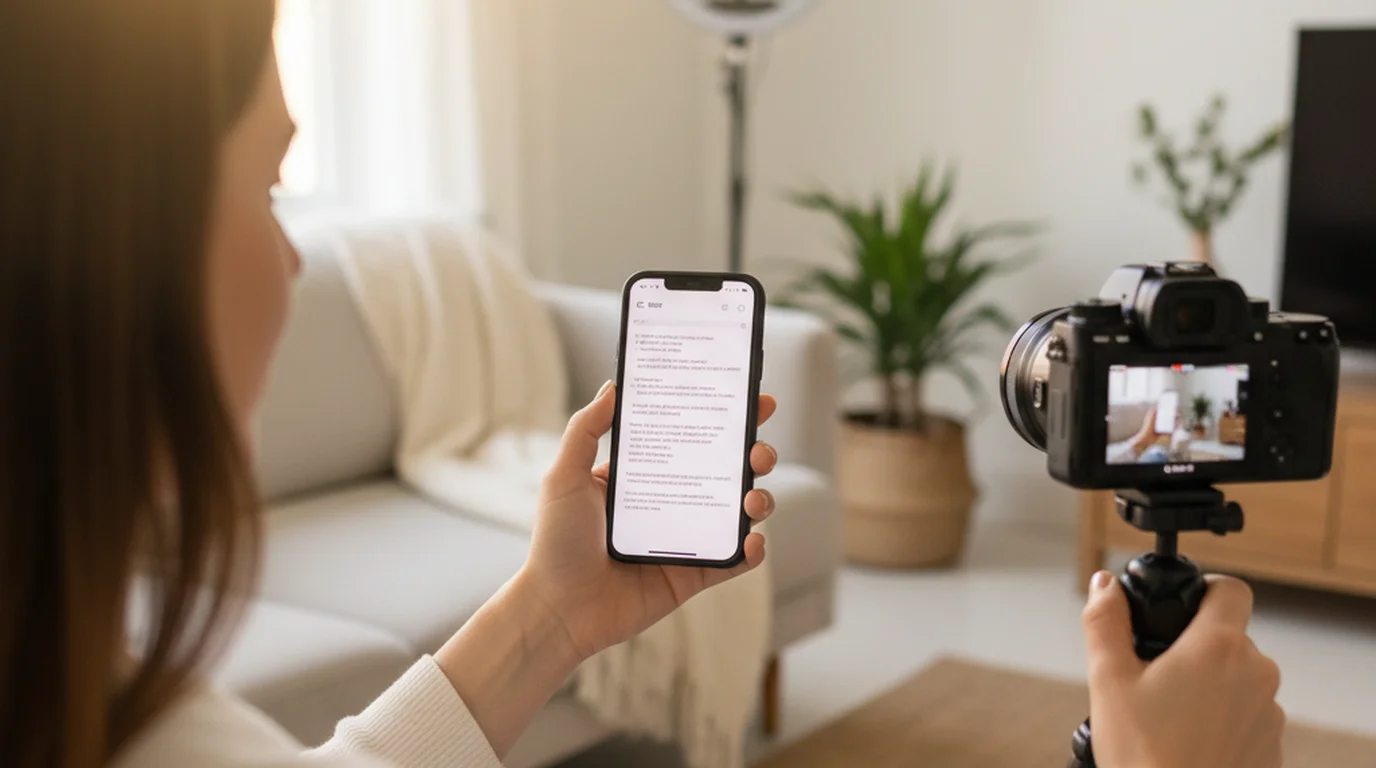
Camera mode is the feature most commonly cited by creators who switch from Parrot to Teleprompter-Scrolling Scripts. On iPhone, iPad, and Mac, Camera mode uses the front camera and scrolls your script over the live preview, much like text running across the built-in camera. You read the script while the camera records your face — the script and the recording happen in one session, in one app, without any secondary device or application involved. Scroll speed, text size, text color, and background color can all be changed while you record.
The text area itself is adjustable too: drag it toward the center of the screen if that is where you like to read, or right under the lens if you prefer to keep your eyes on the camera, and resize it to show as many lines as you want. With the text size and scroll speed set to your own habits, reading on camera feels far more natural.
The other reason people stay is convenience. It is very easy to use: recording with it is as simple as opening the camera, with no login and no internet connection. And Camera mode is one of three: Voice mode records audio only while the script scrolls, and Prompter mode shows the script full screen for reading practice or for another camera.
The quality-of-eye-contact benefit is significant for anyone recording talking-head video. When the script scrolls on the same screen as the front-facing camera, your eyes naturally direct toward the lens as you read. In the finished recording, this creates the appearance of direct address — a speaker looking at the viewer rather than glancing to the side. Professional broadcasters achieve this effect with half-silvered mirror teleprompters mounted over camera lenses; the native app achieves the same result by placing the script directly on the recording device's screen.
On iPhone, Camera mode supports both front and rear cameras. Front camera is the default for talking-head content. Rear camera mode is useful for narrating a scene or demonstrating a product in front of you while reading notes on the same screen you are shooting with. Portrait and landscape orientations both work.
On iPad, Camera mode benefits from the larger screen. Long-form scripts — online course modules, coaching video series, extended tutorials — are easier to read on an iPad because the larger text size reduces eye strain and the wider field of view means less aggressive scrolling is needed to keep up with a natural speaking pace. For creators who have been using Parrot's iOS app in paid tier primarily for Camera mode, the switch to a free alternative that includes Camera mode at no cost is a straightforward decision.
Local-first scripts vs. cloud sync
Teleprompter-Scrolling Scripts is local-first by design. Scripts are stored on your device — not on a remote server, not requiring an account login, not dependent on a network connection to load. Open the app on airplane mode in a location with no signal, and every script you have saved is available immediately. This is the baseline behavior, not a premium feature.
For creators who record in environments with unreliable connectivity — event venues, outdoor locations, travel, schools, recording studios with network restrictions — local storage is not a nice-to-have. It is the feature that determines whether a session can happen at all. A prompter app that needs to sync from the cloud before displaying your script is a liability in those environments; a local app is not.
Parrot Teleprompter also stores scripts locally, so both apps are viable for offline recording. Teleprompter-Scrolling Scripts keeps each script on the device where you saved it, ready the moment you open the app.
The local-first approach also means your scripts are not subject to the data retention and account policies of a third-party service. If you have scripts you use regularly — recurring series, evergreen content, frequently-delivered presentations — those scripts are on your device and in your iCloud backup, not in a vendor-controlled cloud that could change terms, raise prices, or shut down.
Parrot for Windows — using the browser alternative instead
Parrot Teleprompter software for Windows is one of the few native Windows teleprompter applications available, and it serves Windows users who need offline functionality and a more polished experience than a browser tab. If you record on Windows and need a downloadable prompter application, Parrot is a legitimate option.
However, if your primary recording device is iPhone or Mac and you are on Windows only for occasional presentation reads or Zoom calls, the free browser-based teleprompter at teleprompter.works/online handles that use case without requiring any installation. Open it in Chrome or Edge, paste your script, and read. The browser version does not require the Parrot Teleprompter software download, does not require account creation, and works on any Windows PC immediately.
The browser version suits presentation rehearsals, Zoom script reading, and webinar notes, and its Recording mode overlays the script on your webcam feed in the same tab for quick webcam takes.
The practical recommendation for mixed-platform creators: use the browser teleprompter at teleprompter.works for Windows Zoom and presentation reads, and use Teleprompter-Scrolling Scripts on iPhone or Mac for all recorded video content. This two-tool approach covers both use cases for free without any subscription.
When Parrot Teleprompter is the right choice vs. a native app
Parrot Teleprompter is the right choice when remote control is genuinely part of your workflow. If you have an operator who controls scroll speed from a separate device while you are on stage, on camera, or presenting to an audience, Parrot's Bluetooth remote pairing is a purpose-built solution for that scenario. Teleprompter-Scrolling Scripts is built for solo recording instead: the script scrolls at the words-per-minute pace you set, the up/down buttons jump three lines, and Prompter mode takes optional English voice commands.
Multi-platform production teams also benefit from Parrot's cross-platform support. A team that mixes Windows workstations, Android phones, and iOS devices can standardize on Parrot as a consistent tool across all platforms.
Professional broadcast and studio environments where Parrot's feature depth, remote control ecosystem, and multi-device coordination are actively used represent the strongest case for the Parrot Teleprompter app. The investment in its paid tier is justified when you are using those features every session.
For individual creators who record alone on iPhone or Mac, who do not use hardware remotes, and who want Camera mode without a subscription, Teleprompter-Scrolling Scripts is the more practical free alternative. The FAQ page covers setup guidance for both Camera mode and Prompter mode across iPhone, iPad, and Mac to help you get started quickly after switching.
Frequently Asked Questions
What is Parrot Teleprompter?
Parrot Teleprompter is a cross-platform teleprompter app available for Windows, Mac, iOS, and Android. It supports remote control via Bluetooth or paired device, making it popular for presenters and broadcasters. A free tier is available with basic features; paid plans unlock Camera mode on iOS and additional remote control options.
What is a good Parrot Teleprompter alternative for iPhone?
Teleprompter-Scrolling Scripts is a free iPhone teleprompter app with Camera mode (records video with script overlay), offline use, local script storage, and voice commands. Unlike Parrot's paid Camera mode, these features are free.
Is there a free Parrot Teleprompter alternative for Mac?
Yes. Teleprompter-Scrolling Scripts is free on the Mac App Store. It runs natively on macOS, stores scripts locally, and supports both Prompter mode and Camera mode. For Windows users, the browser version at teleprompter.works works without installation.
Can I use a Parrot Teleprompter alternative on Windows?
The browser version at teleprompter.works works in any Windows browser without installation. For a native Windows experience similar to Parrot, Selvi and Speakflow desktop are other options. If you primarily record on iPhone or Mac, Teleprompter-Scrolling Scripts is the most feature-complete free option.
Wendy ZhangWendy Zhang is the indie developer behind Teleprompter-Scrolling Scripts, which she built after cycling through teleprompter apps that were too heavy, too expensive, or dependent on a network connection to open. She writes about the mechanics of recording yourself — scroll pacing, script formatting, and the app decisions that decide whether a take survives.
Free Parrot Teleprompter alternative for iPhone and Mac
Teleprompter-Scrolling Scripts is free to download. Camera mode, offline scripts, local-first storage, voice commands — no subscription required. Works on iPhone, iPad, and Mac.
Use Free Online Teleprompter Get the Free App