The Right Video Resolution for YouTube — A Guide for iPhone Creators
 Maya Chen · Jul 4, 2026 · 6 min read
I film all my YouTube content on iPhone. When I started, I wasted weeks filming in the wrong settings before understanding what YouTube actually needed — and more importantly, what viewers actually see. This guide covers the numbers that matter and the ones you can ignore.
YouTube video size is one of those topics that sounds more complicated than it is. The numbers — 1920×1080, 16:9, 30fps, 8Mbps — are technical specs that have specific meanings, but for most iPhone creators the practical answer is simpler than the terminology suggests.
The right YouTube video size for most creators: 1920×1080 pixels, 16:9 aspect ratio, 30fps for standard videos. 1080×1920 pixels, 9:16 aspect ratio, 30fps for Shorts. Film these settings on iPhone and YouTube will be happy with the result.
YouTube Video Dimensions and Resolution: What YouTube Recommends
YouTube supports a range of video resolutions. The recommended settings from YouTube's own help documentation are:
| Format | Resolution | Aspect Ratio | Use Case |
|---|---|---|---|
| Standard HD | 1920×1080 | 16:9 | Long-form YouTube videos |
| 4K | 3840×2160 | 16:9 | High-quality productions |
| Shorts | 1080×1920 | 9:16 | YouTube Shorts feed |
| Square | 1080×1080 | 1:1 | Less common on YouTube |
1920×1080 (1080p) is the sweet spot for most creators. It looks sharp on every device — phone, laptop, TV — without the file sizes that 4K creates. YouTube processes and serves 4K, but unless you're filming landscapes, architectural content, or highly detailed subjects, the visual difference between 1080p and 4K in a talking-head or vlog video is marginal for most viewers.
4K (3840×2160) makes sense if your content involves fine visual detail, you're building a portfolio of professional-quality footage, or your target audience includes people watching on 4K TVs. The tradeoff: 4K files are approximately 4× larger than 1080p, which means longer upload times, more storage, and heavier processing during editing.
iPhone Camera Settings for YouTube
Resolution is only half of what your camera app asks you to choose. Frame rate is the other half, and it follows different rules — see the best frame rate for YouTube for when 24, 30, or 60 fps is the right pick.
iPhone's default camera settings are not optimised for YouTube. Here's what to set before you start filming:
For standard YouTube videos (horizontal):
- Open iPhone Settings → Camera → Record Video
- Select 1080p HD at 30 fps (covers 95% of YouTube use cases)
- Or 4K at 30 fps if you want maximum quality and have the storage
- Ensure High Efficiency (HEVC) is on for smaller file sizes (Settings → Camera → Formats)
For YouTube Shorts:
- Keep the Camera app in Portrait mode (phone held vertically)
- Record Video: 1080p HD at 30 fps works well
- The iPhone camera in portrait mode captures 9:16 naturally — no cropping needed
Frame rate: 30fps is YouTube's standard and what most creators use. 60fps produces smoother motion and is ideal for gaming, fast sports, or action content. For talking-head videos, vlogs, and tutorials, 30fps looks completely natural and processes faster.
A common mistake: iPhone's default setting in some regions is 4K at 30fps, which produces very large files without a visible quality benefit for most YouTube content. If you're not intentionally filming in 4K, check your settings.
Aspect Ratio: Why 16:9 and 9:16 Are the Only Two That Matter
YouTube's player is built around 16:9 (widescreen). If you upload a video in a different ratio — 4:3, 1:1, or vertical — YouTube fills the widescreen player with black bars. This isn't broken; it's just not optimal for viewer experience.
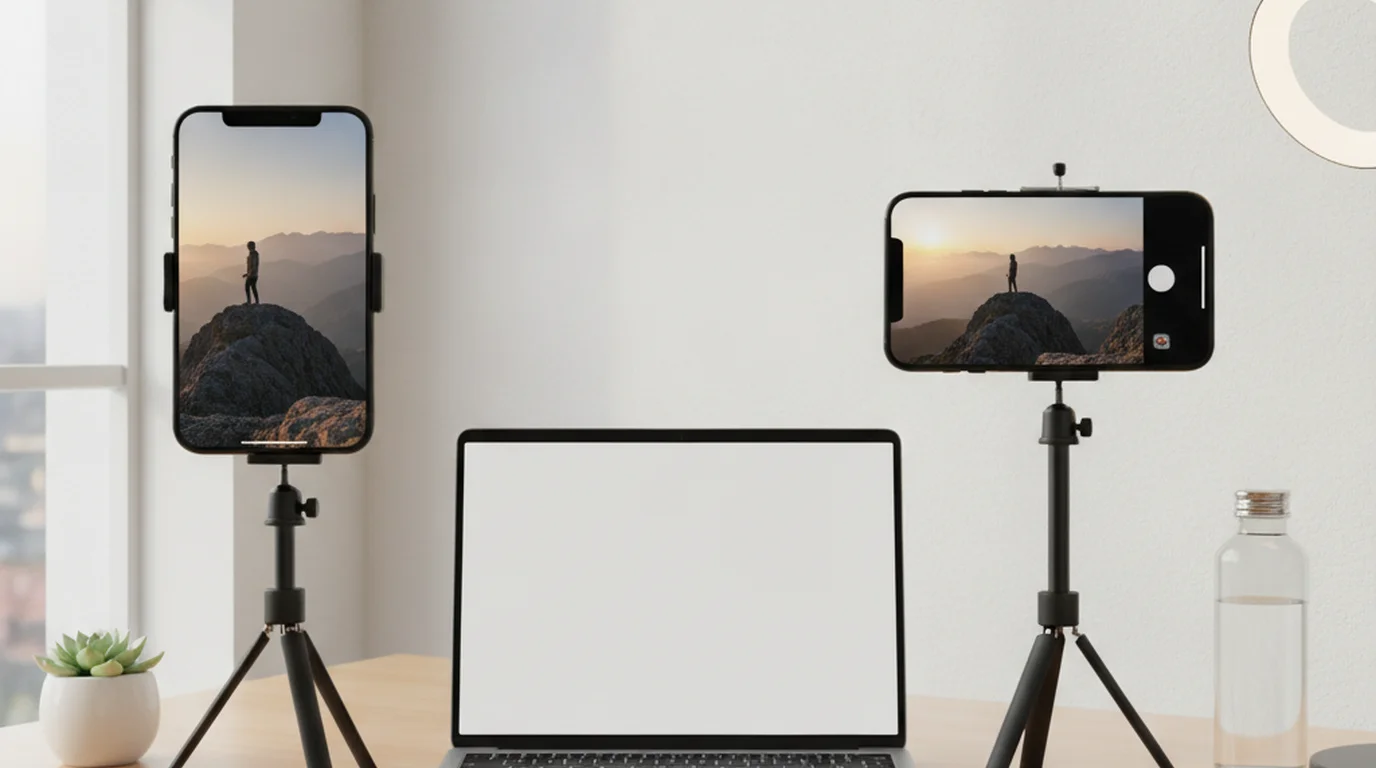
For regular YouTube videos: Film horizontally. Hold your iPhone in landscape mode. The iPhone camera captures 16:9 natively in landscape orientation.
For YouTube Shorts: Film vertically. Hold your iPhone in portrait mode. The iPhone camera captures 9:16 natively in portrait. Shorts uploaded in 9:16 fill the full vertical Shorts feed without black bars.
The only situation where this gets complicated: creating content for multiple platforms simultaneously. A video filmed horizontally for YouTube won't fill a vertical phone screen for Reels or Shorts without cropping. Many creators film the same content twice (horizontal for YouTube, vertical for Shorts), or film wide and crop to vertical for repurposing.
File Size and Upload Considerations
File size affects upload time and YouTube processing. Understanding approximate sizes helps with planning:
| Resolution | FPS | Encoding | ~Size per Minute |
|---|---|---|---|
| 1080p | 30 | H.264 | 130 MB |
| 1080p | 30 | HEVC | 60 MB |
| 4K | 30 | H.264 | 375 MB |
| 4K | 30 | HEVC | 170 MB |
For a 10-minute talking-head YouTube video at 1080p/30fps/HEVC: approximately 600MB. YouTube accepts uploads up to 256GB, so file size is rarely a constraint. Upload time depends on your internet connection — at typical home broadband speeds, a 600MB video uploads in 3–8 minutes.
YouTube processes uploaded files. After upload, YouTube transcodes your video to multiple quality levels (360p, 480p, 720p, 1080p) and serves the appropriate version to each viewer based on their connection and settings. You don't need to export multiple versions — upload the highest quality you have and YouTube handles the rest.
Thumbnails: The Size That Most Creators Get Wrong
YouTube's thumbnail requirements:
- Recommended size: 1280×720 pixels
- Minimum width: 640 pixels
- Maximum file size: 2MB
- Supported formats: JPG, GIF, PNG, BMP
- Aspect ratio: 16:9
The 2MB limit is where most creators run into problems. A JPEG image at 1280×720 is typically well under 1MB. A PNG at the same size can easily exceed 2MB if it has high-detail content. Export thumbnails as JPEG for reliable file size control.
For filming thumbnails separately (which many creators do for higher quality facial expressions than video frames provide), iPhone front and rear cameras both capture at well above 1280×720 — use any Photo mode and crop in editing if needed.
Common YouTube Video Size Mistakes iPhone Creators Make
Filming in slow-motion and forgetting to change settings back. iPhone's slow-motion mode records at 120fps or 240fps. Videos shot in slo-mo and uploaded to YouTube play at normal speed unless you edit them, and the file sizes are substantially larger. Check your recording settings before every session.
Using 4:3 instead of 16:9 for regular videos. Some older iPhone models or certain camera apps default to a 4:3 ratio. Check Settings → Camera → Formats and ensure you're recording in the standard 16:9 ratio for horizontal content. YouTube will display 4:3 videos with black pillarboxing on both sides.
Exporting from editing software at the wrong resolution. After editing, if you export at 720p when you filmed in 1080p, you've permanently downsampled your footage. Set your export resolution to match your source footage. Most editing apps show a "match source" or "1080p" preset — use it.
Mismatching Shorts and standard video settings. If you film both horizontal videos and Shorts, confirm your phone orientation before hitting record. A Shorts video accidentally filmed in landscape won't fill the Shorts feed properly. Many creators set a reminder or physical check (check grip orientation before pressing record) to avoid this.
Not enabling HEVC for smaller files. iPhone's HEVC (H.265) encoding produces files approximately 50% smaller than H.264 at equivalent quality. Enable it in Settings → Camera → Formats → High Efficiency. Most modern platforms and editing software support HEVC; the only limitation is compatibility with very old computers or software.
On-camera delivery quality matters for both video content and thumbnail stills. For consistency between your thumbnail expression and your on-camera presence, the talking head video guide covers lighting and camera setup that makes both look professional. And if you're scripting your videos before filming — which keeps your delivery confident from the first frame — Teleprompter-Scrolling Scripts in Camera mode puts the script on the iPhone viewfinder so your eyes stay on the lens even on the first take.
Frequently Asked Questions
Are YouTube videos 1920x1080?
1920×1080 (1080p) is YouTube's recommended resolution for standard horizontal videos — it's what YouTube calls 'HD' and what most viewers watch at by default. You can upload higher resolutions (1440p, 4K) and YouTube will serve the appropriate quality based on the viewer's connection and device. For iPhone creators, filming in 1080p HD at 30fps covers 95%+ of YouTube use cases without the larger file sizes that 4K creates.
Is YouTube video size 16:9?
16:9 is YouTube's native aspect ratio for standard (horizontal) videos — the same ratio as most laptop screens and TVs. YouTube will display videos in other aspect ratios (4:3, 1:1, 9:16) but will add black bars (letterboxing or pillarboxing) to fill the 16:9 player frame. For Shorts specifically, 9:16 vertical is the correct ratio — the same as a phone held upright. Uploading a 16:9 video to the Shorts feed is supported but not optimal.
What size is a 1920x1080 video frame?
1920×1080 means 1,920 pixels wide by 1,080 pixels tall. At standard screen density, this fills a 1080p monitor at full resolution. File size depends on codec and bitrate: an iPhone 1080p video at 30fps runs approximately 130MB per minute using H.264 encoding, or around 60MB/minute using HEVC (H.265). For a 10-minute YouTube video, expect 1.3GB (H.264) or 600MB (HEVC) before any editing or export compression.
Is YouTube thumbnail 1280x720 or 1920x1080?
YouTube recommends 1280×720 (720p, 16:9 ratio) for custom thumbnails, with a maximum file size of 2MB. Some creators use 1920×1080 thumbnails successfully — YouTube accepts both — but 1280×720 is the official recommendation and is standard across the creator community. The critical constraints are the 2MB file size limit and the 16:9 ratio. Thumbnails that don't fit 16:9 get cropped or distorted in the feed.
What video format does YouTube prefer for uploads?
YouTube recommends H.264 encoded video in MP4 format for upload. This is the default output of most cameras, iPhones, and video editing software export presets. iPhone videos recorded in HEVC (H.265) format are also accepted and upload cleanly. YouTube transcodes all uploaded videos on its servers regardless of input format, so the specific format matters less than it once did — YouTube will process and serve your video correctly. The practical advice: export from your editing software at the highest quality MP4 your storage allows, and YouTube handles the rest.
What are the dimensions of a YouTube video?
YouTube video dimensions are 1920×1080 pixels for a standard upload, in a 16:9 frame. For Shorts the dimensions flip to 1080×1920 (9:16), and custom thumbnails are 1280×720. YouTube accepts larger dimensions too — 2560×1440 and 3840×2160 both upload cleanly and are downscaled for viewers on smaller screens. If you film on an iPhone, the size of videos on YouTube is really decided at capture: set the camera to 1080p HD at 30fps for horizontal uploads, and record vertically for Shorts rather than cropping a horizontal clip afterwards.
Does YouTube video resolution affect ranking or recommendations?
Video resolution doesn't directly affect YouTube's ranking algorithm — a well-optimised 1080p video outperforms a poorly optimised 4K video in search and recommendations. YouTube's algorithm responds to watch time, click-through rate, engagement (likes, comments, shares), and session time. Higher resolution can improve viewer experience, particularly on large screens or TVs, which may indirectly support higher watch completion rates. The practical takeaway: film in 1080p and focus on content and thumbnail quality rather than upgrading to 4K for algorithmic benefit.
Maya ChenMaya Chen is a content creator who films on iPhone and coaches solo creators on mobile-first video production for TikTok, Reels, and Shorts. Her work focuses on the part most people skip: how to actually sound natural once the camera is rolling.
Film in the Right Format. Deliver in One Take.
Teleprompter-Scrolling Scripts overlays your script on the iPhone camera viewfinder — so you record in the right settings and nail delivery at the same time.
Use Free Online Teleprompter Get the Free App