Best Free Teleprompter App for MacBook Air and Pro: Setup and Recording Guide
 Wendy Zhang · May 20, 2026 · Updated October 6, 2026 · 9 min read
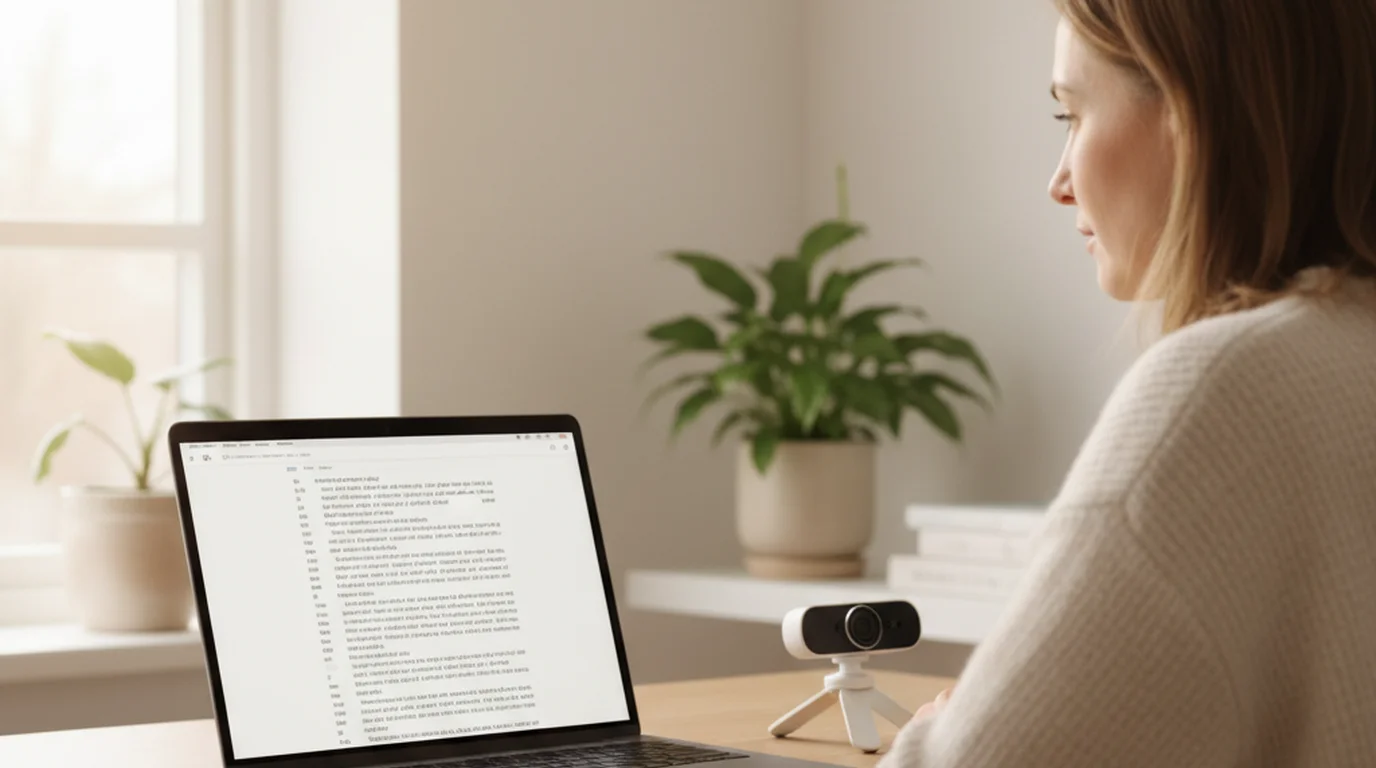
Finding the best teleprompter app for MacBook Air means looking for a native macOS app that uses the built-in camera reliably, stores scripts locally, and gets out of the way when you are ready to record. MacBook Air runs macOS natively, which means camera access is clean, the display is sharp enough for full-screen script reading, and there are no browser permission prompts to work through before your first take.
Teleprompter-Scrolling Scripts is a free native Mac app built for exactly this setup. It includes Camera mode for recording video with the script overlaid on screen, Prompter mode for text-only scrolling during calls and presentations, and local script storage so your scripts are ready whether or not you have a network connection. Download it free from the Mac App Store and it works on MacBook Air, MacBook Pro, iMac, and Mac mini under the same install.
Why MacBook Air works well for teleprompting
MacBook Air has become a default machine for creators who record at a desk. The reasons tie directly to what makes a good teleprompter setup: a stable platform that doesn't shift, a large-enough screen to read text comfortably, and a built-in webcam that faces you directly when the lid is open at a natural angle.
The display size matters more than it might seem. On a phone screen, text needs to be large and scroll fast. On a MacBook Air's 13-inch or 15-inch display, you have room to show more text at once, which means you spend less time catching up with the scroll and more time delivering your lines at a natural pace. The larger text area also means you can sit farther back from the screen — a natural recording position — without squinting to read.
The built-in FaceTime camera on MacBook Air sits at the top center of the display, directly above the script text when the app runs in full screen. That positioning is almost ideal for eye contact — your eyes track the words near the top of the screen, which is close to where the lens is. The gap between reading the text and appearing to look at the camera is small enough that most viewers won't notice it.
macOS also handles camera and microphone permissions cleanly for native apps — Apple's privacy model requires a one-time permission grant per app. Unlike a browser-based teleprompter that needs to request camera access every session and can stall on permission dialogs, a native Mac app requests permission once and remembers it. That removes one friction point from every recording session going forward.
Features to look for in a teleprompter app for MacBook Air
A teleprompter app for MacBook Air should do more than scroll text. The features that matter most for desk recording are the ones that affect your delivery, your workflow, and your ability to use the app without an internet connection.
Camera mode is the most important feature for video recording on MacBook Air. A Camera mode integrates the script overlay with the camera feed in the same window, so you record video and read the script simultaneously without switching between two apps. If the teleprompter you are evaluating does not have Camera mode — only a text scroll — you will need to keep your recording app open in a separate window and look away from the camera to read, which defeats the purpose.
Prompter mode is equally important for calls and presentations. In Prompter mode, the app shows only the scrolling text — no camera feed — so you can place the window near the webcam area and read your script while the video call captures you naturally. This mode is essential for Zoom presentations, recorded webinars, and any situation where a separate camera is already handling the recording.
Offline script storage determines whether the app is ready when you are. If scripts are stored in the cloud, a dropped connection before a session means your content is unavailable. A teleprompter app that stores scripts locally on the Mac opens instantly and has your full script library available regardless of network status.
Text layout control — font size, scroll speed, text area width, and mirror mode — lets you adjust the display for your specific recording distance and delivery pace. These are table-stakes features but worth confirming before committing to an app, since some browser-based prompters lock certain controls behind a paid tier.
Teleprompter-Scrolling Scripts on MacBook Air — features overview
Teleprompter-Scrolling Scripts is a native Mac app that covers the full teleprompter workflow on MacBook Air without a subscription. The core features are available free at download with no weekly limits, no watermarks on recorded video, and no account required.
Camera mode uses the MacBook Air's built-in FaceTime camera, or an iPhone over Continuity Camera or a USB webcam if you pick one from the camera menu, to record video with the script overlaid on screen. You read the script while the camera captures your delivery — the result is a recording where your eye contact appears natural because you are reading text close to the lens. The recorded file is saved locally and ready for editing in any app you already use.
Prompter mode shows only the scrolling script — no camera recording — and is designed for use during video calls, presentations, and livestreams. Open Prompter mode, position the window near the top of the screen close to the webcam, and the script scrolls while your conferencing software captures the camera feed. Zoom, Teams, Meet, and any other app that uses the macOS camera work alongside Prompter mode without conflict.
Scripts are stored locally on the Mac. You can create and organize a full library of scripts — one per video, one per topic, or however you prefer to organize — and they are all available the next time you open the app with no sync wait. Voice commands let you start, pause, and control scrolling without touching the keyboard, which is useful when your hands are off the desk during a recording.
The Mac teleprompter page has the full feature list and the Mac App Store download link if you want to review what is included before installing.
MacBook Air teleprompter for Zoom and video calls — Prompter mode workflow
Using a teleprompter app for MacBook Air during a Zoom call is one of the most common desk recording workflows, and Prompter mode is built for exactly this use case. The setup takes about two minutes the first time and is repeatable in seconds after that.
Open Teleprompter-Scrolling Scripts and select Prompter mode. Paste your script or select one from your library. Set the scroll speed — for conversational presentations, a slower speed that lets you speak naturally without rushing to keep up with the text works better than a speed calibrated for full-speed delivery. Adjust the text size so it is readable from your normal sitting distance without leaning forward.
Position the Prompter mode window near the top of the MacBook Air screen — ideally with the first few lines of text appearing just below the webcam. Most MacBook Air users find that a narrow, wide text area positioned at the top third of the screen produces the best eye contact in the camera. The webcam is at the top center of the display; text near that area means your eyes travel a short distance between reading and appearing to look at the camera.
Start your Zoom call with the teleprompter window visible alongside the Zoom interface. When you are ready to present, start the script scroll. The text advances at the preset speed while Zoom or your conferencing app captures the camera — your audience sees natural eye contact rather than a speaker reading from off-screen notes.
For long presentations, break the script into sections and use the pause function to stop scrolling between topics. Restarting from a section boundary is easier than trying to catch up with a fast-moving scroll mid-thought.
MacBook Air teleprompter for desk recording and YouTube — Camera mode workflow
Camera mode turns the MacBook Air teleprompter app into a self-contained recording setup. You read the script and record the video in the same window, on the same device, without a separate camera app running in parallel.
Open Camera mode and select the camera you want to use. The built-in FaceTime camera works for most setups; when an iPhone or a USB webcam is available, a camera menu appears next to the resolution and frame rate menus. Load your script, set the text size and scroll speed, and frame your shot using the live camera preview. The script text overlays the camera view on your screen; the recorded output is the clean video without the text overlay, or with it if you choose — the app gives you the option.
For YouTube desk recordings, the standard setup on MacBook Air is to open the lid to a comfortable angle, sit at a natural distance from the screen — typically 50 to 80 cm — and let Camera mode handle both the scroll and the capture. The recorded video file is saved locally and ready to import into your editing software. There is no export step through a cloud platform and no wait for processing.
The key advantage of Camera mode over a separate teleprompter-plus-camera setup is synchronization. You control the scroll with the same app that is running the camera. If you pause the script, the recording continues but the text stops — you can collect yourself, then restart the scroll and resume delivery from the same position. This is significantly cleaner than managing a separate recording app and a separate prompter window simultaneously.
For creators who record multiple short videos — YouTube Shorts, course modules, podcast intros — the local file workflow is fast. Record, end the session, the file is on the Mac. Open your editor, drag the file in, and you are working on the cut within a minute of finishing the last take.
MacBook Air vs MacBook Pro vs iPhone for teleprompter use
All three platforms run Teleprompter-Scrolling Scripts natively, but each has a different place in a recording workflow depending on the content type and location.
MacBook Air is the best all-around desk recording platform. The display is large enough for comfortable script reading, the form factor is stable on a desk, and the built-in webcam is positioned close to the script text when the app runs near the top of the screen. MacBook Air's fanless design on M-series chips also means no fan noise entering the built-in microphone during recording — a practical advantage over MacBook Pro on intensive tasks. For desk recording, YouTube, coaching videos, and Zoom presentations, MacBook Air is the natural choice.
MacBook Pro offers the same teleprompter functionality with a larger, brighter ProMotion display on the larger models. If you already use MacBook Pro and have it at your desk, there is no reason to switch. The teleprompter experience is identical; the display quality is marginally better on the Pro. The practical difference between the two for teleprompter use is minimal.
Or combine them. You don't have to choose between the MacBook's screen and the iPhone's camera. Mount the iPhone on top of the display, pick it in Camera mode, and read the script on the MacBook while the iPhone records over Continuity Camera at up to 1080p and 60 fps. The guide to recording with your iPhone camera on Mac covers the setup step by step, including why 4K isn't possible this way.
iPhone is the better choice for mobile recording — on location, in portrait orientation for vertical video, or for quick takes when the Mac is not set up. The iPhone Camera mode works the same way but the smaller screen means you need larger text and a faster scroll speed to read comfortably. For short-form vertical video (TikTok, Reels, YouTube Shorts), iPhone is the natural recording device and the teleprompter app handles the script delivery on the same screen.
iPad sits between the two — larger than iPhone for better readability, more portable than a MacBook. iPad is a strong choice for stage use, classroom recording, and any situation where a MacBook is too large but iPhone text is too small. If you need a teleprompter on a stand at distance, iPad's screen size makes the text readable from a few feet away without extreme font scaling.
Free teleprompter app for MacBook Air — no subscription needed
The teleprompter app for MacBook Air market includes both free and paid options, and some paid options are priced as monthly subscriptions rather than one-time purchases. Before committing to a subscription, it is worth establishing what you actually need the app to do and whether a free app covers it.
Teleprompter-Scrolling Scripts is free on the Mac App Store. Camera mode, Prompter mode, local script storage, voice commands, and text layout controls are all included at no cost. There is no free tier with a recording limit and a paid tier for unlimited use — the app is simply free. If you are currently paying a monthly subscription for teleprompter pro for Mac functionality and not using any production features beyond the scroll and camera recording, a free native app removes that cost without removing any capability you actually use.
The case for a paid teleprompter app would be specific professional features: hardware controller support for broadcast prompters, network sync for multi-device studio setups, or advanced formatting for news-style scripts. For desk recording, YouTube, coaching, and presentations on MacBook Air, none of those features are typically in play. The free app covers the full workflow. For a deeper look at Camera mode and Prompter mode setup on any Mac, the Mac teleprompter guide walks through every configuration option.
For users who prefer a browser-based option — or who need access from a Windows machine, Chromebook, or Android device — teleprompter.works/online is a free browser teleprompter that works on any device without installation. It does not have Camera mode, but it handles the text-scroll function and is useful when you need a prompter on a device where the native app is not available.
Frequently Asked Questions
What is the best teleprompter app for MacBook Air?
Teleprompter-Scrolling Scripts is the best free teleprompter app for MacBook Air. It runs natively on macOS and includes Camera mode (records video with script overlay using the built-in webcam), Prompter mode (text-only scroll for calls and presentations), local script storage, and adjustable text size and scroll speed. Download it free from the Mac App Store.
How do I use a teleprompter on MacBook Air during a Zoom call?
Open Teleprompter-Scrolling Scripts on your MacBook Air and switch to Prompter mode. Paste your script, set the scroll speed, and position the text area near the top of the screen where the webcam is. During your Zoom call, the script scrolls in the app window while Zoom captures you on camera. Keep the text area close to the webcam for the best eye contact.
Is there a free teleprompter for MacBook Air?
Yes. Teleprompter-Scrolling Scripts is free on the Mac App Store and works on MacBook Air, MacBook Pro, iMac, and Mac mini. It includes all core features — Camera mode, Prompter mode, offline use, voice commands — at no cost.
Does teleprompter app for MacBook Air work with an external webcam?
Yes. Camera mode starts with the camera macOS prefers, and when more than one camera is available it shows a camera menu where you can pick a USB webcam or an iPhone over Continuity Camera instead of the built-in camera. For Prompter mode — where the MacBook Air displays the script while a separate camera records — any external camera setup works independently.
Wendy ZhangWendy Zhang is the indie developer behind Teleprompter-Scrolling Scripts, which she built after cycling through teleprompter apps that were too heavy, too expensive, or dependent on a network connection to open. She writes about the mechanics of recording yourself — scroll pacing, script formatting, and the app decisions that decide whether a take survives.
Download the free teleprompter app for MacBook Air
Teleprompter-Scrolling Scripts runs natively on MacBook Air with Camera mode, Prompter mode, and offline script storage — all free. No subscription, no account required.
Use Free Online Teleprompter Get the Free App