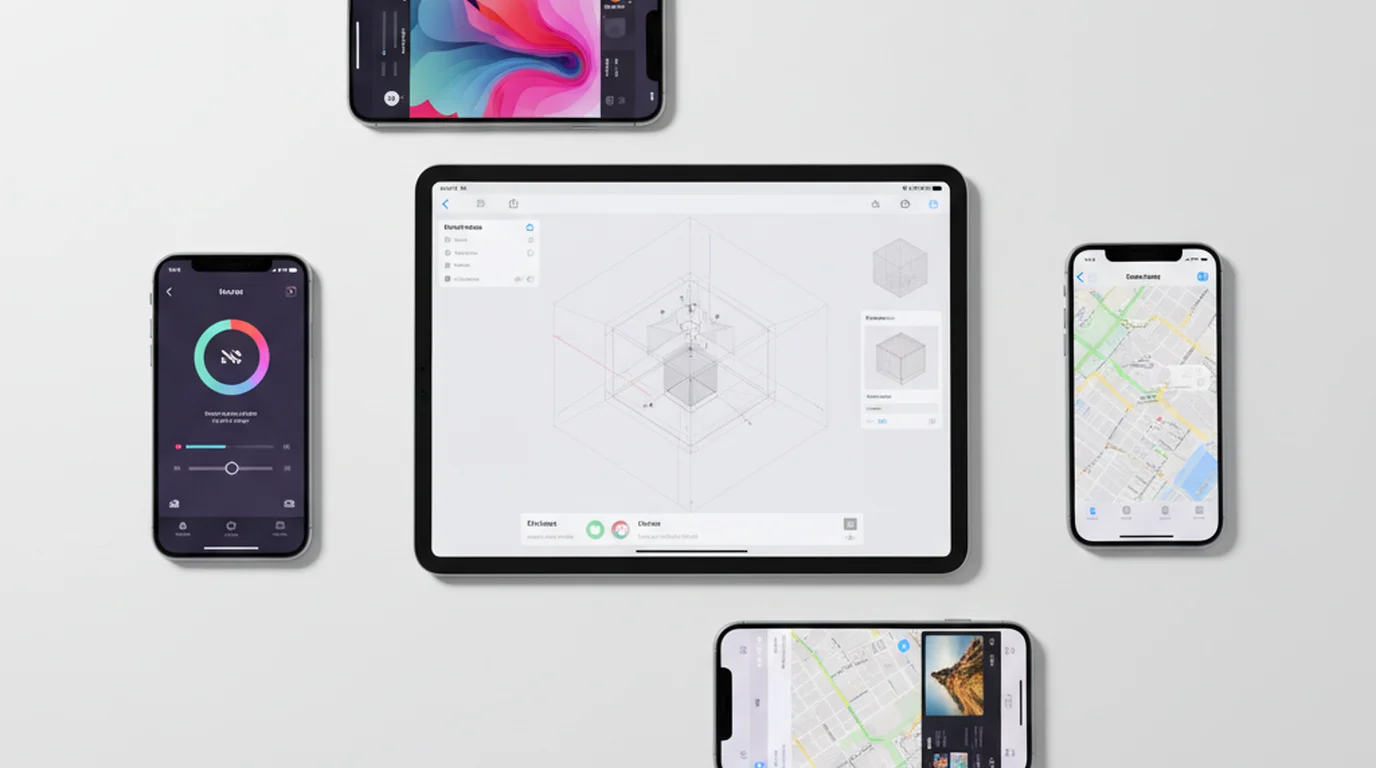
Best QPrompter Alternative for iPhone, iPad and Mac
 Wendy Zhang · May 20, 2026 · 8 min read
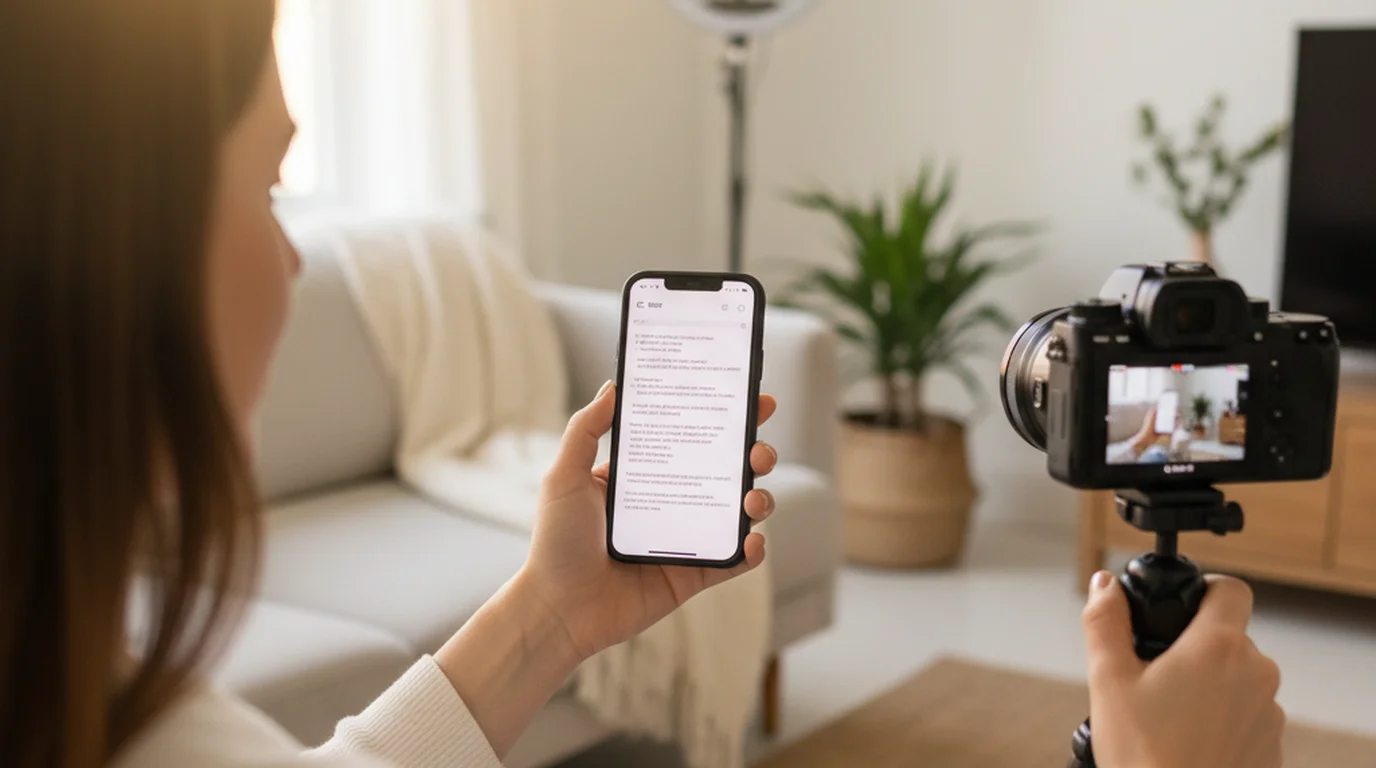
Q prompter tools — quick-access, browser-based teleprompters — have been a go-to for presenters and creators who want a simple scroll without installing anything. QPrompter fits that description: paste your script, set the speed, go full screen, and read. No sign-up, no download, works on any device with a browser. For a quick one-off read, it does what it says.
The limitations show up when you need more than a text scroll. QPrompter has no Camera mode, so you cannot record video with the script overlaid in the same app. Scripts are session-only — reload the page and they are gone. There is no offline support and no voice control. Teleprompter-Scrolling Scripts is a free native app for iPhone, iPad, and Mac that adds those capabilities while staying as easy as opening the camera: no login, no internet connection, and recordings at 1080p up to 4K with no watermark.
What is QPrompter?
QPrompter is a browser-based teleprompter that runs at qprompter.com. The workflow is minimal: navigate to the site, paste your script into the text field, configure the scroll speed and font size, and launch full-screen mode. The text scrolls from bottom to top while you read. When you are done, close the browser tab. There is no account, no download, and no data stored anywhere after the session ends.
QPrompter works on any device with a modern web browser — desktop computers, laptops, tablets, and phones on any operating system. That cross-device compatibility is one of the primary reasons people reach for browser-based prompters. If you need to use a Windows PC, a Chromebook, or an Android tablet for a quick read, a browser tool like QPrompter requires no installation at all.
The auto q teleprompter category — quick, no-frills browser prompters — is well-suited for situations where simplicity is the priority. Presenters who need to rehearse a short speech, educators who want to display text for a student exercise, or creators who occasionally need a prompter but do not want a dedicated app all find value in browser-based options. QPrompter delivers the core function cleanly.
The constraints are predictable: no persistent storage between sessions, a dependency on the network to load the page, and browser full-screen mode rather than a native app's window management. For occasional use those trade-offs are easy to accept. For regular recording workflows on iPhone, iPad, or Mac, they become friction.
Limitations of QPrompter
The most significant limitation of QPrompter is the absence of Camera mode. QPrompter cannot record video with the script overlaid in the same interface. That is a limit of QPrompter, not of the browser: teleprompter.works/online does exactly that in Recording mode. If you want to record while reading, you must open a separate camera app, manage two windows or two devices simultaneously, and coordinate the recording and scroll timing manually. For a single creator recording solo, that is a meaningful workflow burden.
Script persistence is the second major limitation. QPrompter stores your script in the browser session only. If you close the tab, navigate away, or the browser refreshes mid-session, the script is gone. For a one-time read this is acceptable. For a creator who refines scripts over multiple sessions — editing phrasing, adjusting length, adding section markers — losing the script on every session close is a practical problem. You end up maintaining scripts in a separate document and copying them into QPrompter before every use.
Offline use is unavailable. QPrompter loads from a server; if you have no network connection, the page does not load and you have no teleprompter. This becomes a real issue for location recording, classroom use, travel, and any environment where Wi-Fi is unpredictable. A native app with local storage avoids this entirely.
Voice commands are not part of the QPrompter feature set. Hands-free control — starting the scroll, pausing, adjusting speed without touching the screen — is not available in browser-based tools of this type. For mobile recording where your hands may be off the device during a take, or for situations where you want to avoid touching the screen to keep the frame stable, this is a meaningful gap.
QPrompter vs Teleprompter-Scrolling Scripts — feature comparison
The table below summarizes the key differences between QPrompter and Teleprompter-Scrolling Scripts for the features most relevant to regular recording workflows.
| Feature | QPrompter | Teleprompter-Scrolling Scripts |
|---|---|---|
| Platform | Browser (any) | iPhone, iPad, Mac, any browser |
| Camera mode | No | Yes |
| Offline use | No | Yes |
| Script saved | Session only | Locally |
| Voice commands | No | Yes, in Prompter mode (English) |
| Free | Yes | Yes, 1080p up to 4K, no watermark |
| Android/PC | Yes | Yes, via teleprompter.works/online |
Both tools are free. The practical difference is in what each tool can do within its category. QPrompter covers the browser scroll use case well. Teleprompter-Scrolling Scripts adds Camera mode, offline use, persistent storage, and voice commands for users on Apple platforms.
For Android and PC users who need a browser option, teleprompter.works/online is a free browser teleprompter that works across platforms — a direct equivalent to QPrompter without requiring an app install.
Camera mode: what QPrompter cannot do
Recording while the script scrolls is the clearest functional gap between QPrompter and a prompter that integrates the camera. In Camera mode, the script text overlays the live camera feed in the same window. You look at the text — which is positioned close to the lens — and the camera records your delivery. The result is natural eye contact in the recording without the tell-tale sideways glance of a speaker reading off-screen notes.
QPrompter does not combine camera recording with its overlay interface. That is a choice its authors made, not a browser limit — teleprompter.works/online requests camera access, overlays the script on the preview, records the take and hands you the file, all in one tab. What a browser still cannot do is operations that native apps handle cleanly and browsers do not.
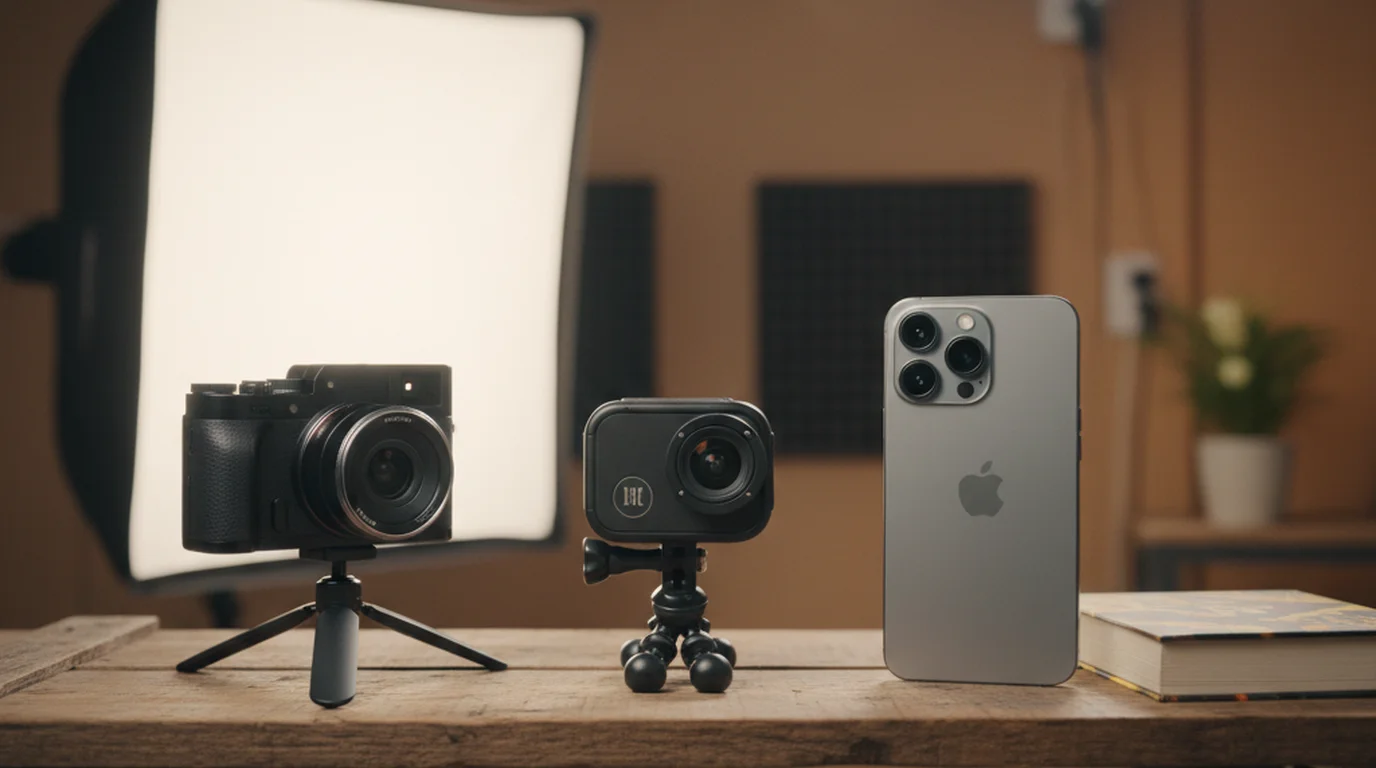
The practical workflow difference is significant. Without Camera mode, recording while using QPrompter requires running two apps simultaneously: QPrompter in the browser for the script, and a separate camera app for recording. On iPhone, this means managing split-screen or switching back and forth between apps — neither is smooth during a take. On Mac, it means arranging two windows, making sure the recording app captures the right area, and hoping neither crashes mid-session. On iPad, the large screen helps but the workflow is still split across two apps.
With Camera mode in Teleprompter-Scrolling Scripts, the recording and the script are in one window on one app. Start the scroll, tap record, deliver your lines, stop. The recorded file is saved locally and ready to edit. No second app, no window management, no coordination between recording and scroll timing.
How to switch from QPrompter to a native app
Switching from QPrompter to Teleprompter-Scrolling Scripts takes about five minutes and requires no file conversion or export. Scripts are plain text, so the migration path is copy and paste.
If you keep your scripts in a document — Google Docs, Notes, Pages, a text file — open that document, copy the script text, and paste it into a new script in Teleprompter-Scrolling Scripts. If your scripts only existed in QPrompter browser sessions, you will need to re-paste them from whatever source document you used to create them in the first place.
Once you paste, make one formatting adjustment that helps with delivery: break long paragraphs into shorter ones. QPrompter and most browser prompters display text in continuous scroll, so paragraph breaks are less important. In a native app where you may pause and restart at section boundaries, short paragraphs — three to four sentences — give you natural restart points and make retakes faster. A verse break or a topic shift is a better restart point than the middle of a long paragraph.
Set your text size for the device and recording distance you use most. On iPhone, larger text with a moderate scroll speed typically works better than small text at high speed. Save those settings and they apply to every session from that point forward. The first session involves a few minutes of calibration; every session after that opens ready to record.
If you record on multiple devices — iPhone for mobile, Mac for desk — your scripts can live on both. Teleprompter-Scrolling Scripts works as a native app on each, with scripts stored locally on the device. You can maintain the same script on both by pasting it on each device once, or by keeping your master scripts in a document app that syncs across devices and pasting fresh when you need to update.
When QPrompter is the right choice
QPrompter earns its place in specific use cases where the browser-based approach is actually the right fit. Understanding those cases helps you choose the right tool for each recording context rather than defaulting to one tool for everything.
PC and Windows users are the clearest case. If your primary recording device is a Windows laptop or desktop, a browser-based prompter is the practical option. QPrompter works on any browser, so Windows users can access it without any install. For the same use case on any device including Windows, teleprompter.works/online provides a free browser teleprompter that works without installation.
Android phone and tablet users are in the same position: a browser tool such as QPrompter or teleprompter.works/online is the self-contained option.
Quick, one-time browser sessions where you do not need to save anything are a natural fit for QPrompter. If you are rehearsing a speech at a shared computer, previewing a script you wrote five minutes ago, or helping someone else read a passage on a device that isn't yours, a no-install browser tool is faster than downloading an app. The zero-friction access of a browser tool is genuinely useful in these situations.
For Chromebook users and anyone in a managed IT environment where app installations are restricted, a browser tool is often the only viable path. QPrompter and browser-based prompters generally work in these environments because they require no installation and no elevated permissions beyond camera access in the browser.
Free native app for iPhone, iPad, and Mac
Teleprompter-Scrolling Scripts is free on the App Store for iPhone and iPad, and free on the Mac App Store as a native macOS app. The same Apple ID covers all three platforms — one download, one free install, available on all your Apple devices.
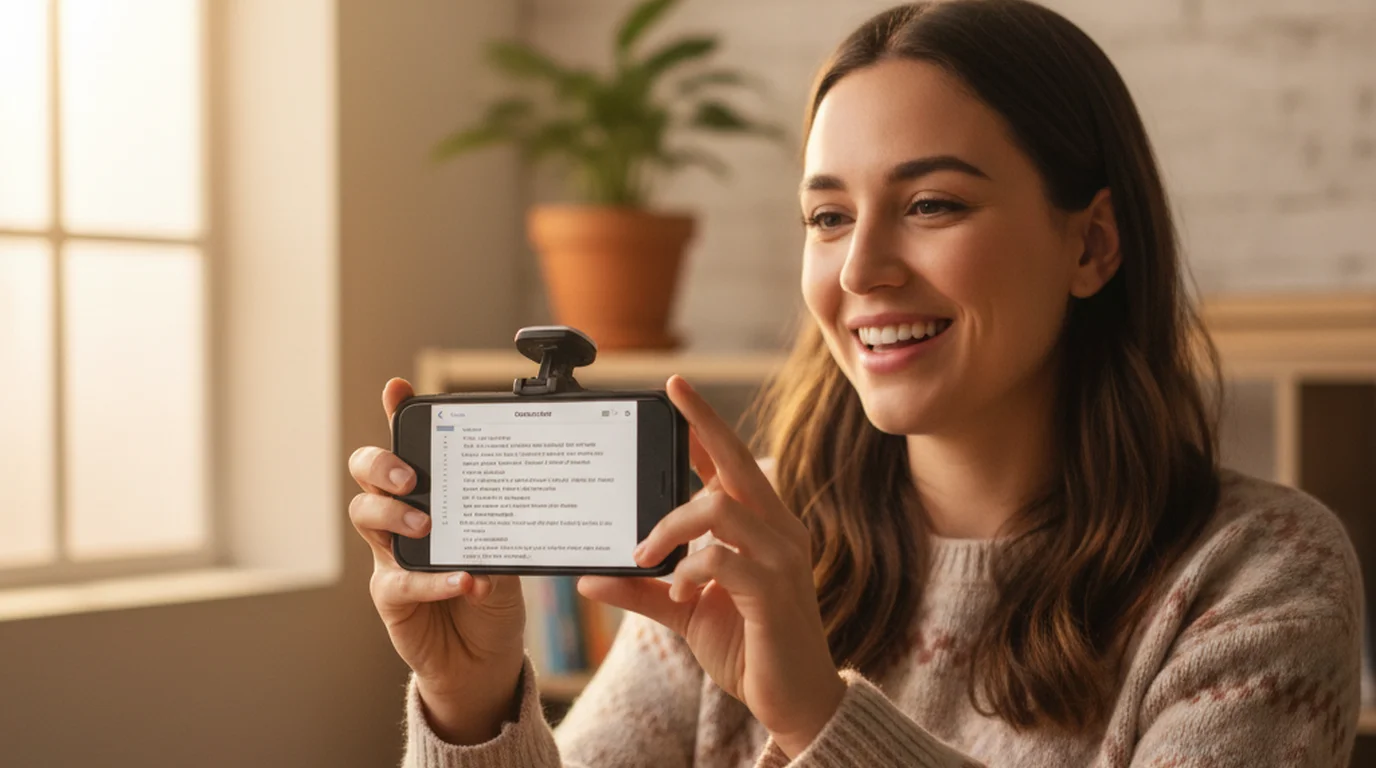
It is very convenient: recording with it is as simple as opening the camera, with no login and no internet connection. On iPhone, iPad, and Mac, Camera mode uses the front camera and scrolls your script over the live preview, like text running across the built-in camera, and you can change the scroll speed, text size, text color, and background color while you record.
Where the words sit is up to you. Move the text area to the middle of the screen or tuck it right under the camera, make it larger or smaller, and set the text size and scroll speed to match how you read, so the recording looks like you talking rather than you reading.
Three modes cover the jobs a browser scroll leaves out: Camera records video, Voice records audio only while the script scrolls, and Prompter shows the script full screen for reading practice or for another camera, with optional English voice commands for hands-free control. Scripts are stored locally, recordings come out at 1080p, up to 4K depending on the device, and there is no weekly recording limit, no watermark on output video, and no account required to use the app or access any feature.
For creators who are already in the Apple ecosystem — using iPhone for mobile recording, iPad for presentations, and Mac for desk recording — a single native app that runs well on all three platforms is more efficient than managing browser bookmarks and re-pasting scripts across multiple sessions. The workflow carries over: the same script formatting, the same text size preferences, the same recording approach, regardless of which device you pick up.
The FAQ page covers common setup questions including Camera mode configuration, script formatting tips, and voice command setup for hands-free control. If you are coming from a browser-based prompter and setting up a native app for the first time, those answers cover most of what comes up in the first few sessions.
Frequently Asked Questions
What is QPrompter?
QPrompter is a free browser-based teleprompter. You paste your script at qprompter.com, set the scroll speed, and read in full-screen mode. No account or download required. It works on any device with a browser. Its main limitations are no Camera mode and no offline support.
What is a good QPrompter alternative for iPhone?
Teleprompter-Scrolling Scripts is a free native iPhone teleprompter with Camera mode (records video with script overlay), offline use, persistent script storage, and voice commands. QPrompter offers none of these.
Can I use QPrompter for video recording on iPhone?
QPrompter scrolls text in your browser but does not record video. To read and record simultaneously in the same app, you need Camera mode in a native app. Teleprompter-Scrolling Scripts provides Camera mode free on iPhone, iPad, and Mac.
Is there a free QPrompter alternative for Mac?
Yes. Teleprompter-Scrolling Scripts is free on the Mac App Store with Camera mode, Prompter mode, and offline use. For a browser-based option that works on any device without installation, teleprompter.works/online provides the same read-only scroll experience as QPrompter.
Wendy ZhangWendy Zhang is the indie developer behind Teleprompter-Scrolling Scripts, which she built after cycling through teleprompter apps that were too heavy, too expensive, or dependent on a network connection to open. She writes about the mechanics of recording yourself — scroll pacing, script formatting, and the app decisions that decide whether a take survives.
Try the free QPrompter alternative for iPhone, iPad, and Mac
Teleprompter-Scrolling Scripts is free on the App Store — Camera mode, offline use, persistent scripts, and voice commands included. No subscription, no account required.
Use Free Online Teleprompter Get the Free App