What Is an Automatic Teleprompter? Auto-Scroll Guide for Video Creators
 Wendy Zhang · May 20, 2026 · 8 min read
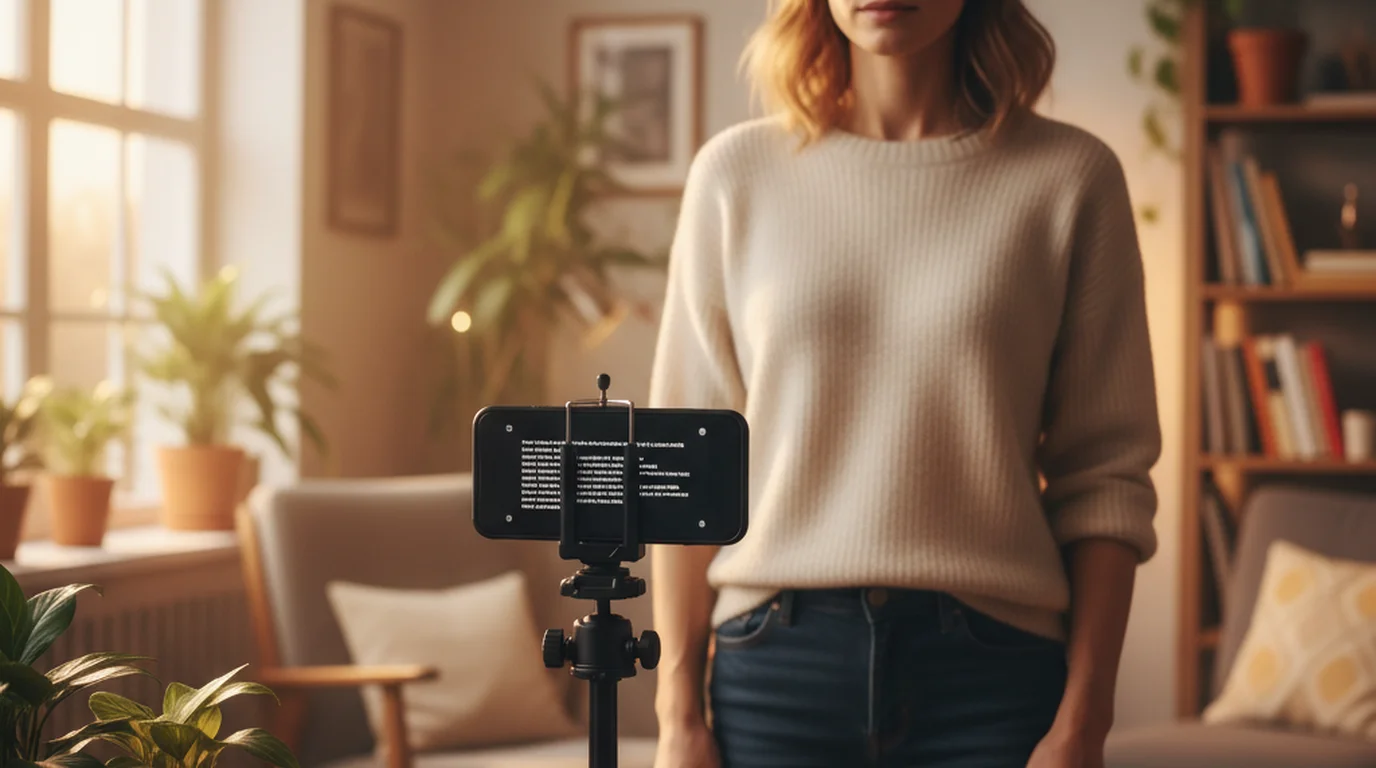
An automatic teleprompter — also called an auto teleprompter or auto prompter — scrolls your script at a consistent speed without any manual input during the recording session. You set the scroll speed once before you start, tap play, and the text advances continuously while you speak. Your hands are free, your eyes stay near the lens, and you deliver the script without stopping to swipe the screen or adjust anything mid-take.
Teleprompter-Scrolling Scripts uses auto-scroll as the default mode on iPhone, iPad, and Mac. Set the speed before your session, tap to start, and the script advances hands-free. You can also combine auto-scroll with voice commands for fully hands-free control — useful when your phone is on a tripod and you cannot reach the screen without disrupting the shot.
What makes a teleprompter "automatic"
The term automatic teleprompter refers to how the script advances during a session. In an automatic or auto-scroll teleprompter, the text moves at a fixed speed you configure in advance. Once you press play, the script continues scrolling without any further input from you. You read, the text moves, and the session proceeds at the pace you set.
This is different from a basic text viewer or a notes app, where you would need to manually swipe or tap to advance the content. Manual scrolling during recording creates visible movement in your hands or arms, interrupts your delivery rhythm, and produces inconsistent pacing across takes. Auto-scroll removes all of that. You interact with the script once — when you set the speed — and then you focus entirely on speaking.
The contrast with a voice-following teleprompter is also worth noting. A voice-following or speech-tracking teleprompter uses speech recognition to detect what you are saying and advances the script word by word as you speak. Auto-scroll is simpler and does not require a microphone input for the scroll function. Both approaches have trade-offs, which the FAQ section covers in more detail.
How auto-scroll works in a teleprompter app
In a teleprompter app, auto-scroll works by advancing the text area at a continuous, fixed rate measured in words per minute or a relative speed setting. When you open a script and configure the speed, the app calculates the rate at which the text needs to move to match that target. Tap the play button and the text begins scrolling from the top.
Most teleprompter apps — including Teleprompter-Scrolling Scripts — allow you to pause at any point during a session without losing your place. Tap once to pause, tap again to resume. The scroll restarts from exactly where it stopped. You can also manually drag the text while paused to reposition it before resuming, which is useful when you want to restart from a specific paragraph rather than from the beginning.
The practical experience of a well-calibrated auto-scroll session is that the script feels like it is following you, not the other way around. The key to that feeling is setting the speed correctly, which is the next step after understanding how the mechanism works.
Auto-scroll is the standard mode in professional teleprompter hardware and in most teleprompter apps. The technology is simple — continuous text advancement at a set rate — but the impact on delivery quality is significant. Removing the need to manually advance the script frees up your attention for voice, expression, and eye contact with the lens.
How to set the right auto-scroll speed
The right auto-scroll speed is the one that matches your natural speaking rate on camera. Most people speak at 130–160 words per minute in conversation, but speaking on camera tends to slow delivery by 10–20 percent — especially when reading from a script. A useful starting baseline for automatic teleprompter speed is 120–140 words per minute.
The fastest way to calibrate is the 20-second test. Set the speed to your starting baseline, record a 20-second clip, and watch it back. If you are visibly rushing the script — compressing words, dropping breaths, leaning slightly forward — slow down. If you are waiting for the text or pausing awkwardly between sentences, speed up. Repeat with one or two adjustments until the delivery feels natural in the playback.
Common mistakes when setting speed: setting it too fast because it feels comfortable during a silent read-through (speaking out loud takes more time), and keeping the same speed across different types of scripts (technical content with dense terminology reads slower than conversational content). Adjust speed per script type, not just once globally.
In Teleprompter-Scrolling Scripts, the scroll speed slider is accessible from the main script view before you start a session. The adjustment takes a few seconds, and the setting persists across sessions so you do not have to reconfigure from scratch every time you record.
Using an automatic teleprompter on iPhone
On iPhone, an automatic teleprompter is most effective when the text size is large enough to read comfortably at arm's length. The phone screen is compact — typically 6 to 6.7 inches — which means smaller text requires more eye movement and more visible scanning. Set the font size to fill roughly the middle third of the screen with 3–4 lines of text at a time. This keeps the reading area close to the camera lens and reduces the eye travel that makes script-reading visible on video.
Camera mode in Teleprompter-Scrolling Scripts overlays the scrolling script on the live camera view. As you watch the text and speak, the front camera records your video simultaneously. The resulting file is saved to your camera roll as a standard video file, ready to import into any editing app.
For vertical video — TikTok, Instagram Reels, YouTube Shorts — hold the phone in portrait orientation and position the text near the top of the frame. The camera lens on most iPhones is at the top edge, and placing the text near the top keeps your gaze close to the lens, producing a natural-looking direct address to the viewer.
Using an automatic teleprompter on iPad
On iPad, the larger screen changes the dynamic considerably. You have more space to display text, which means you can show more lines at a comfortable size without the text feeling cramped. The wider view also means you can position text and camera feed side by side in some configurations, or use a larger font with generous line spacing that makes extended reading sessions — course modules, coaching sessions, webinar scripts — significantly more comfortable.
iPad is well suited to longer-form content. If your script runs 1,000–3,000 words — a full tutorial, a course lesson, or an extended explainer — the iPad's screen real estate makes it easier to stay oriented in the script and maintain consistent pacing across a long take. The auto prompter keeps advancing at the set rate, and the larger text means your eyes are not working as hard to track each line.
Educators and coaches recording lesson content often find iPad the most comfortable device for auto-scroll sessions. The tablet format also makes it easier to prop the device at a natural eye height on a stand or desk mount, which helps with framing and reduces neck strain during longer recording sessions.
Using an automatic teleprompter on Mac
On Mac, an automatic teleprompter serves two distinct use cases: Camera mode for webcam recording, and Prompter mode for keeping a script visible without recording inside the app.
In Camera mode, the script overlays the webcam feed and records the session — the same workflow as on iPhone and iPad, scaled up to a desktop or laptop display. This is useful for YouTube talking-head videos, online course content, product demos, and any recording done at a desk setup.
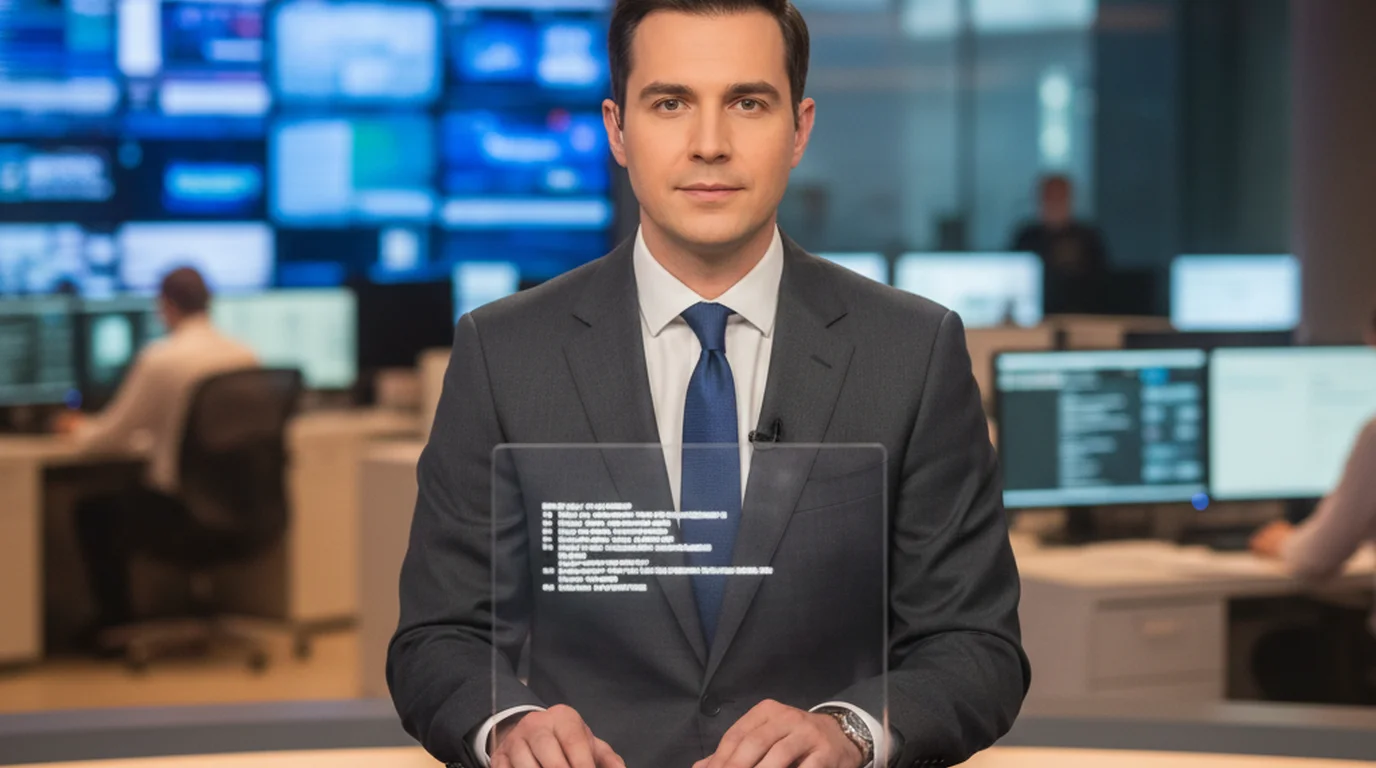
Prompter mode is where the Mac becomes especially useful. In Prompter mode, the script scrolls on your Mac display without activating the camera or recording inside the app. This lets you keep the scrolling script visible during a Zoom call, a livestream, or a presentation while your recording software or video conferencing tool handles the camera separately. The auto-scroll advances the text at the speed you set, and you can pause or resume without leaving the session. This is the closest consumer equivalent to how broadcast news anchors use a prompter — the script advances automatically, your eyes stay forward, and the camera sees you speaking naturally.
Auto-scroll + voice commands for fully hands-free sessions
Auto-scroll handles the continuous advancement of the script without any input during the session. But what happens when you need to pause mid-script, back up to re-record a paragraph, or skip ahead? If your phone is on a tripod three feet away, reaching for the screen means a visible interruption in the shot.
Voice commands solve this. In Teleprompter-Scrolling Scripts, you can control the scroll with spoken commands while the session is running. Say "pause" to stop the scroll and resume recording your own words, "next" to advance the script, or "previous" to go back. The commands work without touching the device, which means your hands stay in frame naturally and your body position does not shift.
The combination of auto-scroll and voice commands produces a genuinely hands-free session: set the speed, tap play once, and control everything thereafter with your voice. For creators who record with their phone on a tripod, a ring light stand, or a desk mount, this combination removes the last remaining reason to reach for the device during a take. The FAQ page has additional guidance on voice command setup and troubleshooting for different recording environments.
Frequently Asked Questions
What is an automatic teleprompter?
An automatic teleprompter scrolls your script at a set speed without requiring you to manually move the text. You set the scroll speed before the session, tap play, and the text advances continuously while you speak. Most teleprompter apps — including Teleprompter-Scrolling Scripts — auto-scroll by default and allow you to pause or manually adjust at any point.
How do I set the auto-scroll speed on a teleprompter app?
Start with a speed that matches 120–140 words per minute, which is slightly slower than natural conversation. Record a short 20-second test, watch it back, and adjust. Most people need to slow down more than they expect because speaking on camera takes more time than silent reading. In Teleprompter-Scrolling Scripts, the scroll speed slider is accessible from the main script view.
Can I use an automatic teleprompter hands-free?
Yes. Combined with voice commands, you can control the scroll entirely hands-free. In Teleprompter-Scrolling Scripts, say "next" to advance, "previous" to go back, and "pause" to stop or resume scrolling. This is useful when your phone is on a tripod or stand and you cannot reach the screen.
What is the difference between auto-scroll and voice-following teleprompter?
An auto-scroll teleprompter advances the text at a fixed speed you set in advance. A voice-following teleprompter uses speech recognition to detect your words and advances the script automatically as you speak. Voice-following is more dynamic but less predictable; auto-scroll is simpler and more reliable for scripted recordings.
Complete guide: What Is a Teleprompter? How It Works, Types, and When to Use One — history, hardware vs software, types, cost, and free options for every platform.
Wendy ZhangWendy Zhang is the indie developer behind Teleprompter-Scrolling Scripts, which she built after cycling through teleprompter apps that were too heavy, too expensive, or dependent on a network connection to open. She writes about the mechanics of recording yourself — scroll pacing, script formatting, and the app decisions that decide whether a take survives.
Try auto-scroll on iPhone, iPad, or Mac
Teleprompter-Scrolling Scripts is free with auto-scroll, Camera mode, Prompter mode, and voice commands. No account required — paste your script and start.
Use Free Online Teleprompter Get the Free App